How to Start, Stop, and Restart Services in Windows 11

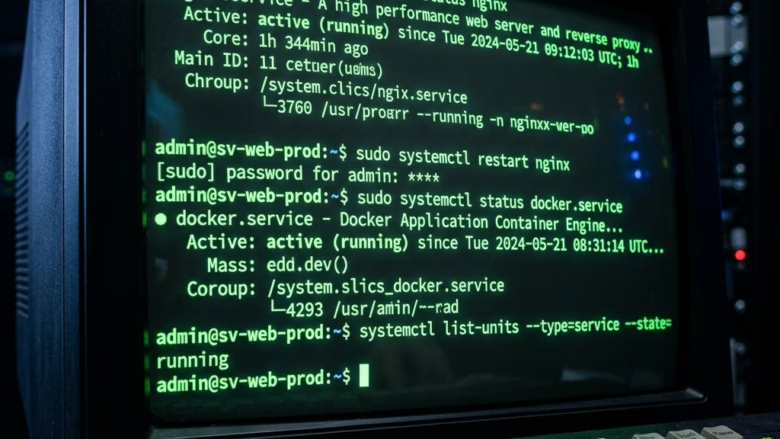
Windows services are background programs that handle core operating system tasks such as networking, audio, and printing. A typical Windows 11 PC has well over 200 of them. When a feature stops working, for example no sound, a printer that will not print, or Wi-Fi that will not reconnect, restarting the related service is often the quickest fix. You can do this from the built-in Services app, from Task Manager , or from the command line. The Services app is available in both Windows 11 Home and Pro.
You can start, stop, and restart Windows 11 services using the Services console or command prompt. Open Services, find the service, then right-click and select Start, Stop, or Restart. Alternatively, use command prompt commands like “net start service name”.
Troubleshooting Service Failures
Two errors come up most often when you manage services. Error 1053 means the service did not respond to the start or stop request in time. Access Denied means your account lacks the permissions to change that service.
If you see Access Denied, close the window and reopen the tool as an administrator. If you see Error 1053, wait a minute and try again. If it keeps failing, restart the PC, since a service that hangs while starting often clears up after a reboot.
Pro Tip: Using the Command Line
sc query followed by the service name.You will see right away whether the service is running or stopped, without opening any extra windows.
Note: You need to be signed in with an administrator account to start, stop, or restart services. If a UAC prompt appears, click Yes. A standard account will be asked for administrator credentials or will get an Access Denied error.
Option 1Using the Services Console
The Services console is the easiest place to manage services. It lists every service on the PC with its status and startup type, and you control each one with a right-click.
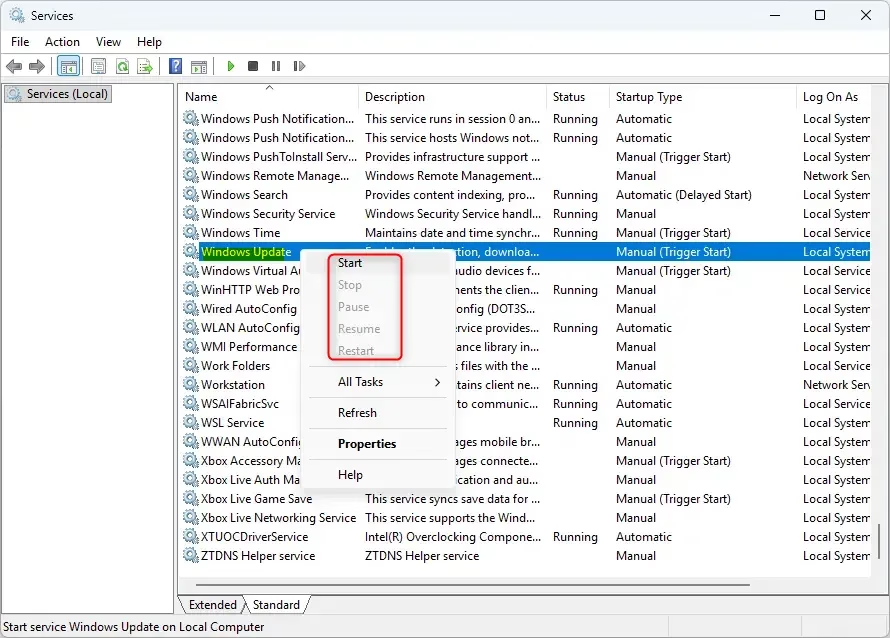
- Click the Start button, type Services, and press Enter. The Services window opens with an alphabetical list of services.
- Scroll to the service you want, or click the Name column header to sort the list. Check the Status column. A service that is running shows "Running". A stopped service has a blank status.
- Right-click the service name and select Start, Stop, or Restart. A small progress box appears for a moment, and then the Status column updates.
Some options may be greyed out. Start is unavailable while the service is already running, and Restart is unavailable while it is stopped. If you stop a service that other services depend on, Windows asks whether to stop those too. Read the list before you click Yes.
Starting or stopping a service here only changes its current state. Its startup type decides what happens after the next reboot. To check or change that, right-click the service and open Properties.
If you prefer the command line, you can also stop a service by typing net stop "Service Name" and pressing Enter, or by using sc stop "Service Name". Run either one from a Command Prompt or Terminal window opened as administrator.
Option 2Using Task Manager
Task Manager is a quick way to manage services without opening another tool. It shows each service with its status, so you can act on it right away.
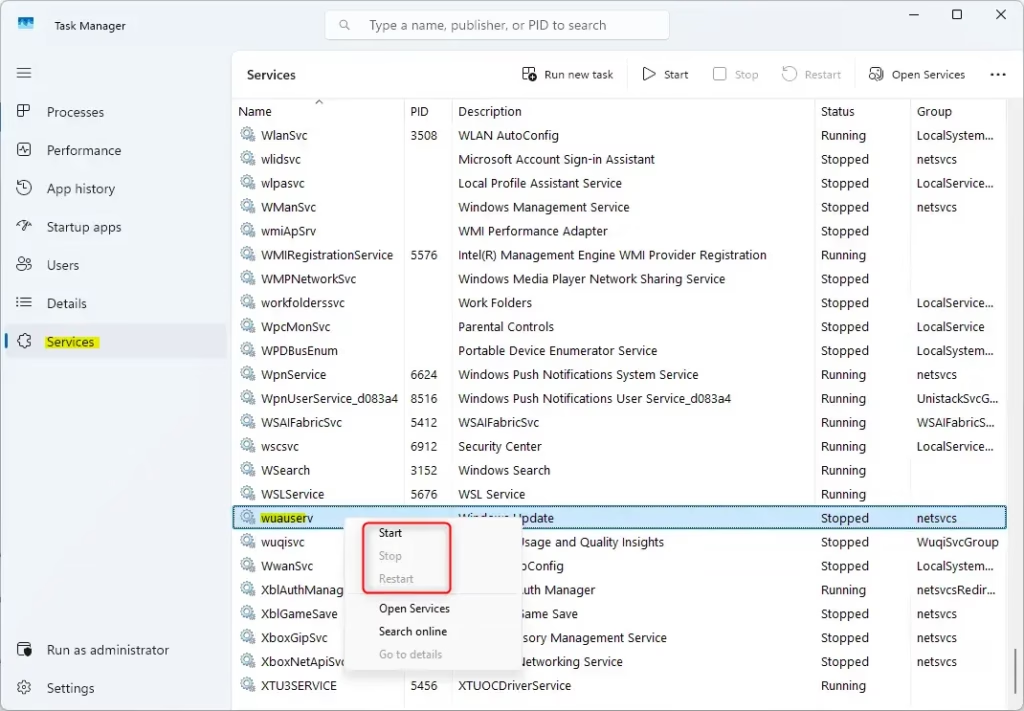
- Press Ctrl + Shift + Esc to open Task Manager. If you see only a small window, click More details.
- Open the Services tab. In Windows 11 version 22H2 and later it is in the navigation list on the left. In earlier builds it is in the row of tabs across the top.
- Find the service and right-click it. Choose Start, Stop, or Restart. You may see a UAC prompt. The Status column then shows "Running" or "Stopped".
Task Manager shows the service name, not the friendlier display name, so it can be harder to find the one you want. If you cannot tell which entry is the right one, use the Services app instead.
The command-line equivalent to start a service is net start "Service Name", followed by Enter, or you can use sc start "Service Name". Run it from a window opened as administrator.
Option 3Using the Command Prompt (Admin)
The command line is the fastest option, but it only works from a window opened with administrator rights. Without them you get Access Denied. Use the service name exactly as the command expects. You can find it in the Services app by double-clicking a service and reading the Service name field on the General tab.
- Open an elevated window. Click the Start button, type Command Prompt, right-click the result, and select Run as administrator. Alternatively, right-click the Start button and select Terminal (Admin). Click Yes at the UAC prompt.
- To start a service, type the following and press Enter:
net start service nameornet start "display name" - To stop a service, type the following and press Enter:
net stop service nameornet stop "display name" - To restart a service, type
net stop "Service Name"and press Enter, then typenet start "Service Name"and press Enter. Run them in that order so the service is fully stopped before it starts again. - Alternatively, restart with
sc stop "Service Name"followed by Enter, thensc start "Service Name"followed by Enter.
After each command you should see a message saying the command completed or the service started or stopped. If you see "Access is denied", the window is not elevated. Close it and reopen it as administrator.


Option 4Using the SC Command
The SC command is aimed at more advanced use. Besides starting and stopping services, it can check exact status and change a service's startup type. Run it from Command Prompt or Terminal opened as administrator. If Terminal opens a PowerShell tab, switch to a Command Prompt tab first, because PowerShell treats "sc" differently.
- Click the Start button, type Command Prompt, right-click the result, and select Run as administrator. You can also open Terminal (Admin).
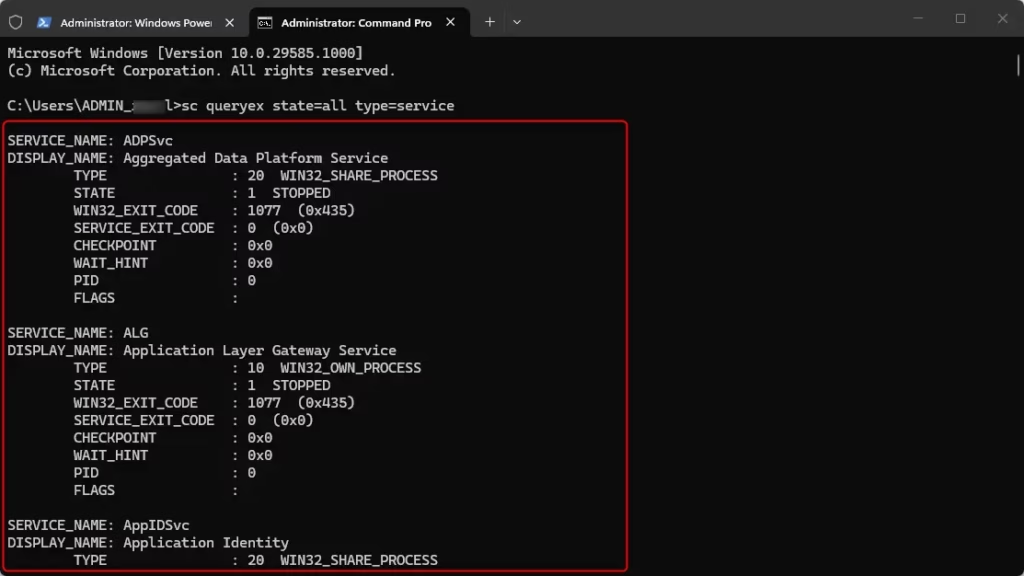
- To see the status of all services, type:
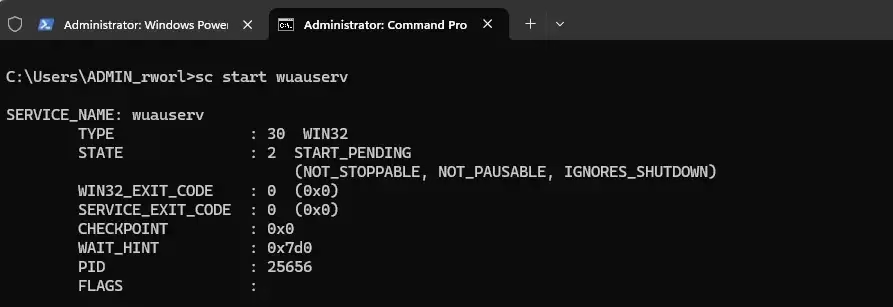
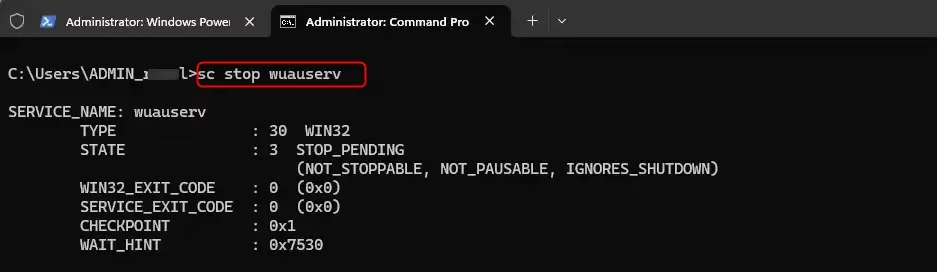
sc queryex state=all type=serviceThe output lists each service with its state, such as RUNNING or STOPPED. It is long, so you may need to scroll. - To start a service, type:
sc start service name - To stop a service, type:
sc stop service name - To disable a service so it cannot start, type
sc config "Service Name" start= disabledand press Enter. - To re-enable it, type
sc config "Service Name" start= autoand press Enter.
Disabling a service is a lasting change. It stays in effect after a restart until you re-enable it. Before you disable anything, note the service's current startup type in its Properties window in the Services app. That way you can put it back the way it was.
Option 5Using PowerShell
PowerShell is a good choice if you want readable commands or plan to script the work. Open it as administrator, or the commands that change a service will fail with an access error.
- Right-click the Start button and select Terminal (Admin). If the tab that opens is not PowerShell, open a new tab and choose Windows PowerShell.
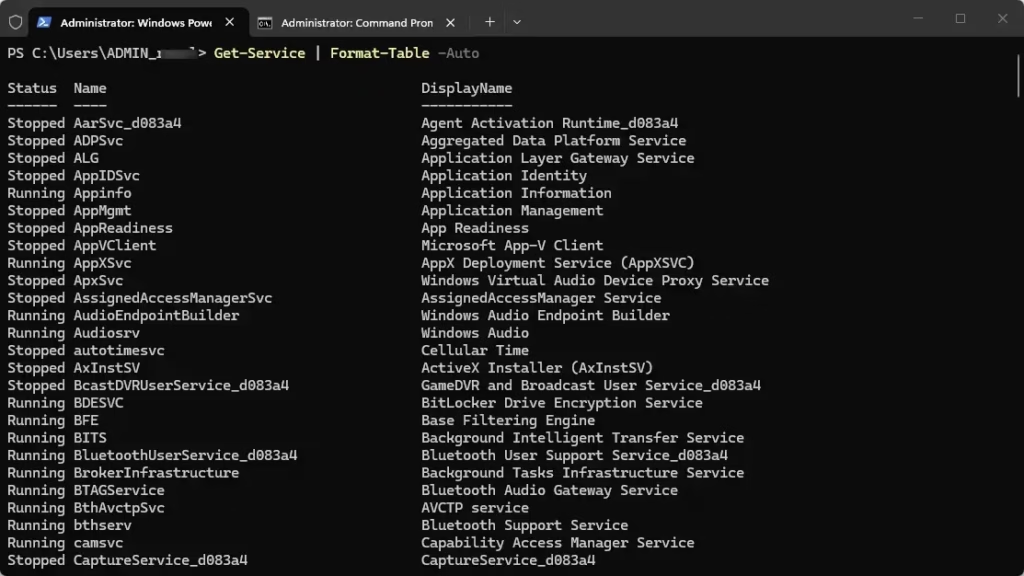
- To see all services, type:
Get-ServiceYou can also use:Get-Service | Format-Table -AutoThe list shows each service's status, name, and display name. - To start a service, type
Start-Service -Name "service name"and press Enter. These also work:Start-Service -Name "service name"orStart-Service -DisplayName "display name" - To stop a service, type
Stop-Service -Name "service name"and press Enter. These also work:Stop-Service -Name "service name"orStop-Service -DisplayName "display name" - To restart a service, type
Restart-Service -Name "service name"and press Enter. These also work:Restart-Service -Force -Name "service name"orRestart-Service -Force -DisplayName "display name"
If a command succeeds, PowerShell usually returns to the prompt without any message. Run the status command again to confirm the new state. If you see a red error about permissions, the window is not elevated.


Summary
Restarting the right service often fixes a broken feature without a full reboot. The Services console and Task Manager are the easiest options for occasional use. Command Prompt, SC, and PowerShell are faster when you know the service name or need to repeat the task. All of them require administrator rights.
Be careful with services you do not recognize, especially system ones. Stopping a critical service can make Windows unstable or break other features that depend on it. If something goes wrong, start the service again or restore its previous startup type in Properties. A restart of the PC returns most services to their normal state.
Have a question about this guide?
Answered by AI from this guide. Good questions may be added to this page — please don't include personal details.
Did this guide fix your problem?

About the Author
Richard
Tech Writer, IT Professional
Richard is a writer at Geek Rewind who turns complex IT tasks into clear, step-by-step guides. He draws on years of hands-on experience in system administration and enterprise IT operations, focusing on Windows, Linux and WordPress: the problems people actually run into, and the fixes that work. His server and WordPress guides come from systems he runs himself. Richard builds and maintains the platform behind Geek Rewind, from its Ubuntu servers and Nginx configuration to its custom WordPress plugins. Many new tutorials start with readers' questions, and he's always glad to answer them in the comments.
No comments yet — be the first to share your thoughts!