How to Set Your Primary Display in Windows 11

The primary display in Windows 11 is the screen that holds your taskbar, the system tray clock, and the default position for app windows when you open them. In a multi-monitor setup, setting it correctly makes sure games, pop-ups, and new programs open on the screen you actually look at.
You pick your main screen in the Settings app, and the steps below apply to Windows 11 version 22H2 and later. In short: open Settings System Display, click Identify to see your monitor numbers, select the monitor you want, and check Make this my main display. The sections below go through each step. The setting is the same on Home and Pro, and you don’t need an administrator account to change it on most PCs.
Go to Settings System Display. Select the desired monitor, scroll down to “Multiple displays,” and check “Make this my main display.” This sets your preferred screen for the taskbar and new application windows.
What happens when you are done?
When you set the primary display, the monitor you choose becomes your main workspace. The taskbar and new app windows appear there automatically. Here is the quick version:
- Open Settings System Display
- Click the rectangle for the monitor you want as your main screen.
- Expand Multiple displays.
- Check Make this my main display.
After you check the box, the screen may flicker for a moment. The taskbar should then move to the monitor you picked. This makes a multi-monitor desktop much easier to manage, because everything new opens where you expect it.
How to Identify and Configure Monitors
Before you change anything, work out which on-screen rectangle matches which physical monitor. Guessing is how people end up moving the taskbar to the wrong screen. Here is how to see your screen map:
- Open Settings System Display
- Look at the top of the page. You should see a map with one numbered rectangle for each connected screen.
If a monitor you have plugged in is missing from the map, check that it is powered on and set to the right input on its own menu. Also check that the cable is firmly connected. Then reopen the Display page.

To match the map to your desk, click the Identify button. A large number appears in the corner of each physical screen for a few seconds. Compare those numbers with the numbers on the rectangles in Settings. Now you know which rectangle is which monitor.
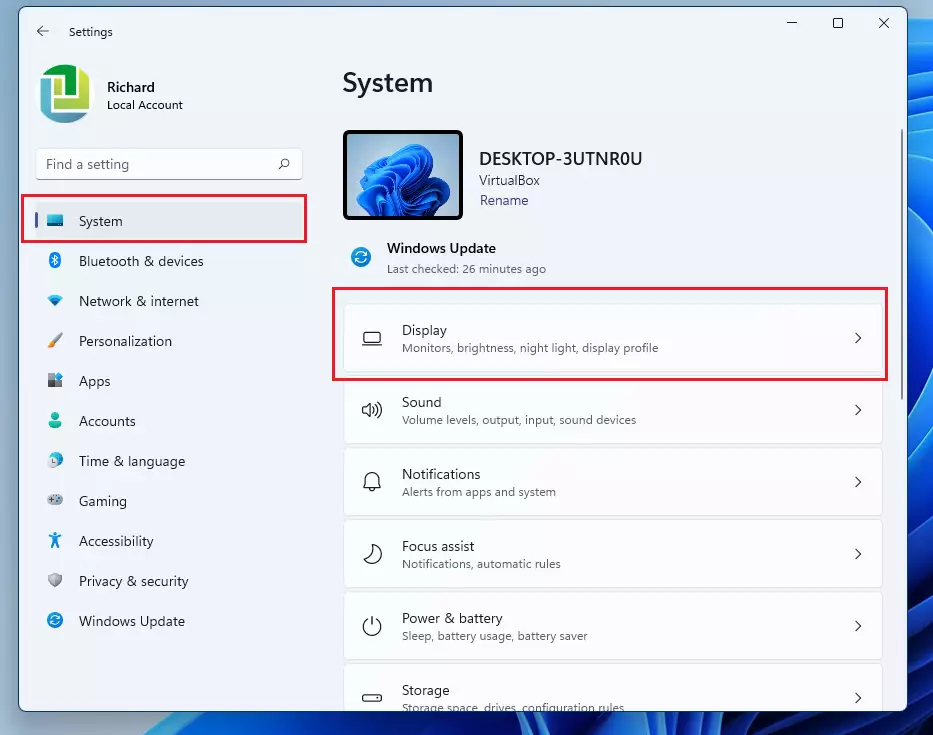
Next, check how Windows is using your screens. Under Multiple displays, make sure the dropdown menu is set to Extend these displays. This mode treats your monitors as one large workspace instead of mirroring the same image on each one.
If the dropdown shows a different option, such as duplicate, choose Extend these displays first. In duplicate mode, both screens show the same picture, so there is no separate main display to choose. You can also switch modes quickly by pressing the Windows key plus P.
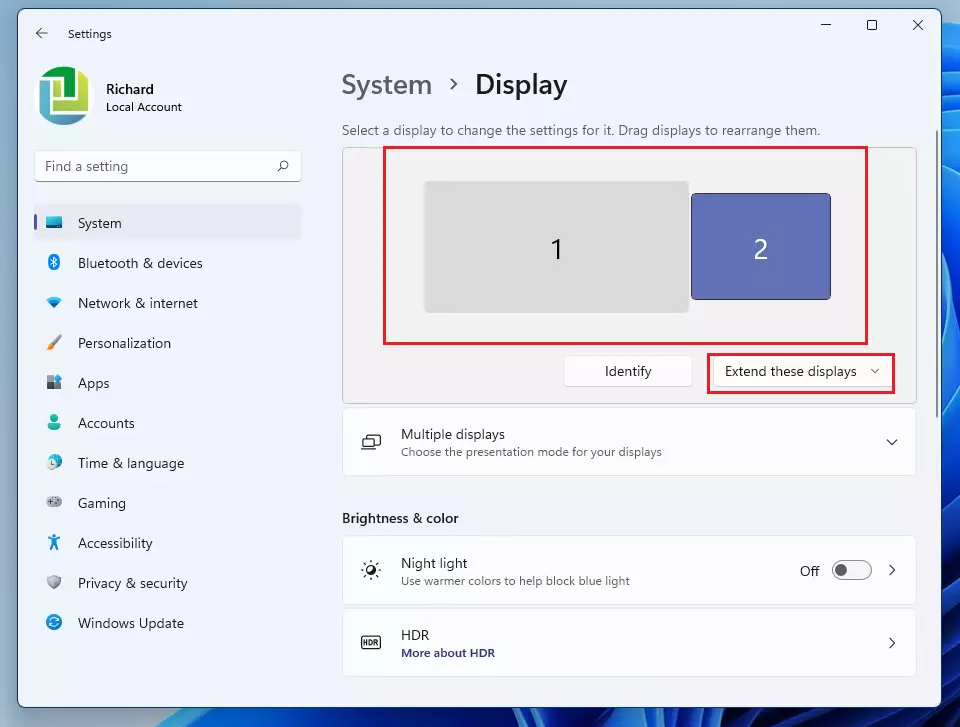
To change your main screen, follow these steps:
- Click the rectangle representing the monitor you want to be your primary display. The selected rectangle is highlighted.
- Scroll down to the Multiple displays section and expand it if it is collapsed.
- Check the box that says Make this my main display. The screen may blink, and the taskbar and system tray clock should now appear on the monitor you chose.
To undo the change, select the other monitor's rectangle and repeat the same steps.
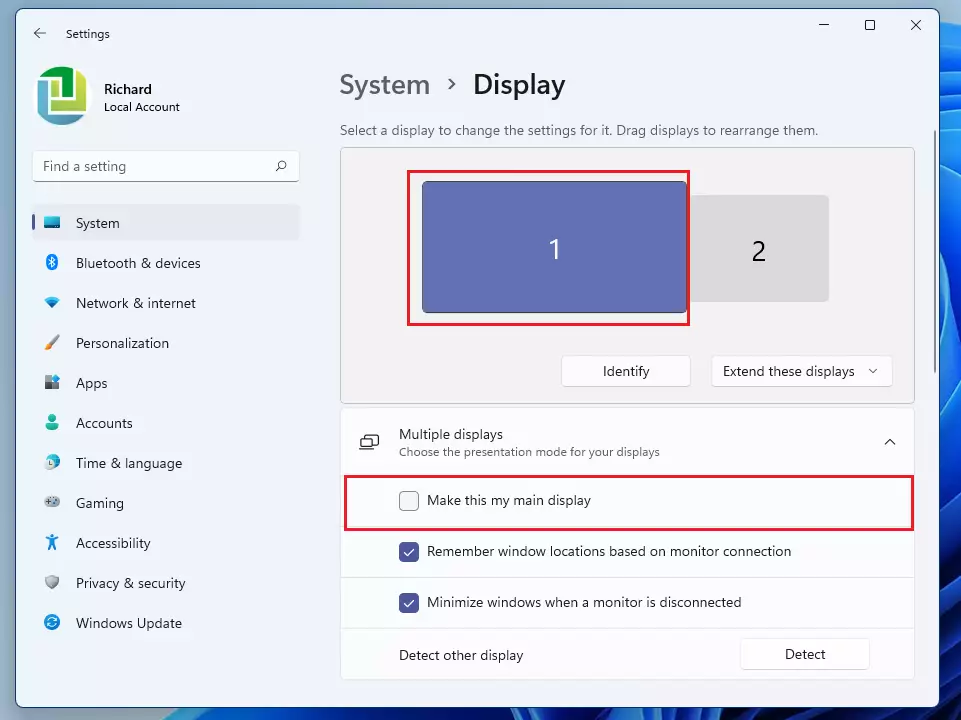
If the Make this my main display box is greyed out, the monitor you selected is already your main display. You don't need to do anything. To move the main display, select a different monitor's rectangle instead. If something still looks wrong after the change, for example windows opening on the old screen, restart your computer to finalize it. A restart is not normally required.
Troubleshooting Display Issues
If your display settings don't save, a monitor keeps disappearing, or the main display switches back after a restart, start with your graphics drivers. Outdated or damaged drivers are the most common cause. Update them through Windows Update, or download the latest version from your graphics card maker. Also check the cables and try a different port if you can.
If the taskbar still doesn't show where you want it, open Settings Personalization Taskbar and look under Taskbar behaviors. The option to show the taskbar on all displays is there, and you can turn it on if you want the taskbar on every screen.
For more help, you can visit the official Microsoft support page.
Summary
Setting your primary display in Windows 11 is key for a clean, productive multi-monitor setup. Identify your screens first, make sure they are in extend mode, and then select the main display. That gives you control over where the taskbar and new apps appear. If you run into bugs, updating your drivers or checking your taskbar settings usually fixes the problem.
Have a question about this guide?
Answered by AI from this guide. Good questions may be added to this page — please don't include personal details.
Did this guide fix your problem?

About the Author
Richard
Tech Writer, IT Professional
Richard is a writer at Geek Rewind who turns complex IT tasks into clear, step-by-step guides. He draws on years of hands-on experience in system administration and enterprise IT operations, focusing on Windows, Linux and WordPress: the problems people actually run into, and the fixes that work. His server and WordPress guides come from systems he runs himself. Richard builds and maintains the platform behind Geek Rewind, from its Ubuntu servers and Nginx configuration to its custom WordPress plugins. Many new tutorials start with readers' questions, and he's always glad to answer them in the comments.
[…] way to do this is to click on the far right corner of the taskbar on the main display to show the desktop and minimize all open windows, and click on it again to restore all minimized […]
[…] can only set different backgrounds when you extend your display across multiple monitors. Once your display is extended to other monitors, you can set different backgrounds, and the steps […]