How to Check If You’re Using the Microsoft Basic Display Adapter

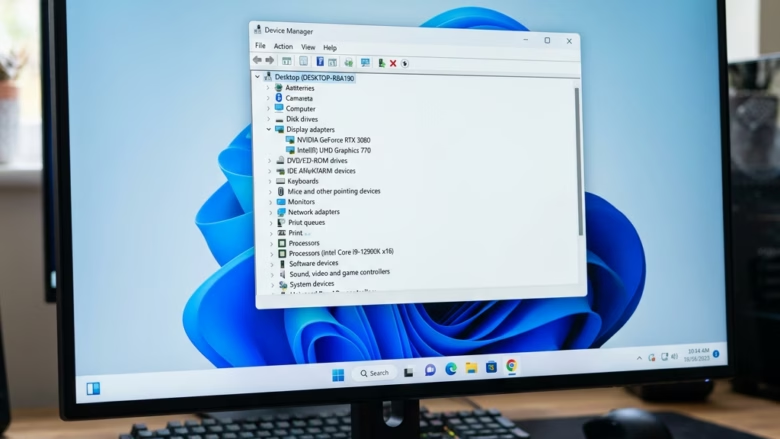
The Microsoft Basic Display Adapter is a built-in backup graphics driver. Windows uses it when it cannot find the right software for your graphics card. It is common right after a fresh install, after a major update, or when a graphics driver has failed to install or has been removed.
The generic driver limits your screen resolution, makes video playback choppy, and stops most games from running properly. You can check whether your PC is using it by opening Device Manager and expanding the Display adapters category. If the adapter is on that list, download and install the proper driver from NVIDIA, AMD, or Intel to restore full display performance. Restart the PC afterward if the installer asks you to.
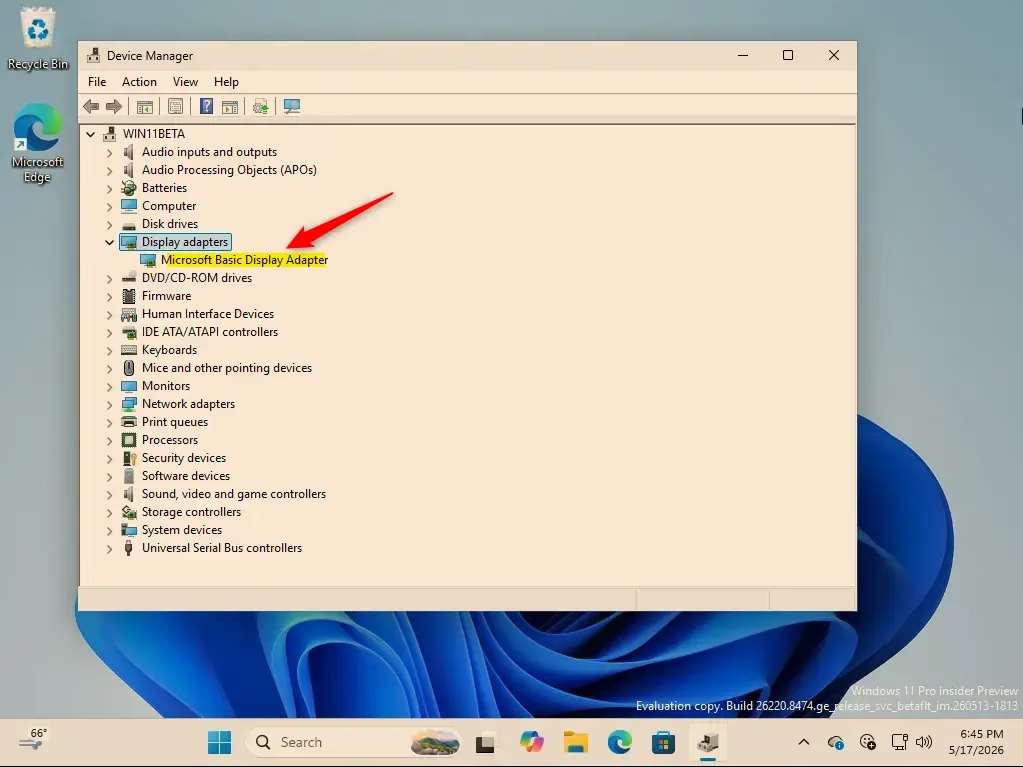
Open Device Manager, expand Display adapters, and look at the list. If you see Microsoft Basic Display Adapter, Windows is using the generic fallback driver. If you see NVIDIA, AMD, or Intel instead, your manufacturer driver is installed.
Method 1Using Device Manager
Device Manager lists all the hardware connected to your computer. Use it to see the exact name of your graphics driver and to find out whether Windows is using the fallback driver instead of the manufacturer’s driver. It works the same way on Windows 11 Home and Pro.
- Open Device Manager. Right-click the Start button. A menu appears. Click Device Manager. The Device Manager window opens with a list of hardware categories.
- Expand Display adapters. Find Display adapters in the list and click the small arrow next to it. The category opens and shows each display adapter your computer has. Many laptops show two, for example an Intel one and an NVIDIA or AMD one.
- Look for the Microsoft Basic Display Adapter. Read the names under Display adapters carefully. If you see Microsoft Basic Display Adapter, Windows is using the generic driver for that adapter. If you see a name from your graphics card maker, such as NVIDIA, AMD, or Intel, that adapter is most likely using its correct driver.
Virtual machines can also show a generic adapter by design. In that case, it is normal and not a fault.
Method 2Using the DirectX Diagnostic Tool
The DirectX Diagnostic Tool is built into Windows and shows the details of your current graphics driver. Use it to check whether the system is running on the basic display adapter, and to see the manufacturer name, driver version, and model of your graphics card. It is a good second check if you want to confirm what Device Manager showed.
- Open the Run dialog. Press the
Windows key + Rkeys on your keyboard together. The small Run window opens. It is used to launch programs quickly. - Launch the DirectX Diagnostic Tool. In the Open: box, type
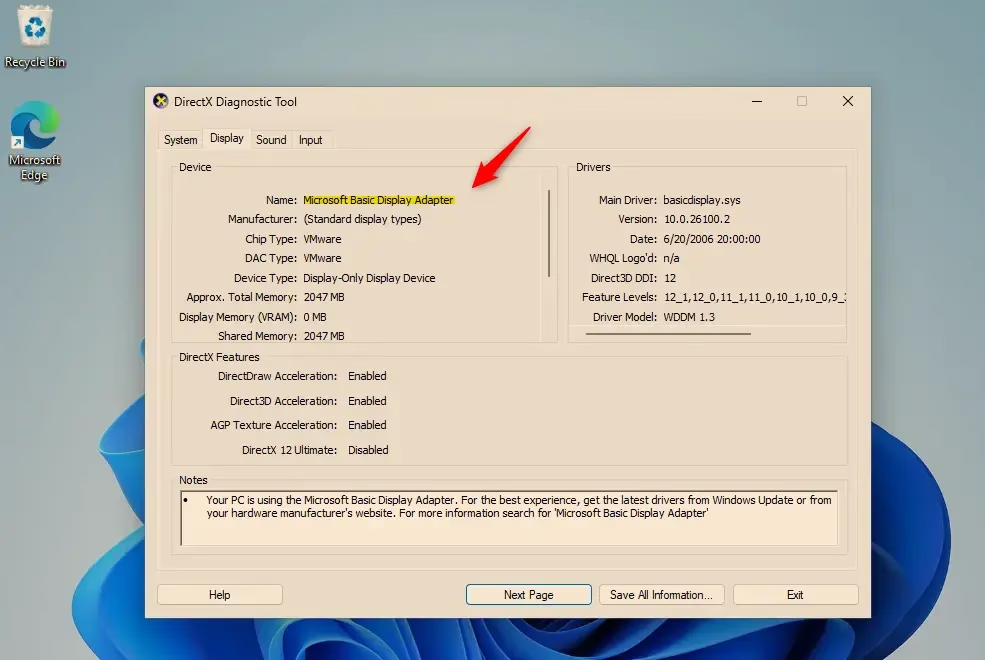
dxdiag.exe. Click OK or press Enter. The DirectX Diagnostic Tool window opens. On the first run it may ask whether to check if your drivers are digitally signed. You can answer either way, because this check does not affect the result here. - Go to the Display tab. Click the Display tab at the top of the window. If you have more than one graphics adapter, you may see several tabs, such as Display 1 and Display 2. Check each one.
- Check the Device name. On the Display tab, look at the Device section and find the Name: line. If it says Microsoft Basic Display Adapter, your system is using this generic driver for that display adapter. Any other name means a manufacturer driver is in use. Check the Manufacturer line in the same section as well, and the driver version in the Drivers section.
Summary
If either one lists it, install the driver for your graphics card from NVIDIA, AMD, or Intel (or your PC maker's support page), restart, and check again.
Have a question about this guide?
Answered by AI from this guide. Good questions may be added to this page — please don't include personal details.
Did this guide fix your problem?

About the Author
Richard
Tech Writer, IT Professional
Richard is a writer at Geek Rewind who turns complex IT tasks into clear, step-by-step guides. He draws on years of hands-on experience in system administration and enterprise IT operations, focusing on Windows, Linux and WordPress: the problems people actually run into, and the fixes that work. His server and WordPress guides come from systems he runs himself. Richard builds and maintains the platform behind Geek Rewind, from its Ubuntu servers and Nginx configuration to its custom WordPress plugins. Many new tutorials start with readers' questions, and he's always glad to answer them in the comments.
No comments yet — be the first to share your thoughts!