How to Cast to an External Display from Windows 11


Casting your Windows 11 desktop to an external display lets you mirror your screen on a larger TV, projector, or monitor without cables. The wireless link uses Miracast, a standard that sends your screen to a compatible display as a second screen for your PC. Once the display is ready, setup takes a few clicks.
Your PC and the external display both need to support Wi-Fi and Miracast. Most Windows 11 laptops do. Many recent TVs and projectors do too, and an older HDMI display can use a Miracast adapter. If the PC doesn’t support Miracast, the Cast panel in a later step will tell you so.
Press Win+K to open the Connect panel. Select your external display from the list of available devices to wirelessly cast your Windows 11 screen. Ensure your display is on and set to the correct input mode.
Step 1Get Your External Display Ready
Get the receiving hardware ready before you touch the PC. If the display is already on and waiting, Windows finds it quickly.
- Power on your TV or projector.
- If you use a Miracast adapter (a small HDMI receiver that adds wireless display capabilities), plug it into the display’s HDMI port. Then connect its power lead to a live power source, such as a USB port on the TV or a wall adapter. Some adapters don’t run reliably from a TV’s USB port, so use a wall adapter if the adapter keeps dropping out.
- Using the remote, switch the display to its wireless input. Depending on the brand it is called Screen Mirroring, Miracast, or Wireless Display. You should see a waiting or pairing screen, often showing the device name.
Note the name shown on that screen. You will pick it from a list on your PC shortly. Miracast lets Windows send video wirelessly to this receiver. Use a Windows 11 PC running version 22H2 or later. The exact menu names for the input vary by manufacturer, so check the TV’s manual if you can’t find the setting.
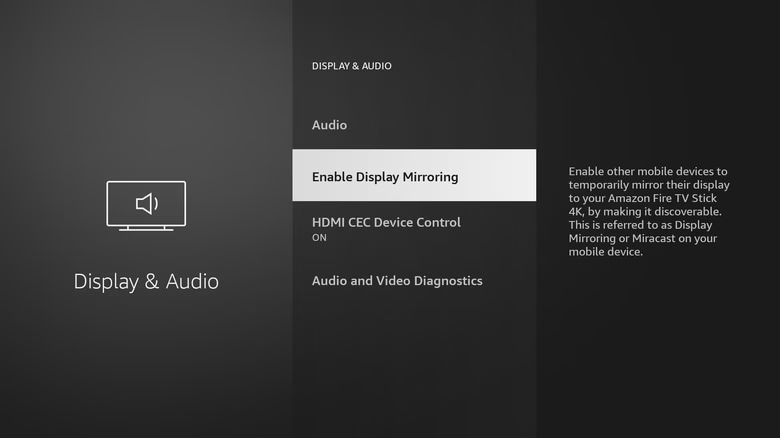
Step 2Tell 🪟 Windows 11 to Look for Displays
With the display waiting, open the Cast panel on your PC. A keyboard shortcut is the fastest way, and it starts a scan for every wireless display in range.
- Press the Win (the key with four squares) and the K key at the same time.
- Look at the right side of the screen. A panel titled “Cast” or “Connect” should open and start searching for nearby displays.
The shortcut skips the nested menus. If your PC doesn’t support Miracast, the panel says so instead of listing displays. In that case you will need a cable or an adapter that doesn’t depend on the PC’s wireless display support.
You don't need an internet connection, but the Wi-Fi adapter has to be enabled. Select the network icon next to the clock in the system tray to check. If Wi-Fi is off, turn it on, then press Windows key + K again. Airplane mode also disables the Wi-Fi radio, so make sure that's off.
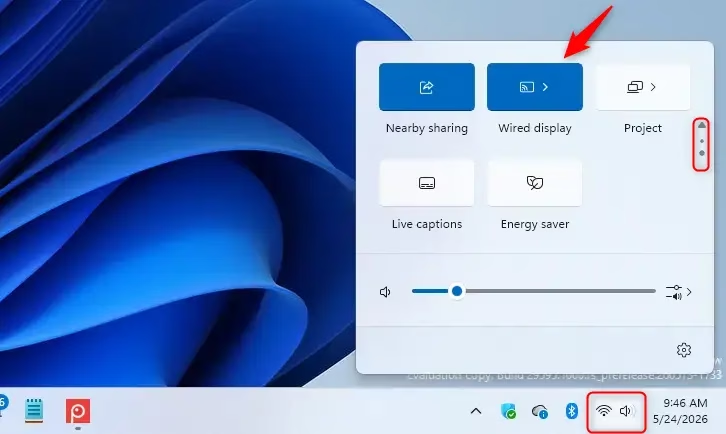
Step 3Select Your Display and Connect
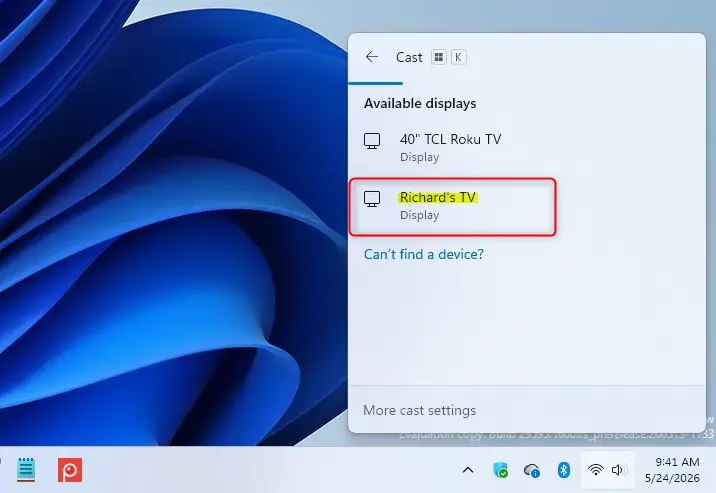
Next, choose your display from the list. The panel fills in as Windows finds nearby TVs, projectors, and adapters, which can take several seconds.
- Look at the list of devices in the Cast panel.
- Click the name of the TV, projector, or Miracast adapter you want to use. It should match the name you noted on the display's waiting screen.
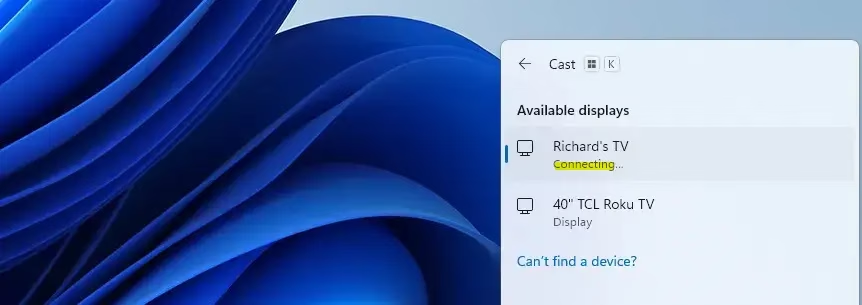
- Wait a few seconds. Windows shows a "Connecting" status, and then your desktop should appear on the external display.
Windows lists only displays it detects in range, so nearby devices show up first. If you have several TVs in the building, check that you picked the right name.
Then move the PC closer to the receiver and wait a few seconds for the scan to finish. If it still doesn't show up, close the panel and press Windows key + K again to restart the scan.
Step 4Follow Any On-Screen Prompts
Some displays ask you to approve a new connection before they accept video, so keep an eye on the external screen after you select it.
- Watch the TV, projector, or monitor right after you click its name.
- If a message asks you to allow the connection from your computer, accept it. Use the display's remote or the on-screen instructions.
- If the prompt asks for a PIN, enter the code shown on the display when Windows asks for it.
If you don't approve the prompt, the connection will usually time out. Select the display in the Cast panel again to retry. This approval step keeps unknown computers from mirroring onto a screen without permission. In a conference room, it gives whoever controls the screen control over who can present.
Tip: On a shared projector, accept the connection prompt quickly so the audience isn't left watching a blank or waiting screen.
Step 5Choose How You Want to Display
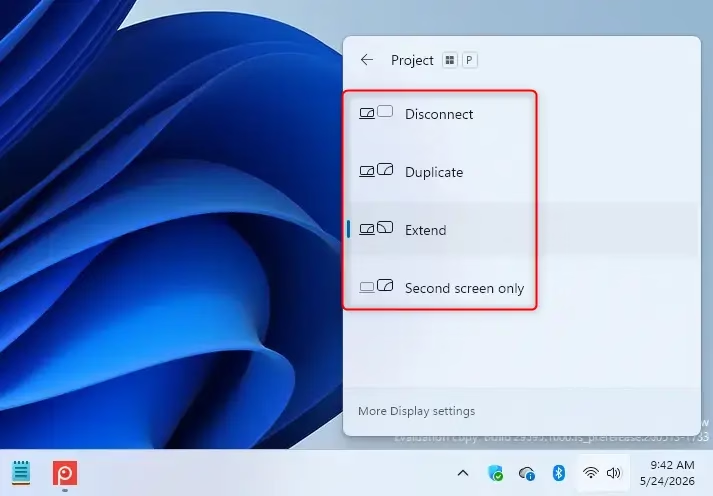
Once connected, choose how your desktop appears across both screens. The Project menu controls this.
- Press the Windows logo key and the P key together.
- Look at the "Project" menu that opens. It lists four display modes.
- Click the mode you want. The change should apply right away.
You can change modes at any time while connected, so try each one if you're unsure.
- PC screen only: This turns off the external display, showing everything only on your laptop. This is useful if you accidentally connected to the wrong screen.
- Duplicate: This shows the exact same content on both your laptop screen and the external display. It's perfect for presentations where you want everyone to see what you're doing.
- Extend: This spreads your desktop across both screens, giving you more room to work. You can drag windows from one screen to the other.
- Second screen only: This turns off your laptop screen and shows everything only on the external display. This is great if you want to focus on the big screen and save your laptop's battery.
Tip: In Extend mode, you can match the on-screen layout to how the displays sit in the room. Open Settings System Display In the display preview at the top, drag the numbered rectangles so they match the physical placement of your screens. If you aren't sure which rectangle is which, select Identify to show a number on each screen. Getting this right means your mouse moves from one screen to the other in the direction you expect.
Summary
To recap: power on the display and set it to its wireless input, press Windows key + K to open the Cast panel, and select your display. Accept any security prompt on the external screen. Then press Windows key + P to choose between PC screen only, Duplicate, Extend, or Second screen only.
Have a question about this guide?
Answered by AI from this guide. Good questions may be added to this page — please don't include personal details.
Did this guide fix your problem?

About the Author
Richard
Tech Writer, IT Professional
Richard is a writer at Geek Rewind who turns complex IT tasks into clear, step-by-step guides. He draws on years of hands-on experience in system administration and enterprise IT operations, focusing on Windows, Linux and WordPress: the problems people actually run into, and the fixes that work. His server and WordPress guides come from systems he runs himself. Richard builds and maintains the platform behind Geek Rewind, from its Ubuntu servers and Nginx configuration to its custom WordPress plugins. Many new tutorials start with readers' questions, and he's always glad to answer them in the comments.
No comments yet — be the first to share your thoughts!