How to Choose a Display Mode on Your Windows 11 PC

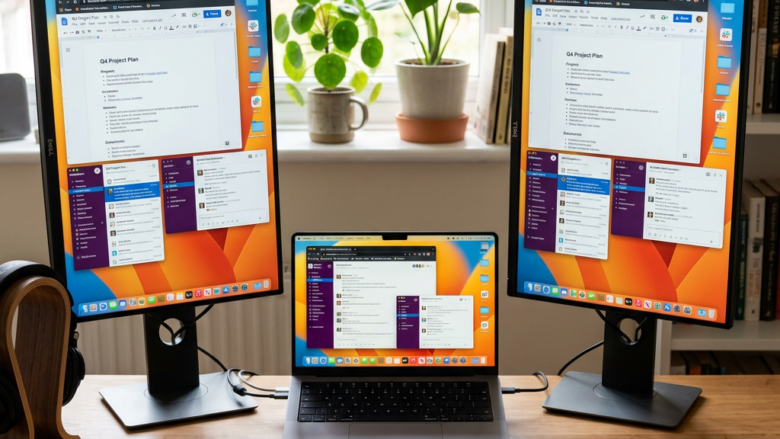
To choose a display mode in Windows 11, press the Win and the P key together. This opens the Project menu on the right side of your screen, where you can mirror your main screen, stretch your desktop across both displays, or show your work on only one screen. There are four options, and they apply whenever you connect an extra monitor, TV, or projector. The shortcut works the same on Windows 11 Home and Pro, and you don’t need to restart the PC after changing a mode.
Press Win+P to open the Project menu on the right side of the screen, then choose PC screen only, Duplicate, Extend, or Second screen only. The change takes effect immediately on Windows 11 Home and Pro, and you don’t need to restart the PC.
How to Access Display Modes in 🪟 Windows 11
You can skip the Settings app when you manage a display mode. Press the Win plus P and the projection sidebar opens at once.
The Settings app has the same choices if you prefer clicking. Go to Settings System Display and look under Multiple displays. That is the display mode setting for a screen you have already connected. The shortcut is faster, and it’s the one you’ll want when you’re plugging into a projector in a meeting room.
Press the Magic Combination
These steps let you choose a display mode for a second screen, from connecting it to checking the result.
- Connect your second display. Plug in the TV, monitor, or projector with its cable (or adapter) and make sure the PC is on.
- Power on the second display. Set its input source to the port you used, so it can receive a signal.
- Press and hold the Win. It’s the key with the flag on it, and you’ll keep holding it for the next step.
- Press the P key. A small menu appears on the right side of your screen with the four modes.
- Click the mode you want. The screens change right away.
- Cycle through the list if you prefer the keyboard. Keep the Win held and press P again to move down, or use the arrow keys and press Enter.
- Check both screens. Make sure each one shows what you expected from the mode you chose.
- Reopen the menu to change your mind. Press Win+P and pick another mode. Nothing is permanent.
If the menu opens but nothing seems to happen when you pick a mode, Windows probably doesn’t detect a second display. Check the cable and the input source on the monitor or projector. Unplug and reconnect the cable if you need to, then try the menu again.
Understanding Your Display Mode Options
This menu controls what appears on each screen. Windows 11 offers four main display modes (some people call them screen modes) to choose from:
- PC screen only: your main screen is the only one in use.
- Duplicate: both screens show the same thing.
- Extend: both screens act as one large desktop.
- Second screen only: only the external screen is in use.
Nothing is permanent. If a mode doesn’t suit you, open the menu again and pick another one. No restart is needed, and no setting is saved that you have to undo later.
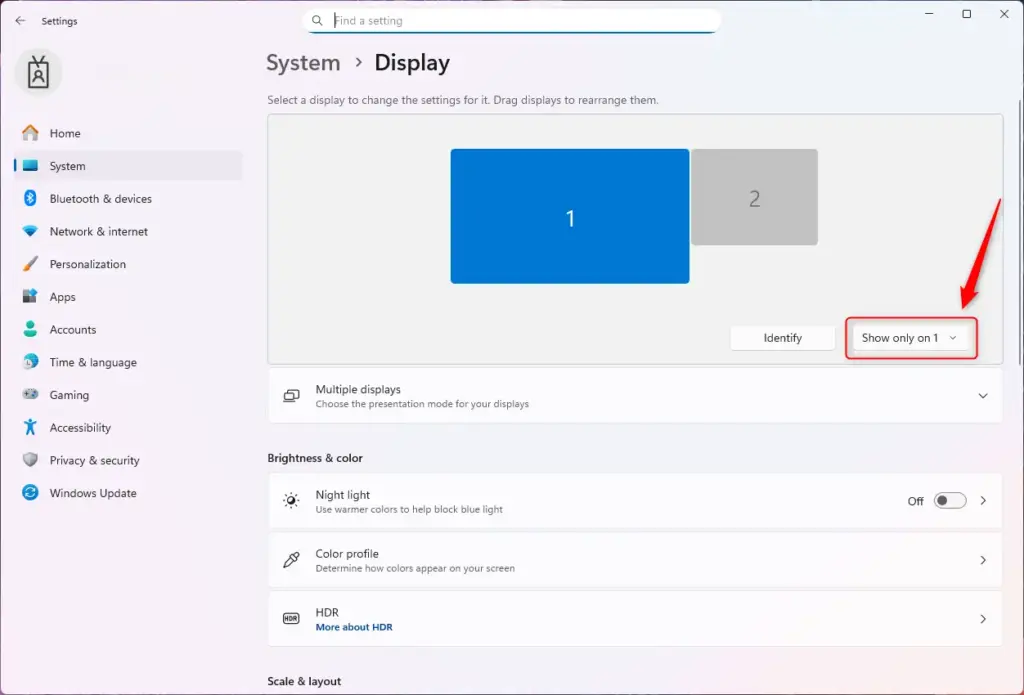
1PC screen only
PC screen only is a Windows 11 display mode that turns off all connected external monitors and shows your desktop only on your primary screen. Choose it when you want to disconnect from a projector or extra monitor and work on just your laptop or main computer screen.
- Press Win+P.
- Click PC screen only. The external display goes dark or shows “no signal,” and your windows return to the main screen.
What it does: It disables any other connected screens so your main display is the only one showing content. This mode helps save power and routes everything back to your laptop screen.
Using PC screen only is useful when you’re on a laptop and don’t need to share your screen. It makes sure all content returns to your main monitor after you disconnect an external display. It can also save a bit of power when no extra screens are active.
It’s also a good first fix if a window seems to have vanished. It may have been left on a screen you’ve since unplugged. Switching to this mode pulls everything back to the screen you can see.
2Duplicate
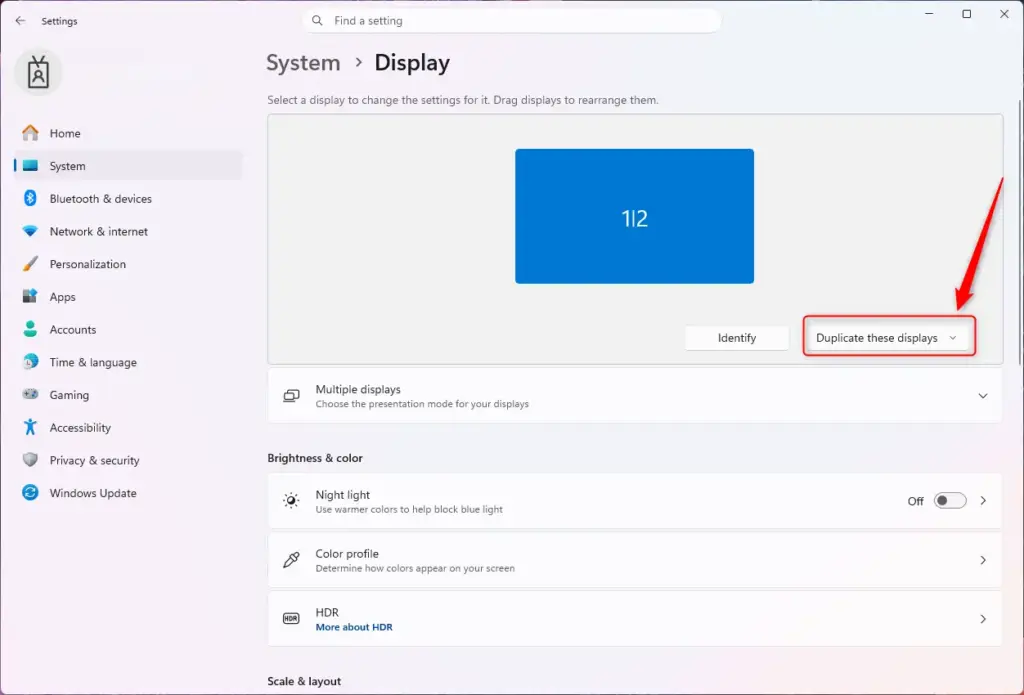
Duplicate is one of the main Windows 11 display modes. It copies everything from your primary monitor onto a second connected screen or projector. Use it during presentations or meetings, when people in the room need to see exactly what you see.
- Press Win+P.
- Click Duplicate. Both screens should now show the same desktop.
What it does: It replicates what’s on your primary screen onto your other connected screen(s). Everything you see on your main screen appears identically on the external display.
If the two screens have different resolutions, Windows picks a resolution both can handle, so one of them may look softer than usual. Switching to Extend or a single-screen mode brings each screen back to its own native resolution.
This mode mirrors your primary screen onto a projector or TV, showing the exact same content on both displays. It helps during presentations or meetings because an audience can follow along easily. It also helps collaboration, since a partner can view your work on a bigger screen.
Close anything private before you start.
3Extend
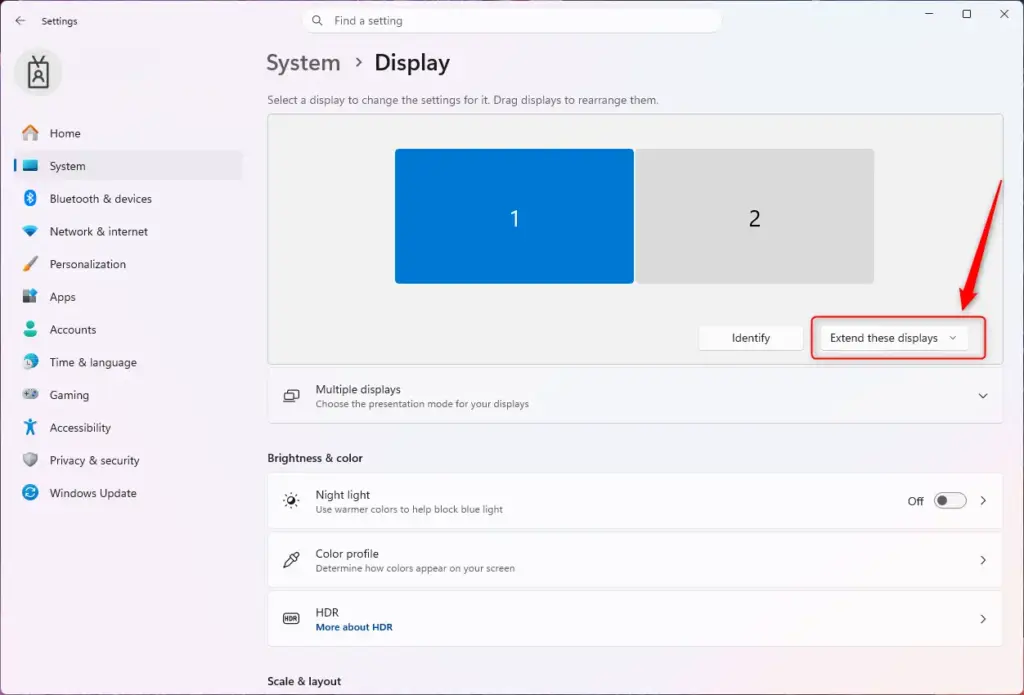
Extend is a Windows 11 display mode that turns your extra monitors into one large, combined workspace, so you can drag apps and windows across multiple screens. Select it when you need more room to multitask by spreading your open programs across different displays.
- Press Win+P.
- Click Extend. Your second screen should show an empty desktop that you can drag windows onto.
What it does: It makes your connected external screen(s) function as an extension of your main desktop. You get a larger workspace that spans all your connected screens. You can move windows and applications between screens, which gives you more room for your tasks.
If the mouse seems to cross to the wrong side, the screens are arranged backwards. To fix it:
- Go to Settings System Display
- Drag the numbered screens into the order they sit on your desk.
- Click Apply.
Snap Layouts (a feature for arranging open windows side by side) helps manage many tasks at once. Hover over a window’s maximize button to see the layouts. Snapping works within each screen, so you can tile windows on one monitor and keep others on the second.
You can keep email open on one screen while writing a document on another. Another common setup is notes on one monitor and typing on a separate one. Gamers may use Snap Layouts for a deeper experience, though duplicate displays are more typical for gaming.
4Second screen only
Second screen only is among the available Windows 11 display modes. It shuts off your laptop or primary monitor and sends all video output to an external screen or projector. Choose it when you want to use a closed laptop with a large desktop monitor, or when you present from a projector.
- Press Windows key + P.
- Click Second screen only. Your main screen goes dark and everything appears on the external display.
What it does: It directs the display output solely to the connected external screen or projector. Your primary laptop screen or monitor is turned off.
If the external screen has no signal, you may be left with two dark screens. Press Windows key + P again and choose PC screen only to get your main display back. Windows also usually reverts after a few seconds if the external screen is unplugged.
Using a Windows 11 PC with an external display, keyboard, and mouse is useful when you treat a laptop like a desktop. It saves desk space because the laptop can stay closed. This setup also helps if the laptop's built-in screen has issues, or if you prefer the larger external monitor.
By default, closing a laptop lid puts it to sleep, which also turns off the external display. To keep it running with the lid closed:
- Go to Control Panel Hardware and Sound Power Options Choose what closing the lid does.
- Set When I close the lid to Do nothing for the power state you use (on battery, plugged in, or both).
Change it back if you want normal sleep behavior again.
Reference:
Summary
In Windows 11, changing your display mode takes only a moment. Press Windows key + P and select PC screen only, Duplicate, Extend, or Second screen only to fit your needs. If a choice doesn't work out, open the menu and pick a different one.
Frequently asked questions
How can I make it so only I can see my laptops screen 🪟 Windows 11?
Press Windows key + P and choose PC screen only. Only your laptop screen will show your work, and any external monitor goes dark. Windows 11 has no built-in privacy mode that hides the screen from people standing nearby, so keep the laptop angled away from them or use a physical privacy filter.
How to make display 1 display 2 in 🪟 Windows 11?
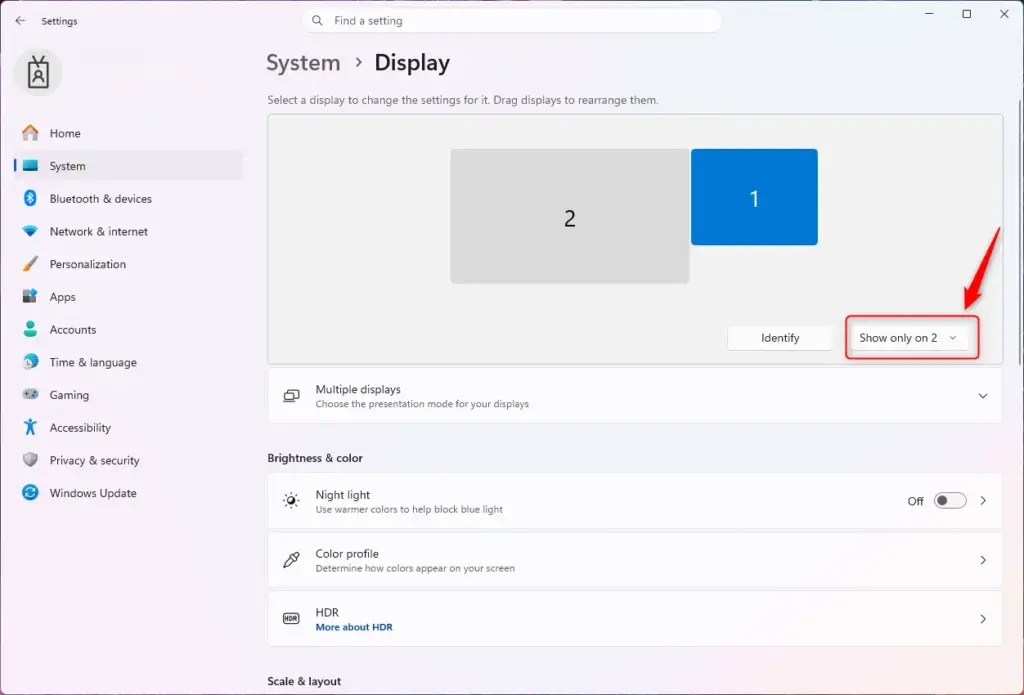
Open Settings, go to System Display, and select the display you want to set up. Under Multiple displays, choose Extend these displays so each screen works separately. Click Identify to confirm which screen is 1 and which is 2, then drag the boxes to match how the screens sit on your desk.
How to switch display mode?
Press Windows key + P to open the Project menu on the right side of the screen. Pick PC screen only, Duplicate, Extend, or Second screen only. Press P again to cycle through the options. The change takes effect right away, and you do not need to restart the PC.
How to change display mode in laptop?
Connect the external display first. Then press Windows key + P and choose the mode you want from the Project menu. For more control, open Settings, go to System Display, and use the Multiple displays options. Changes apply immediately, with no restart needed.
How to set only one display instead of frequent change in 🪟 Windows 11 pro?
Press Windows key + P and select PC screen only or Second screen only. The mode usually stays until you change it or unplug the monitor. Windows 11 Pro has no separate setting to lock a mode. If it keeps resetting, check that the cable is seated firmly, because a loose connection can make Windows treat the monitor as unplugged.
How to change display options 🪟 Windows 11?
Open Settings and go to System Display to change display options. There you can adjust resolution, scale, orientation, and brightness. Under Multiple displays, choose how your screens work together. Changes apply right away, and Windows may ask you to keep the new setting or revert it.
Still have a question?
Answered by AI from this guide. Good questions may be added to this page — please don't include personal details.
Did this guide fix your problem?

About the Author
Richard
Tech Writer, IT Professional
Richard is a writer at Geek Rewind who turns complex IT tasks into clear, step-by-step guides. He draws on years of hands-on experience in system administration and enterprise IT operations, focusing on Windows, Linux and WordPress: the problems people actually run into, and the fixes that work. His server and WordPress guides come from systems he runs himself. Richard builds and maintains the platform behind Geek Rewind, from its Ubuntu servers and Nginx configuration to its custom WordPress plugins. Many new tutorials start with readers' questions, and he's always glad to answer them in the comments.
No comments yet — be the first to share your thoughts!