How to Share Your Wi-Fi Password Easily with a QR Code on Windows 11

Sharing your Wi-Fi password on Windows 11 lets guests join your network in under 60 seconds. They scan a QR code with their phone camera instead of typing a long password by hand.
The QR code is a graphic made from your wireless connection details, and Windows 11 shows it right inside the Settings app . You don’t need extra software. The option appears on newer Windows 11 builds, so if you can’t find it, see the note in the steps below.
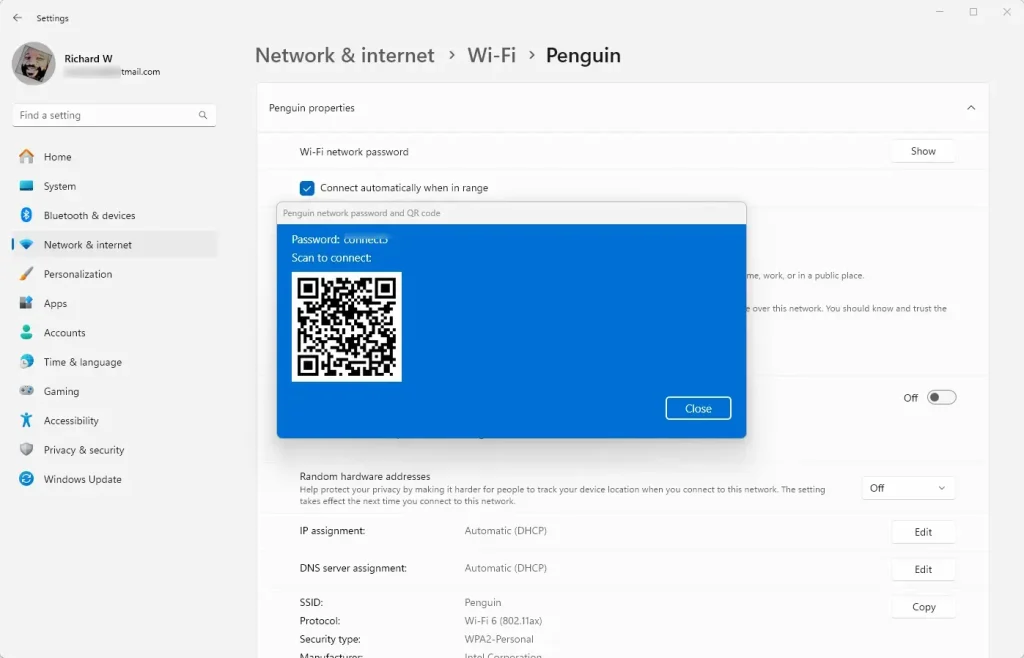
Open Settings , go to Network & internet Wi-Fi , click your connected network name, then click Show next to Wi-Fi network password. A QR code appears on screen for guests to scan with their phone camera to join your network.
How to Share Your Wi-Fi Password Using a QR Code
You make it in the Settings app in a few clicks. Before you start, make sure your PC is connected to the Wi-Fi network you want to share. The code is built from the network you are currently on.
- Open the Settings app:
- Click the Start menu (the Windows icon in the bottom-left corner, or in the center of the taskbar if you use the default layout).
- Click Settings. The Settings window opens with a list of categories on the left.
- Or press
Windows key + Ion your keyboard to open Settings right away. Learn more about opening Settings
- Go to Network & Internet settings:
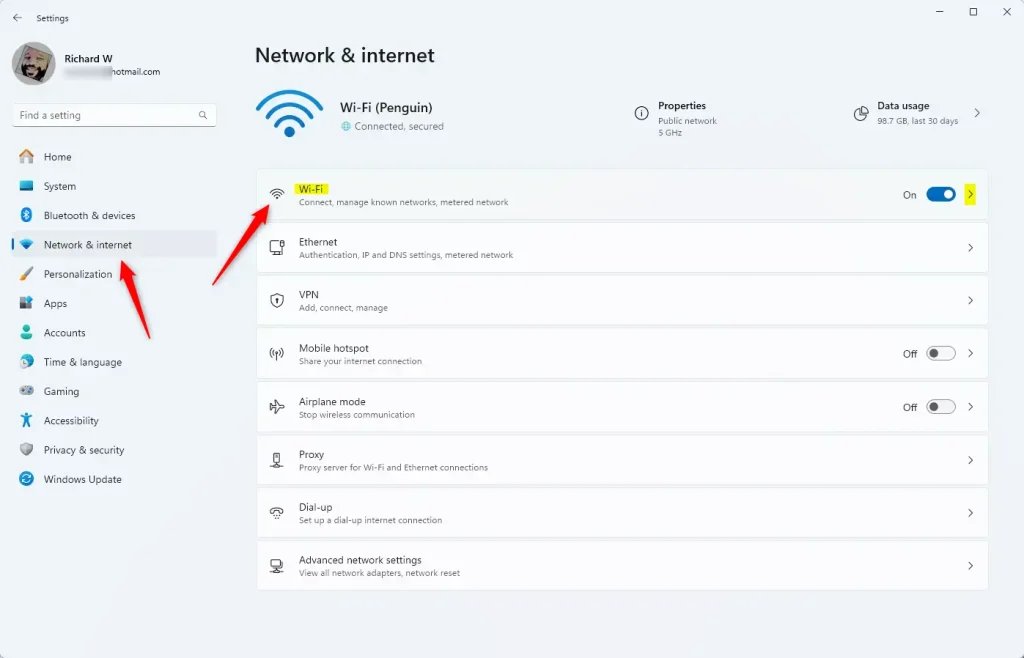
- In the Settings window, click Network & internet on the left side. The page on the right now shows your connection status and a list of network options.
- Then click Wi-Fi on the right side. You should see the Wi-Fi switch and the networks in range.
- Find your connected Wi-Fi network:
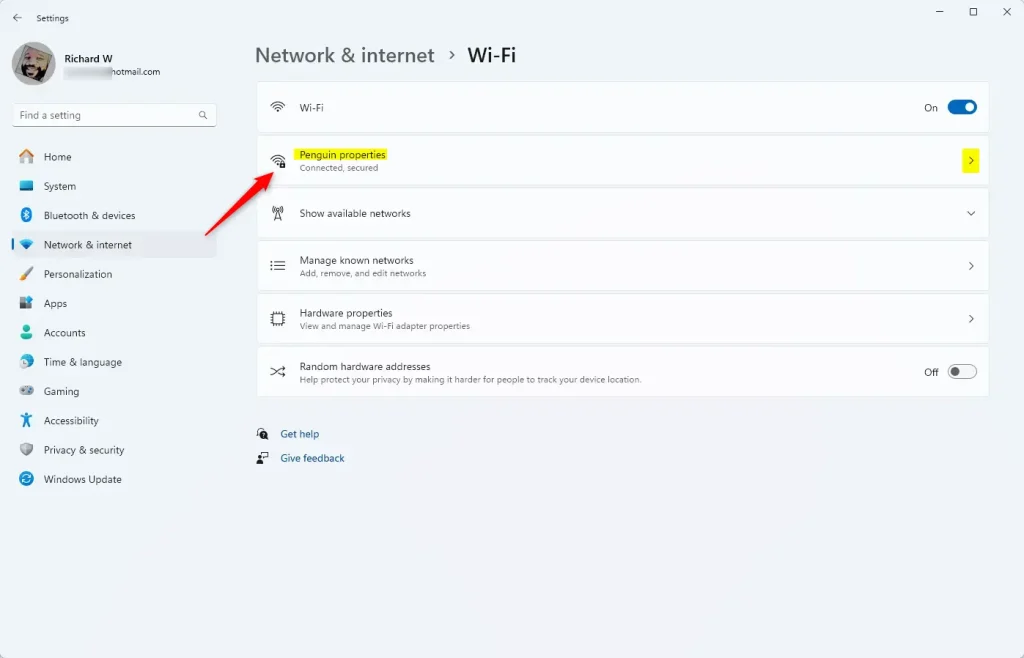
- Click on your Wi-Fi network name under the Wi-Fi section. This is the network marked as connected. If the Wi-Fi switch is off or you are on a wired connection, you won’t get this page.
- This opens the network details page, where you can see the properties of that connection.
- Show the Wi-Fi password QR code:
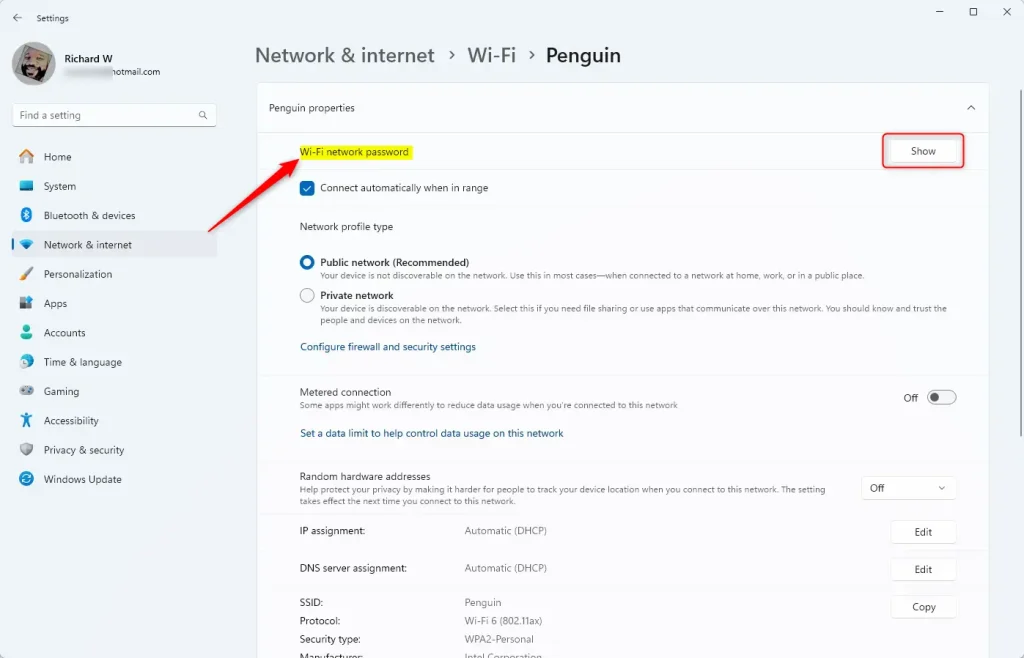
- Look for the Wi-Fi network password area on the details page. You may need to scroll down a little.
- Click the Show button next to it. If you don’t see this option, your Windows 11 build may be too old to include it. Run Windows Update , restart if asked, and check again.
- Scan the QR code:
- A QR code will appear on the screen. Keep the window open and turn the screen toward your guest.
- Your friend can use their phone’s camera or a QR code scanner app to scan the code. Most current iPhone and Android camera apps read Wi-Fi codes directly. Hold the phone steady about 15 to 30 cm from the screen until a prompt appears.
- Once scanned, their device connects to your Wi-Fi network automatically. Some phones ask them to tap a button to confirm the connection first.
- Close the Settings app:
- When done, simply close the Settings window. This hides the QR code again, so nobody else can scan it later. No restart is needed, and there is nothing to undo.
Helpful Images
The QR code tool sits in the network details page, a few clicks inside Settings. You open the properties of your current connection, and the sharing option is there. The next four screenshots walk through the same path: Settings Network & internet Wi-Fi , then your network, then Show.
Click Wi-Fi in the Network & internet section. The right-hand pane changes to show your Wi-Fi switch and available networks.
Select your connected Wi-Fi network to see its details. Pick the network your PC is using right now, not one from the saved list. The properties page for that connection opens.
Click Show next to "Wi-Fi network password" to reveal the QR code. The code appears on the page. If there is no Show button, check Windows Update, because older builds don't have it.
Treat it like the password itself, because anyone who scans it can join. Show it only to people you trust, and close the Settings window when you're done.
Why Use a QR Code to Share Your Wi-Fi Password?
A Wi-Fi QR code saves you from reading out a complicated password or typing it on a guest's device. It also prevents spelling mistakes. Guests never see the password typed out, though a code can still be scanned by anyone who is shown it.
- It's quick and easy. No need to say or type long passwords.
- Helps guests connect without mistakes. There's no room for typing errors.
- Works with any device that can scan QR codes. Phones, tablets, and other devices all work the same way.
- Built right into Windows 11. No extra apps or downloads needed, on both Home and Pro, as long as your build includes the Show option.
Summary
Windows 11 generates the QR code in the Settings app. Go to Settings Network & internet Wi-Fi, select your connected network, and click Show next to the Wi-Fi network password.
Have a question about this guide?
Answered by AI from this guide. Good questions may be added to this page — please don't include personal details.
Did this guide fix your problem?

About the Author
Richard
Tech Writer, IT Professional
Richard is a writer at Geek Rewind who turns complex IT tasks into clear, step-by-step guides. He draws on years of hands-on experience in system administration and enterprise IT operations, focusing on Windows, Linux and WordPress: the problems people actually run into, and the fixes that work. His server and WordPress guides come from systems he runs himself. Richard builds and maintains the platform behind Geek Rewind, from its Ubuntu servers and Nginx configuration to its custom WordPress plugins. Many new tutorials start with readers' questions, and he's always glad to answer them in the comments.
No comments yet — be the first to share your thoughts!