How to Find Your Wi-Fi Password in Windows 11

- 3 ways to do it
- Needs administrator rights
Finding a forgotten Wi-Fi password in Windows 11 takes only a few clicks in the system settings, and you don’t need to log into your router. Windows saves the security key for every wireless network you join, so you can connect new devices whenever you need to.
Open the Network & Internet menu to view the plain-text password for any saved connection on your PC. There are three ways to do it, and this guide covers each: the Settings app, the Quick Settings panel, and Command Prompt. Which screens you see depends a little on your Windows 11 version, and viewing a password may ask for administrator approval. If you use a standard account, have an administrator password ready.
Open Settings Network & internet Wi-Fi, click your network name, scroll down and select View Wi-Fi security key, then confirm your password when prompted. Windows displays the saved security key in plain text.
What is a Wi-Fi Password?
A Wi-Fi password, also called a security key or network key, is what a device uses to join a wireless network. Windows stores it after the first successful connection, so you don’t type it again each time. That is also why you can read it back later: the key is still saved on your PC.
Windows can only show passwords for networks it has already connected to. If you have never joined a network from this PC, there is nothing to look up.
Before You Start
Manufacturers often print the default Wi-Fi password directly on these hardware labels, usually next to the network name (SSID).
This comes in handy when someone has changed the network key or you need to connect a guest device. Keep in mind that the label shows the factory default. If anyone has changed the password since setup, the label is out of date, and the password saved in Windows is the one to trust.
Method 1Find Wi-Fi Password Using Windows Settings
- Click on the Start button (Windows icon) in the bottom-left corner.
- Click on Settings. You can also press Win+I on your keyboard to open Settings quickly.
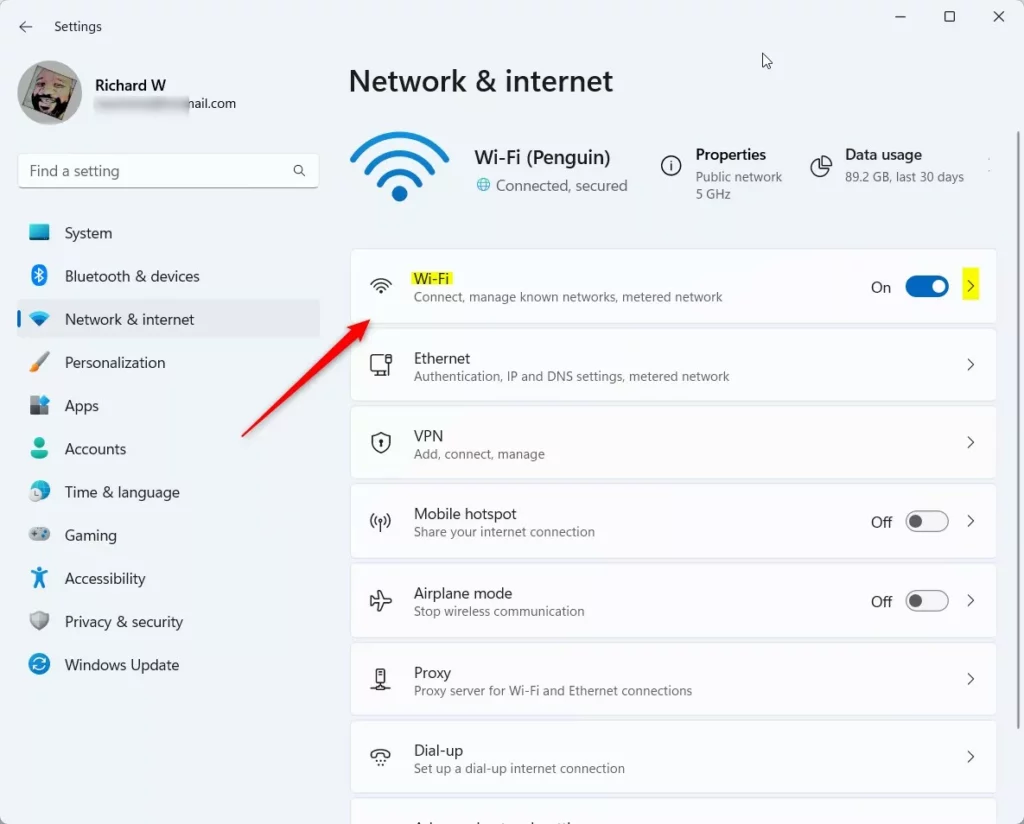
- In Settings, click Network & internet on the left side menu.
- Click on Wi-Fi .
- Click on your connected Wi-Fi network name to open its properties.
- Scroll down and find the Security key or View Wi-Fi security key option.
- Click on it. Windows may ask you for your PC password or to confirm your identity.
- After confirming, your Wi-Fi password will be shown.
Windows Settings lets you find the Wi-Fi password for the network you are currently using. Open your network properties and view the security key. This method suits you best if you prefer the standard Windows menus to keyboard shortcuts or text commands.
The steps above use the classic network properties window, which is a good fit if you are connected to the network right now. If the option to show the characters is greyed out or asks for credentials, your account is not an administrator. Sign in with an administrator account and try again. Nothing here changes any setting. Showing the password only reveals it on your screen, and closing the window hides it again.
Method 2Find Wi-Fi Password Using Quick Settings
- Click on the network icon at the bottom-right corner of your screen (near the clock) to open Quick Settings.
- Click the Wi-Fi button to see your connected network.
- Click Properties under your Wi-Fi network.
- Scroll down and select View Wi-Fi security key.
- Confirm your PC password if asked. Your Wi-Fi password will appear.
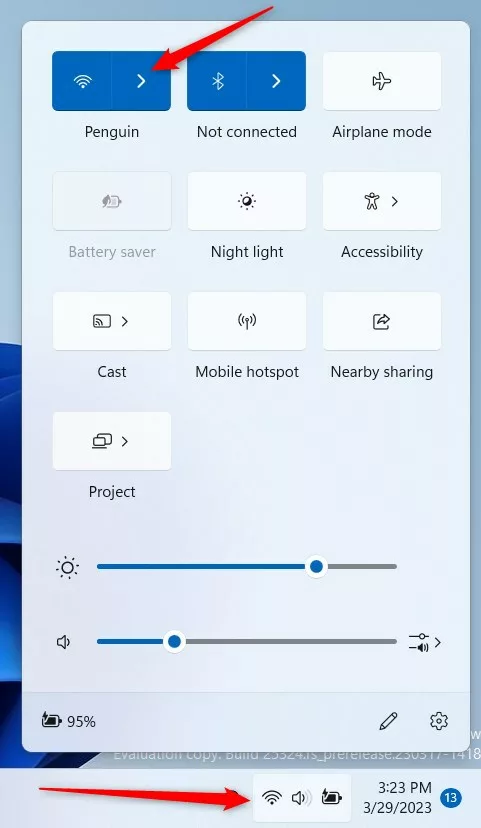
Quick Settings is the fastest way to find your Wi-Fi password without digging through the full Settings menu. You open the panel from the system tray in the bottom-right corner of your screen, where the Wi-Fi, volume and battery icons sit. From there, open your network properties to reveal your saved security key in a few clicks.
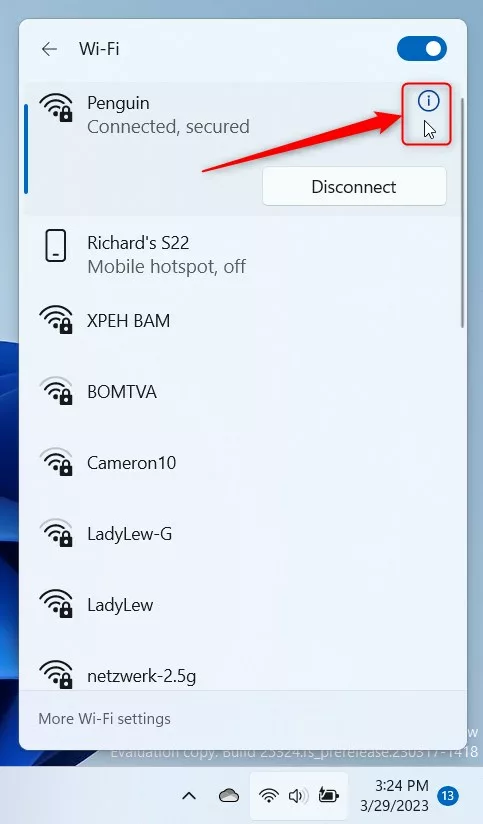
If the Wi-Fi tile or the network list is missing from Quick Settings, the tile may have been removed from the panel. You can usually add it back with the pencil (Edit quick settings) button. Also check that you are connected, because the panel shows details for the active network. After the network properties open, the steps are the same as in the Settings method above, and no restart is needed.
Method 3Find Wi-Fi Password Using Command Prompt
Command Prompt is a text-based interface for running system instructions, and you can use it to find a Wi-Fi password by typing a few commands. This method helps most when you need the password for a saved network you are not connected to right now. The network profile commands list every saved wireless network and can show the key for any one of them.
Run Command Prompt as an administrator. Without elevation, the password line may be missing from the output. Follow the numbered steps below in order.
- Press Win+S on your keyboard. Type
cmd, then click Command Prompt in the results. - In the Command Prompt window, type this command and press Enter:
netsh wlan show profiles
This shows all Wi-Fi networks your PC has connected to. - Find the network name (SSID) you want the password for.
- Type this command. Replace
YourWiFiNamewith your Wi-Fi network name, then press Enter:netsh wlan show profile "YourWiFiName" key=clear - Look for the line Key Content. That is your Wi-Fi password.
Example:
netsh wlan show profile "HomeNetwork" key=clear
Replace the network name in the command with the exact name of your saved network, including capital letters and spaces. The command will show details about that Wi-Fi network. Your password appears next to Key Content. If you don’t see that line, the profile may have no saved key (an open network, for example), or the window may not be running as administrator.
Summary
- Windows 11 stores your Wi-Fi password so you don't have to type it every time.
- You can find your saved Wi-Fi password in the Settings app or Quick Settings.
- If you like, use Command Prompt to see the password with a simple command.
- Knowing your Wi-Fi password helps you connect other devices or share it with family and friends.
Windows 11 stores your wireless network details so you don't have to type your password every time you connect. You can find your saved Wi-Fi password in the main Settings app, in the Quick Settings taskbar menu, or in Command Prompt. If you only need the password for the network you are on, the first two are quicker. For an older saved network, use Command Prompt. Once you know where to look, connecting a new phone, laptop or guest device takes a minute.
Readers wanting more Windows 11 tips should check out this helpful guide.
Have a question about this guide?
Answered by AI from this guide. Good questions may be added to this page — please don't include personal details.
Did this guide fix your problem?

About the Author
Richard
Tech Writer, IT Professional
Richard is a writer at Geek Rewind who turns complex IT tasks into clear, step-by-step guides. He draws on years of hands-on experience in system administration and enterprise IT operations, focusing on Windows, Linux and WordPress: the problems people actually run into, and the fixes that work. His server and WordPress guides come from systems he runs himself. Richard builds and maintains the platform behind Geek Rewind, from its Ubuntu servers and Nginx configuration to its custom WordPress plugins. Many new tutorials start with readers' questions, and he's always glad to answer them in the comments.
No comments yet — be the first to share your thoughts!