How to Share Wi-Fi Password Using QR Code on Windows 11


To create a Wi-Fi QR code on Windows 11, open Settings Network & internet > Wi-Fi, select the network you are connected to, and click Show in the Wi-Fi network password section. Windows 11 version 24H2 and later then turns your network name and password into a scannable code on your screen.
The whole thing takes a few clicks. Your guest opens the camera app on their phone or tablet, points it at the code, and joins your network without typing the security key. The steps below walk through each screen.
Open Settings Network & internet Wi-Fi, select the network your PC is connected to, and click Show in the Wi-Fi network password section to display a scannable QR code. This works on Windows 11 version 24H2 and later. Guests scan the code with their phone camera to join without typing the security key.
Latest Update
Windows 11 version 24H2 and later has a built-in way to share your Wi-Fi password as a QR code. Guests can join your home or office wireless network by scanning the code with a phone camera, with no need to type the security key.
Long, complicated passwords are easy to mistype. With a QR code, anyone with a smartphone or tablet scans it once, and their device connects to your network automatically.
This is handy for giving Wi-Fi access to friends or visitors without typing errors. It also means you never have to read a password out loud or write it down.
How to Share Your Wi-Fi Password with a QR Code
You generate the Wi-Fi password QR code in the Settings app, under the properties of your current network. The path is Settings Network & internet > Wi-Fi, then your connected network. Scroll down on that page to find the Wi-Fi network password section and the scannable code for your visitors.
You need to be connected to the network you want to share. Only your PC’s currently connected network is covered in the steps below.
- Open the Settings app. Click the Start menu and select Settings, or press Win+I on your keyboard. The Settings window opens with the list of categories on the left. Windows Settings Settings app
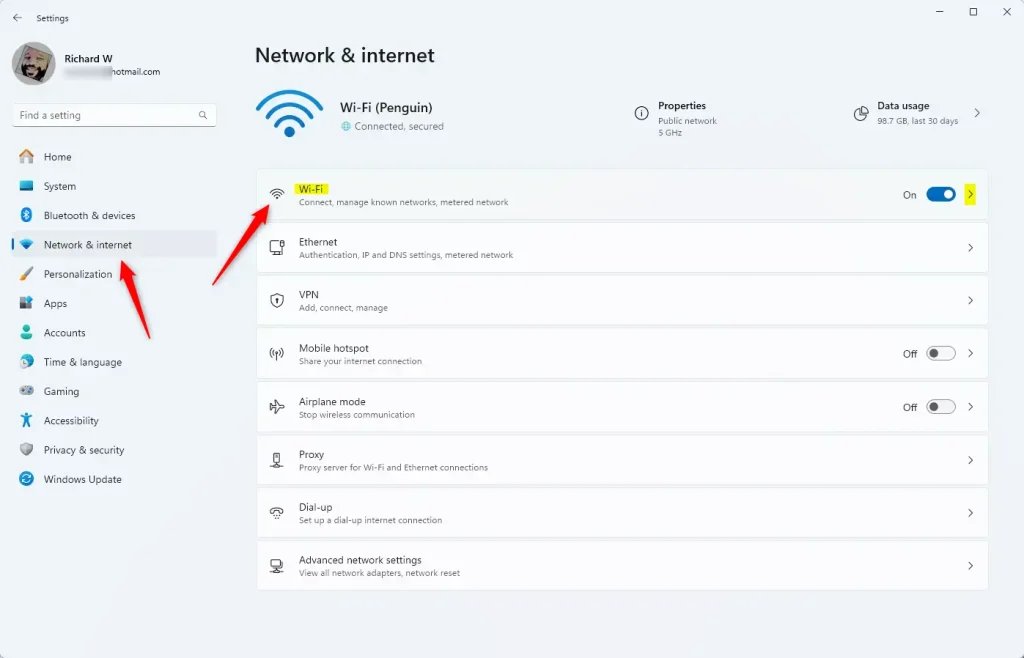
Wi-Fi tile in the Settings app - Click Network & internet on the left side. The network options for your PC appear on the right.
- Click the Wi-Fi section on the right to expand it. You should now see your wireless options and the networks available to you.
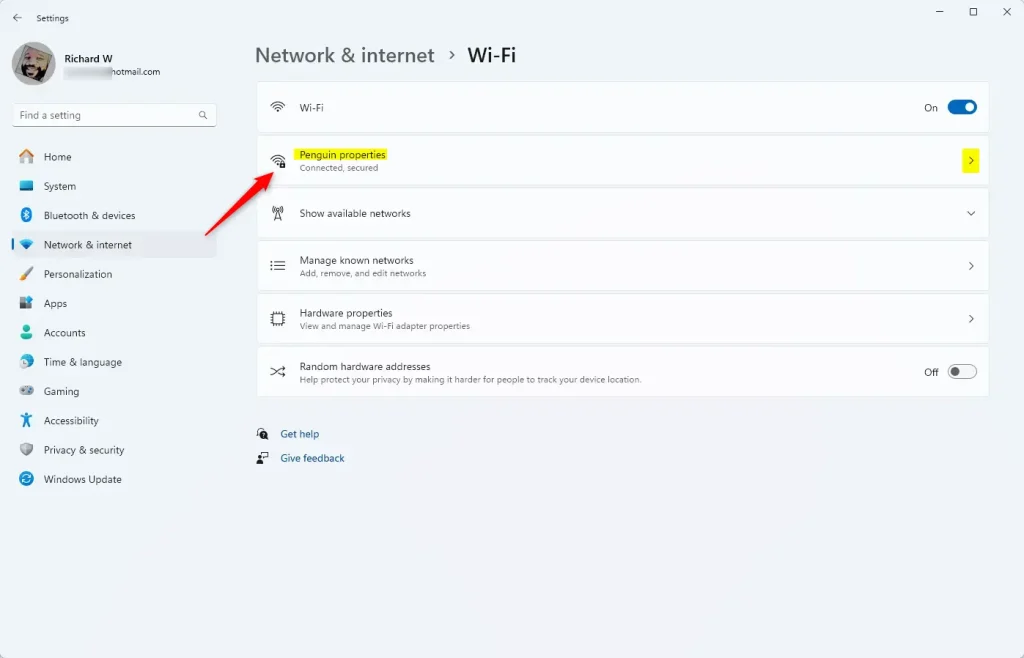
Wi-Fi properties tile - Find the Wi-Fi network you’re connected to and click it to see its properties. If you are not connected to a wireless network, there is nothing to share, so connect first and come back to this step.
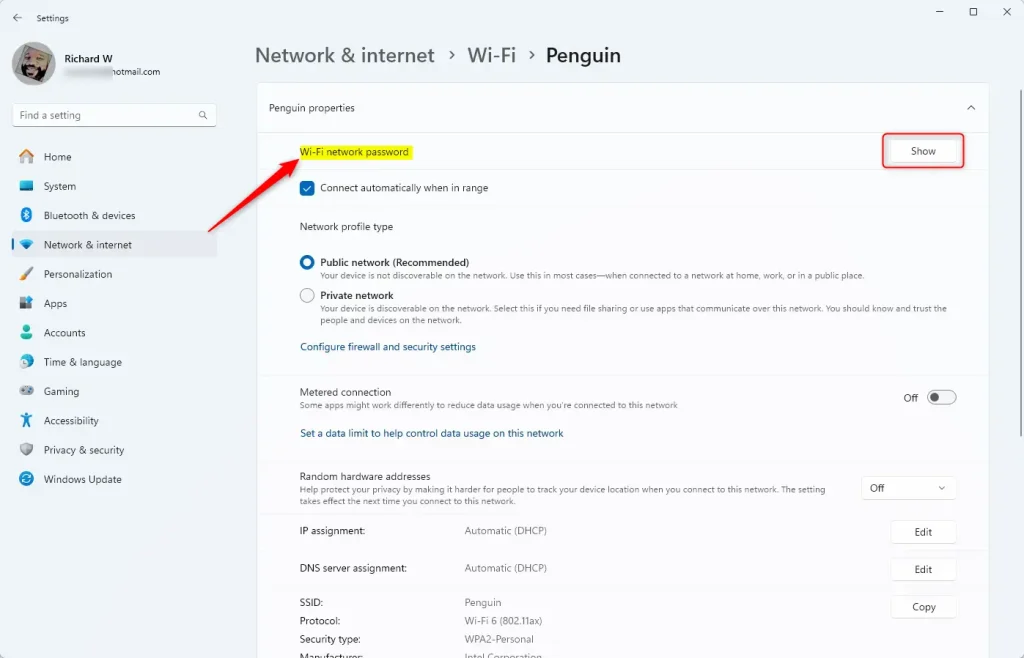
Wi-Fi properties show password - Look for the Wi-Fi network password section and click the Show button. If you do not see this section, your Windows 11 version is probably older than 24H2, so install the latest updates and check again.
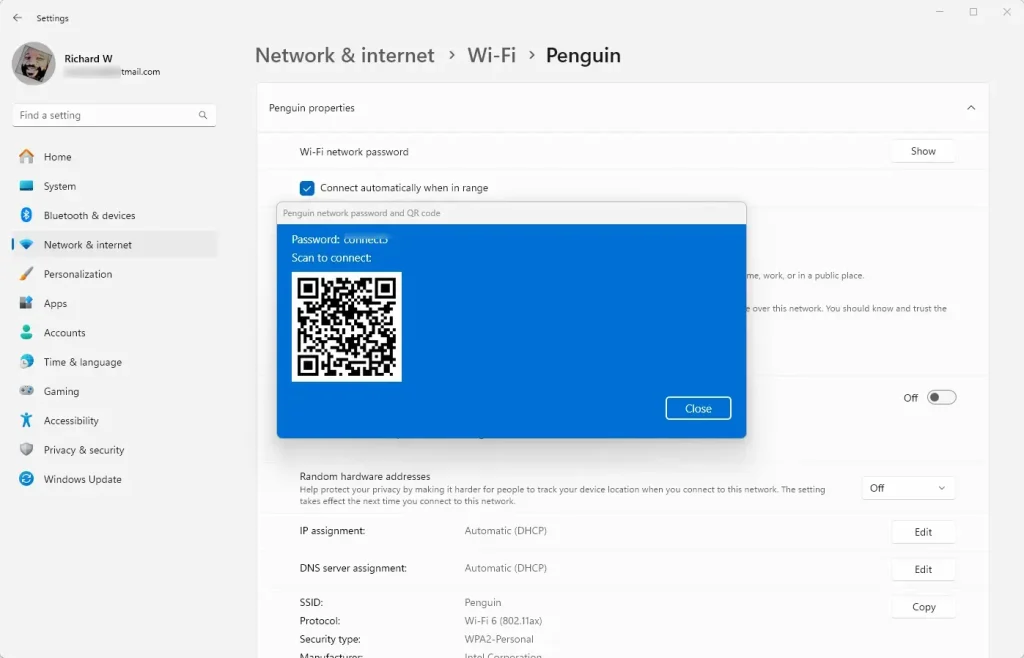
Wi-Fi properties page showing password and QR code in Windows 11 - A QR code now appears on your screen. Ask your guests to scan it with their phone camera or a QR code scanner app, then tap the prompt to join the network. Keep the code on screen until their device shows it is connected.
- Close the Settings app when you’re finished. Nothing changes on your network, and there is no restart needed. To hide the code again, just leave the page or close Settings.
Summary
Have a question about this guide?
Answered by AI from this guide. Good questions may be added to this page — please don't include personal details.
Did this guide fix your problem?

About the Author
Richard
Tech Writer, IT Professional
Richard is a writer at Geek Rewind who turns complex IT tasks into clear, step-by-step guides. He draws on years of hands-on experience in system administration and enterprise IT operations, focusing on Windows, Linux and WordPress: the problems people actually run into, and the fixes that work. His server and WordPress guides come from systems he runs himself. Richard builds and maintains the platform behind Geek Rewind, from its Ubuntu servers and Nginx configuration to its custom WordPress plugins. Many new tutorials start with readers' questions, and he's always glad to answer them in the comments.
No comments yet — be the first to share your thoughts!