How to Share Mobile Hotspot QR Code in Windows 11


Mobile hotspot QR code sharing in Windows 11 turns your hotspot name and password into a scannable picture, so friends can connect without typing anything. The feature is built in and works on Windows 11 version 24H2 and newer. On older builds you will not see the code.
Open your network settings, expand your hotspot details, and show the code on your screen for any phone camera to scan.
Generate a QR code for your mobile hotspot by opening Settings, navigating to Network & internet, then Mobile hotspot, and expanding the properties. Your QR code will appear on screen for others to scan and connect.
Why Use a QR Code for Your Hotspot?
A QR code makes sharing your hotspot much simpler. Instead of reading out a long, complex password letter by letter, guests scan a code and they are on. That saves time and avoids typos, which are the most common reason a first connection attempt fails. It helps most when several people need to join at once, because each of them can scan the same code in a few seconds.
How to Share Your Mobile Hotspot QR Code in 🪟 Windows 11
Sharing your Windows 11 hotspot QR code lets other devices join your PC’s internet connection by scanning a code with their camera instead of typing a password. You can find and display the code in system settings whenever someone needs to join. Before you start, your PC needs an internet connection of its own to share, such as Ethernet, Wi-Fi or a cellular connection. The hotspot should also be turned on.
- Open the Settings app. Click the Start menu and select Settings, or press
Windows key + Ion your keyboard. The Settings window opens with a list of categories on the left. - Once Settings opens, look on the left side and click Network & internet. The network options appear on the right.
- On the right side, find and click Mobile hotspot to expand it. If the hotspot is switched off, turn it on with the toggle at the top of that section. Windows needs the hotspot running before it can show connection details.
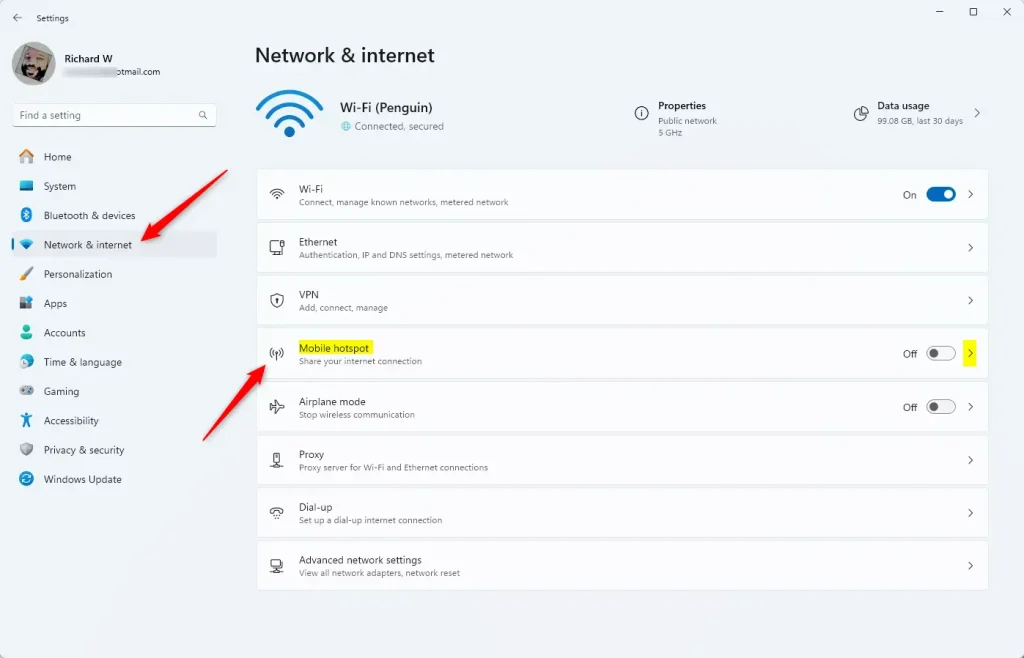
Mobile hotspot tile in the Settings app - Look for the properties section under the Mobile hotspot settings and click it to expand it. You should see your network name, password and network band. If you cannot find a QR code here, check your Windows version in Settings System About. The code needs version 24H2 or newer. Installing the latest updates through Windows Update is the usual fix.
- Look at the screen. Your QR code now appears there. This is the code others can scan to connect to your hotspot. Anyone who scans it also gets your hotspot password, so only show it to people you trust.
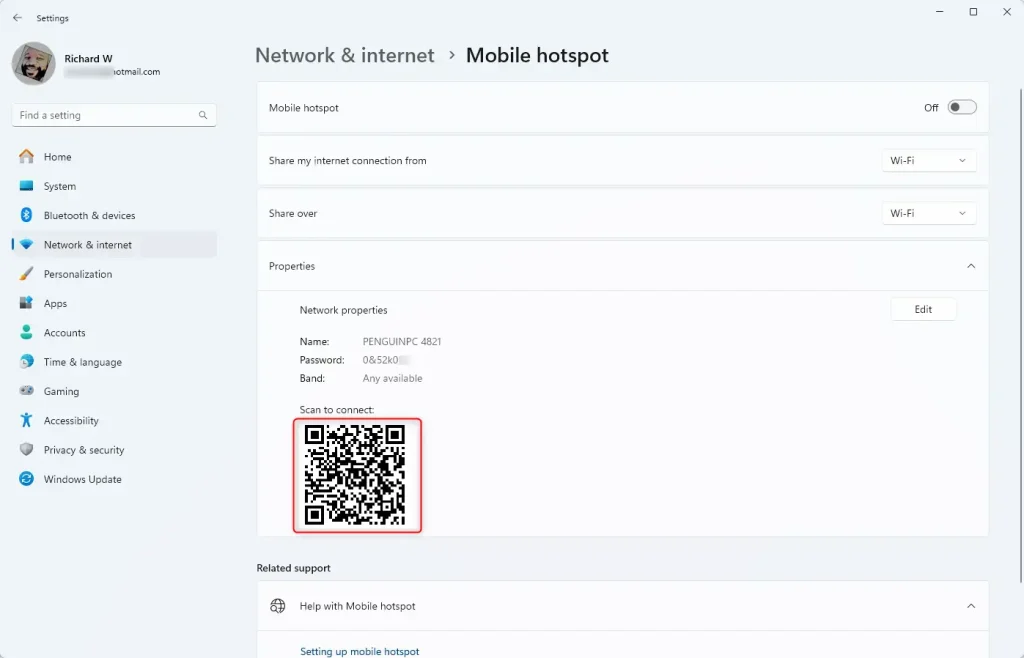
Share mobile hotspot password via QR code - Share this QR code with anyone who wants to connect. They can scan it with their phone or device camera. On most current iPhones and Android phones, the built-in camera app is enough. If yours does not react, they can open Google Lens or a QR scanner app instead. Hold the phone steady, a short distance from the screen, until the join prompt appears.
- Close the Settings app when you are finished. The hotspot keeps running after you close the window. When everyone is done, return to Network & internet Mobile hotspot and switch the hotspot off to stop sharing.
What Happens When Someone Scans the QR Code?
When someone scans your QR code, their device reads your hotspot name and password from it and offers to connect. They usually only need to tap a prompt to confirm, and they do not type the password. Once joined, the device appears in the connected devices list in your Mobile hotspot settings. If a device fails to join, check that the hotspot is still on and that your PC still has internet access. If you change the network name or password later, the old QR code stops working, so show the new one to anyone who needs to reconnect.
Summary
The QR code in Windows 11’s Mobile hotspot settings lets friends or family connect just by scanning, with no long passwords to read out or type. Turn the hotspot off when you are done, and only show the code to people you want on your network.
Have a question about this guide?
Answered by AI from this guide. Good questions may be added to this page — please don't include personal details.
Did this guide fix your problem?

About the Author
Richard
Tech Writer, IT Professional
Richard is a writer at Geek Rewind who turns complex IT tasks into clear, step-by-step guides. He draws on years of hands-on experience in system administration and enterprise IT operations, focusing on Windows, Linux and WordPress: the problems people actually run into, and the fixes that work. His server and WordPress guides come from systems he runs himself. Richard builds and maintains the platform behind Geek Rewind, from its Ubuntu servers and Nginx configuration to its custom WordPress plugins. Many new tutorials start with readers' questions, and he's always glad to answer them in the comments.
[…] clicking on the Start menu and selecting Settings. Or press the keyboard shortcut ( Windows key + I) to launch the Settings […]
[…] clicking on the Start menu and selecting Settings. Or press the keyboard shortcut ( Windows key + I) to launch the Settings […]