Set Up a Mobile Hotspot Connection in Windows 11 Network and Internet Settings

- 46 steps
- Needs administrator rights
Mobile Hotspot in Windows 11 is at Settings Network & internet Mobile hotspot, and you turn it on there with one switch. It makes your PC act as a portable Wi-Fi router and share its internet connection with nearby phones, tablets, and laptops.
The feature is built in and uses your PC’s network adapter to broadcast the signal, so you don’t need extra software. It works the same on Windows 11 Home and Pro.
You can share an Ethernet connection, a cellular data plan, or a Wi-Fi connection. Windows 11 routes the traffic for you. That gives you a private network in a hotel, in a remote area, or anywhere you have no access to a router.
Mobile hotspot in Windows 11 is at Settings Network & internet Mobile hotspot, where one switch turns your PC into a portable Wi-Fi router. It shares an Ethernet, cellular, or Wi-Fi connection with nearby phones, tablets, and laptops using your built-in network adapter, with no extra software needed. Before turning it on, set a network name and password of your own in that same panel.
Prerequisites for Setting Up a Mobile Hotspot
Before you set up a mobile hotspot, check three things: your hardware, your internet source, and your account type. Most modern laptops pass all three. Older USB Wi-Fi adapters are the usual problem, because some can’t broadcast a connection.
To check your adapter, right-click the Start button, choose Device Manager, and expand Network adapters. Open the properties of your wireless adapter there before you start.
- Wi-Fi HardwareYour computer needs a wireless adapter that supports hosted networks or Wi-Fi Direct. Most modern laptops and pre-built desktops have one. Older USB Wi-Fi dongles may not. If the Mobile hotspot toggle is greyed out or turns itself off, the adapter or its driver is the first thing to check. Updating the driver sometimes fixes it.
- Internet ConnectionYour PC needs an active connection to share. That can be an Ethernet cable plugged into your port, a separate Wi-Fi network, or an integrated cellular modem. With no working connection, the hotspot may turn on, but connected devices will have no internet.
- Administrator PrivilegesSign in with an administrator account. You need it to change network sharing properties and hotspot settings. On a standard account, some options may be blocked or ask for admin credentials.
One more limit applies if you share a cellular connection. Your carrier plan must allow tethering (sharing your data connection with other devices), and everything your connected devices use counts against your data allowance. Some plans block or throttle tethering, so check your plan first.
How to Configure Your Mobile Hotspot Settings
Before you turn the hotspot on, change the default network name, password, and band. Defaults are hard to tell apart from other networks in a crowded place, and a password you chose is more secure. The steps below are for Windows 11.
- Press Win+I. The Settings app opens.

- Click Network & internet in the left-hand menu. The network options appear on the right.
- Click Mobile hotspot. The configuration panel opens and shows the current network name, password, and band.
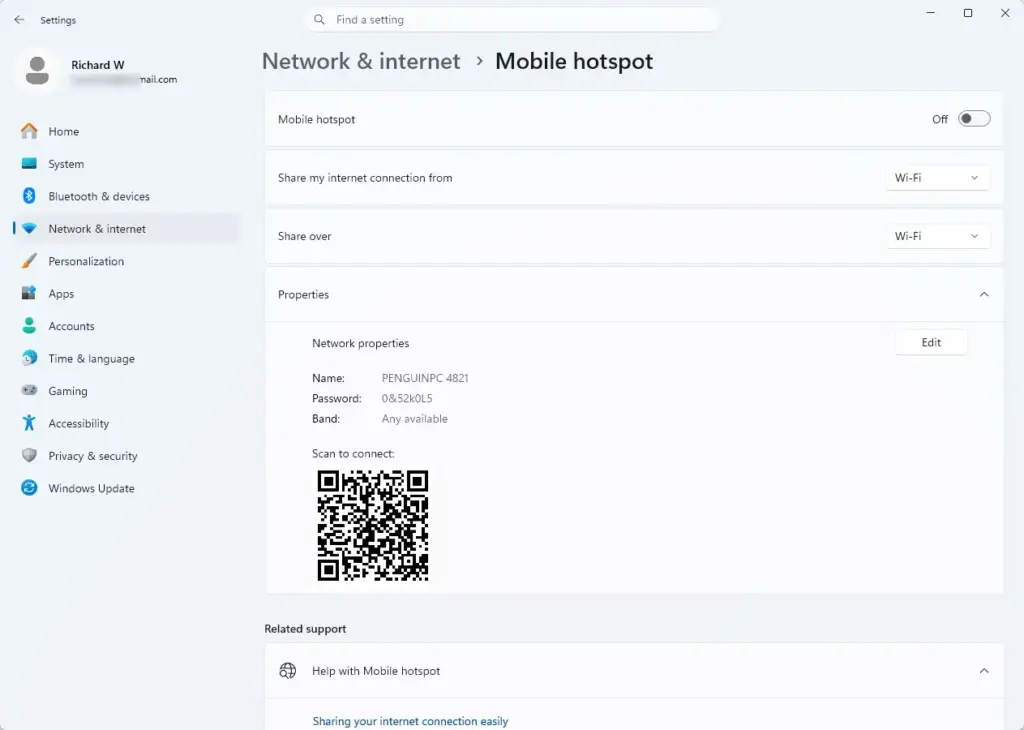
- Click the Edit button next to “Network details”. The name, password, and band fields become editable.
- Type a new name in the Network name field. This is the name other devices will see in their list of Wi-Fi networks.
- Type a password in the Network password field. It must be 8 to 63 characters long.
- Choose a band from the Band dropdown menu. The options are 2.4 GHz, 5 GHz, or Any available. The 5 GHz band is faster but has shorter range. The 2.4 GHz band reaches further and is supported by more older devices. The choices you see depend on your adapter, and some adapters offer only one band.
- Click Save. The panel returns to its normal view and shows your new details.
That’s it. Your hotspot now has its own name, password, and band, and Windows keeps them for next time. If you change these details while the hotspot is running, devices that are already connected may drop. They will need the new password to reconnect.
How to Turn On Mobile Hotspot in 🪟 Windows 11
You can turn on Mobile Hotspot from Settings or from the Quick Settings panel. Once it’s on, nearby devices can see your network and connect to it. If you share a cellular connection, remember that your carrier plan must allow tethering and that hotspot traffic counts against your data allowance.
These steps turn on the hotspot so other devices can connect to it from Settings:
- Press Win+I. The Settings app opens.
- Select Network & internet. The network options appear on the right.
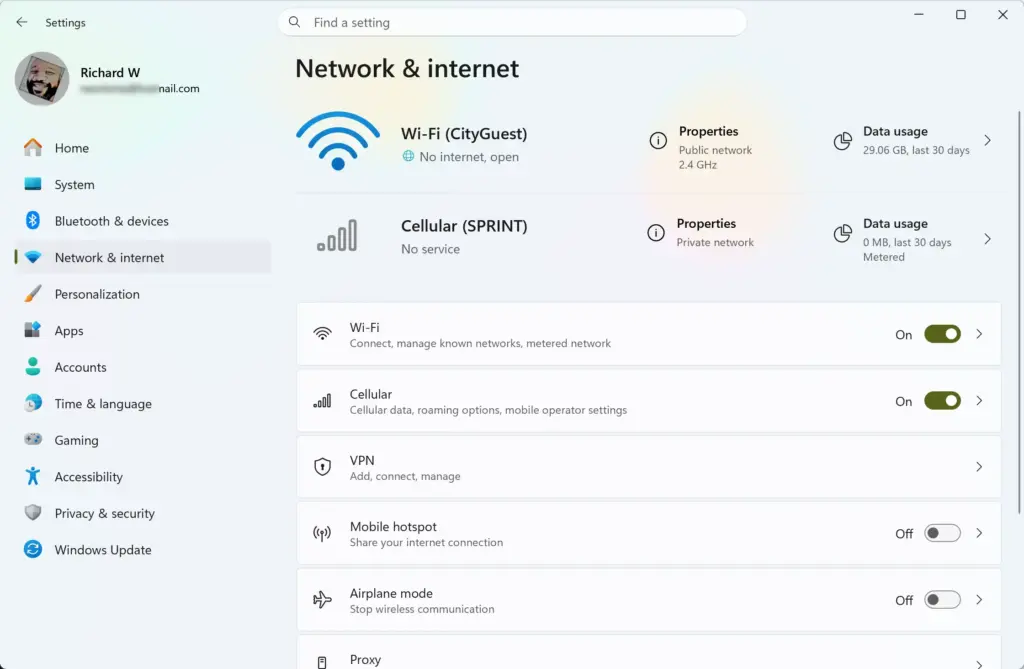
- Click Mobile hotspot. The hotspot page opens.
- Check the “Share my internet connection from” dropdown. If you have more than one connection, pick the one you want to share.
- Turn the Mobile hotspot switch to On. The switch label changes to On, and the page shows your network name and password.
That’s it. The hotspot is now broadcasting, and nearby devices can find it by the network name you set.
To toggle it from Quick Settings instead:
- Press Win+A. The Quick Settings flyout opens above the taskbar.
- Click the Mobile hotspot quick action button. This turns the hotspot on or off, and the tile changes color to show it is on. If the button is missing, click the pencil icon at the bottom of the flyout, choose Add, and select Mobile hotspot.
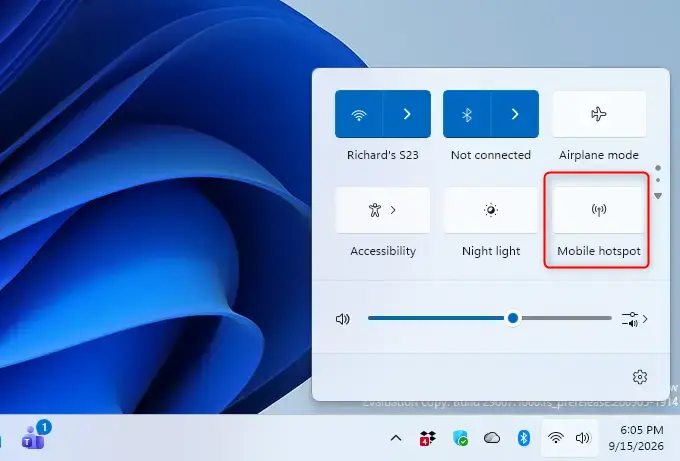
You should now have the hotspot running from Quick Settings. This is the fastest way to switch it on and off when you travel.
The same tile also opens the settings page. Right-click it, or long-press it on a touchscreen, and choose Go to Settings. The Mobile hotspot page opens directly, so you skip the first three steps above.
While the hotspot is active, the Mobile hotspot page lists connected devices under “Devices connected”. It shows how many of the maximum allowed devices (usually 8) are using your network. To undo this step, turn the same switch to Off.
Connecting Other Devices to Your 🪟 Windows 11 Hotspot
Once the hotspot is on, connecting a device is the same as joining any other Wi-Fi network. Your PC then acts like a standard router for that device. These steps show how to connect a phone, tablet, or laptop to your Windows 11 hotspot.
- Open the Wi-Fi settings on the device. This can be a smartphone, tablet, or another laptop.
- Scan for available networks. Find the Network name you set in Windows 11. If it doesn’t appear, check that the hotspot is still on and that the device supports the band you chose. Some older devices can’t see 5 GHz networks.
- Select the network. The device asks for a password.
- Enter the Network password you set. Confirm the connection on the device. Once it authenticates, the device reaches the internet through your Windows 11 PC.
You should now have the device online through your PC. Back on the PC, the new device should appear under “Devices connected” on the Mobile hotspot page. If the device connects but has no internet, check that the PC’s own connection works.
How to Share Your Connection Over Bluetooth
Bluetooth sharing is an alternative for PCs with no usable Wi-Fi adapter, or for times when you want to save battery. It uses much less power than a Wi-Fi broadcast. The trade-off is much slower data transfer speeds.
Your client device must be paired with your Windows 11 PC first. Pairing means the two devices have agreed to trust each other over Bluetooth.
- Press Win+I. The Settings app opens.
- Click Bluetooth & devices in the left-hand sidebar. The Bluetooth page opens.
- Set Bluetooth to On. If it is already on, leave it as it is.
- Click Add device and pair your device by following the on-screen prompts. Both devices show the paired state when this works.
- Click Network & internet in the left-hand menu. The network options appear on the right.
- Click Mobile hotspot. The hotspot page opens.
- Find the “Share over” dropdown. It offers Wi-Fi or Bluetooth and sits in the Mobile hotspot section near the top of the page.
- Change the setting from Wi-Fi to Bluetooth.
- Turn the Mobile hotspot switch to On. The page shows the hotspot as active.
That’s it. Your PC now shares its connection over Bluetooth with the paired device. To go back to Wi-Fi sharing, set “Share over” to Wi-Fi again.
Power Saving and Automatic Turn-Off Settings
The power saving option turns the hotspot off by itself when no devices are connected. This stops the hotspot from draining a laptop battery while nobody is using it. It is most useful on a laptop that is running on battery.
- Open Settings. Press Win+I if you want a shortcut.
- Click Network & internet.
- Click Mobile hotspot. The hotspot page opens.
- Find the Power saving toggle. You may need to expand the section first.

- Turn the switch to On. Windows now switches the hotspot off automatically when no client devices remain connected.
You should now have power saving active for the hotspot. If your hotspot keeps turning itself off, this setting is the likely cause. Turn the switch to Off to keep the hotspot running with no devices attached.
Advanced Management via Registry Editor
Network administrators and power users can use Registry Editor (regedit.exe, the Windows tool for viewing and changing system configuration settings) to look at the policies that govern hotspot behavior. Most people never need to do this. If you only want to turn the hotspot on or off, use Settings.
To view the sharing policies:
- Press Win+R. The Run dialog box opens.
- Type regedit and press Enter. Click Yes if the User Account Control prompt asks for administrator permission.
- Go to this path in the left-hand pane:
HKEY_LOCAL_MACHINE\SOFTWARE\Policies\Microsoft\Windows\NetworkConnections
You should now see the contents of that key. If keys for managing connection sharing policies exist here, they control how network sharing behaves under enterprise group policies. If the path is empty or missing, no such policy has been set on this PC. Close Registry Editor when you finish looking.
Automating Mobile Hotspot with PowerShell
PowerShell (a task automation framework made up of a command-line shell and a scripting language) lets you drive the hotspot from the command line instead of the Settings pages. You need an administrative console for this.
- Right-click the Start button. Select Terminal (Admin) or PowerShell (Admin).
- Click Yes if User Account Control appears. An administrator console opens.
- Run this command to start the mobile hotspot:
Start-Process "ms-settings:network-mobilehotspot"
Direct PowerShell cmdlets for starting the hotspot need specific network profile wrappers. The Settings URI scheme is the way to trigger the interface directly. Depending on how your build handles it, you may still need to confirm the Mobile hotspot switch on the Settings page.
You should now have the hotspot started or ready to confirm. To stop the hotspot, turn the switch to Off on the Mobile hotspot page.
How to Undo This
To undo your hotspot setup, follow these steps:
- Open Settings Network & internet Mobile hotspot.
- Turn the Mobile hotspot switch to Off. Devices that were connected lose their internet access.
That’s it. The hotspot is off, and your name, password, and band settings stay saved for next time.
To clear everything and return your network adapters to their defaults, use Network reset. Treat it as a last resort. It removes saved Wi-Fi networks, saved VPN connections, and virtual adapter configurations. It also reinstalls your network adapters and restarts the PC.
- Open Settings. Press Win+I.
- Click Network & internet.
- Click Advanced network settings. A list of more network options appears.
- Click Network reset.
- Click Reset now and confirm when Windows asks. The PC restarts.
You should now have your network adapters back at their defaults. After the restart, reconnect to Wi-Fi, add back any VPN, and set up the hotspot again if needed.
Have a question about this guide?
Answered by AI from this guide. Good questions may be added to this page — please don't include personal details.
Did this guide fix your problem?

About the Author
Richard
Tech Writer, IT Professional
Richard is a writer at Geek Rewind who turns complex IT tasks into clear, step-by-step guides. He draws on years of hands-on experience in system administration and enterprise IT operations, focusing on Windows, Linux and WordPress: the problems people actually run into, and the fixes that work. His server and WordPress guides come from systems he runs himself. Richard builds and maintains the platform behind Geek Rewind, from its Ubuntu servers and Nginx configuration to its custom WordPress plugins. Many new tutorials start with readers' questions, and he's always glad to answer them in the comments.
No comments yet — be the first to share your thoughts!