How to Turn On or off Cellular Network in Windows 11

- 13 steps
- Includes a restart or sign-out
Cellular network settings in Windows 11 let you turn mobile data on or off for laptops and tablets that use a built-in SIM card or eSIM. This gives you an internet connection through a mobile carrier when Wi-Fi is not available.
The switch is in the Network & internet section of the Windows 11 Settings app. Turning off cellular data stops all mobile internet use, which helps you save data when you want to rely only on Wi-Fi.
The Cellular option only shows up on devices with a cellular modem. If you do not see it anywhere in Settings or Quick Settings, your PC probably has no modem, and this guide will not apply. The steps are the same on Windows 11 Home and Pro, and you do not need to restart.
Navigate to Settings, then Network & internet, and select Cellular. Use the Cellular data toggle switch to turn the connection On or Off. This controls your device’s mobile broadband connection.
Why Use Cellular Data?
Mobile data gives you internet access away from routers and makes a reliable backup when you travel. Turning it off in Windows 11 helps you avoid extra charges on capped plans. It also saves some battery, because the modem is not looking for or holding a mobile connection.
Turn it off when you are on trusted Wi-Fi, when you are roaming, or when you are close to your monthly data limit. Turn it back on when you leave Wi-Fi range and still need to be online.
How to Enable or Disable Cellular Network in 🪟 Windows 11
The fastest way to switch cellular data is from Quick Settings:
- Press Win+A to open Quick Settings. You can also click the network, volume and battery icons at the right end of the taskbar.
- Select the Cellular tile to turn mobile data on or off. The tile is highlighted when cellular is on and dim when it is off.
If you do not see the tile, click the pencil (Edit quick settings) icon, select Add, and pick Cellular from the list. If it is not in the list either, the device has no cellular modem or Windows does not detect it.
If you prefer the full Settings app, or want to see more options, follow these steps.
- Open the Settings app by pressing Win+I. The Settings window opens with the categories listed in the left sidebar.

- Click Network & internet in the left sidebar. The network options appear on the right.
- Select the Cellular tile on the right. The cellular page opens with your connection details. If the tile is missing, Windows does not see a modem or SIM. Check that the SIM is inserted and that Airplane mode is off.
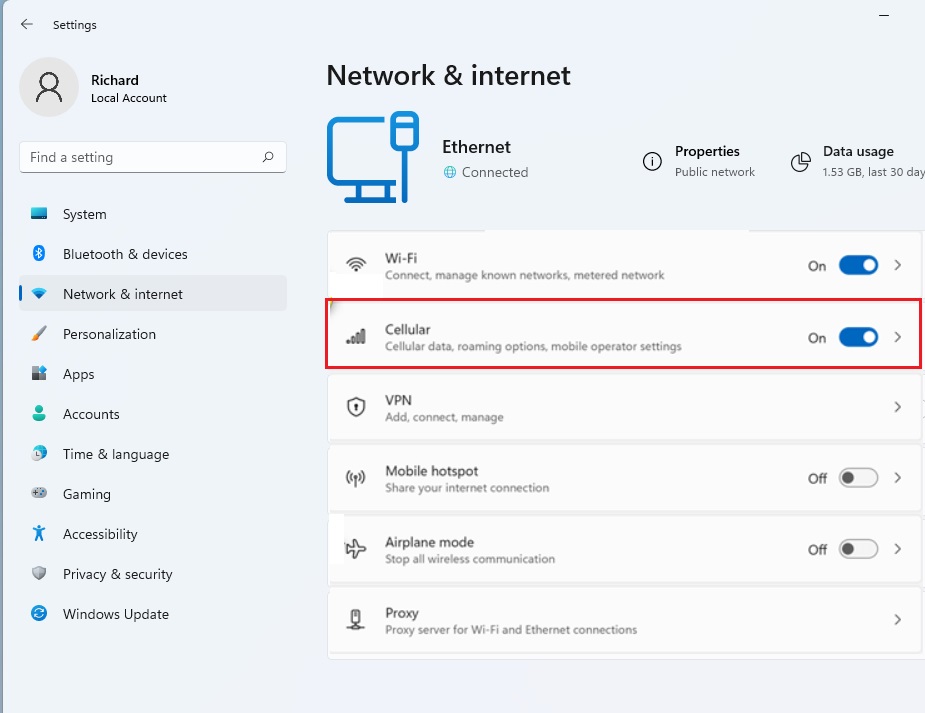
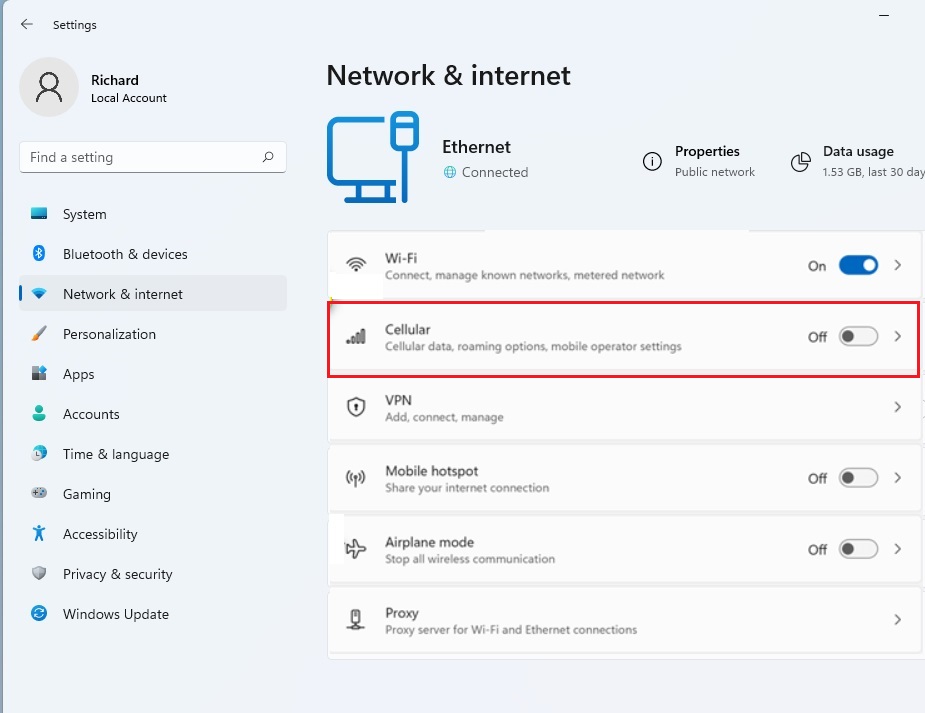
- Use the Cellular data toggle to switch the connection On or Off. When it is off, Windows stops using your mobile plan. The change takes effect right away, with no restart.
To undo the change, return to this page and flip the same toggle back.
Managing eSIM and SIM Cards
Windows 11 can manage both physical SIM cards and newer eSIMs for your cellular connection. With a physical SIM, make sure the card is seated properly and not locked by a PIN you have not entered. With an eSIM, the carrier profile has to be installed on the device first. On devices that support it, the profile appears on the same Cellular page in Settings.
If you have more than one line, for example a SIM plus an eSIM, check which one is active before you turn data on or off. Otherwise you may switch off the wrong connection.
Troubleshooting Cellular Connectivity
If the cellular switch is grayed out, the cause is usually your network adapter settings or the state of the modem. Work through these checks in order:
- Turn off Airplane mode. It disables the cellular radio, and in Quick Settings or Settings Network & internet you can switch it off.
- Check that the SIM or eSIM profile is installed and active, and that your carrier plan is in good standing.
- Make sure the cellular adapter has not been disabled. Open Device Manager, expand Network adapters, and look for your mobile broadband adapter. If it shows a down arrow, right-click it and select Enable device.
- Restart the PC. This clears many modem glitches. If the problem persists, update the modem driver from your PC maker’s support page.
Data Usage and Metered Connections
Setting your mobile network as a metered connection stops Windows from downloading large system updates over your mobile data plan. It also limits some background activity. To turn it on:
- Open Settings and go to Network & internet.
- Choose Cellular.
- Find the metered connection switch and turn it on. You may need to open the properties of your cellular connection to see it.
Turn the switch off again if you want Windows to treat the connection like normal and download everything freely. A metered connection does not block your own browsing or apps, only some background transfers.
Summary
Managing cellular network connections in Windows 11 comes down to the built-in toggles covered in this guide. Use Quick Settings for fast changes, the Cellular page in Settings for more control, and the metered connection option to protect your data allowance.
Why is the cellular toggle missing in 🪟 Windows 11?
Does turning off cellular data save battery life?
Have a question about this guide?
Answered by AI from this guide. Good questions may be added to this page — please don't include personal details.
Did this guide fix your problem?

About the Author
Richard
Tech Writer, IT Professional
Richard is a writer at Geek Rewind who turns complex IT tasks into clear, step-by-step guides. He draws on years of hands-on experience in system administration and enterprise IT operations, focusing on Windows, Linux and WordPress: the problems people actually run into, and the fixes that work. His server and WordPress guides come from systems he runs himself. Richard builds and maintains the platform behind Geek Rewind, from its Ubuntu servers and Nginx configuration to its custom WordPress plugins. Many new tutorials start with readers' questions, and he's always glad to answer them in the comments.
No comments yet — be the first to share your thoughts!