How to Manage Windows 11 Hidden Icons in System Tray

The taskbar corner overflow menu in Windows 11 holds up to 15 background apps behind a small upward-pointing arrow (the chevron), so your screen stays clean. It tucks away less-used programs until you need them.
You can turn this menu off so all active app icons stay visible on the taskbar , or leave it on to save space. This tutorial covers two ways to do it: the Settings app, which is the safer choice, and the Registry Editor, which is a fallback. Both work on Windows 11 Home and Pro.
To show or hide the hidden icon menu on your Windows 11 taskbar, open Settings , go to Personalization Taskbar, and toggle “Other system tray icons” on or off. This action directly controls the visibility of the upward-pointing arrow in your system tray.
Option 1Change Settings (The Easy Way)
This method uses the Windows Settings app. It needs no special permissions, and you can undo any change by flipping the same switch back. The exact wording of the options can differ slightly between Windows 11 builds, and older builds may not show a hidden icon menu switch at all. If yours doesn’t, use the registry method further down.
Step 1Open Settings
- Press Win+I on your keyboard.
The Settings app opens. You can also right-click the Start button and choose Settings.

Step 2Go to Taskbar Settings
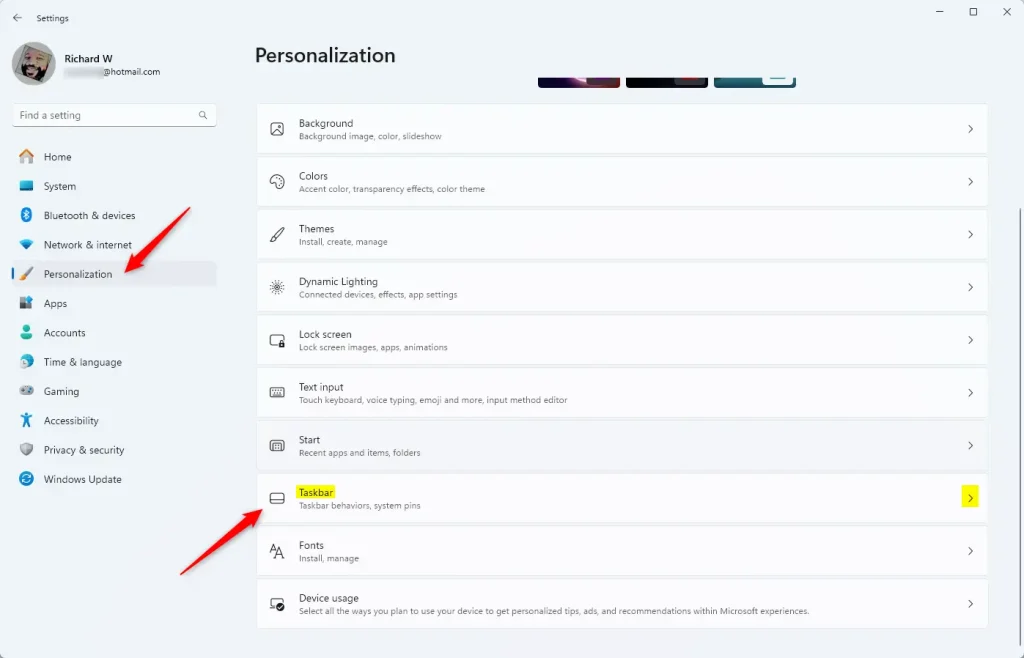
- In the left-hand menu of Settings, select Personalization.
- On the right side, scroll down and select Taskbar.
You should now see the Taskbar page, with groups of options such as taskbar items, system tray icons and taskbar behaviors.
Step 3Find “Other system tray icons”
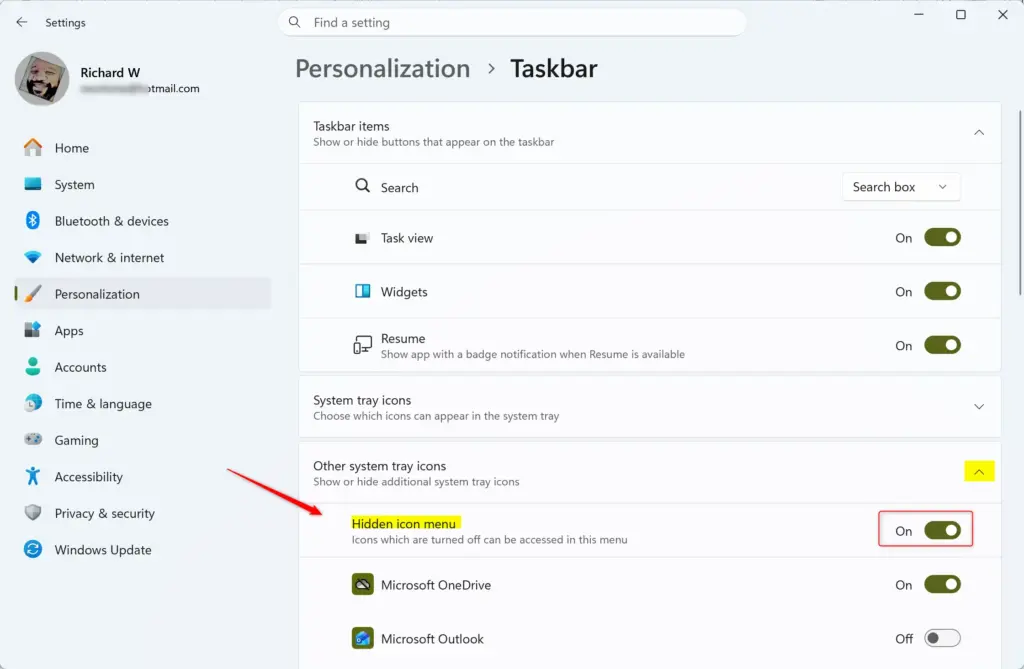
- On the Taskbar page, find the section named Other system tray icons. This is the area that manages the hidden icons.
- Click it to expand the section.
The section opens and shows its switches. Depending on your build, you may see a Hidden icon menu switch at the top, followed by a list of individual apps, each with its own On/Off switch.
Step 4Control the Hidden Icon Menu
Hidden icons can be managed directly in the Settings app, so you choose which apps stay visible. The steps below turn the hidden icon menu on or off, depending on whether you want the small upward arrow in your system tray.
- Under Other system tray icons, find the Hidden icon menu switch.
- Click the switch to turn it On or Off.
- Look at the right end of the taskbar to check the result. The arrow should appear or disappear straight away.
The individual app switches in the same list decide where each app's icon lives. An app set to On shows its icon directly in the taskbar corner. An app set to Off goes into the overflow menu while the hidden icon menu is on. Go through them one by one if you only want a few icons visible.
- Tip: When this setting is On, you'll see the upward-pointing arrow (the chevron) in the system tray. Clicking it shows icons for apps not currently displayed directly on the taskbar.
- Warning: If you turn this setting Off, the arrow will vanish. Icons that were hidden will likely appear directly on your taskbar, which might make it look more crowded.
Step 5Close Settings
You can now close the Settings window. Your taskbar updates immediately, and you don't need to restart Windows. To undo the change, come back to the same page and flip the switch the other way.
Option 2Using Registry Editor (For Advanced Users)
The Registry Editor is an advanced way to control the hidden icon menu if the Settings app doesn't offer the switch or doesn't work for you. Try the Settings method first, because the registry has no safety net.
Important Warning: Incorrect modifications within the Windows Registry can cause significant problems. Back up your registry before making any changes. To do this, open the Registry Editor, go to File Export, choose All as the export range, and save the file somewhere you can find it. If something goes wrong, you can restore it with File Import
Step 1Open Registry Editor
- Press Windows key + R on your keyboard to open the Run dialog box.
- Type
regeditand press Enter or click OK. - If a User Account Control (UAC) prompt appears and asks for permission, click Yes.
The Registry Editor opens, with a folder tree on the left and values on the right. You need an administrator account, or the administrator password, to get past the UAC prompt.
Step 2Go to the Correct Registry Key
To change the hidden icon setting, you need to open a specific key. You can click through the folder tree in the sidebar, but the address bar is faster.
- Click the address bar at the top of the Registry Editor, under the menu bar.
- Paste this path: HKEY_CURRENT_USER\Software\Classes\Local Settings\Software\Microsoft\Windows\CurrentVersion\TrayNotify
- Press Enter.
The editor jumps to the TrayNotify key, and its values appear in the right pane.
HKEY_CURRENT_USER\Software\Classes\Local Settings\Software\Microsoft\Windows\CurrentVersion\TrayNotifyIf you prefer, copy and paste the path directly into the address bar of the Registry Editor window and press Enter. Make sure every backslash is included, because a missing one sends you to the wrong place or gives you an error.
Step 3Change the "SystemTrayChevronVisibility" Value
SystemTrayChevronVisibility is the entry you edit to turn the hidden icon menu on or off. A value of 1 shows the arrow, and 0 hides it completely.
- In the right pane, find SystemTrayChevronVisibility.
- Double-click it to open the edit box.
- Enter the value data from the list below.
- Click OK.
If you can't find the entry on your build, don't create it blindly. Use the Settings method instead.
- To Turn ON the Hidden Icon Menu (Show the Arrow): In the "Value data" box, type
1. Make sure "Base" is set to Hexadecimal. Click OK. - To Turn OFF the Hidden Icon Menu (Hide the Arrow): In the "Value data" box, type
0. Make sure "Base" is set to Hexadecimal. Click OK.
Using the number 1 instructs Windows to show the hidden icon menu, while 0 tells it to hide the menu. To undo your change, reopen the entry and enter the other value.
Step 4Restart Windows Explorer
Registry changes don't always show up on the taskbar right away. Restarting Windows Explorer applies them without a full reboot.
- Press Ctrl + Shift + Esc to open Task Manager.
- Go to the Processes tab.
- Scroll down and find Windows Explorer.
- Right-click Windows Explorer and choose Restart.
Your taskbar and desktop will briefly vanish and then reload. This takes a few seconds. The setting for your hidden icon menu should now be active. If nothing changes, sign out and back in, or restart the PC.
Step 5Close Registry Editor
You can now close the Registry Editor window. Your taskbar behavior will be updated accordingly, and the exported backup file stays on your drive in case you need it.
Summary
You can turn the hidden icon menu on or off in Windows 11 through the Settings app under Personalization Taskbar Other system tray icons This is the safer method, and it takes effect immediately.
For more control, or if the switch is missing on your build, use the Registry Editor and change the SystemTrayChevronVisibility value in the key shown in the registry steps above. Back up the registry first, then restart Windows Explorer to apply the change.
Frequently asked questions
How to find system tray 🪟 Windows 11?
The system tray sits at the far right end of the taskbar, next to the clock and date. Click the small upward arrow (the chevron) to see icons hidden in the taskbar corner overflow menu. Icons that stay visible show up directly beside the clock.
How to enable hidden icons in 🪟 Windows 11?
Open Settings and select Personalization, then Taskbar. Expand Other system tray icons and switch on the apps you want visible beside the clock. Switched-off apps stay in the chevron menu. If Other system tray icons is missing, your build may lack this option, so use the Registry Editor method instead.
How to set hidden icons?
To choose which icons stay out of sight, open Settings, select Personalization, then Taskbar. Under Other system tray icons, switch an app Off to move its icon into the hidden menu, or On to keep it on the taskbar. You can reverse this at any time.
How can I put mydrive icon in hidden icons group at rhs lower corner?
Open Settings, select Personalization, then Taskbar and find the app under Other system tray icons. Switch it Off to move its icon into the hidden menu. If it is not listed, the app may manage its own tray icon, so check its settings for a hide to tray option.
How to close a tray icon?
Right-click the tray icon and choose Exit, Quit, or Close, depending on the app. If no such option appears, save your open work first, then open Task Manager, find the app under Processes, right-click it, and choose End task. End task closes the app without saving.
How to remove app from system tray 🪟 Windows 11?
Remove an app's icon from the tray by turning off its switch under Settings, Personalization, Taskbar, Other system tray icons. This hides the icon but keeps the app running. To stop it entirely, right-click its tray icon and choose Exit or Quit, or uninstall it from Settings, Apps, Installed apps.
Still have a question?
Answered by AI from this guide. Good questions may be added to this page — please don't include personal details.
Did this guide fix your problem?

About the Author
Richard
Tech Writer, IT Professional
Richard is a writer at Geek Rewind who turns complex IT tasks into clear, step-by-step guides. He draws on years of hands-on experience in system administration and enterprise IT operations, focusing on Windows, Linux and WordPress: the problems people actually run into, and the fixes that work. His server and WordPress guides come from systems he runs himself. Richard builds and maintains the platform behind Geek Rewind, from its Ubuntu servers and Nginx configuration to its custom WordPress plugins. Many new tutorials start with readers' questions, and he's always glad to answer them in the comments.
No comments yet — be the first to share your thoughts!