How to Play Phone Sound on Mobile from Windows 11

Playing a sound from your PC lets you use Windows 11 to find a lost Android phone. It might be under the couch cushions or in another room. The feature relies on the Phone Link app, a built-in utility that connects your mobile device to your computer. Phone Link links your phone and PC over Bluetooth .
The setup takes a few clicks. After that, you can ring your phone from your desktop, even when the phone is on silent.
Open the Phone Link app on your Windows 11 PC and click the “Play sound” button. Alternatively, go to Settings Bluetooth & devices Mobile devices, select your phone, and click “Ring now.” Your phone will ring loudly to help you find it.
What You’ll Need
Phone Link’s play sound feature needs a Windows 11 PC, a compatible Android phone, and an active connection through the Phone Link app. Set up the app and link both devices before you try to ring the phone. If the devices are not already linked, the ring will not work.
- Your Windows 11 PC: This is where you start the ring.
- Your Android phone: This is the device you need to find. It must stay linked to the PC.
- Phone Link app: The app must be on your Windows 11 PC and connected to your Android phone. If you haven’t set it up, search for “Phone Link” in the Windows search bar and follow the setup prompts.
- Wi-Fi connection: Your PC and phone both need to be on the same Wi-Fi network for this to work. Check this first if the ring does nothing.
Option 1Finding Your Phone Through the Phone Link App
This is the most direct way to make your phone ring. The Phone Link app also manages how your phone connects to your PC, so you do not need to open anything else.
Step 1Open the Phone Link App
- Click the search box on the taskbar , type “Phone Link” and open the app.
The Phone Link window should open and show your connected phone. If it asks you to sign in or pair, finish that first.
Step 2Find the “Play Sound” Button
- Look at the left side of the Phone Link window, where your phone’s information is listed.
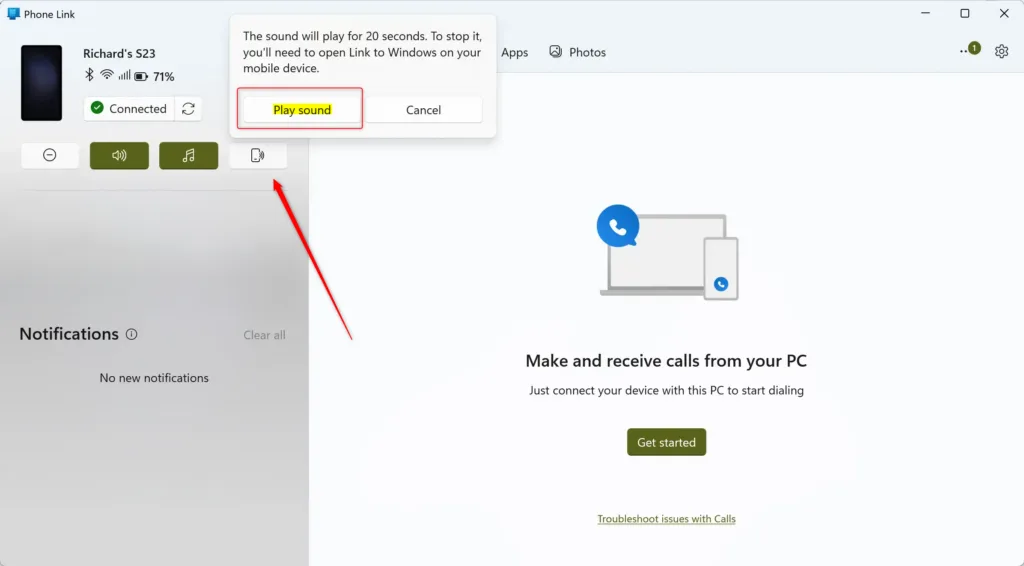
- Near the top, click the Play sound button.
If you can’t see the button, your phone is probably not connected. Check that both devices are on the same Wi-Fi network and that Bluetooth is on.
Step 3Confirm You Want to Play the Sound
- If a small confirmation message appears, click Play sound again to confirm.
Your phone should start ringing. The message may not appear on every version of the app. If it doesn't, the ring has probably already started.
Step 4Listen for Your Phone!
Your phone rings loudly for 20 seconds when you use the "Find my phone" feature. This works even if the phone is set to silent. If you find the phone before the ringing stops, tap the "Link to Windows" notification on the phone to stop the ring.
Step 5Acknowledge and Search
When the sound stops, or you stop it, you will likely see a message in the Phone Link app on your PC. Click Got it or a similar button to close it.
If you still haven't found your phone, you can run the ring again. Check the places you can't hear into, like bags and pockets, then try once more. You have done all you can from the PC.
Option 2Finding Your Phone Through Windows Settings
If you would rather manage your phone's connection through Windows settings, you can trigger the ring from there as well. The result is the same, and it also works when the Phone Link window is not the quickest way to reach your phone.
Step 1Open Windows Settings
- Press Win + I on your keyboard to open the Settings app on your Windows 11 PC.
The Settings window should open with a list of categories on the left.
Step 2Go to Mobile Devices
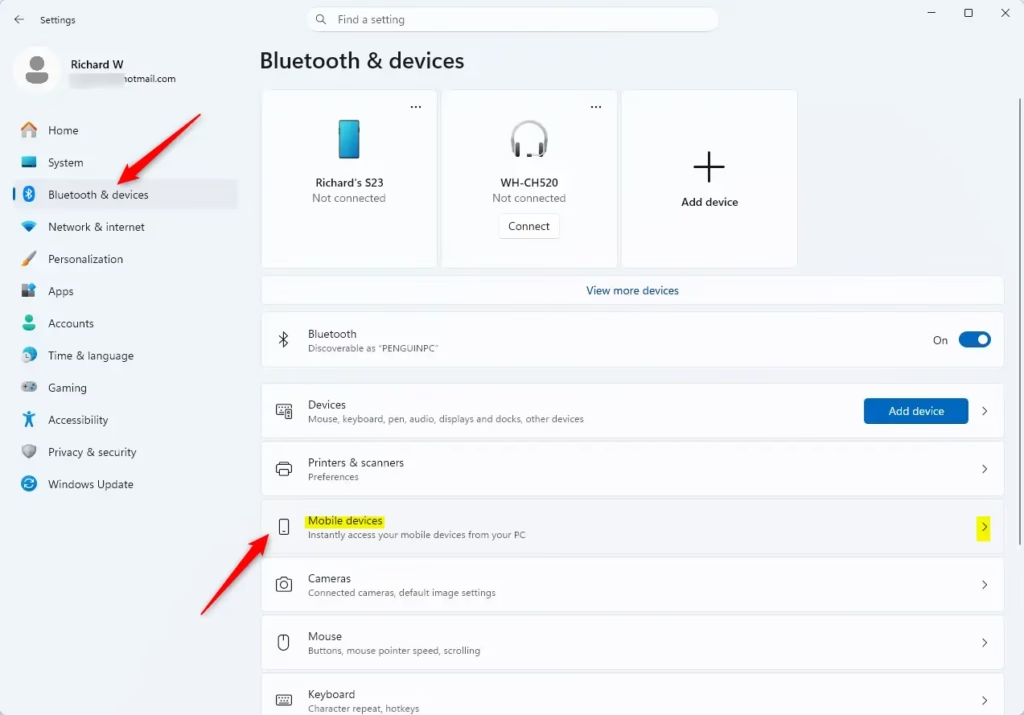
- In Settings, click Bluetooth & devices in the menu on the left.
- On the right side, click Mobile devices.
The full path is Settings Bluetooth & devices Mobile devices If you don't see Mobile devices, check that Windows 11 is up to date, since the option isn't on older builds.
Step 3Select Your Linked Phone
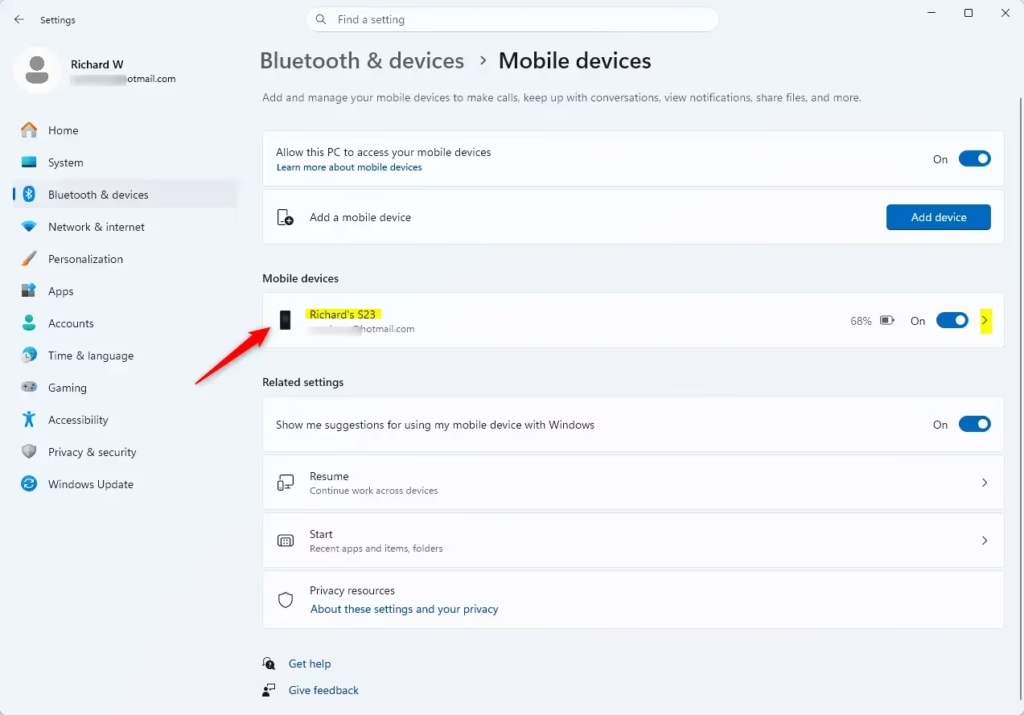
Next, choose your specific device from the dashboard.
- Open the Phone Link app on your Windows 11 PC and look at the mobile devices section.
- Click the name of your Android phone in the list to connect it.
If your phone does not appear, check that your computer has permission to access your mobile device. Verify that "Allow this PC to access content and capabilities from your mobile devices" is toggled on in the app settings. You can switch it back off later if you no longer want the PC to have that access.
Step 4Trigger the Ring
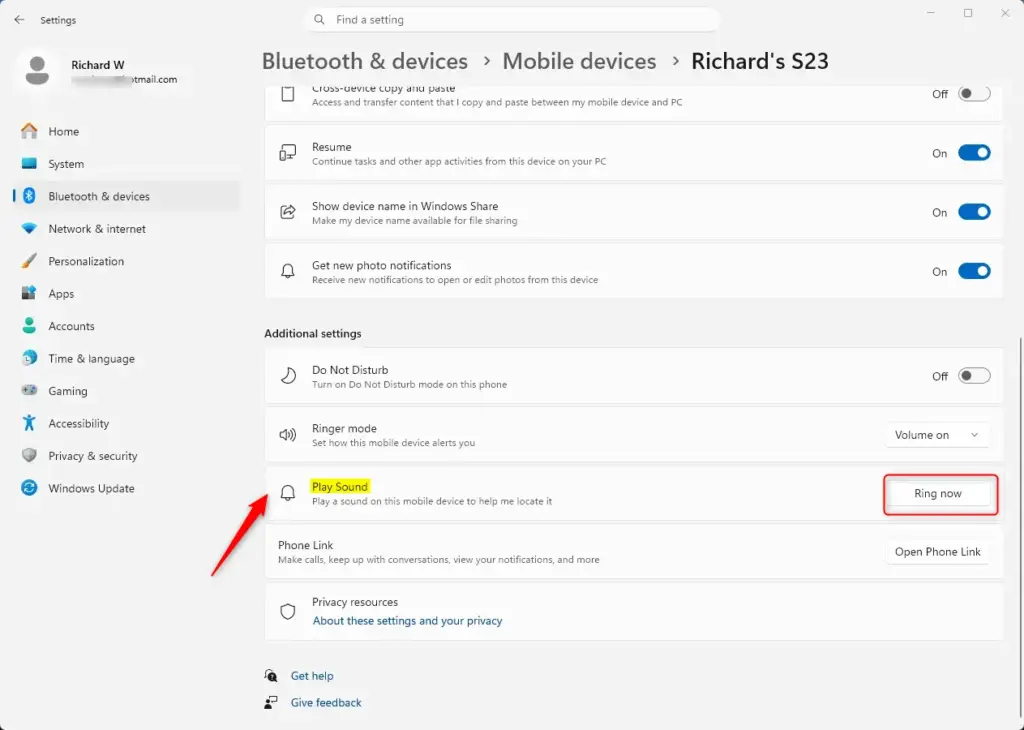
- On the settings page for your phone, scroll down to the Controls section.
- Click the Ring now button.
Your phone should start ringing.
Step 5Stop the Sound When Found
As with the Phone Link app, your phone rings for about 20 seconds.
- When you hear the phone and find it, click the Stop playing sound button in the same Controls section.
The ringing should stop right away.
Step 6Close Settings
Once you have your phone and the sound has stopped, you can close the Settings app. Your task is done.
Summary
If you need further help syncing your devices, check your Bluetooth settings and make sure both devices are on the same Wi-Fi network. Then close and reopen the Phone Link app. If the phone still doesn't show up, restart the app once more and try the connection again.
Have a question about this guide?
Answered by AI from this guide. Good questions may be added to this page — please don't include personal details.
Did this guide fix your problem?

About the Author
Richard
Tech Writer, IT Professional
Richard is a writer at Geek Rewind who turns complex IT tasks into clear, step-by-step guides. He draws on years of hands-on experience in system administration and enterprise IT operations, focusing on Windows, Linux and WordPress: the problems people actually run into, and the fixes that work. His server and WordPress guides come from systems he runs himself. Richard builds and maintains the platform behind Geek Rewind, from its Ubuntu servers and Nginx configuration to its custom WordPress plugins. Many new tutorials start with readers' questions, and he's always glad to answer them in the comments.
No comments yet — be the first to share your thoughts!