How to Change Android Ringer Mode from Windows 11 PC

The Phone Link app in Windows 11 lets you change your Android phone’s ringer mode between sound, vibrate, and silent from your computer screen. The feature needs an Android 7.0 or newer phone that is connected to your PC over Bluetooth .
If you are typing or sitting in a meeting, you can silence the phone in a click or two. You don’t have to reach into a pocket or bag, and you don’t have to look away from your work.
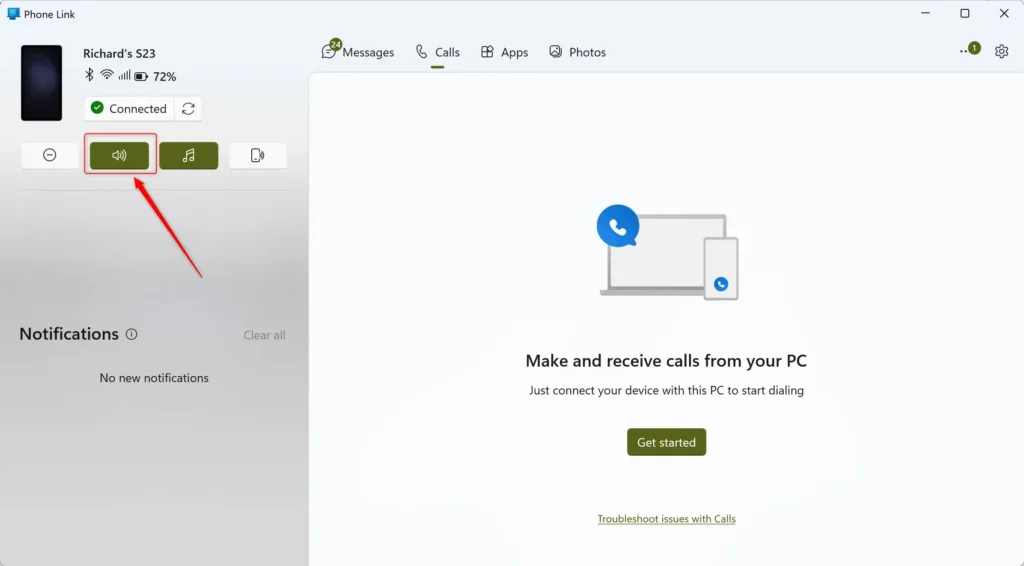
Open the Phone Link app on your Windows 11 PC and look for the Ringer Mode control at the top left. Click the Volume button or use the Ctrl+Shift+V keyboard shortcut to cycle through sound, vibrate, or silent modes.
Setting Up Your Phone Link Connection
Phone Link is the app built into Windows 11 that connects your phone to your computer. Once the two are paired, you can control phone features such as the ringer mode from your desktop. On your phone, the companion app is called Link to Windows. Some Samsung phones already include it.
Pair the devices before you try to change any sound settings. The ringer control won’t appear until the phone is connected. Here is what you need first:
- A Windows 11 PC with Phone Link. It is normally already installed.
- An Android phone running Android 7.0 or newer.
- A Microsoft account that you can sign in to on both devices.
- Bluetooth turned on for both the PC and the phone.
Linking Your Android Phone to 🪟 Windows 11
Linking takes a few minutes. You use Phone Link on the PC and Link to Windows on the phone, then scan a QR code to finish.
- Open the Start menu , type “Phone Link”, and select the app. If it isn’t there, install it from the Microsoft Store. You should see the Phone Link window with options to choose your phone type.
- Choose Android and follow the on-screen steps. Sign in with your Microsoft account when asked. The app will show a QR code on the PC screen.
- On your phone, install the “Link to Windows” app from the Play Store if it isn’t there already. Open it and sign in with the same Microsoft account.
- Use the phone’s camera inside Link to Windows to scan the QR code on your PC screen. The two devices should now start pairing.
- Grant the permissions your phone asks for. These cover things like contacts, messages, and apps. Phone Link won’t work properly if you refuse them. You can review or change them later in your phone’s app settings.
This makes the connection faster and more reliable. If the phone later shows as disconnected, check that Bluetooth is still on for both devices.
Changing Your Ringer Mode with Phone Link
You can change your phone's ringer mode directly inside the Phone Link app on your Windows 11 PC. This is the quickest method when you need to make a fast change. The Windows Settings method further down is a backup if the app doesn't show the control.
Method 1Using the Phone Link App Directly
The exact layout of Phone Link changes between versions and phone models. The ringer control may look slightly different from what is described here. If you don't see it, check that the phone is shown as connected first.
- Open the Phone Link app on your Windows 11 PC. If it's already running, bring its window to the front. You should see your phone's name and status in the app.
- Look for the ringer mode control. Depending on your phone and the Phone Link version, it may be in one of two places:
- Keyboard shortcut: Press Ctrl + Shift + V. On devices that support it, this cycles through the ringer modes: Volume On (sound, no vibration), Volume Off (silent, no vibration), and Vibrate Mode (vibration on, sound off). It's very quick when it works. If nothing happens, use the volume button below instead.
- Volume button: At the top of the left side in the Phone Link app, you may see a Volume button or an icon showing the current sound mode. Click it to open the options for Volume On, Vibrate mode, or Volume Off (Silent).
- Pick the mode you want. The icon should update to match. If you want to check, look at your phone, where the mode should have changed as well.
What do these modes mean?
Here is what each mode does on the phone:
- Volume On: The phone rings for calls and notifications. It may also vibrate, unless you've changed that in the phone's own settings. This is the standard "loud" mode.
- Volume Off (Silent): The phone makes no sound and doesn't vibrate. It is completely quiet, which suits meetings or any time you don't want to be disturbed.
- Vibrate Mode: The phone vibrates for calls and notifications but makes no sound. It's a good middle ground when you need to know the phone is ringing but can't have it making noise.
To undo a change, pick another mode the same way. You can also change it on the phone itself at any time. Some phones have a Do Not Disturb setting that overrides the ringer mode, so a call may stay silent even in Volume On.
Method 2Using 🪟 Windows 11 Settings
If the Phone Link app doesn't show the ringer control, you can check your linked phone in Windows 11 Settings instead. This page also lets you manage notifications and sound options for the phone. These steps are for Windows 11.
- Press Windows key + I on your keyboard to open Settings.
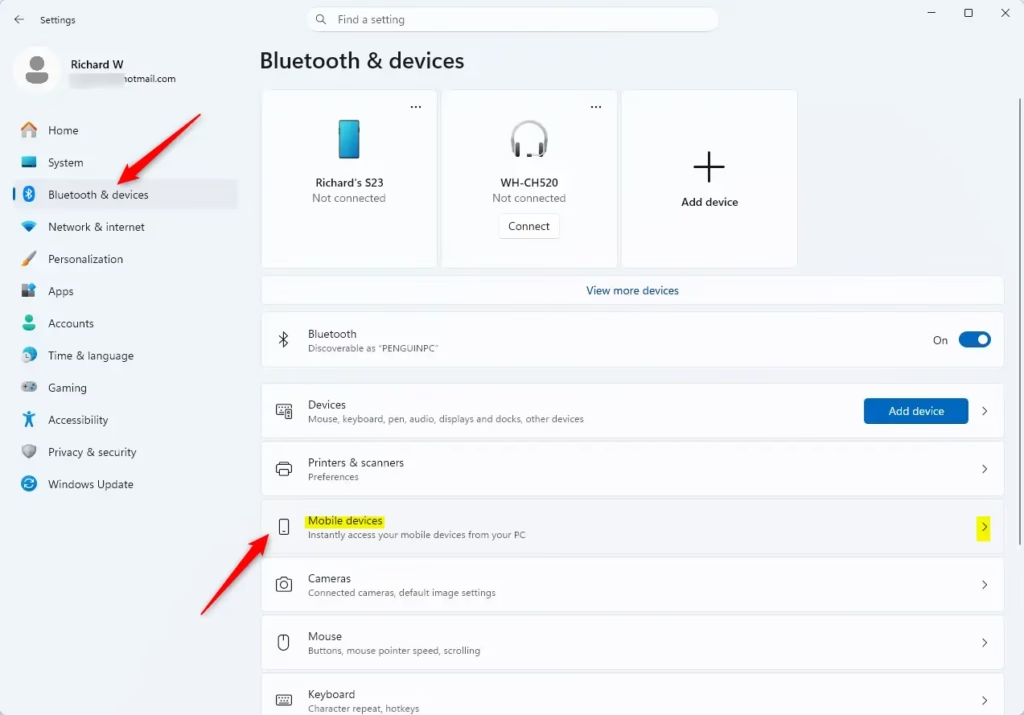
- Click Bluetooth & devices in the left-hand sidebar. Then, on the right side, click Mobile devices. You should see the Mobile devices page.
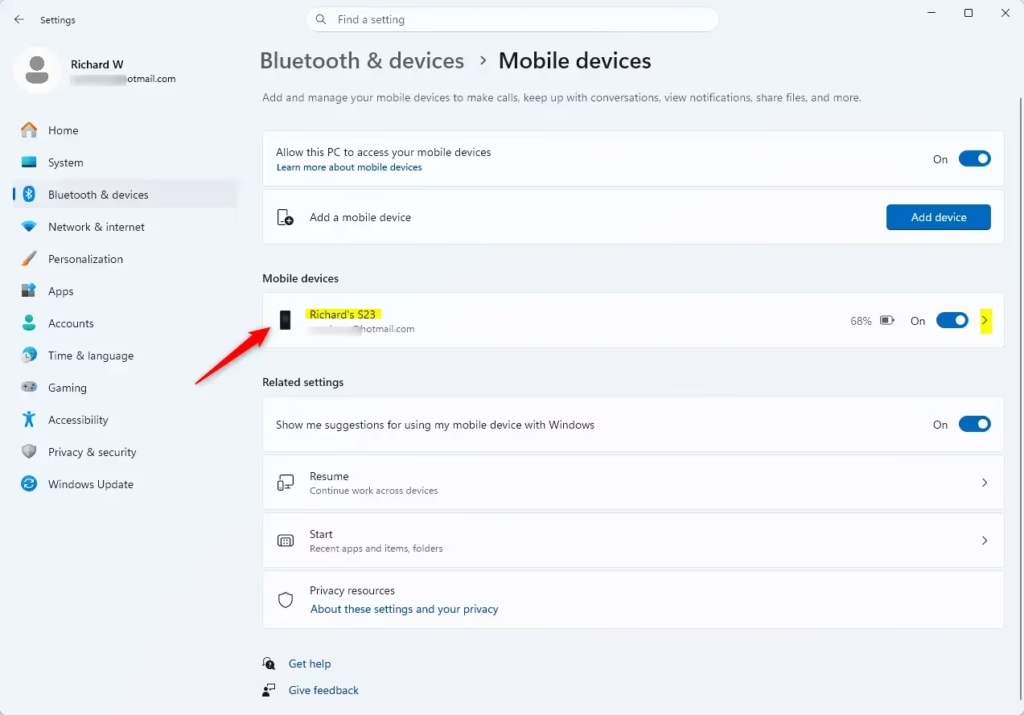
- Make sure the Allow this PC to access your mobile devices toggle is on. If it is off, your phone won't be available here.
- Under the Mobile devices section, find your Android phone. It may be listed by model name, like "My Samsung S23". Click the name of your phone.
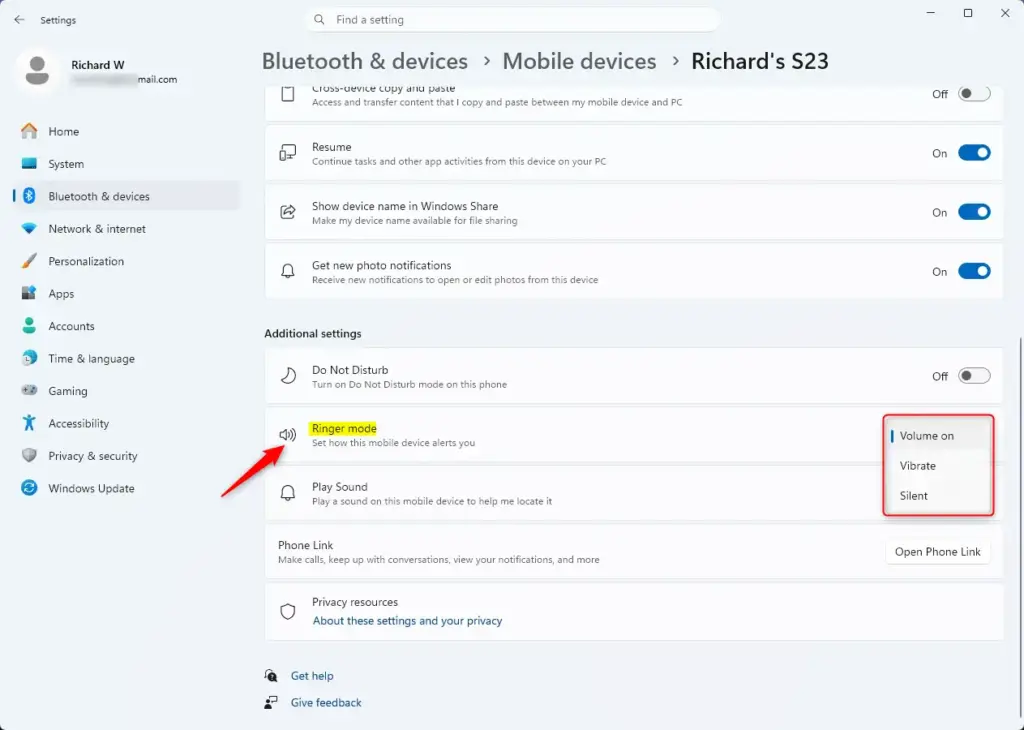
- Scroll down the phone's page in Windows until you reach the section labeled "Controls". Inside it you should find a dropdown menu for Ringer mode.
- Click the dropdown menu and select Volume on, Vibrate, or Silent. The phone's ringer mode should change right away.
- Close Settings. Your phone is now set to the mode you chose.
If your phone isn't listed, or the Ringer mode dropdown is missing, the phone is probably not connected right now. Open Phone Link, wait for it to show the phone as connected, and check this page again. Also confirm that Bluetooth is on for both devices and that your phone runs Android 7.0 or newer. To undo the change, choose a different mode from the same dropdown.
Once the ringer control is set up, you can manage your phone's sound without picking it up. This saves time during the workday.
Summary
After you pair your devices with the Phone Link app, you can control your Android phone's ringer mode from your PC. You can switch between silent, vibrate, and ring profiles from your desktop. That saves you time and keeps you focused on your work without checking your phone. If the control is ever missing, check the connection first, then try the Settings method above.
Have a question about this guide?
Answered by AI from this guide. Good questions may be added to this page — please don't include personal details.
Did this guide fix your problem?

About the Author
Richard
Tech Writer, IT Professional
Richard is a writer at Geek Rewind who turns complex IT tasks into clear, step-by-step guides. He draws on years of hands-on experience in system administration and enterprise IT operations, focusing on Windows, Linux and WordPress: the problems people actually run into, and the fixes that work. His server and WordPress guides come from systems he runs himself. Richard builds and maintains the platform behind Geek Rewind, from its Ubuntu servers and Nginx configuration to its custom WordPress plugins. Many new tutorials start with readers' questions, and he's always glad to answer them in the comments.
No comments yet — be the first to share your thoughts!