How to Get Custom Themes in Windows 11 Using Official Microsoft Store Methods

- 13 steps
- Includes a restart or sign-out
Transform your desktop appearance by downloading design packages directly from the Microsoft Store. The Store is the official source, so you get verified themes without grabbing files from third-party websites.
Open Settings, go to Personalization Themes, click Browse themes, select a theme in the Microsoft Store, click Get, then return to Settings Themes and click the downloaded package to apply it immediately.
How to get themes 🪟 windows 11 site microsoft.com
- Open Settings by pressing the Win+I on your keyboard.

Windows 11 Start menu with Settings gear icon highlighted. - Select Personalization from the left-hand menu.
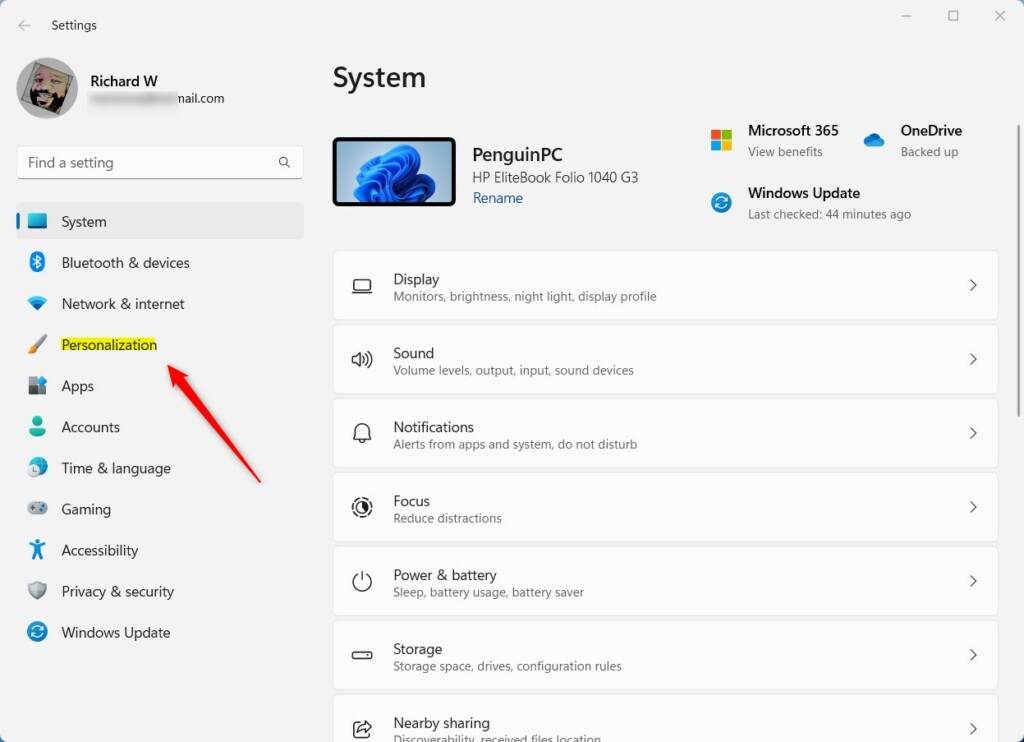
Windows 11 Personalization in the Settings app - Click Themes. You will see your current theme and the packages already installed on this PC.
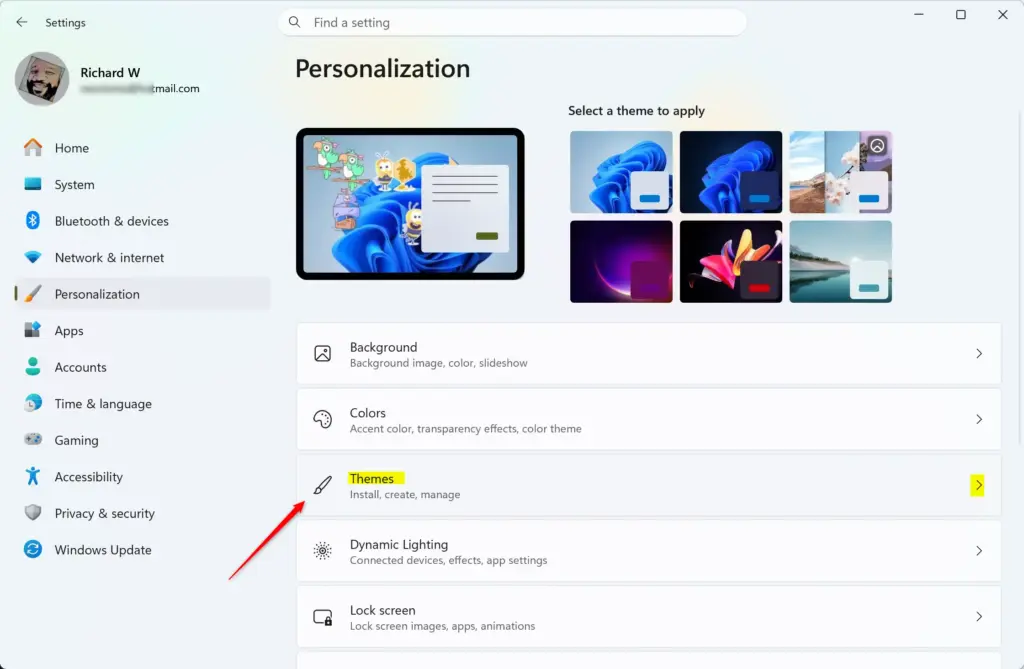
Settings › Personalization › Themes - Find the section that offers more themes and click the Browse themes button. The Microsoft Store opens directly to the theme gallery.
- Click any theme package that catches your eye. Its dedicated page opens, with screenshots and a description.
- Click the Get or Install button. The Store downloads the files to your computer.
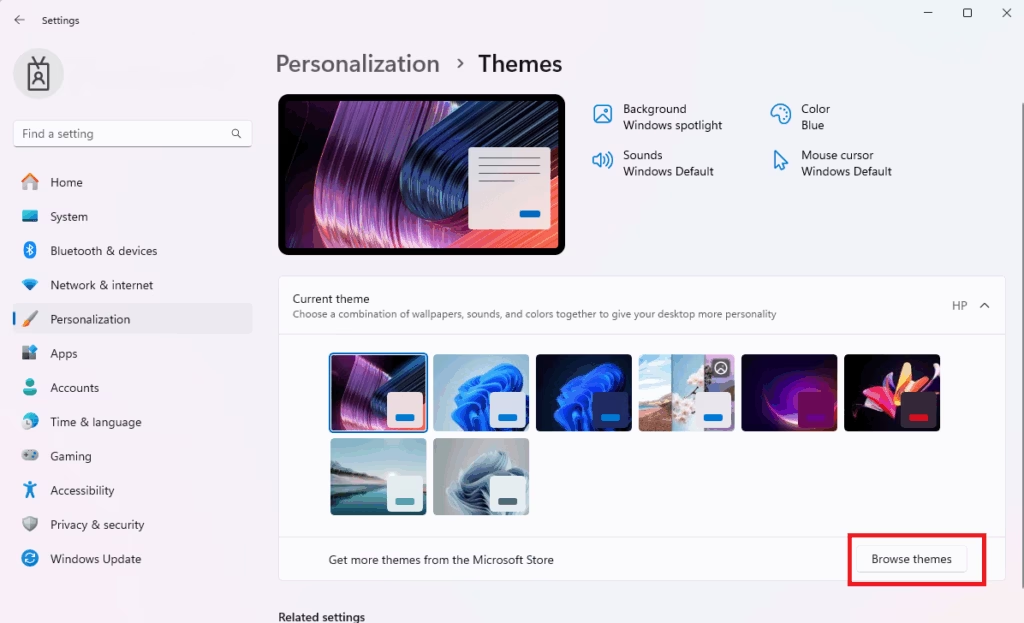
- Return to the Settings window, go back to Themes, and click your newly downloaded package to apply it. Your wallpaper, colors and sounds change right away. No restart is needed.
If the new theme does not appear in the list straight away, close Settings and open it again. To undo the change, click a different theme in the same list.
Exploring the Microsoft Store Theme Categories
Microsoft Store theme categories sort the designs into groups such as wildlife, National Geographic photography, minimalist art, automotive showcases and gaming tie-ins. Use them to find a package that matches your taste.
Most packages include a rotating set of high-definition wallpapers. These change automatically at set intervals. A package also usually brings a matching color scheme for your taskbar and window borders. Some also include system sounds, so the whole desktop feels different, not just the background.
Check the theme’s Store page before you install. It shows how many wallpapers are included, so you know what to expect.
Managing and Switching Between Installed Themes
Once a theme is installed, you can switch between your themes instantly without downloading anything again. Right-click any empty space on your desktop and select Personalize to open your visual settings. Then click Themes.
Under Themes, you can see every package currently stored on your machine. Click any thumbnail and Windows changes your desktop background, accent color and system sounds. If the package includes custom pointers, the mouse cursor style changes too.
Creating Custom Themes from Downloaded Packages
You can also build your own look from a downloaded package. This lets you mix and match elements instead of sticking to the preset layout from the Microsoft Store.
- Apply the downloaded package first, as described above.
- In the Personalization menu, click Background to change how often the wallpapers rotate.
- Go back and select Colors to override the automatic accent color chosen by the package. This gives you a hybrid look.
Windows saves your modifications as a custom theme at the top of your themes list. It may be labelled “Custom Theme” or simply “Custom”, depending on your build. Your setup survives a restart. If you like the result, you can save it with a name from the Themes page. You can always switch back to the original package by clicking its thumbnail again.
Troubleshooting Theme Download Issues
Theme download problems usually come from a connection glitch or a Microsoft account sync error inside the Store app. Before anything else, check that you are online and signed in to the Microsoft Store.
If downloads fail to start or hang indefinitely, clear your Microsoft Store cache:
- Press the Win+R to open the Run dialog box.
- Type
wsreset.exeand press Enter. - Wait. A blank command prompt window opens briefly while it clears the cache. Then a fresh Microsoft Store window launches automatically.
This resets the Store’s cache only. It does not remove your installed apps or your account settings. Try the theme download again once the Store has reopened. If it still fails, restart the PC and try once more.
What to do next
With your new desktop theme applied, explore further personalization options. You can customize your lock screen images or set up virtual desktops to organize your open application windows.
Frequently asked questions
How do I download more Themes?
Open Settings, select Personalization, then click Themes. Choose Browse themes in the section for more themes. This opens the theme gallery in Microsoft Store. Click a theme you like, then click Get and wait for the download to finish. Return to Themes and select the new theme to apply it.
How do I delete Themes in 🪟 Windows 11?
Deleting a theme removes its wallpapers and sounds for good, so make sure you do not need them. Open Settings, select Personalization, then click Themes. Switch to a different theme first, because you cannot delete the one in use. Next to the theme you want to remove, open its menu and choose Delete.
How to download 🪟 Windows 11 from Microsoft site?
Go to microsoft.com/software-download/windows11 in your web browser. Under Create Windows 11 Installation Media, click Download now to get the Media Creation Tool. To upgrade this PC instead, use the Windows 11 Installation Assistant on the same page. Open the file you downloaded and follow the on-screen prompts.
How to find 🪟 Windows 11 build?
Press the Win+R, type winver, and press Enter. A window opens that shows your Windows version and OS build number, such as 22631.xxxx. You can also open Settings, select System, then click About to see the same details.
Still have a question?
Answered by AI from this guide. Good questions may be added to this page — please don't include personal details.
Did this guide fix your problem?

About the Author
Richard
Tech Writer, IT Professional
Richard is a writer at Geek Rewind who turns complex IT tasks into clear, step-by-step guides. He draws on years of hands-on experience in system administration and enterprise IT operations, focusing on Windows, Linux and WordPress: the problems people actually run into, and the fixes that work. His server and WordPress guides come from systems he runs himself. Richard builds and maintains the platform behind Geek Rewind, from its Ubuntu servers and Nginx configuration to its custom WordPress plugins. Many new tutorials start with readers' questions, and he's always glad to answer them in the comments.
No comments yet — be the first to share your thoughts!