How to Change Lock Screen Wallpaper in Windows 11

Lock screen wallpaper is the background picture you see after you wake or lock your PC, before you sign in. Windows 11 gives you three choices: a single personal photo (Picture), daily images from Windows spotlight, or a rotating Slideshow of your own pictures.
Most people only need the Settings app, and it works the same on Windows 11 Home and Pro. You can also use Registry Editor (a tool that lets you view and change low-level system settings) for advanced customization. Nothing here needs a restart, and every change can be reversed by choosing a different option in the same dropdown.
Open Settings , go to Personalization Lock screen, click the dropdown next to Personalize your lock screen, and select Picture, Slideshow, or Windows spotlight. If you choose Picture, click Browse photos to select an image file. Your new lock screen wallpaper appears immediately.
Using the Settings App to Change Your Lock Screen
The Settings app is the quickest way to change the lock screen background. You choose a single photo, a rotating set of pictures, or a daily featured image from one screen. Windows handles the sizing, so the picture fits your display without any editing.
- Press the Win+I to open Settings.

Windows 11 Start menu with Settings gear icon highlighted. - Select Personalization from the left-hand navigation menu.

Settings › Personalization - Click Lock screen. You should see a preview of your current lock screen and the settings below it.
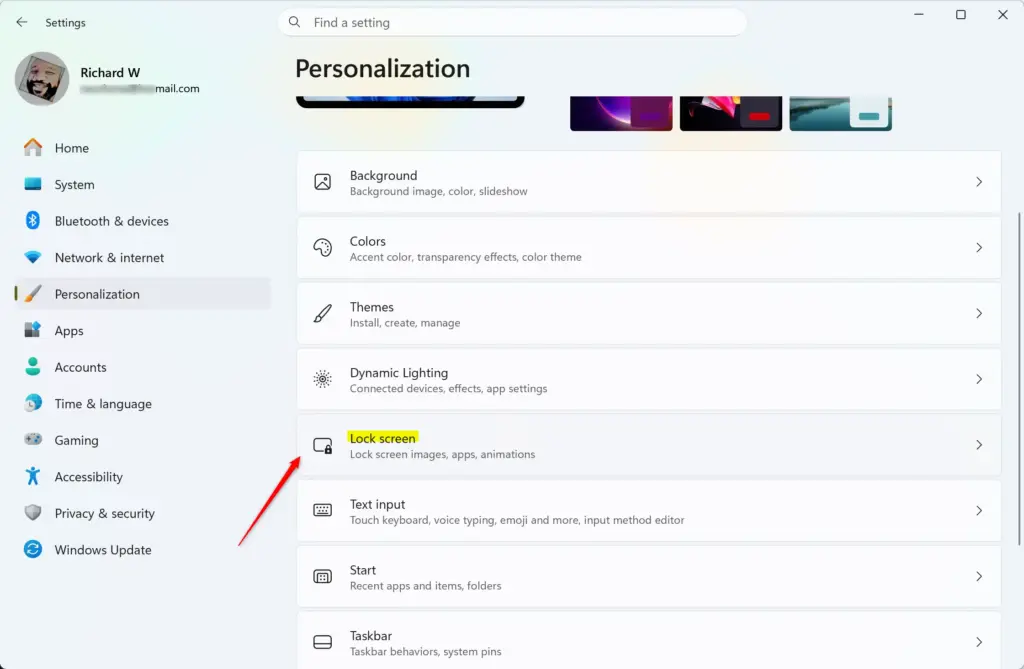
Settings › Personalization › Lock screen - Find the dropdown menu labeled Personalize your lock screen.
- Select Picture or Slideshow from the dropdown, depending on your preference. Windows spotlight is also in this list if you prefer automatically changing daily photographs.
- If you selected Picture, click the Browse photos button. A file selection window opens. Recently used images may also appear as thumbnails, and you can click one of those instead.
- Go to the folder with your image, click the file to highlight it, and click Choose picture. The preview at the top of the page updates to show your new lock screen wallpaper.
To check the result, press Win+L to lock the PC. To undo the change, return to this page and pick another image or another option in the dropdown.
Using Windows Spotlight for Dynamic Wallpapers
Windows spotlight (a feature that downloads and displays rotating daily images from Bing) changes your background automatically, so you get a new photo without hunting for pictures yourself. The images are professional photography, travel locations, and similar scenes, sometimes with fun facts about what you are looking at. You do not need to download or manage any image files.
Spotlight needs an internet connection to fetch new images. On a work PC, your organization may have disabled it. In that case the option is missing from the dropdown or does not change anything.
- Press the Windows key + I to open Settings.
- Go to Personalization, then click Lock screen.
Settings › Personalization › Lock screen - Click the dropdown menu next to Personalize your lock screen.
- Select Windows spotlight from the list. The preview switches to the current Spotlight image, and extra options appear below the dropdown.
- Review the toggles that appear underneath, such as Get fun facts, tips, tricks, and more on your lock screen. Turn them on or off depending on whether you want text overlays on your background images.
To go back to a fixed photo, set the dropdown to Picture and choose an image again.
Creating a Lock Screen Slideshow
A lock screen slideshow cycles through a folder of your own photographs while the device is locked. You point Windows at one or more local folders and it rotates the pictures on your sign-in screen. It runs while the PC is locked and idle, so it works like a small photo frame.
- Open Settings and go to Personalization Lock screen.
- Set the dropdown next to Personalize your lock screen to Slideshow.
- Click the Add a folder button that appears below your selection.
- Go to the folder with the pictures you want, highlight it, and click Choose this folder. The folder should now appear in the list of albums. Repeat this to add more folders.
- Click the Advanced slideshow settings link to adjust options. You can choose whether the slideshow plays when running on battery power, whether camera roll folders are included, and whether the screen turns off after the slideshow has played for a set time.
To remove a folder you added by mistake, select it in the album list and use the remove option next to it.
Changing the Lock Screen via Registry Editor
It lets you enforce a specific background image or lock down the lock screen's appearance. Administrators use it to apply one wallpaper to every profile on the same machine. A wrong change in the registry can cause problems, so back it up first. In Registry Editor, choose File Export and save a copy. You can restore it later by double-clicking the saved file.
- Press the Windows key + R to open the Run dialog box.
- Type
regeditinto the Open field and press Enter to launch Registry Editor. This step requires administrator privileges. If a User Account Control prompt appears, click Yes. - Go to the following location by clicking through the folder tree in the left pane:
HKEY_CURRENT_USER\Software\Microsoft\Windows\CurrentVersion\Lock Screen - If the required values do not exist in this key, you can create them, or configure your settings through the standard graphical interface instead. For a single PC, the Settings app is the safer choice.
Disabling the Lock Screen Background Image
You can't remove the lock screen background entirely. The nearest option is to stop showing a picture and use a solid accent color that matches your Windows theme. A plain sign-in screen is simpler and can slightly reduce resource use on lower-powered hardware. You can do this from the personalization menu without any extra software.
- Open Settings and go to Personalization Lock screen.
- Click the dropdown menu next to Personalize your lock screen and select Picture.
- Turn off any extra elements tied to background tips and status apps, such as the fun facts toggle and the lock screen status options.
- Scroll down and turn off Show the lock screen background picture on the sign-in screen. After you dismiss the lock screen, the sign-in screen shows a solid accent color instead of a picture.
- Alternatively, use the policy path if your PC is configured that way in an enterprise environment. You can also check your personal preferences in the Settings app to make sure no unwanted slideshow or Spotlight features are active.
To bring the picture back, turn the same toggle on again.
Troubleshooting Common Lock Screen Wallpaper Issues
Most lock screen wallpaper problems come down to stuck sync settings or corrupted cache files that stop the background from updating. If your PC keeps reverting to the default image after a restart, check your user profile and image folders first. These checks clear up most stubborn glitches without a full system reinstall.
- Verify that your user profile is fully synchronized if you notice settings reverting across multiple devices.
- Clear out cached Spotlight files if Windows spotlight fails to cycle through new images. A simple first try is to switch the dropdown to Picture, then back to Windows spotlight, and confirm you are online.
- Make sure your image file format is supported. JPEG and PNG work most reliably for Windows wallpapers.
- Check Windows Update for pending updates. Minor bugs in the Lock Screen feature are often fixed in cumulative patches.
- On a work or school PC, remember that a policy set by your administrator can override your choice. Ask your IT team if the setting keeps changing back.
What to do next
You should now see your chosen photograph or slideshow whenever you lock your computer. Press Windows key + L to confirm. Next, you can look at how to change your desktop background wallpaper or customize your taskbar appearance to finish your personalized Windows setup.
Frequently asked questions
How to quickly switch wallpaper on iPhone?
Swipe up from the home screen to open Control Center, then long-press the lock screen thumbnail at the bottom. Tap Customize, select a photo from your library, and tap Add. You can also go to Settings Wallpaper Add New Wallpaper to choose images.
How can I customize my PC lock screen?
Open Settings and select Personalization, then click Lock screen. Use the dropdown menu to pick a single photo, Windows Spotlight for daily featured images, or a slideshow of your photos. You can also adjust clock style and notification settings here.
How do I put a picture on the front of my phone?
On iPhone, go to Settings Wallpaper Add New Wallpaper, then select Photos and choose an image from your library. On Android, open Settings, tap Wallpaper or Display, and select your image. Different phones may have slightly different menu names.
How to have multiple wallpapers on Android like iPhone?
Android lets you set different wallpapers for your home screen and lock screen separately through Settings Wallpaper For automatic rotation, use a third-party wallpaper app from the Google Play Store that cycles through images on a schedule you set.
Still have a question?
Answered by AI from this guide. Good questions may be added to this page — please don't include personal details.
Did this guide fix your problem?

About the Author
Richard
Tech Writer, IT Professional
Richard is a writer at Geek Rewind who turns complex IT tasks into clear, step-by-step guides. He draws on years of hands-on experience in system administration and enterprise IT operations, focusing on Windows, Linux and WordPress: the problems people actually run into, and the fixes that work. His server and WordPress guides come from systems he runs himself. Richard builds and maintains the platform behind Geek Rewind, from its Ubuntu servers and Nginx configuration to its custom WordPress plugins. Many new tutorials start with readers' questions, and he's always glad to answer them in the comments.
No comments yet — be the first to share your thoughts!