Turn On Click Lock for Dragging in Windows 11

ClickLock in Windows 11 lets you drag items and highlight text without holding the mouse button down the whole time. To turn it on, open Settings Bluetooth & devices Mouse Additional mouse settings, then select Turn on ClickLock on the Buttons tab.
ClickLock (a mouse feature that holds your button press for you) suits long drags across a large monitor, trackball use, and anyone whose hand tires from holding a button. It works the same in Windows 11 Home and Pro. Changing it needs no administrator rights and no restart.
The steps below cover turning it on, adjusting the delay, using it and fixing common problems.
To turn on Click Lock in Windows 11, open Settings , go to Bluetooth & devices, then Mouse, and click Additional mouse settings. On the Buttons tab, select Turn on ClickLock and click OK. No administrator rights or restart are needed. Press and hold the mouse button briefly, release it, move the item, then click again to drop it.
What Click Lock Does and How It Behaves
Normally, dragging means pressing the primary mouse button (the left button unless you swapped them), holding it, moving the pointer, and letting go. With ClickLock on, you press and hold the button for a short moment, then release it. Windows keeps treating the button as held down.
You then move the pointer, and the item or text selection follows. A second click ends the drag and drops the item. That second click is the part people forget, and it is why a locked drag can feel odd at first.
ClickLock is a mouse setting. It has nothing to do with locking your PC or the Caps Lock key. If you want to secure your screen, see how to lock your Windows 11 computer.
Another person who signs in to the same PC keeps their own mouse settings, and a new user profile starts with ClickLock off.
How to Turn On Click Lock in 🪟 Windows 11
These steps turn on ClickLock through the Mouse Properties window (the older, Control Panel -style dialog where ClickLock lives). None of them needs administrator rights.
- Open Settings . Press Win+I, or right-click Start and choose Settings. The Settings window opens.

- Click Bluetooth & devices. It sits in the left pane of Settings.

Windows Settings menu highlighting the Bluetooth and devices option for printers - Click Mouse. The page lists options such as Primary mouse button, Mouse pointer speed, and scrolling settings.
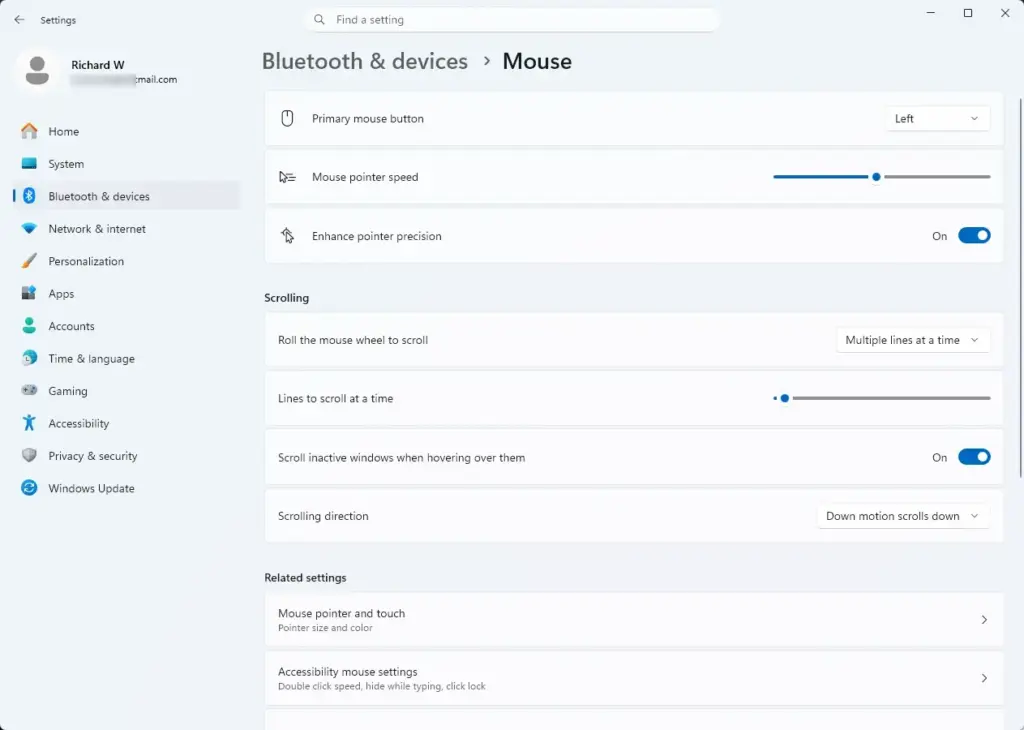
Settings › Bluetooth › Mouse - Scroll down to Related settings and click Additional mouse settings. A window titled Mouse Properties opens. If you cannot find the link, use the shortcut in the next section.
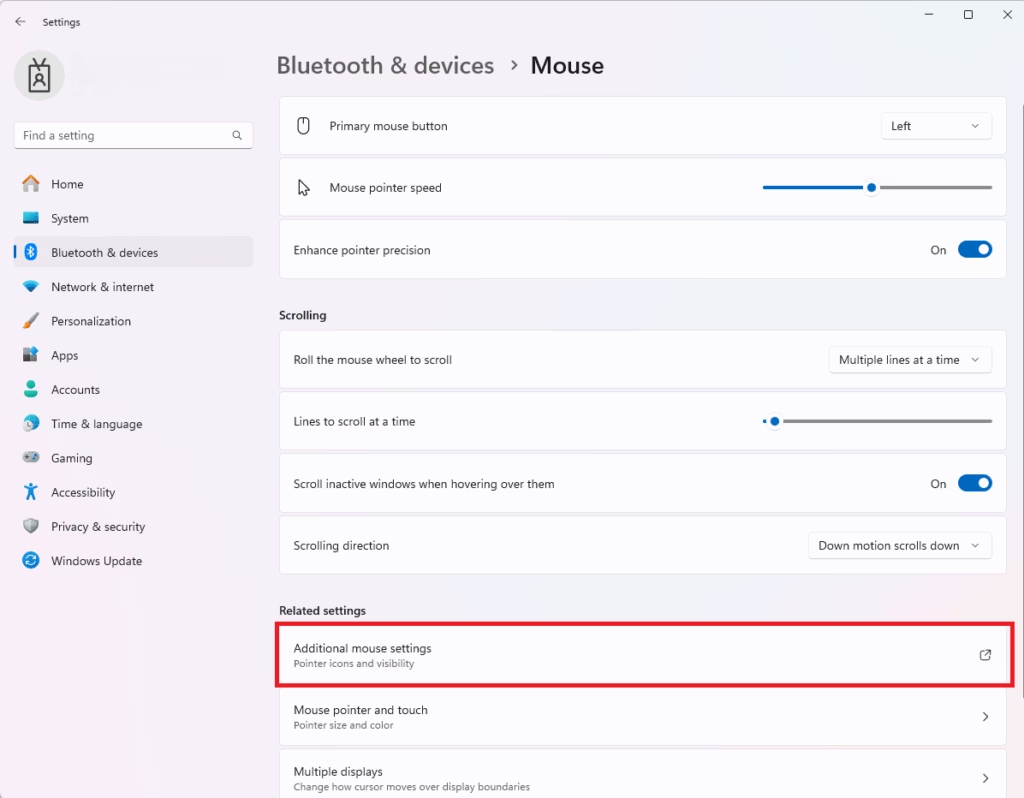
Mouse Properties window with Additional mouse settings visible. - Click the Buttons tab. It is usually selected already. You see Button configuration, Double-click speed, and ClickLock.
- Select the Turn on ClickLock check box. A tick appears in the box, and the Settings… button beside it becomes active.
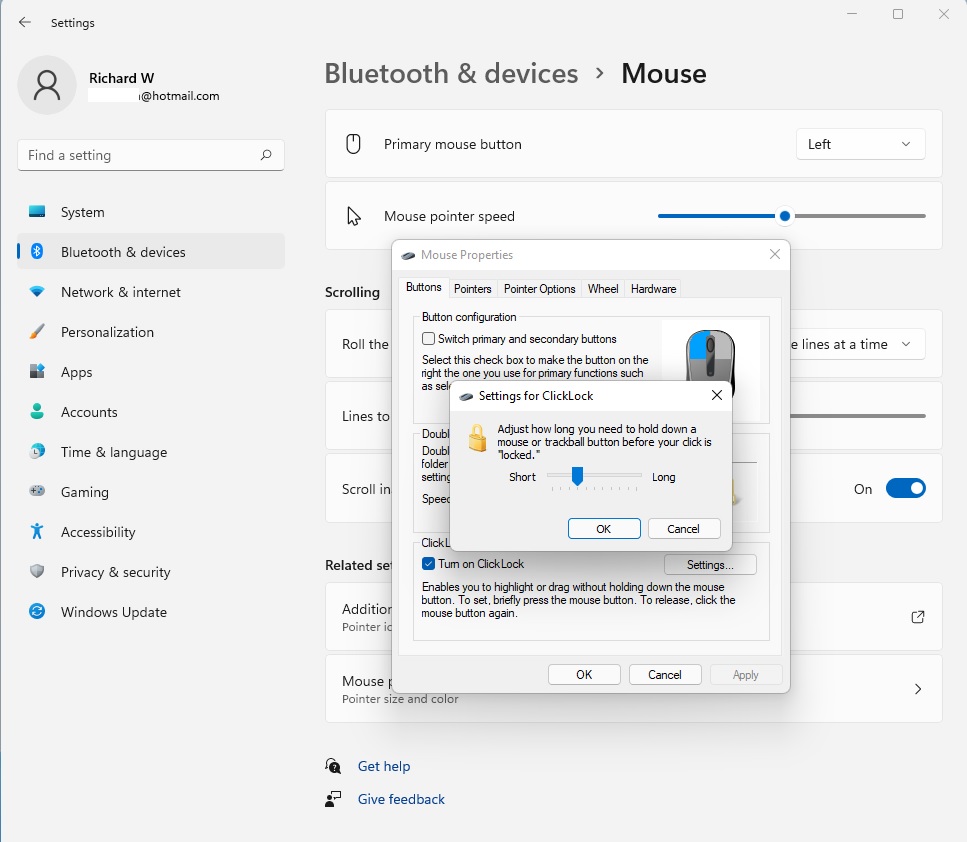
change clicklock setting mouse - Click Settings… to check the hold time. The Settings for ClickLock dialog opens with a slider. This step is optional, but it is worth a look, because the default may not suit you.
- Drag the slider between Shorter and Longer. A shorter setting locks the click after a briefer hold. A longer setting asks for a longer hold, which prevents accidental locks. If you are unsure, leave it where it is and adjust later.
- Click OK to close the Settings for ClickLock dialog. You return to the Mouse Properties window.
- Click Apply, then click OK. The change takes effect immediately, with no restart or sign-out.
Open Mouse Properties Without Going Through Settings
If the Additional mouse settings link is missing or you want a faster route, open the same window directly. This does not change anything until you tick the box.
- Press Win+R. The Run dialog opens.
- Type main.cpl and press Enter. The Mouse Properties window opens.
- Click the Buttons tab and continue from step 6 above.
You can also open Control Panel , choose Hardware and Sound, and then click Mouse under Devices and Printers. Each of these routes opens the same window and changes the same setting.
How to Use Click Lock to Drag an Item
Practice on something harmless first, such as a test file on your desktop. The pattern is hold, release, move, click.
- Point at a file or folder on your desktop or in File Explorer .
- Press and hold the primary mouse button for a moment, then release it. The hold must last longer than the delay you set. The item stays picked up even though your finger is off the button.
- Move the pointer to where you want the item. The file’s icon follows the pointer.
- Click once to drop it. The item lands in the new spot and the lock ends.
The same pattern works for highlighting text. Press and hold at the start of the text, release, move the pointer to the end of the passage, and click. The text between the two points stays selected.
This works for most file moves and renames, though not for every action.
Choosing a Good Hold Time
The slider in the Settings for ClickLock dialog sets how long you must hold the button before Windows locks the drag. The right value depends on how you use the mouse.
- Choose a shorter time if you drag often and want the lock to feel quick.
- Choose a longer time if you also click normally and notice files getting picked up by accident. A normal click is brief, so a longer delay keeps ordinary clicks working as usual.
- Test after each change. Reopen Settings for ClickLock, move the slider one notch, click OK, and try a drag.
Expect a short adjustment period. A normal click with ClickLock on can feel slightly different if you tend to rest your finger on the button.
Who Benefits Most From Click Lock
ClickLock helps in a few specific situations.
- Hand or wrist strain. Holding a button through a long drag can hurt. ClickLock removes the holding part.
- Trackballs and small mice. Moving the pointer while keeping a button pressed is awkward on these devices.
- Multi-monitor setups. Dragging a window or file across two or three screens is easier when you can release the button mid-drag.
- Selecting long text. A document, spreadsheet range, or web page that needs scrolling is simpler to select when the button stays locked.
If you also want fewer double-clicks, a related option is opening items with one click. See how to enable single click to open items in Windows 11.
If Click Lock Is Missing or Not Working
The Additional mouse settings link is missing
On some builds and PCs, the link is hard to spot at the bottom of the Mouse page. Scroll all the way down to Related settings. If it still does not appear, press Win+R, type main.cpl, and press Enter. That opens Mouse Properties directly.
The Settings button next to ClickLock is greyed out
The Settings… button stays inactive until you tick Turn on ClickLock. Select the check box first, and the button becomes available. If the check box itself is greyed out, a driver (the software that controls a device) from your mouse maker may be controlling the page. See the next section.
The Buttons tab looks different or ClickLock is not there
Some laptop touchpads and gaming mice install their own drivers, which can replace or extend Mouse Properties. If your window has different tabs, look for the same option in the maker’s own mouse or touchpad software. Not every mouse driver includes ClickLock, so check the manufacturer’s documentation for your model.
The lock does not seem to trigger
The most common cause is a hold that is too short. Release the button after holding it for about a second, or move the slider in Settings for ClickLock toward Shorter. If you swapped your mouse buttons, press whichever button is set as primary, because ClickLock acts on that one.
Some apps, including certain games and remote desktop tools (programs that show another computer's screen on yours), read mouse input in their own way. ClickLock may behave differently or not at all inside them. If the lock still fails, test in File Explorer first to confirm the setting itself works.
You keep picking things up by accident
Increase the hold time toward Longer. If that does not help, turn ClickLock off. Open Mouse Properties, clear the Turn on ClickLock check box on the Buttons tab, and click OK.
How to Turn Off Click Lock
Reversing the change takes less than a minute, and it does not delete anything.
- Press Windows + R, type main.cpl, and press Enter. The Mouse Properties window opens.
- Click the Buttons tab.
- Clear the Turn on ClickLock check box. The Settings... button turns grey again.
- Click Apply, then OK. Dragging returns to the normal hold-the-button behavior.
Your slider position is usually remembered. Turning ClickLock back on later is unlikely to need a new setup.
What to Do Next
If ClickLock feels useful but you want fewer clicks overall, try single click to open items in File Explorer. If you use the taskbar too, look at Last Active Click, which changes how taskbar buttons respond to clicks. To secure your PC when you step away, read how to automatically lock your computer after inactivity.
Have a question about this guide?
Answered by AI from this guide. Good questions may be added to this page — please don't include personal details.
Did this guide fix your problem?

About the Author
Richard
Tech Writer, IT Professional
Richard is a writer at Geek Rewind who turns complex IT tasks into clear, step-by-step guides. He draws on years of hands-on experience in system administration and enterprise IT operations, focusing on Windows, Linux and WordPress: the problems people actually run into, and the fixes that work. His server and WordPress guides come from systems he runs himself. Richard builds and maintains the platform behind Geek Rewind, from its Ubuntu servers and Nginx configuration to its custom WordPress plugins. Many new tutorials start with readers' questions, and he's always glad to answer them in the comments.
No comments yet — be the first to share your thoughts!