How to Open the Right-Click Menu Without a Mouse in Windows 11

- 14 steps
- Needs administrator rights
Two keyboard shortcuts open the right-click menu in Windows 11 without a mouse: Shift+F10 and the Menu key. Select an item, then press either one. Both open the same context menu (the list of actions Windows shows for whatever you have selected) that a right-click opens.
The Menu key sits between the right Alt (or Windows) key and the right Ctrl key on many full-size keyboards. Most laptops leave it out, so Shift+F10 is the shortcut that works almost everywhere. This guide covers both, how to move around the menu with the arrow keys, and what to do if neither works.
Press Shift+F10, or the Menu key if your keyboard has one, after selecting a file, folder, or icon with the arrow keys. The context menu opens next to the item, just as a right-click would. Use the Up and Down Arrow keys to choose a command, then press Enter to run it. Press Esc to close the menu without changing anything.
Which Keys Open the Right-Click Menu in 🪟 Windows 11
Two keyboard options open the context menu, and a third works through Windows accessibility settings. Knowing which one fits your hardware saves time.
- Shift+F10 works on any keyboard, including most laptops. It opens the context menu for the item you have selected.
- Menu key (also called the Application key, with a small icon of a menu and a cursor) does the same thing in one press. Many laptops and compact keyboards leave it out.
- Mouse keys (an accessibility feature that moves the pointer with the number pad) lets you click anywhere, including on things you cannot select with the keyboard.
Windows 11 also has two menu styles. The compact menu shows icons for Cut, Copy, Paste, Rename, and Delete at the top, plus a shorter list of commands. The full classic menu lists every command, including those added by apps you installed. The compact menu ends with Show more options, which opens the classic one.
How to Open the Right-Click Menu Without a Mouse
These steps open the right-click menu without a mouse and let you pick a command using only the keyboard. They work in File Explorer, on the desktop, and in most apps. No administrator rights are needed.
- Click or arrow to the item you want. Use the arrow keys to move to a file, folder, or icon so it is highlighted. If you are in File Explorer and focus is not in the file list, press Tab until a file or folder shows a highlight.
- Press Shift+F10. The context menu opens next to the selected item. On a keyboard with a Menu key, you can press that key instead.
- Check which menu style appeared. If you see the compact menu with a row of icons at the top, it may be missing the command you want. Press Shift+F10 again, or choose Show more options, to switch to the full classic menu.
- Press the Down Arrow key to move through the commands. The highlighted command changes with each press. Press the Up Arrow key to move back.
- Press the Right Arrow key to open a submenu. Commands with a small arrow at the right edge, such as Open with or Send to, have a submenu. Press the Left Arrow key to close it.
- Press Enter to run the highlighted command. The menu closes and Windows carries out the action.
- Press Esc to close the menu without choosing anything. Nothing changes on your PC, and the item stays selected.
Pressing that letter runs the command at once. If two commands share a letter, pressing it moves between them, and Enter runs the one you stop on.
What the Menu Shows for Different Selections
The menu changes with what you select, so the same shortcut gives different results. A file shows commands like Open, Copy, and Properties. A folder adds options to open it in a new window. If you select several items first, the menu applies to all of them.
If a command you expect is missing, an app may not have added it. The guide on how to customize the context menu in Windows 11 explains how to change what appears. For one specific example, see how to add or remove Print on the context menu.
Open the Right-Click Menu in Specific Places
The shortcut needs something with keyboard focus (the item Windows treats as active). Each part of Windows gets focus in a slightly different way.
File Explorer and the Desktop
In File Explorer, use the arrow keys to select a file or folder, then press Shift+F10. To open the menu for empty space in a folder, keep the file list focused with nothing selected. That menu holds commands such as New and View. Press Ctrl+Space on a selected item to clear its selection, then press Shift+F10.
On the desktop, press Win+D to show it, then use the arrow keys to select an icon. Press Shift+F10 to open that icon’s menu. If the arrow keys do not move between icons, press Tab once and try again.
The Taskbar and the Start Menu
Press Win+T to move focus to the first icon on the taskbar. Use the Left and Right Arrow keys to reach the app you want, then press Shift+F10. The menu that opens lists the app’s recent items and options such as Pin to taskbar or Close window.
In the Start menu, press the Win, then use the arrow keys to select an app. Press Shift+F10 to see options like Pin to Start and Uninstall. If you only need system tools and not a per-item menu, press Win+X instead. The guides on opening the System Tools menu and using the Windows Tools menu cover what those menus contain.
Text Boxes, Web Pages and Other Apps
In a text box, such as one in Notepad or a browser’s address bar, click into the box first or Tab to it. Press Shift+F10 to open a menu with Cut, Copy, Paste, and Select all. In a browser, the same shortcut opens the menu for whatever link, image, or text has focus.
Some apps draw their own menus and ignore Shift+F10. Where that happens, try the Menu key, or use the Mouse keys method below.
Use Mouse Keys When the Shortcut Does Not Work
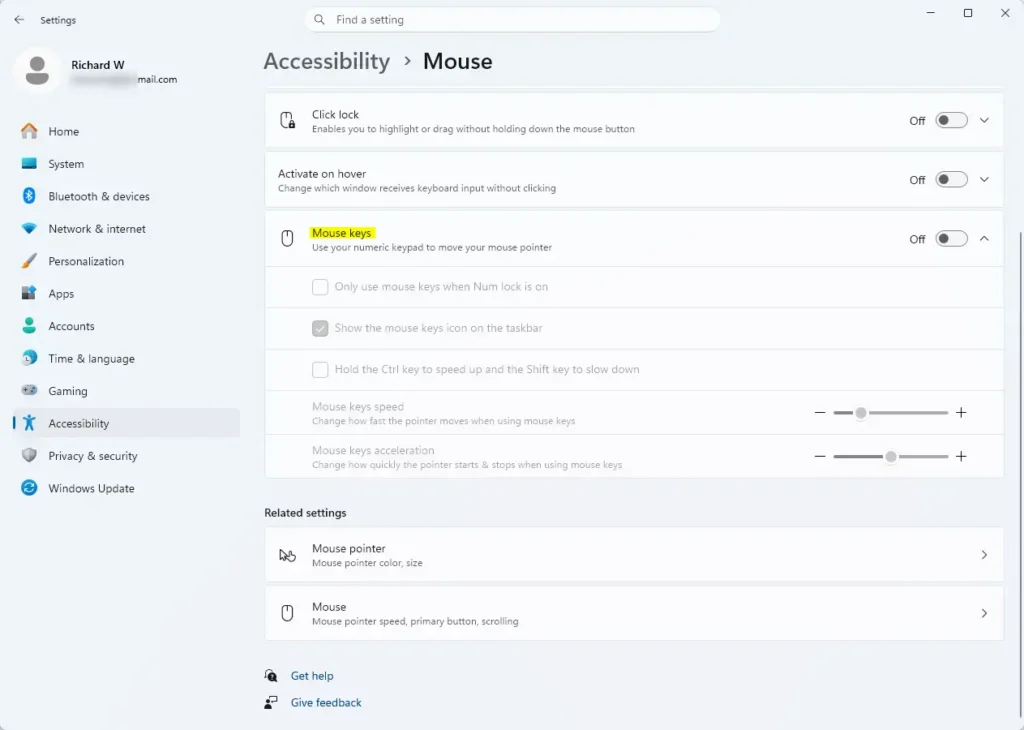
Mouse keys lets the number pad move the pointer and press the mouse buttons. This option is useful when you need a right-click on something you cannot select with the keyboard. Examples include a spot on a web page or a button inside an app. Turning it on does not change any files, and you can turn it off at any time.
To turn on Mouse keys in Settings:
- Press Win+I. The Settings window opens.

Start Menu - Select Accessibility in the left-hand list. Use the Down Arrow key to reach it, then press Tab to move to the right-hand pane.
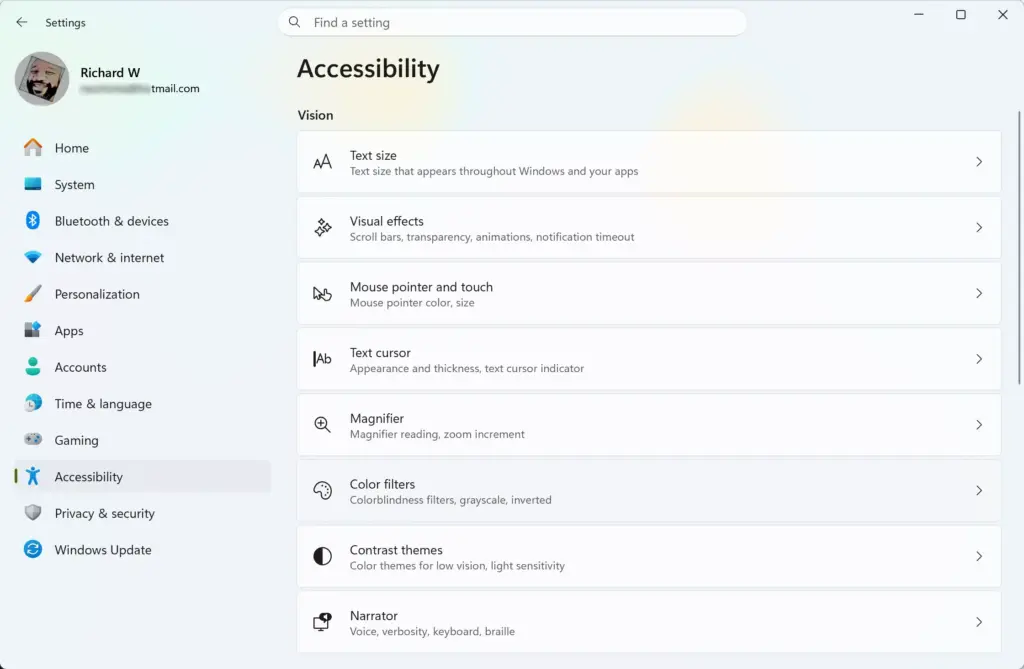
Settings › Accessibility - Select Mouse in the right-hand pane. The mouse options for accessibility open.
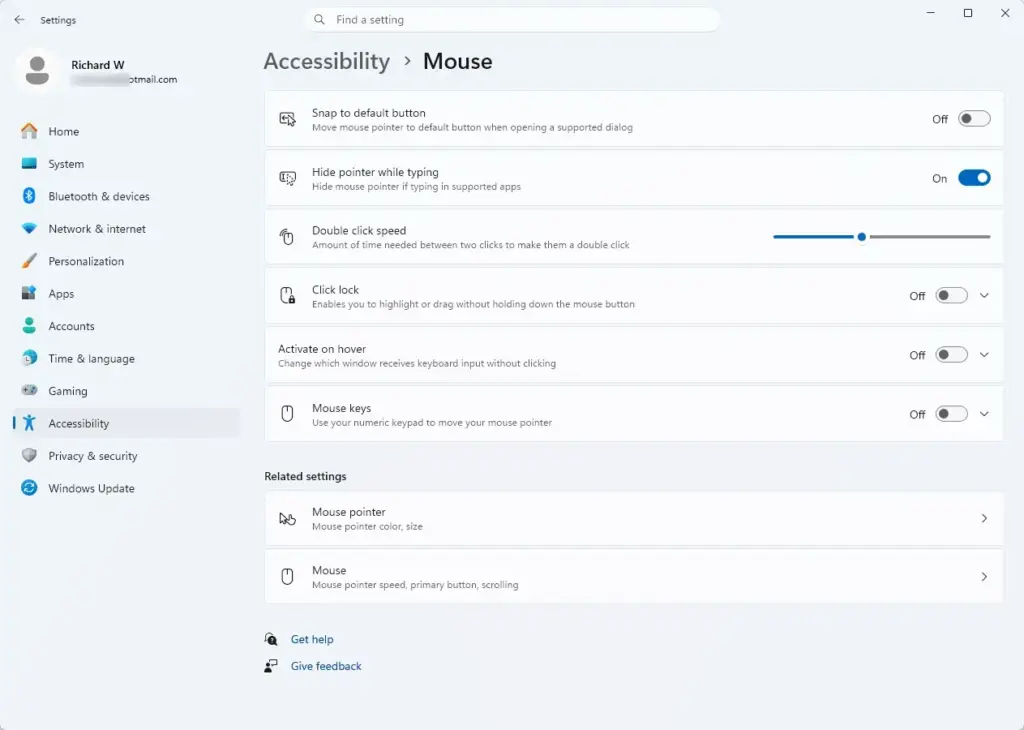
Settings › Accessibility › Mouse - Switch on Mouse keys. Move to the toggle with Tab, then press the Spacebar. The toggle changes to On.
Settings > Accessibility > Mouse - Press the minus key (-) on the number pad. This selects the right mouse button as the one the next click uses.
- Move the pointer to the target with the number pad keys. Keys 1, 2, 3, 4, 6, 7, 8, and 9 move the pointer in the direction they sit on the pad.
- Press 5 on the number pad. This clicks the selected button, and the right-click menu opens at the pointer.
After one right-click, Windows switches back to the left button. Press the minus key again before each right-click. Press the forward slash key (/) to select the left button, or the asterisk key (*) to select both.
Mouse keys also has a shortcut: pressing Left Alt+← Shift + Num Lock turns it on if the shortcut is enabled. Windows may ask you to confirm. If you want to reduce the chance of an accidental toggle, you can turn off that shortcut in the same Mouse keys settings.
Some laptops without a number pad have a hidden one on the letter keys (number keys that share keys with the letters). You turn it on with the Fn key. The layout differs by manufacturer, so check the key labels or your laptop’s manual. Mouse keys may not be practical on those machines, and Shift+F10 is the better choice.
If the Right-Click Menu Does Not Open
If Shift+F10 does nothing, work through the likely causes below. Most are about focus or keyboard settings, not Windows itself.
- Nothing has focus. The shortcut needs a selected item or an active text box. Press an arrow key or Tab to put focus on something, then try again.
- On many laptops, you need to hold the Fn key to use F10 as a shortcut key. The top row controls volume and brightness by default. Hold Fn while pressing Shift+F10, or press Fn + Esc to toggle Function Lock (a setting that swaps the row’s two roles) if your keyboard has it.
- A Sticky Keys prompt appears. Pressing Shift five times in a row opens a Sticky Keys dialog (a feature that lets you press Shift, Ctrl, or Alt on its own, then press another key). Choose No or close it, then press Shift+F10 as a combination, not as separate taps.
- The menu opens in the wrong style. Press Shift+F10 again, or select Show more options, to reach the full classic menu.
- An app ignores the shortcut. A few apps use custom menus. Try the Menu key, then Mouse keys.
- The Menu key does nothing. Some keyboards label it differently or lack it. Use Shift+F10 instead.
If a touchpad is your only pointing device, a two-finger tap acts as a right-click on most laptops. On a touchscreen, press and hold an item until the menu appears. Both need the matching feature turned on in your device settings before they work.
Keyboard right-clicking has one limit: it cannot drag. If you need to hold a selection while moving it, read how to turn on Click Lock for dragging.
What to Do Next
Practise Shift + F10 on a few files in File Explorer until you can reach Rename and Properties without looking. If the full classic menu is the one you need most, the guide on customizing the context menu shows how to tidy it. To reduce mouse use further, enable single click to open items so a selected file opens with one press.
Have a question about this guide?
Answered by AI from this guide. Good questions may be added to this page — please don't include personal details.
Did this guide fix your problem?

About the Author
Richard
Tech Writer, IT Professional
Richard is a writer at Geek Rewind who turns complex IT tasks into clear, step-by-step guides. He draws on years of hands-on experience in system administration and enterprise IT operations, focusing on Windows, Linux and WordPress: the problems people actually run into, and the fixes that work. His server and WordPress guides come from systems he runs himself. Richard builds and maintains the platform behind Geek Rewind, from its Ubuntu servers and Nginx configuration to its custom WordPress plugins. Many new tutorials start with readers' questions, and he's always glad to answer them in the comments.
No comments yet — be the first to share your thoughts!