How to Use the Windows Tools Menu in Windows 11

- 32 steps
- Needs administrator rights
- Group Policy needs Windows 11 Pro, Enterprise or Education
- Includes a restart or sign-out
The Windows Tools menu in Windows 11 sits at Start All apps Windows Tools. It gathers more than 40 advanced system apps, management consoles, and troubleshooting utilities into one folder. If you are looking for the Windows administrative tools, this is the same folder under its newer name: in version 22H2 and later, Windows Tools replaced Administrative Tools.
Instead of hunting through separate menus or typing commands into the Run box, you get tools like Disk Management and the Registry Editor in one visual list. Knowing where the folder lives speeds up routine maintenance and system checks.
Some tools in this list need administrator rights. If you are on a standard account, Windows asks for an administrator password when you launch one.
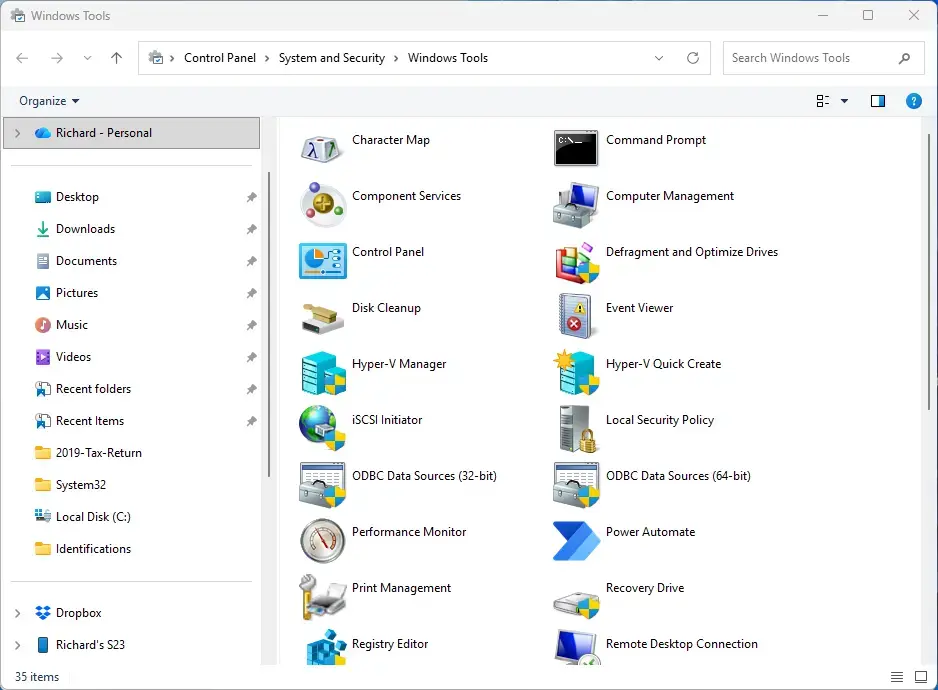
Open Control Panel, change View by to Large icons, click Windows Tools, and the folder opens showing all system management utilities. Alternatively, press Win+R, type control admintools, and press Enter to access the same folder.
How to Open the Windows Tools Menu via Control Panel
The Control Panel route works on every edition of Windows 11, Home and Pro alike. It takes a few clicks and needs no commands. The folder opens in a File Explorer-style window with a shortcut for each tool.
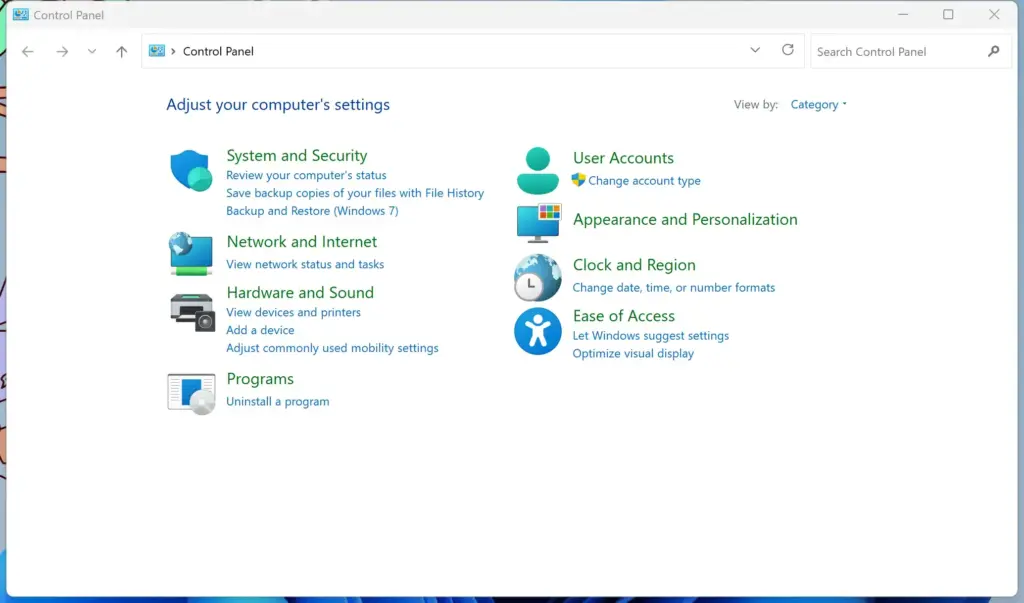
These steps open the Windows Tools menu from Control Panel.
- Press the Win. The Start menu opens, and you can start typing to search.
- Type
Control Paneland press Enter. The Control Panel window opens. - Find the View by dropdown menu in the top-right corner of the window. It is set to Category by default.
- Select Large icons or Small icons. The list changes from categories to a flat list of icons. If you stay on the Category view, you will not see the Windows Tools icon.
- Click the Windows Tools icon. The folder opens and shows all the administrative shortcuts.
How to Access Windows Tools Using the Run Command
- Press Win+R together. The Run dialog box opens in the lower-left corner of the screen.

- Type
control admintoolsinto the Open text field. Check the spelling before you go on. - Press Enter. The folder containing all the system management applets opens on your screen.
- Double-click any shortcut to launch that tool. If the tool needs administrator rights, approve the prompt that appears.
Core Utilities Found Inside the Windows Tools Menu
The Windows Tools menu contains dozens of utilities for power users, IT administrators, and advanced troubleshooting. Think of it as the system tools menu for Windows. You will not need most of them day to day.
The ones below are the ones I reach for most often. Knowing what each does helps you pick the right one for the job.
Task Manager
Task Manager is the system monitor and performance analyzer in Windows. Use it to end unresponsive programs, change which apps run at startup, and watch CPU, memory, disk, and network use in real time.
You can also open it directly with Ctrl+Shift+Esc. Two jobs come up most often:
- Select the frozen app on the Processes tab. This marks the program you want to close.
- Choose End task. Windows closes the app, and any unsaved work in it is lost.
- Open the Startup apps page to manage what runs at sign-in. Startup apps are managed there, not in System Configuration.

Computer Management
Computer Management bundles several administrative tools into a single console tree, which is a folder-style list on the left side of the window. It includes local user and group management, service controls, Event Viewer, and Disk Management for partitioning drives.
Note that Local Users and Groups is not available on Windows 11 Home. If it is missing from the tree, your edition is the reason, not a fault. Most of the other tools in the console, such as Disk Management and Services, work on every edition.
Disk Management changes can destroy data. Double-check which disk you have selected before you format or delete a volume.
Event Viewer
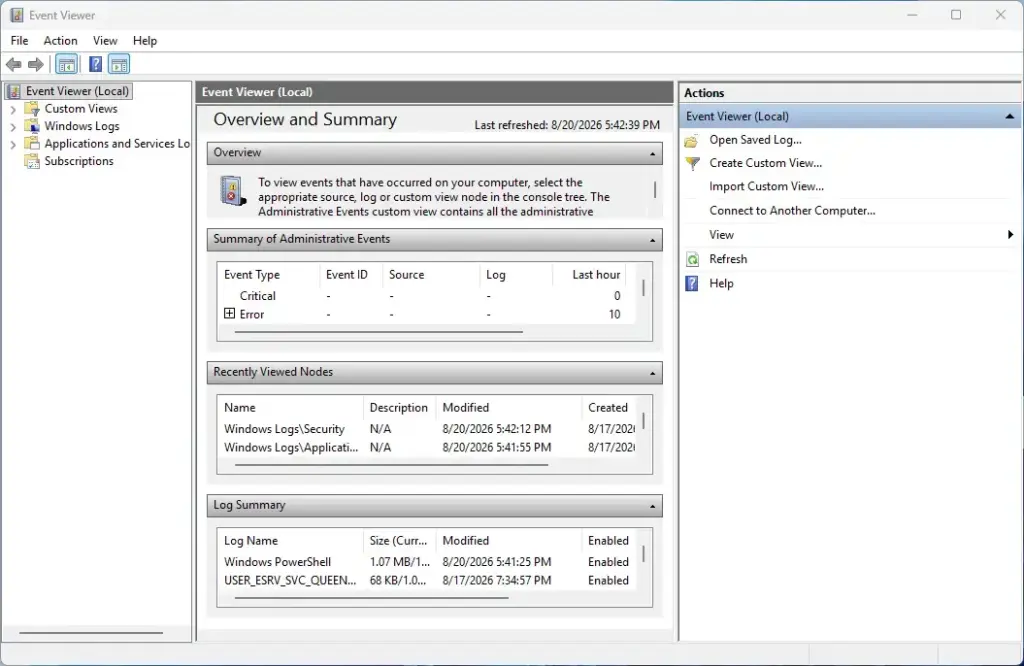
Event Viewer logs detailed records of system events, application errors, security audits, and hardware warnings. Reading these logs helps you find the root cause of unexpected crashes or software failures.
- Expand the Windows Logs section in the left pane. Several log names appear below it.
- Select the Application or System log. A list of events appears in the middle pane.
- Look for entries marked Error or Critical. These are the ones worth reading first.
- Match the timestamp to the time of the problem. Many entries are harmless warnings, so do not worry about every red icon.
System Configuration
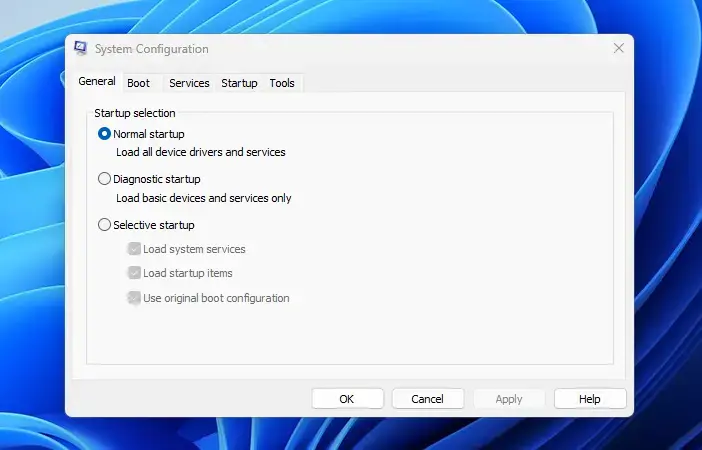
System Configuration, commonly known as msconfig, lets you manage boot options, control which services run at startup, and set diagnostic startup modes. It is useful for tracking down software conflicts.
The usual approach is to hide Microsoft services, disable the rest, and restart to see whether the problem goes away. Changes here take effect only after a restart.
To undo them, open System Configuration again, select Normal startup on the General tab, and restart. In Windows 11, the Startup tab only points you to Task Manager, where startup apps are actually managed.
Registry Editor
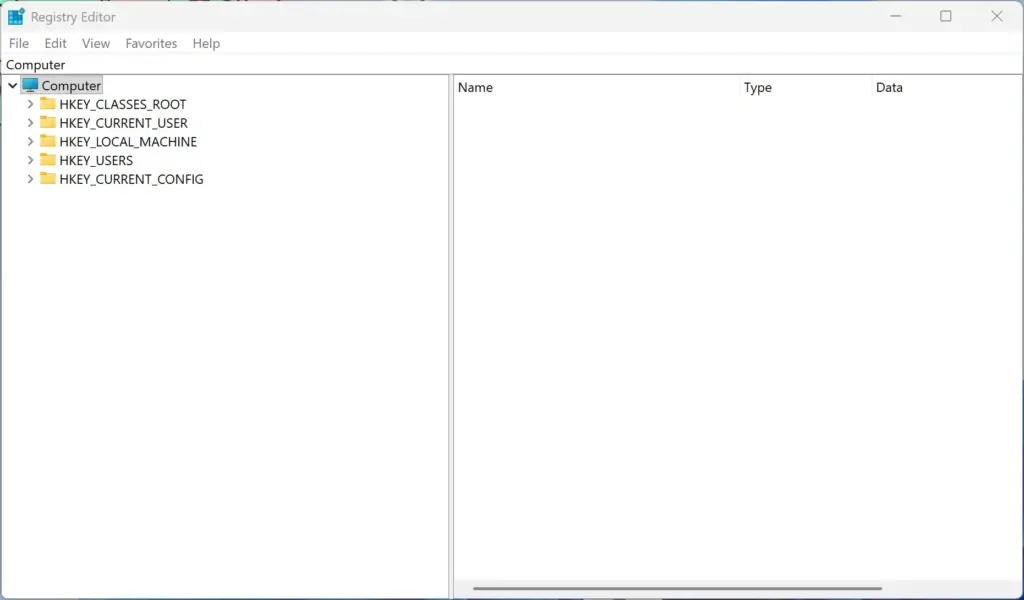
Back up the key you are about to change before you edit anything:
- Select the key in Registry Editor. It highlights in the left pane.
- Choose File Export. A save dialog opens.
- Save the file somewhere safe. This copy holds the old values.
If something goes wrong, double-click that saved file to merge the old values back in. Registry Editor needs administrator approval, so you will see a User Account Control prompt when you open it.
Local Group Policy Editor
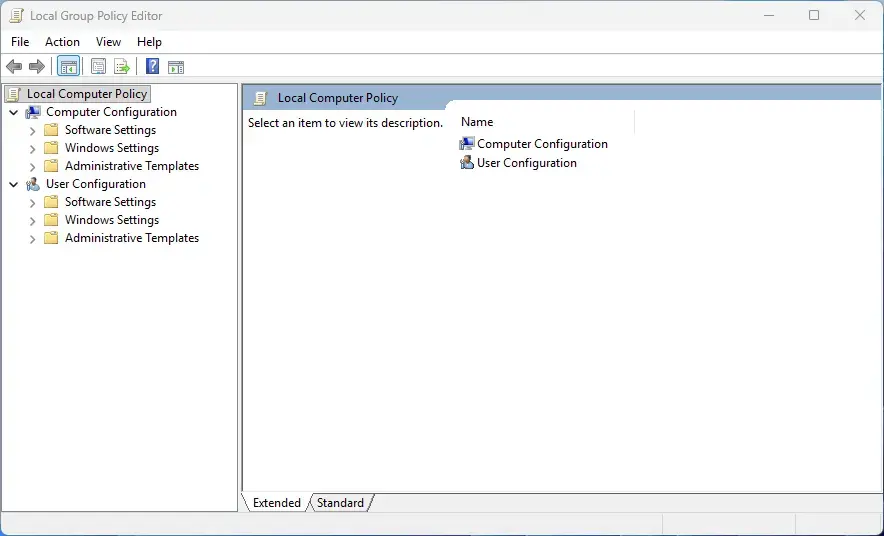
Local Group Policy Editor gives you one central interface for configuring advanced user and computer policies across the operating system. It is available in Pro, Enterprise, and Education editions only.
If you run Windows 11 Home, you will not find it in the Windows Tools folder, and that is normal. Home does not include it.
Policy changes are written to the system, so note the original setting (usually Not Configured) before you change one. That way you can set it back later.
How to Pin Windows Tools to Start or Taskbar
If you use these tools often, pin the folder to Start so you can open the Windows Tools menu in one click. These steps add it to Start and, if you like, to your desktop.
- Open the Windows Tools folder using the Control Panel method described earlier. The folder window shows all the shortcuts.
- Right-click the Windows Tools folder icon or shortcut. A context menu appears. On Windows 11, select Show more options if the entry you want is not in the short menu.
- Select Pin to Start to add a tile to your Start menu. Alternatively, select Create shortcut to place a direct link on your desktop.
- Open Start to check that the new tile is there.
To undo this, right-click the tile on Start and select Unpin from Start. Deleting a desktop shortcut does not remove the tools themselves.
Troubleshooting Missing Windows Tools Shortcuts
If some shortcuts are missing from the Windows Tools folder, first check the physical folder that holds them. A system update or file corruption can remove shortcuts. You can restore them by hand or run a system scan to repair the files.
- Press Win+R. The Run dialog opens.
- Type
shell:Administrative Toolsand press Enter. The folder opens in File Explorer. - Check for missing shortcut files (.lnk). The folder is located at
C:\ProgramData\Microsoft\Windows\Start Menu\Programs\Administrative Toolsor in your user profile path, so compare what you see with what the Windows Tools list normally shows. - Search for Command Prompt and right-click it. A context menu appears.
- Select Run as administrator. Approve the User Account Control prompt, and a Command Prompt window opens with administrator rights.
- Type
sfc /scannowand press Enter. The scan starts and repairs missing system files.
- Wait for the scan to finish. It can take several minutes, so do not close the window early.
- Restart your PC if Windows reports that it repaired files. Skip this if it found no problems.
- Reopen the Windows Tools folder. Check whether the shortcuts are back.
If this didn’t work
If the shortcuts still will not launch, or the folder stays inaccessible, the Windows image itself may be damaged. In that case, run an elevated Deployment Image Servicing and Management (DISM) scan from Terminal or Command Prompt. Elevated means opened with administrator rights.
The scan repairs the source files that Windows uses to restore these administrative tools. Run the system file scan again afterwards, since it relies on those same source files.
Frequently asked questions
How do I get the toolbar back?
The Windows Tools folder is not a toolbar, so it doesn't sit on the taskbar by default. Open Start, select All apps, and scroll to Windows Tools. To make it quicker to reach, right-click Windows Tools and choose Pin to Start. The pinned tile gives you a one-click shortcut.
How do I access the tools menu?
Open Start and select All apps. Scroll down to Windows Tools and click it to see the full list, including Disk Management and Registry Editor. Some tools need an administrator account, and Windows will ask for a password if you are on a standard account.
How do I access the Windows toolbar?
Windows Tools is a folder, not a toolbar. Open Start, select All apps, and scroll to Windows Tools. In Windows 11 22H2 and later, it is the newer name for Administrative Tools, so look for that name in older guides. Its list includes Disk Management, Event Viewer, and Services.
How do I find tools on my PC?
Open Start, select All apps, and scroll to Windows Tools. Each tool in that folder has its own shortcut, so you can click straight to the one you need. If you know the tool's name, type it into the Search box in Start, such as Disk Management, to open it faster.
Still have a question?
Answered by AI from this guide. Good questions may be added to this page — please don't include personal details.
Did this guide fix your problem?

About the Author
Richard
Tech Writer, IT Professional
Richard is a writer at Geek Rewind who turns complex IT tasks into clear, step-by-step guides. He draws on years of hands-on experience in system administration and enterprise IT operations, focusing on Windows, Linux and WordPress: the problems people actually run into, and the fixes that work. His server and WordPress guides come from systems he runs himself. Richard builds and maintains the platform behind Geek Rewind, from its Ubuntu servers and Nginx configuration to its custom WordPress plugins. Many new tutorials start with readers' questions, and he's always glad to answer them in the comments.
No comments yet — be the first to share your thoughts!