How to Open Disk Management in Windows 11

Disk Management is a built-in Windows 11 tool for setting up new hard drives, creating partitions, formatting volumes, and changing drive letters, all without extra software. It shows every physical disk in your PC and every volume on it, including ones that File Explorer hides, such as recovery and system partitions.
You can open it in several ways when you need to change your storage layout, manage partitions, or troubleshoot a drive. Always back up your data before you change a system drive. Some actions here, such as deleting a volume or formatting it, erase everything on it and cannot be undone.
Press Win+X, then click Disk Management in the Power User menu that appears. If a User Account Control prompt appears, click Yes. The window opens showing your disks and volumes in two panes.
How to Open Disk Management in 🪟 Windows 11
The quickest way to open Disk Management in Windows 11 is the hidden Power User menu, which Microsoft also calls the Quick Link menu. It works the same on Home and Pro. You can open it with the keyboard or by right-clicking the Start button .
- Press Win+X at the same time. A menu appears in the lower-left corner of your screen, just above the Start button .
- Click Disk Management in that menu. If a User Account Control prompt appears, click Yes or enter an administrator password.
- Wait a moment while the window loads. You should see a list of volumes in the top pane and a graphical view of each disk in the bottom pane. The graphical view shows the partition layouts.
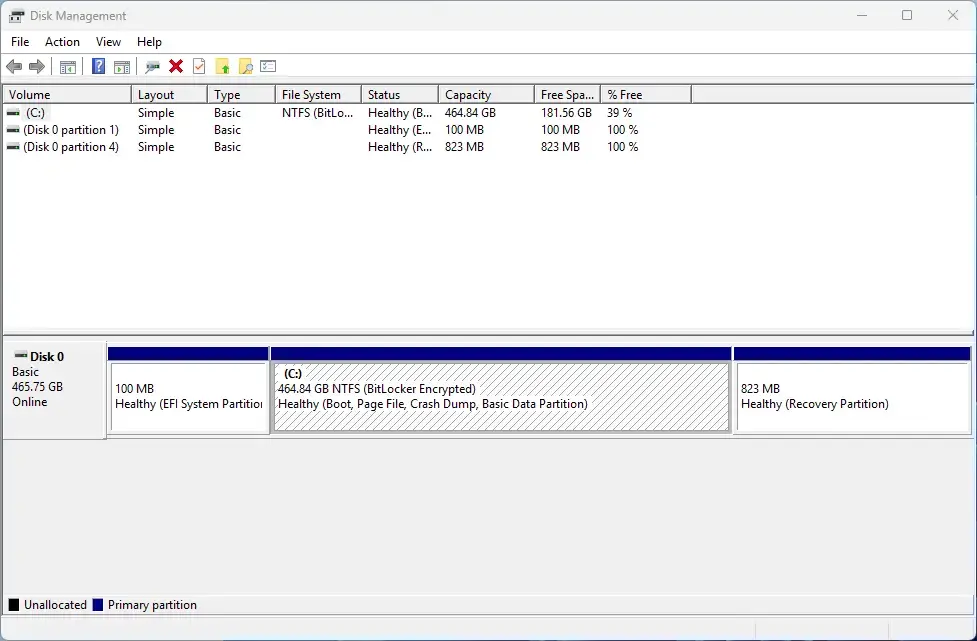
Disk Management
You can view disks from a standard account, but you need administrator rights to change anything. If Disk Management is missing from the menu, make sure you pressed Win+X and not Win+Shift+X. You can also right-click the Start button to get the same menu.
Online and Offline Status
The online and offline status in Disk Management shows whether Windows can currently read and write data on a drive. Windows often sets new or detached secondary drives to offline by default to protect your files. In that case you must bring the disk online by hand before you can use it.
An offline disk is disconnected from the system, so apps and File Explorer cannot reach its contents. You must bring the disk online before you can assign drive letters, create new volumes, or open existing files on it.
To change a drive's status from offline to online:
- Open Disk Management using the steps above.
- Look at the left side of the lower pane. Each disk has a label box there, such as Disk 1, that shows the disk number, its size, and its current status.
- Right-click the disk label that shows Offline. Right-click the label box on the left, not the volume block to its right.
- Click Online to mount the disk and make its partitions accessible to Windows 11. The status should change to Online, and any volumes on it should appear in File Explorer if they have drive letters.
If the label shows Not Initialized instead, the disk is online but has no partition table yet. Right-click the label, click Initialize Disk, and pick a partition style. GPT is the right choice for most modern PCs and is required for disks larger than 2 TB. MBR is only needed for older systems. If the Online option gives an error, the disk may be failing or the cable may be loose. Check the connection before you try again.
Managing Basic Disk Layouts and Partitions
Managing basic disk layouts in Windows 11 lets you organize storage using primary partitions and logical drives. Once your drive is online and initialized, you can create new partitions, format volumes, or resize existing ones using any unallocated space on the drive.
Unallocated space is made up of sectors that do not belong to any partition or file system yet. It shows as a black bar in the graphical view. To use it, you must create a new volume or extend an adjacent partition into it.
To create a new simple volume from unallocated space:
- Open Disk Management.
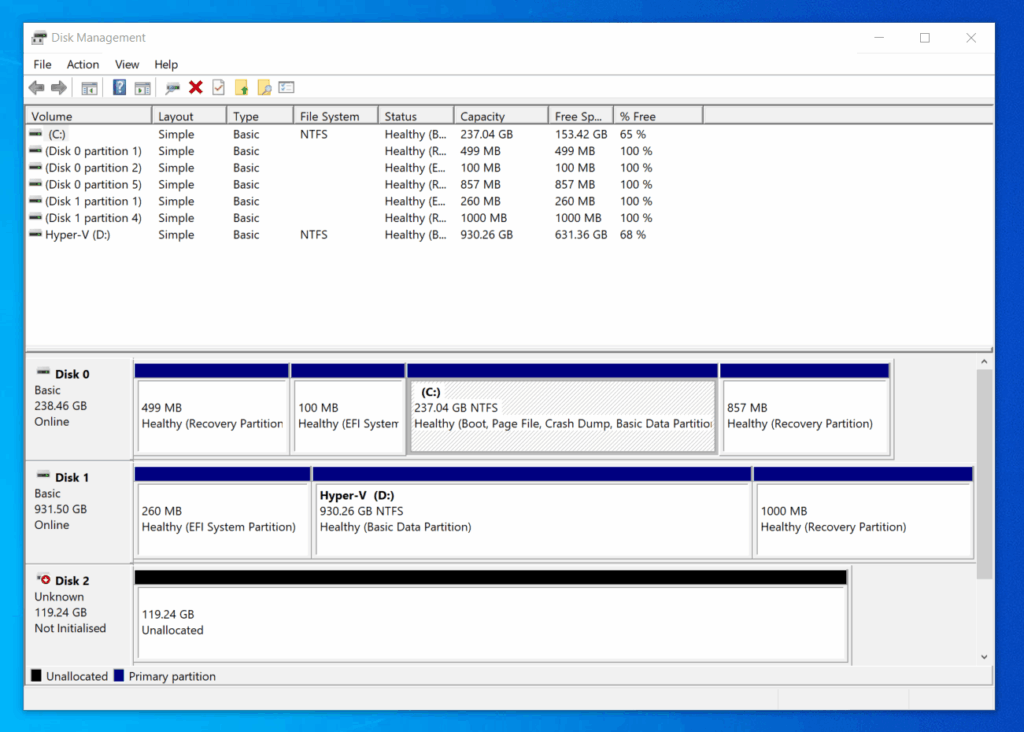
Windows 11 Disk Management dashboard showing disk partition overview. - Right-click the block of Unallocated space on your target drive. Check the disk number first so you do not pick the wrong drive.
- Click New Simple Volume to launch the setup wizard. If this option is greyed out, the disk is probably offline or not initialized, so fix that first.
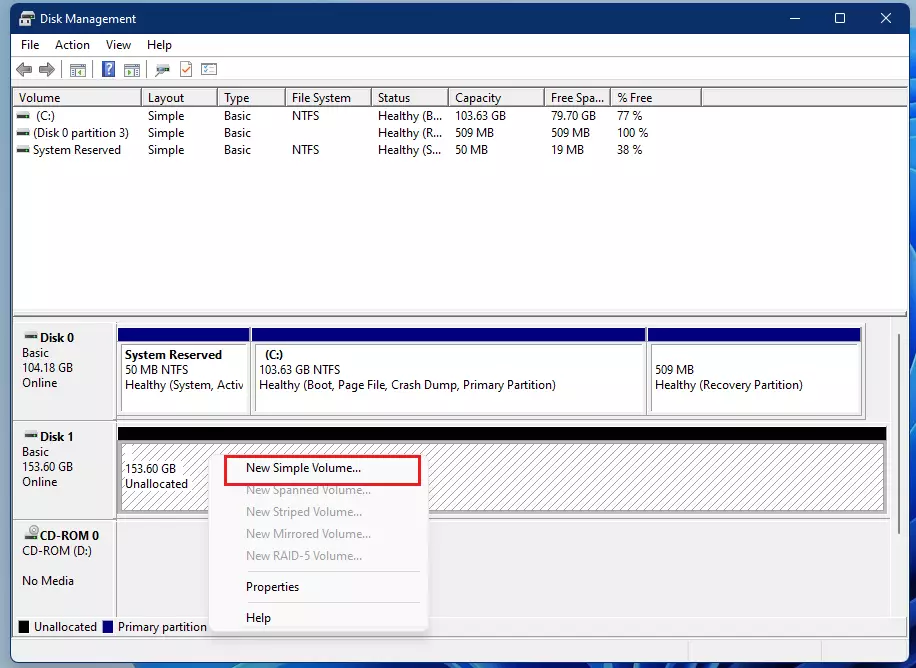
windows 11 create new simple volume - Click Next on the welcome screen.
- Enter the volume size in megabytes and click Next. The default is all the available space. Enter a smaller number if you want to leave room for another partition.
- Assign an available drive letter and click Next.
- Select your file system, such as NTFS, type a volume label, and click Next. Leave Perform a quick format ticked unless you have a reason to run a full format, which takes much longer.
- Click Finish. Windows formats the partition, and the new volume appears in File Explorer under This PC.
That erases everything on it and turns the space back into unallocated space.
Handling Non-Contiguous Unallocated Space
Non-contiguous unallocated space is the usual reason the Extend Volume option is greyed out. Windows can only grow a partition into free space that sits immediately to its right. If another partition is in between, the option stays unavailable. This often happens on the C: drive, where a recovery partition sits after the main partition.
The built-in fix is to back up the data on the blocking partition, delete it so its space becomes unallocated, extend your main partition, and then recreate the secondary partition if you still need it. Be careful with recovery partitions, because Windows may need them for reset and repair. Do not delete one unless you understand what it does and have a full backup. Advanced users can instead rely on specialized command-line tools or third-party partitioning software to move partitions without data loss.
Related topics
Several other built-in tools work alongside Disk Management to keep storage healthy. Storage Sense is a feature that automatically frees up disk space by deleting temporary files and content you do not need. You can find it in the Settings app under System and then Storage. Use it to clear junk files before you resize or move partitions, since more free space makes that work easier.
You can also check drive health and optimize performance with dedicated system utilities. On a mechanical hard drive, Defragment and Optimize Drives reorganizes data for faster access. On an SSD, the same tool runs trim, which keeps the drive running well.
What to do next
You can now view, initialize, format, and partition your storage drives directly within Windows 11. If a drive refuses to mount or format, run the Check Disk utility to scan and repair file system corruption. To start it, right-click the drive in File Explorer and click Properties. Then open the Tools tab and click Check under Error checking.
Frequently asked questions
Why can't I find Disk Management?
Disk Management is built into Windows 11 but doesn't appear on the Start menu. Press Windows Key + X and select Disk Management from the menu. If it doesn't show, search 'Disk Management' in the Start menu search box instead.
How to fix disk issues in 🪟 Windows 11?
Open Disk Management (Windows Key + X, then click Disk Management) to check drive status and health. For file system errors, right-click the drive and run error checking. For space issues, use Storage Sense in Settings to clean temporary files automatically.
How can I clean up 🪟 Windows 11 to make it run faster?
Open Storage Sense in Settings to remove temporary files automatically. Close unused apps running in the background via Task Manager. Uninstall programs you don't use. Run Disk Cleanup (search in Start menu) to remove system junk files safely.
What is a good free disk manager for 🪟 Windows 11?
Windows 11's built-in Disk Management (Windows Key + X) handles partitions and formatting without extra software. For storage cleanup, use the free Storage Sense tool in Settings. For advanced features like cloning, third-party tools like Aomei Backupper offer free versions.
Still have a question?
Answered by AI from this guide. Good questions may be added to this page — please don't include personal details.
Did this guide fix your problem?

About the Author
Richard
Tech Writer, IT Professional
Richard is a writer at Geek Rewind who turns complex IT tasks into clear, step-by-step guides. He draws on years of hands-on experience in system administration and enterprise IT operations, focusing on Windows, Linux and WordPress: the problems people actually run into, and the fixes that work. His server and WordPress guides come from systems he runs himself. Richard builds and maintains the platform behind Geek Rewind, from its Ubuntu servers and Nginx configuration to its custom WordPress plugins. Many new tutorials start with readers' questions, and he's always glad to answer them in the comments.
No comments yet — be the first to share your thoughts!