How to Automatically Lock Computer After Inactivity in Windows 11

Windows 11 can lock your PC on its own after a set period of inactivity, so your data stays safe when you step away. You choose a limit, for example 5 minutes with no keyboard or mouse use, and Windows locks your account once that time passes.
This saves you from pressing the Win plus L every time you leave your desk. The Settings app and Control Panel both have screen timeout options that turn off the display. The setting this guide covers is different. It locks the session itself, and it works on Pro, Enterprise and Education through Local Security Policy, or on any edition, Home included, through the registry. Both methods are below.
Control automatic PC locking in Windows 11 via Power & Sleep settings or Local Security Policy/Registry Editor. Adjust inactivity time in seconds or set to 0 to disable.
Why Lock Your PC Automatically?
An automatic lock protects your files and personal information from anyone who walks past your screen while you are away. It also covers the times you forget to press the Win plus L. When the PC locks, it shows the lock screen and asks for your password or PIN before anyone can reach your apps.
Locking does not close anything. After you sign back in, your apps and documents are exactly where you left them, so you don’t lose any work.
The feature is most useful in a shared office, in a home with kids, or anywhere you simply want extra peace of mind. The steps below show how to choose how long Windows waits before it locks.
Method 1Using the Local Security Policy Editor (🪟 Windows 11 Pro, Enterprise, and Education)
Method 1 uses the Local Security Policy editor. It is available on Windows 11 Pro, Enterprise and Education. It lets you change a security rule through a normal window, with no command lines.
This method does not work on Windows 11 Home. Home does not include the Local Security Policy editor. If you run Home, skip to Method 2, which uses the Registry Editor. To check your edition, go to Settings System About and look under Windows specifications.
Step 1Open the Local Security Policy Editor
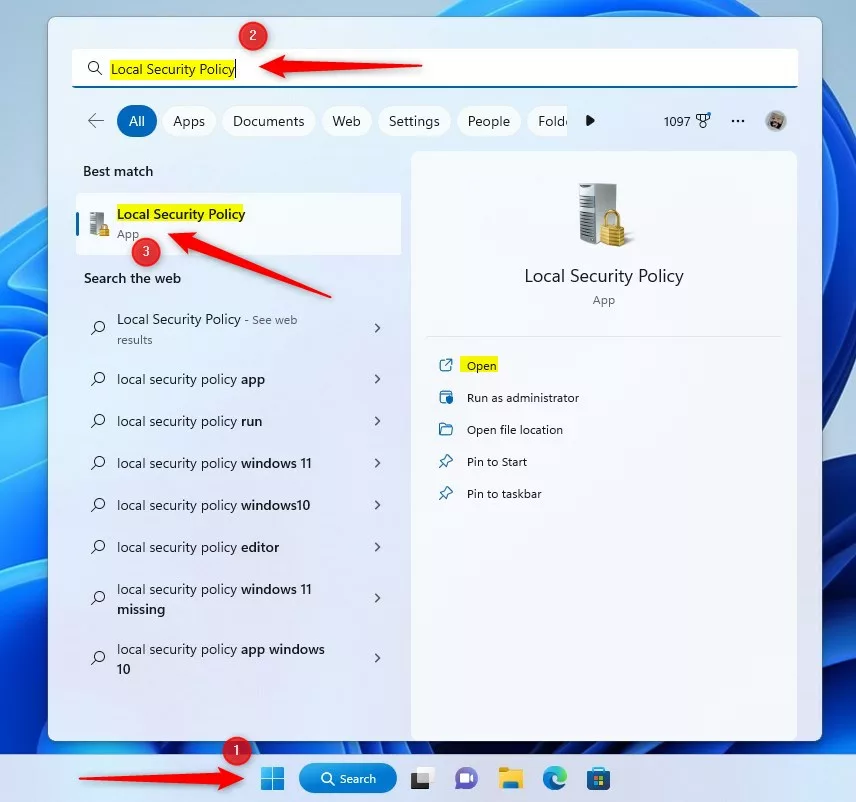
You open the editor from the Start menu search. You need to be signed in with an administrator account.
- Click the Start button.
- Type
secpol.mscinto the search bar. - Click Local Security Policy in the search results.
If Windows asks for permission, click Yes. If nothing shows up in the search results, you are probably on Windows 11 Home. Use Method 2 instead.
The Local Security Policy window opens and shows the Security Settings tree on the left. You only need to change one setting here to lock the computer after inactivity.
Step 2Go to Security Options
The setting you need is in the Security Options folder. Follow these steps to reach it.
- In the left pane of the Local Security Policy window, find Local Policies.
- Double-click Local Policies to expand it.
- Click Security Options.
A long list of security settings appears in the right pane.
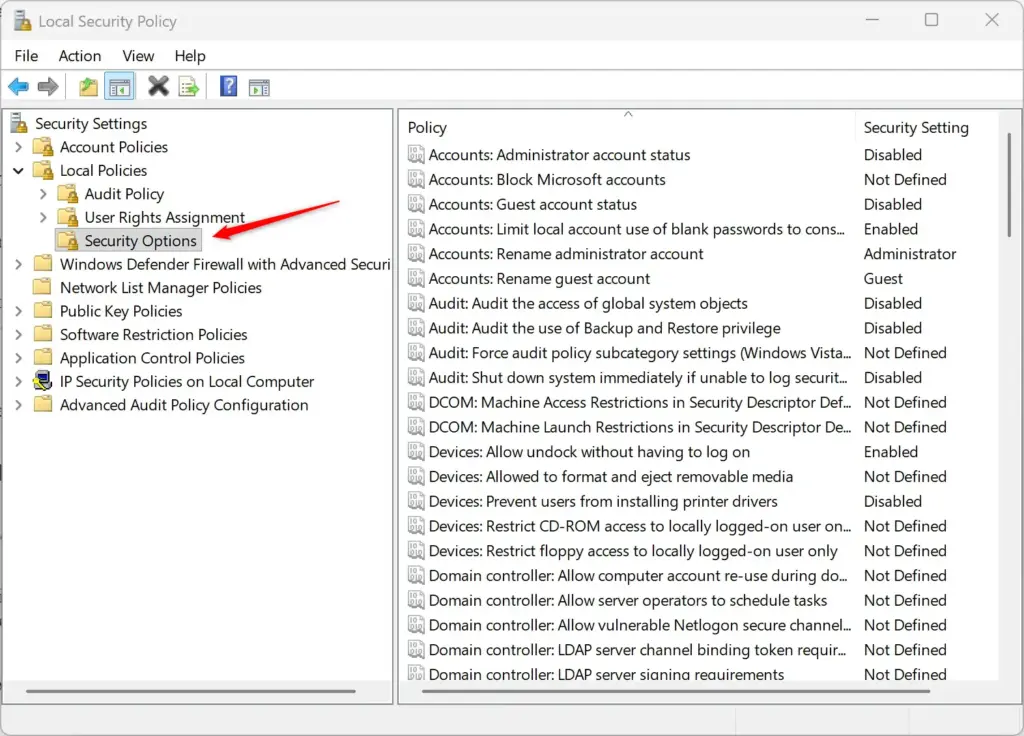
This list holds many security rules, and they are easy to mix up. Take your time and make sure you open the right one.
Step 3Find the Inactivity Limit Setting
The policy that controls the automatic lock is called Interactive logon: Machine inactivity limit.
- In the right pane, scroll down until you see Interactive logon: Machine inactivity limit.
- Double-click it.
A properties window opens for that policy.
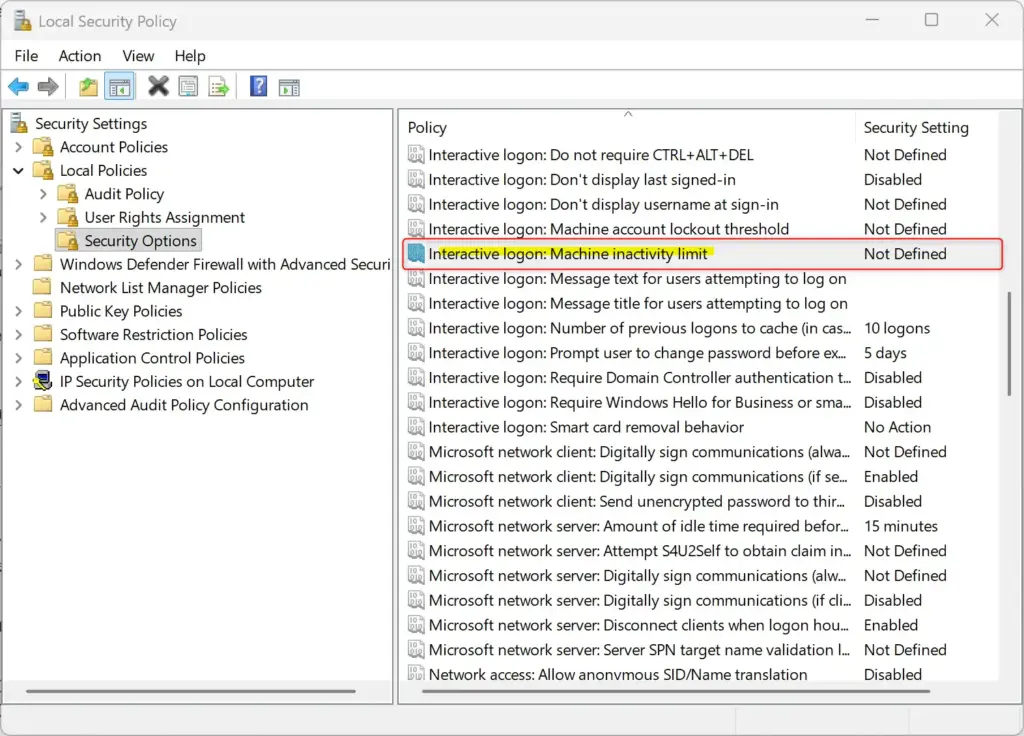
This window is where you set how long Windows waits before it locks the computer. If you have never changed this policy, the value is 0, which means the computer will not lock automatically.
Step 4Set Your Desired Inactivity Time
Enter the wait time in seconds, not minutes. The box is on the Local Security Setting tab.
- Click in the box for the number of seconds.
- Type the number of seconds you want Windows to wait before it locks.
Here is how to read the value:
- 0 turns automatic locking off. This is the default.
- Any number higher than 0 turns it on.
To convert minutes to seconds, multiply by 60:
- 5 minutes: 5 × 60 = 300 seconds.
- 15 minutes: 15 × 60 = 900 seconds.
The longest value you can set is 599940 seconds, which is almost 7 days. In practice, most people pick somewhere between 5 and 15 minutes.
This setting locks the session. It does not control when the display turns off or when the PC sleeps. Those are separate options under Settings System Power & battery
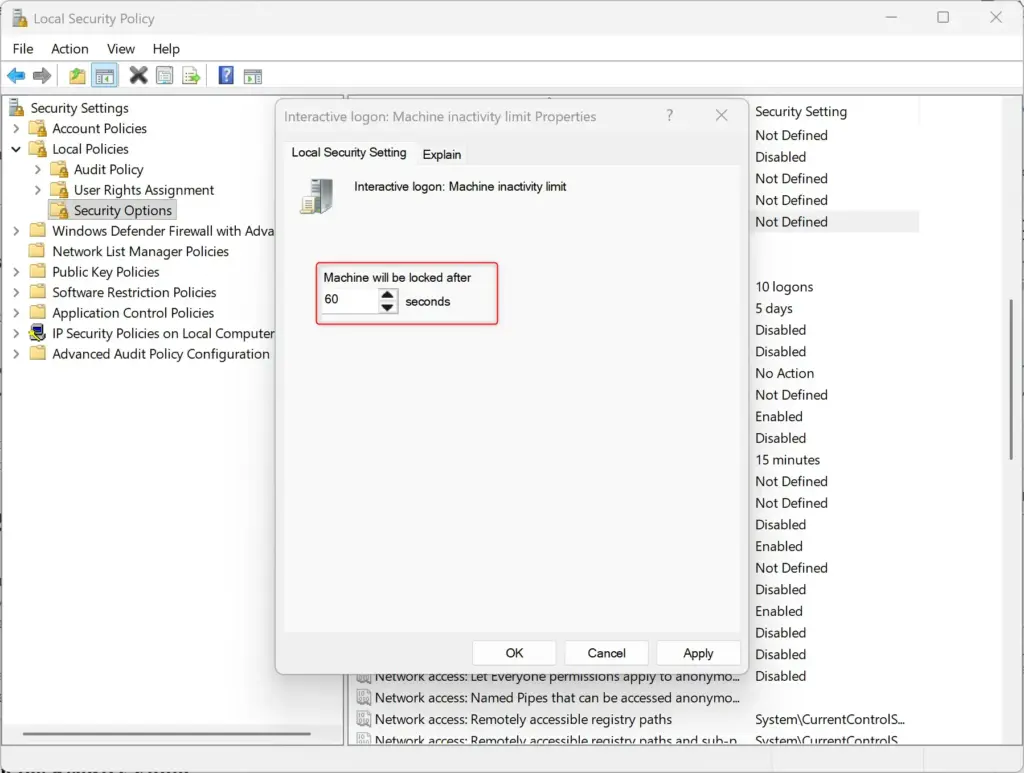
- Click OK to save the value.
The properties window closes and the new value appears next to the policy in the list.
Step 5Close and Restart
Restart the PC so Windows reads the new timeout.
- Close the Local Security Policy window.
- Restart your computer.
After the restart, the PC locks itself after the time you set. To test it, leave the keyboard and mouse alone for a little longer than your chosen limit. The lock screen should appear.
To undo the change, open the same policy again, set the value back to 0, click OK and restart.
Method 2Using the Registry Editor (All 🪟 Windows 11 Editions)
Method 2 uses the Registry Editor, which is a database of Windows system settings. It works on every edition of Windows 11, including Home. You need an administrator account.
Be careful. A wrong change in the registry can cause serious problems, and in the worst case you may have to reinstall Windows. Back up the registry before you start. In the Registry Editor, click File Export, choose All under Export range, name the file and save it somewhere safe. If you are not comfortable editing the registry, ask someone who is, or use Method 1 if your edition allows it.
Step 1Open the Registry Editor
- Click the Start button.
- Type
regeditinto the search bar. - Click Registry Editor in the search results.
- When the User Account Control prompt asks for permission to make changes, click Yes.
The Registry Editor opens. It shows the registry as a tree of folders (called keys) in the left pane.
Step 2Go to the Correct Registry Key
You now need to reach the right key. Expand the folders in the left pane in this order:
- Expand
HKEY_LOCAL_MACHINE. - Expand
SOFTWARE. - Expand
Microsoft. - Expand
Windows. - Expand
CurrentVersion. - Click the
Policiesfolder to open it. - Inside the
Policiesfolder, click theSystemfolder.
The full path you should end up on is: HKEY_LOCAL_MACHINE\SOFTWARE\Microsoft\Windows\CurrentVersion\Policies\System
Click the System folder itself, not just the one above it. Its contents should now be listed in the right pane. The address bar at the top of the Registry Editor is a handy way to check that you are in the right place.
Step 3Find or Create the "InactivityTimeoutSecs" Value
Next you need a value that holds the timeout. It may already exist, or you may have to create it.
- Look in the right pane for a value named
InactivityTimeoutSecs. - If you find it, skip to step 7.
- If you don't find it, right-click an empty space in the right pane.
- Point to New.
- Click DWORD (32-bit) Value. A new entry appears with its name ready to edit.
- Type exactly
InactivityTimeoutSecsand press Enter. - Double-click the
InactivityTimeoutSecsvalue, whether you just created it or found it already there.
DWORD (32-bit) Value is the correct type for this setting, even on a 64-bit version of Windows. The name must match exactly, or Windows will ignore it.
Step 4Set the Timeout in Seconds
The Edit DWORD (32-bit) Value window opens. Set the timeout here.
- Under Base, select Decimal. It is usually selected already.
- In the Value data box, type the number of seconds Windows should wait before it locks the PC.
Keep these numbers in mind:
- Enter 0 to disable automatic locking.
- Enter a number higher than 0 to enable it. For example, 300 is 5 minutes and 900 is 15 minutes.
- The maximum is 599940 seconds.
Check that Base is on Decimal before you type. If it is set to Hexadecimal, the number you enter will be read as a different value.
- Click OK.
The window closes and the value shows your number in the right pane.
Step 5Close and Restart
Restart the PC so Windows applies the change.
- Close the Registry Editor.
- Restart your computer.
After the restart, the PC locks itself once the time you set has passed. To undo the change, set the value to 0 or delete the value, then restart. If you exported a backup earlier, you can also double-click that file to restore your old settings.
What About Presence Sensors? (Walk Away Lock)
Some modern laptops and monitors have presence sensors that can lock the PC when you walk away. Look under Settings Privacy & security Presence sensing If your device supports it, you will see an option to lock the screen when you leave. Your manufacturer's software may also offer a similar option, often called Walk away lock.
Where these settings are and what they are called differs a lot between devices. If you can't find them, check your device's manual or the manufacturer's support site.
Presence detection works differently from the inactivity timeout above. It relies on a hardware sensor noticing that you have left, not on how long the keyboard and mouse have been idle. Windows also has a separate Dynamic lock feature under Settings Accounts Sign-in options It locks the PC when a paired phone moves out of Bluetooth range.
Summary
An automatic lock keeps your data protected whenever you step away from your PC. On Windows 11 Pro, Enterprise and Education, you can set it up in the Local Security Policy editor. On any edition, including Home, you can set it by editing the registry.
Pick a timeout that balances security with convenience. A short limit protects you better, but it can get annoying if it locks while you are reading or watching something. Most people find that 5 to 15 minutes works well.0regedit.exe300900
Was this guide helpful?
100% of readers found this helpful (2 votes)

About the Author
Richard
Tech Writer, IT Professional
Richard is a writer at Geek Rewind who turns complex IT tasks into clear, step-by-step guides. He draws on years of hands-on experience in system administration and enterprise IT operations, focusing on Windows, Linux and WordPress: the problems people actually run into, and the fixes that work. His server and WordPress guides come from systems he runs himself. Richard builds and maintains the platform behind Geek Rewind, from its Ubuntu servers and Nginx configuration to its custom WordPress plugins. Many new tutorials start with readers' questions, and he's always glad to answer them in the comments.



No comments yet — be the first to share your thoughts!