How to Lock Your Windows 11 Computer


Locking your Windows 11 computer freezes your active user session so you can step away without closing open apps or losing your place. Your programs keep running behind the lock screen, and nobody can use the PC until they sign in with your PIN, password or other sign-in method. Pressing the Win+L locks the screen in about a second.
You can also lock your PC from the Start menu , from the Ctrl+Alt+Del screen, or through Task Manager . If you want the PC to lock without you doing anything, Windows has a feature called Dynamic Lock. It secures the machine automatically once your paired phone leaves Bluetooth range, so the phone must be paired with the PC first.
Press the Win+L to lock your Windows 11 computer immediately. The lock screen appears in about a second, and your programs keep running until you sign back in with your PIN or password.
1Use a Keyboard Shortcut (Fastest Way)
This is the fastest method and works the same on Windows 11 Home and Pro. Press the Win+L on your keyboard to lock your screen immediately. You should see the lock screen with the date and time. To get back in, press any key or click the screen, then sign in as usual.
- Find the Win, the one with the Microsoft logo, usually near the spacebar, and hold it down.
- Press L while still holding the Win. Your screen locks immediately and the lock screen appears.

2Lock from the Start Menu
The Start menu offers another reliable method, and it is a good one if you prefer the mouse or a touchscreen. It works on both Home and Pro:
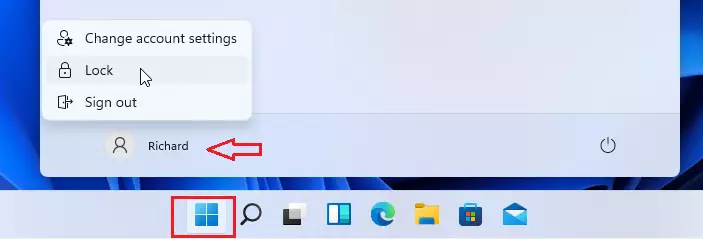
- Click the Start button (the Windows logo) on the taskbar . It sits in the centre by default, or at the bottom left if you have moved your taskbar icons to the left. The Start menu opens.
- Click your user icon or account name in the Start menu . On current Windows 11 builds it sits at the bottom left, next to the power button. A small menu appears with account options.
- Select Lock from the menu that appears. The screen locks and the lock screen is shown. Note that the power button menu has Sleep, Shut down and Restart, but not Lock, so use your account name instead.
3Lock Using Ctrl + Alt + Delete
It is also useful if an app has stopped responding, because this screen is handled by Windows itself rather than by the app that is stuck.
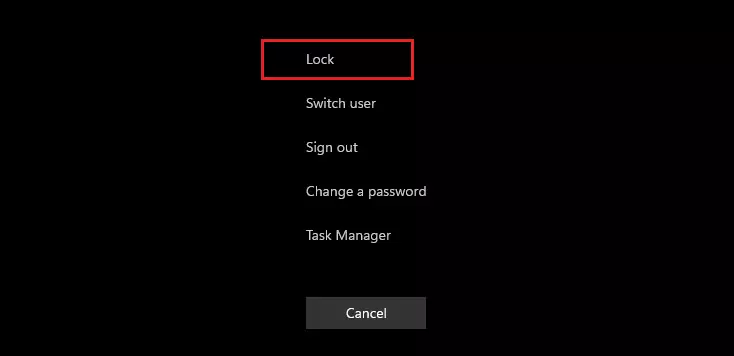
- Press Ctrl+Alt+Del at the same time. A full-screen menu opens with several options, such as Lock, Switch user, Sign out, Change a password and Task Manager .
- Click Lock to secure your computer. Your session stays open, and you will see the lock screen.
4Lock from the Task Manager (For Advanced Users)
You can also use Task Manager (a built-in tool for checking system performance). Press Ctrl+Shift+Esc to open the app, switch to the Users tab, right-click your username, and choose Disconnect. This method is handy when your normal lock shortcuts stop working or your screen freezes up while you are working.
It ends your connection to the session and returns you to the sign-in screen. Depending on your setup, some programs may close, so treat it like signing out and save your work first. If Disconnect is missing or greyed out on your PC, use one of the other methods above.
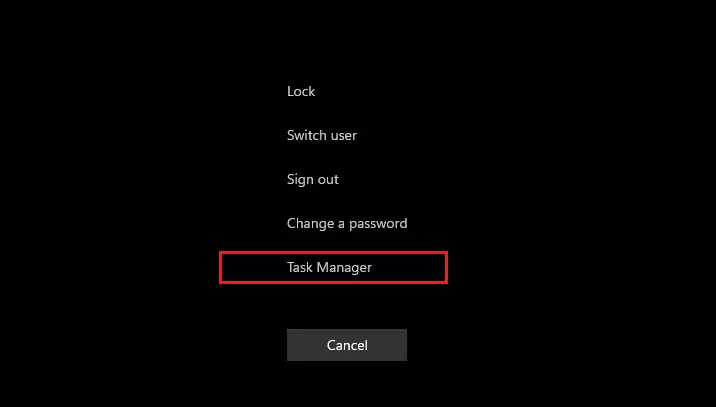
- Press Ctrl+Shift+Esc to open Task Manager directly, or press Ctrl+Alt+Del and then choose Task Manager . The Task Manager window opens.
- Click More details at the bottom if Task Manager opens as a small window. The full window with the tabs appears.
- Go to the Users tab. You should see your user name in the list.
- ⚠️ Admin privileges required: Right-click your user name and select Disconnect. (Note: This logs you off, so save your work before doing this.) You will land on the sign-in screen, where you can sign back in as normal.
Why Lock Your Computer?
- Keep Your Files Safe: Locking stops others from opening your files or programs, even if you only leave for a minute.
- Stop Changes: No one can change your work or settings while you're away, or send a message from your open email or chat apps.
- Good Habit: Locking regularly helps protect your privacy, especially in public places such as offices, cafés and shared homes.
- Easy to Do: Windows 11 gives you many simple ways to lock your computer. The Windows Logo Key + L shortcut is the quickest one to remember.
Locking your Windows 11 computer protects your personal files, stops unwanted changes to your settings, and keeps your private data safe from prying eyes whenever you step away from your desk. Making it a habit to lock your screen prevents coworkers, family members, or strangers from accessing your open apps and sensitive information. A lock is only as strong as your sign-in, so use a PIN or password that is hard to guess.
Want to learn more? See Microsoft's official guide here: How to Lock Your Windows PC
Summary
Securing a Windows 11 computer remains an effective method for guarding files and privacy whenever leaving the desk. Pick the method that suits you, and use Windows Logo Key + L as your default habit.
Have a question about this guide?
Answered by AI from this guide. Good questions may be added to this page — please don't include personal details.
Did this guide fix your problem?

About the Author
Richard
Tech Writer, IT Professional
Richard is a writer at Geek Rewind who turns complex IT tasks into clear, step-by-step guides. He draws on years of hands-on experience in system administration and enterprise IT operations, focusing on Windows, Linux and WordPress: the problems people actually run into, and the fixes that work. His server and WordPress guides come from systems he runs himself. Richard builds and maintains the platform behind Geek Rewind, from its Ubuntu servers and Nginx configuration to its custom WordPress plugins. Many new tutorials start with readers' questions, and he's always glad to answer them in the comments.
No comments yet — be the first to share your thoughts!