How to Enable CTRL+ALT+DEL for Windows 11 Sign-in


The secure sign-in setting in Windows 11 makes you press Ctrl+Alt+Del before you type your password. Windows reserves that key combination for the real sign-in screen, so a fake login app running in the background can’t capture it. That stops such an app from tricking you into typing your password into the wrong place.
On most stand-alone PCs this requirement is off by default. Computers joined to a work domain often have it on already. You can turn it on with Local Security Policy (Pro, Enterprise and Education) or with the Registry Editor, a tool for changing advanced system settings (any edition, Home included). It is most useful on shared computers, where you want to be sure no other program is imitating the sign-in screen. Both methods are below.
To enable Ctrl+Alt+Del on Windows 11, open Start , type secpol.msc, then go to Local Policies Security Options and double-click Interactive logon: Do not require Ctrl+Alt+Del. Set it to Disabled, click OK, and restart. On Windows 11 Home, which lacks that editor, set the DisableCAD value under the Winlogon key in Registry Editor to 0.
What happens when done?
Once the setting is on, the lock screen and sign-in screen no longer show the password box straight away. You have to press Ctrl+Alt+Del first, and only then does the box appear. This confirms that someone is physically at the keyboard.
Method 1Local Security Policy (For Pro, Enterprise, and Education editions)
Local Security Policy is the simplest way to turn on Ctrl+Alt+Del. It is built into Windows 11 Pro, Enterprise and Education, and it makes Windows ask for the three-key combination before it shows the password box. You need to be signed in with an administrator account.
This method does not work on Windows 11 Home. Home does not include the Local Security Policy editor, so secpol.msc will not open. To check your edition, go to Settings System About and look under Windows specifications. If you have Home, use the registry method further down.
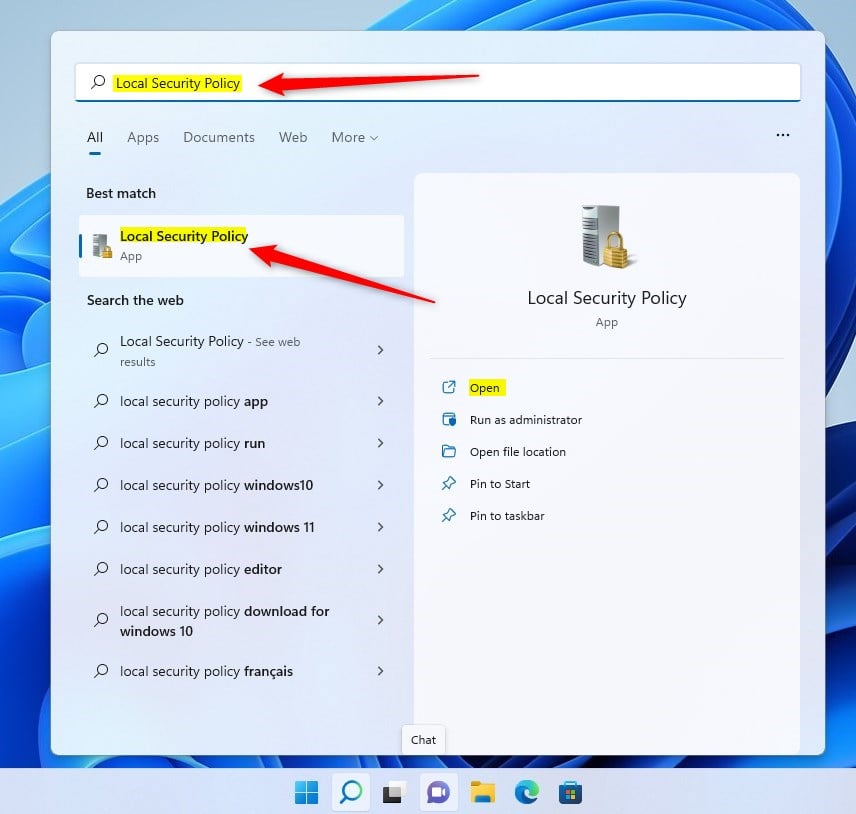
- Click the Start button and type secpol.msc in the search box. This opens the Local Security Policy editor.
- Click secpol.msc in the results. If a User Account Control prompt appears, click Yes. The Local Security Policy window should now be open.
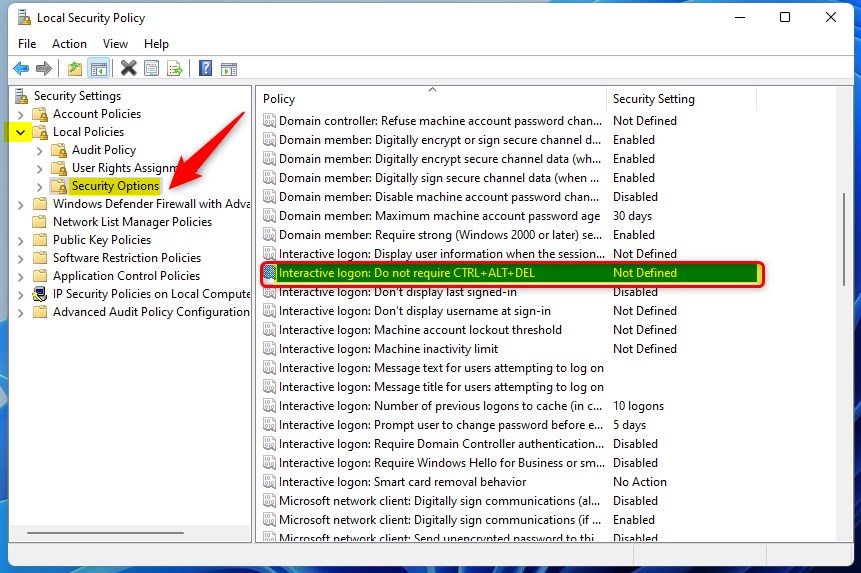
- In the left-hand pane, click Local Policies, then click Security Options. A long list of policies appears on the right.
- Scroll down and double-click Interactive logon: Do not require Ctrl+Alt+Del. A Properties window opens.
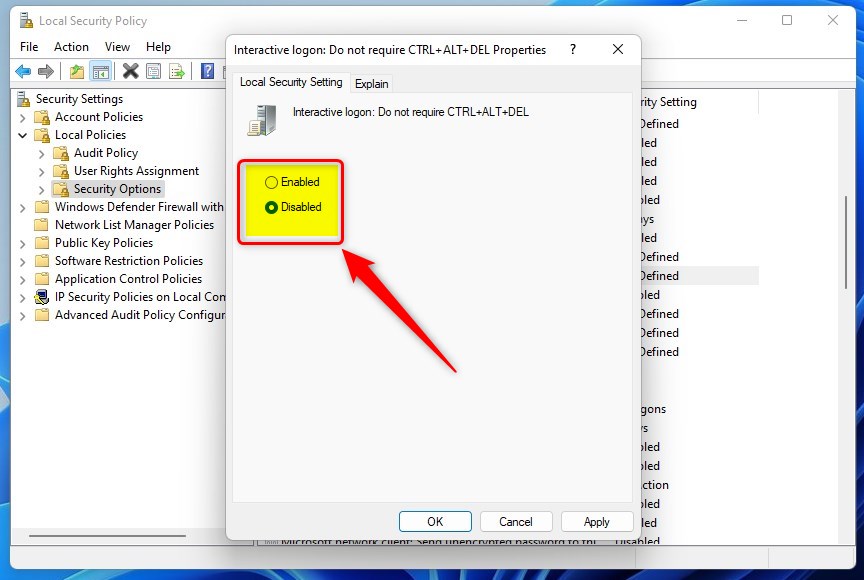
- Choose Disabled to require Ctrl+Alt+Del at sign-in. The wording is a double negative: “Do not require” set to Disabled means the keys are required. Choose Enabled only if you want to turn the requirement off.
- Click OK. The policy list now shows your new setting beside the policy name.
The change applies the next time Windows shows the sign-in or lock screen, so a full restart is not strictly needed. To test it, sign out or restart and check that the password box stays hidden until you press Ctrl+Alt+Del. To undo it, open the same policy and set it back to Enabled.
Method 2Windows Registry (For Home edition)
The Windows Registry is a database that stores system settings. It lets you enable Ctrl+Alt+Del on Windows 11 Home, where the Local Security Policy tool is missing. You change a single value, and Windows then shows the secure sign-in prompt every time. Pro, Enterprise and Education users can use this method too, but the policy editor above is easier.
In the Registry Editor, click File Export, choose a location and save the file. You can double-click that file later to restore the settings . You also need an administrator account for this method.
- Press the Win+R, type regedit and press Enter. If a User Account Control prompt appears, click Yes. The Registry Editor opens.
- Click the address bar at the top of the Registry Editor window. Paste in the path below and press Enter. The left pane jumps to that key, and its values show on the right.
HKEY_LOCAL_MACHINE\SOFTWARE\Microsoft\Windows NT\CurrentVersion\Winlogon
- Look on the right for a value named DisableCAD. If it is there, go straight to step 4.
- If DisableCAD is missing, right-click an empty spot in the right pane and select New. Then choose DWORD (32-bit) Value and name it DisableCAD. The new value appears in the list.
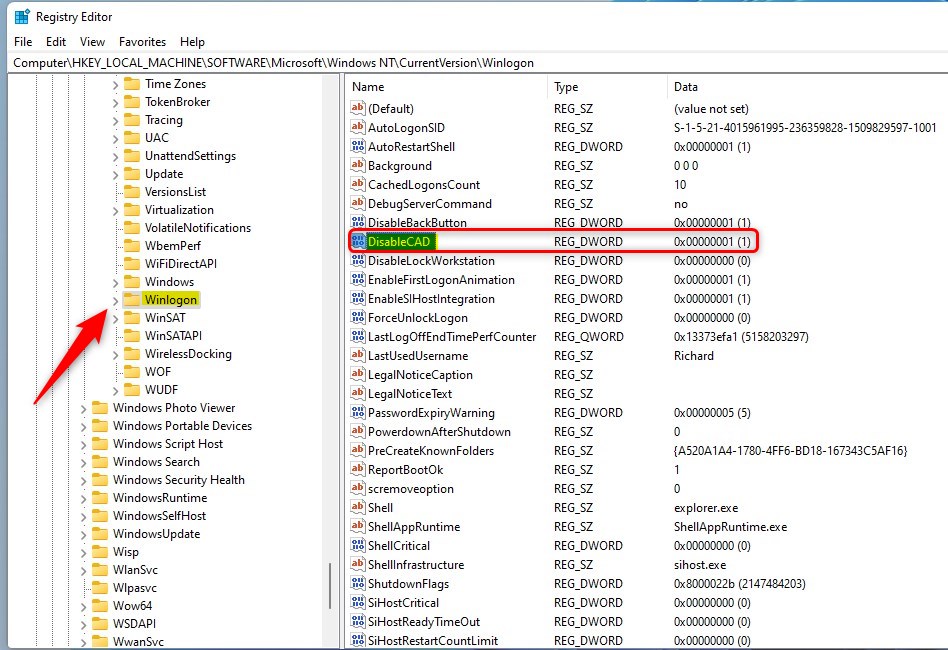
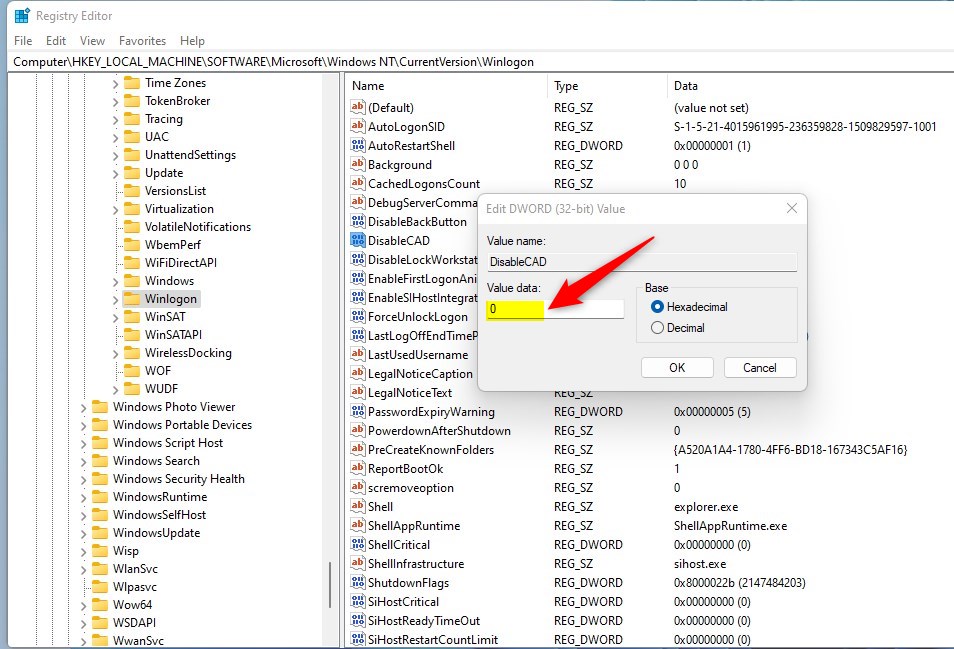
- Double-click DisableCAD. The Edit DWORD (32-bit) Value window opens.
- In the Value data box, enter 0 to require Ctrl+Alt+Del, or 1 to turn the requirement off.
- Click OK, then close the Registry Editor.
Sign out or restart to check the result. At the sign-in screen you should now have to press Ctrl+Alt+Del before the password box appears. To undo the change, set the value back to 1.
Method 3PowerShell Automation
Without them, Windows will not let you save the value.
IT administrators can use the script below to enforce secure sign-in across several machines instead of changing each one by hand. Run it from an elevated session (as administrator), and test it on one machine before you roll it out widely.
Set-ItemProperty -Path 'HKLM:\SOFTWARE\Microsoft\Windows NT\CurrentVersion\Winlogon' -Name 'DisableCAD' -Value 0
Summary
Enabling Ctrl+Alt+Del adds a secure sign-in step to Windows 11 PCs. Pro, Enterprise and Education users can set it in Local Security Policy, and Home users can set it in the registry. Either way, the PC will not show the password box until the keys are pressed. This blocks fake login screens and is a recommended security practice, especially on shared computers.
Have a question about this guide?
Answered by AI from this guide. Good questions may be added to this page — please don't include personal details.
Did this guide fix your problem?

About the Author
Richard
Tech Writer, IT Professional
Richard is a writer at Geek Rewind who turns complex IT tasks into clear, step-by-step guides. He draws on years of hands-on experience in system administration and enterprise IT operations, focusing on Windows, Linux and WordPress: the problems people actually run into, and the fixes that work. His server and WordPress guides come from systems he runs himself. Richard builds and maintains the platform behind Geek Rewind, from its Ubuntu servers and Nginx configuration to its custom WordPress plugins. Many new tutorials start with readers' questions, and he's always glad to answer them in the comments.
No comments yet — be the first to share your thoughts!