How to Enable or Disable Ctrl+Alt+Delete Secure Sign-in on Lock Screen in Windows 11

Ctrl+Alt+Del secure sign-in is a Windows 11 security feature. Windows makes you press those three keys before it shows the password or PIN box. Windows reserves that key combination for the sign-in screen, so a fake login screen cannot capture it. That makes it much harder for a malicious app to pose as the real screen and steal your credentials.
Work PCs, especially ones joined to a domain, often have this setting on by default. Home computers usually keep it off so you can sign in faster. You can switch it on or off at any time with the Netplwiz tool or the Local Security Policy app. You can also edit the registry directly. All three methods are covered below.
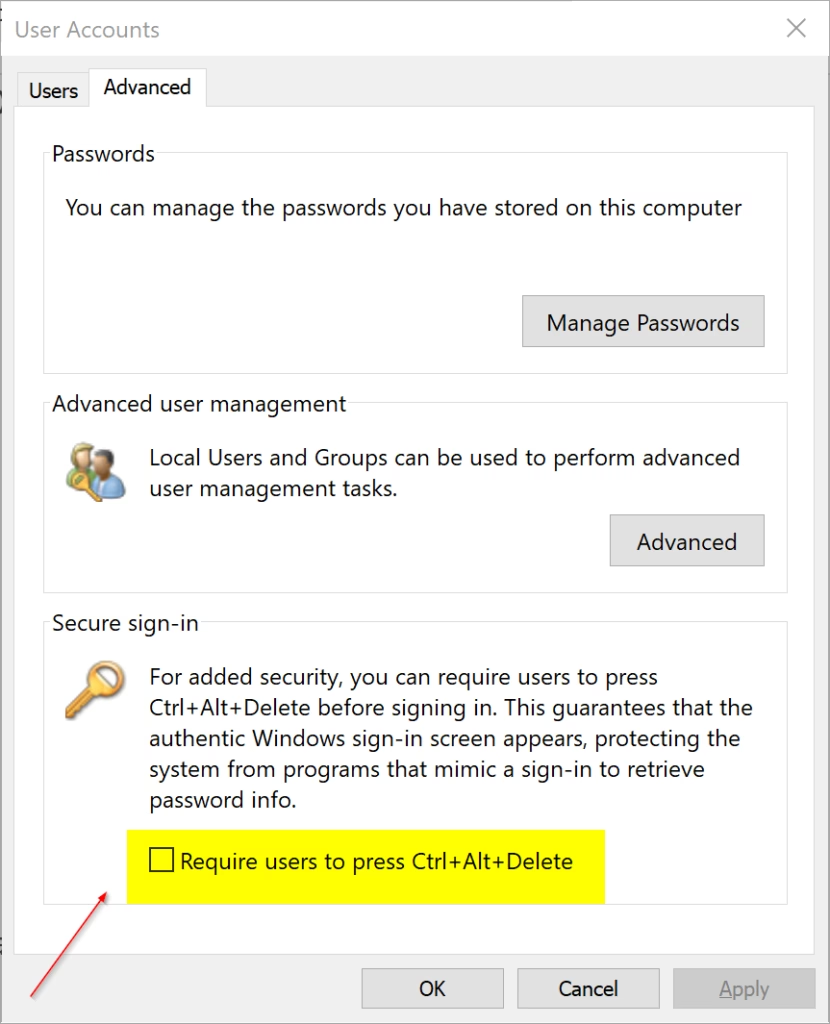
You can enable or disable the Ctrl+Alt+Del secure sign-in prompt in Windows 11 using the User Accounts tool (netplwiz). Open netplwiz, go to the Advanced tab, and check or uncheck “Require users to press Ctrl+Alt+Del” to enable or disable it.
What You Need
You need administrator privileges to change this setting. If you are signed in with a standard account, Windows will ask for an administrator’s password before it applies the change.
The change takes effect the next time the sign-in or lock screen appears. You do not need to restart. To test it, press Win+L to lock the PC and check whether Windows now asks for Ctrl+Alt+Del.
Option 1Use the User Accounts Tool
This is the quickest method, and it works in both Windows 11 Home and Pro.
- Press Win+R to open the Run box, type netplwiz, and press Enter. The User Accounts window opens. If a User Account Control prompt appears, click Yes.
- Click the Advanced tab. You will see a Secure sign-in section at the bottom.
- Check the box next to Require users to press Ctrl+Alt+Del to turn secure sign-in on. Uncheck it to turn it off.
- Click OK. The window closes and the new setting is saved.
To undo the change, repeat the steps and set the box back the way it was.
Option 2Use Local Security Policy
Local Security Policy is only available in Windows 11 Pro, Enterprise, and Education. Windows 11 Home does not include it, so Home users should use Netplwiz or the registry method instead. This built-in administrative console lets you change security settings that the standard Settings app does not expose.
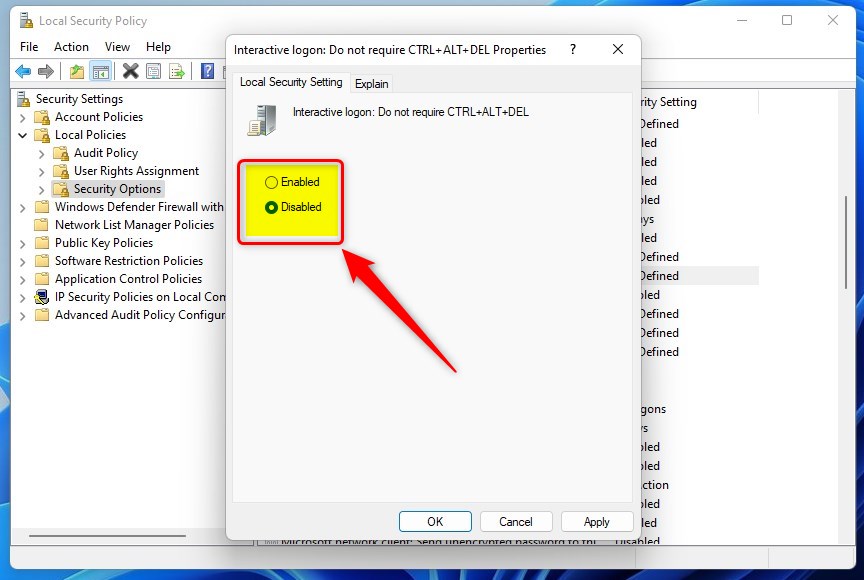
Be careful with the wording of this policy. It is a "do not require" setting, so it works the opposite way from what you might expect. Enabled means Ctrl+Alt+Delete is not required. Disabled means it is required.
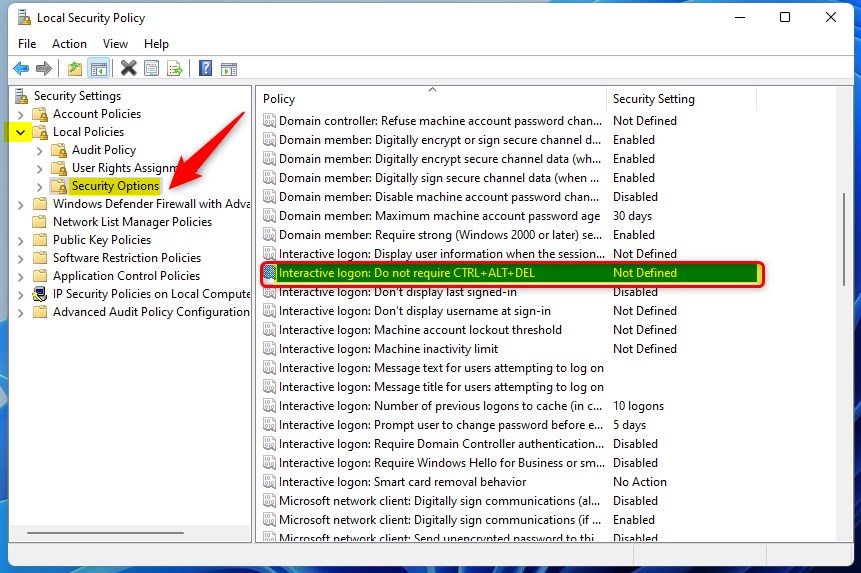
- ⚙️ Admin Required: Open Local Security Policy by typing
secpol.mscin your search bar and pressing Enter. The Local Security Policy window opens. - In the left pane, expand Local Policies, then click Security Options. A long list of policies appears in the right pane.
- In the right pane, double-click Interactive Logon: Do not require CTRL+ALT+DEL. A properties window opens.
- Select Enabled to turn off secure sign-in. Select Disabled to turn it on.
- Click OK. The new value now shows next to the policy in the list.
- Close Local Security Policy if you want.
To undo the change, open the same policy and pick the other option. If the policy is controlled by your organization, a domain Group Policy may overwrite your choice the next time it refreshes.
Option 3Use the Registry
⚙️ Admin Required: The Windows Registry is a more advanced system area. Proceed with caution, as incorrect changes can sometimes lead to problems. Before you edit anything, export the key you are about to change or create a restore point, so you can go back if something goes wrong.
To Turn On Secure Sign-in
Secure sign-in makes you press Ctrl+Alt+Delete before you can type your password. That stops malicious apps from faking the login screen. Turning it on adds an extra layer of protection, because only Windows itself can respond to that key combination. You can enable it by updating a registry value, or through the security settings described earlier.
Apply the registry value shown below with Registry Editor. Once it is saved, lock the PC with Windows key + L to confirm the prompt appears. If it does not, sign out and back in, or restart the PC.
reg add "HKLM\SOFTWARE\Microsoft\Windows NT\CurrentVersion\Winlogon" /v DisableCAD /t REG_DWORD /d 0 /f
reg delete "HKCU\Software\Microsoft\Windows NT\CurrentVersion\Winlogon" /v DisableCAD /f
reg add "HKLM\SOFTWARE\Microsoft\Windows\CurrentVersion\Policies\System" /v DisableCAD /t REG_DWORD /d 0 /f
reg delete "HKCU\Software\Microsoft\Windows\CurrentVersion\Policies\System" /v DisableCAD /f
To Turn Off Secure Sign-in
Turning off secure sign-in lets you sign in right away without pressing Ctrl+Alt+Delete first. Removing that keystroke gets you to your desktop a little faster when you start the PC. You can turn it off by changing a registry key or by using the account and policy settings above.
On a shared or work computer, think twice before you do this, because you lose the protection against fake login screens. On a personal PC that nobody else uses, leaving it off is a common choice.
Set the entry:
reg add "HKLM\SOFTWARE\Microsoft\Windows NT\CurrentVersion\Winlogon" /v DisableCAD /t REG_DWORD /d 1 /f
reg delete "HKCU\Software\Microsoft\Windows NT\CurrentVersion\Winlogon" /v DisableCAD /f
reg delete "HKLM\SOFTWARE\Microsoft\Windows\CurrentVersion\Policies\System" /v DisableCAD /f
reg delete "HKCU\Software\Microsoft\Windows\CurrentVersion\Policies\System" /v DisableCAD /f
Summary
To sum up, you can control this feature through the User Accounts tool, Local Security Policy, or the Windows Registry, depending on your edition of Windows. Netplwiz works on every edition. Local Security Policy needs Pro or higher. The registry works everywhere but needs the most care. Whichever you choose, the change applies the next time the sign-in screen appears, and you can reverse it at any time with the opposite setting.
Frequently asked questions
Why isn't Ctrl+Alt+Delete working on my lock screen?
Ctrl+Alt+Delete may not work on your lock screen because the secure sign-in setting is turned off, so Windows never asks for it. Turn it on in the User Accounts tool or the Registry Editor. If it is already on, check that your keyboard sends the keys and that no app is capturing them.
Why can't I disable Windows PIN?
The Remove button under PIN is greyed out because a policy requires it. This happens on work or school PCs managed by an organization, or when Windows Hello sign-in is enforced for Microsoft accounts. Ask your IT administrator to change the policy.
Can I disable the lock screen in 🪟 Windows 11?
Yes. Open Local Group Policy Editor, go to Computer Configuration, Administrative Templates, Control Panel, Personalization, and set Do not display the lock screen to Enabled. Windows 11 Home does not include that editor, so use Registry Editor and set NoLockScreen to 1 under HKEY_LOCAL_MACHINE\SOFTWARE\Policies\Microsoft\Windows\Personalization.
How to change Windows unlock from Ctrl+Alt+Del?
Unchecking this box lowers security, because a fake sign-in screen can then capture your password. To change it, run netplwiz, open the Advanced tab, check or uncheck Require users to press Ctrl+Alt+Delete, and click OK.
Still have a question?
Answered by AI from this guide. Good questions may be added to this page — please don't include personal details.
Did this guide fix your problem?

About the Author
Richard
Tech Writer, IT Professional
Richard is a writer at Geek Rewind who turns complex IT tasks into clear, step-by-step guides. He draws on years of hands-on experience in system administration and enterprise IT operations, focusing on Windows, Linux and WordPress: the problems people actually run into, and the fixes that work. His server and WordPress guides come from systems he runs himself. Richard builds and maintains the platform behind Geek Rewind, from its Ubuntu servers and Nginx configuration to its custom WordPress plugins. Many new tutorials start with readers' questions, and he's always glad to answer them in the comments.
No comments yet — be the first to share your thoughts!