Allow or Block Sites for Browse with Copilot in Microsoft Edge on Windows 11

Browse with Copilot in Microsoft Edge on Windows 11 lets the built-in AI assistant help you on web pages by clicking, typing, and moving around sites for you. You can control which websites it interacts with, which helps keep your personal data private. The feature and these site controls need Edge version 120 or higher.
Managing these site permissions stops the AI from reading or touching pages you want to keep private, while it can still work on sites you trust. You can allow or block specific web addresses in a few steps from the Edge settings menu. On managed computers, an administrator can do the same with Group Policy or the Registry.
Manage Copilot’s website access in Edge settings under Copilot and AI, then Browse with Copilot. Click “Manage what URLs can or cannot be accessed” to add sites to your allow or block lists. This prevents Copilot from interacting with unauthorized or sensitive websites.
Why use this?
Use these lists to keep your data safe. A block list stops the AI from interacting with sensitive sites such as your bank or private work portals. An allow list tells it which sites are fine to work on.
If you only use Copilot on a handful of sites, start by blocking the sensitive ones first. You can add trusted sites to the allow list later as you need them.
What happens when done?
Once your lists are set, Copilot will interact automatically with sites on the allow list. It will be blocked from touching any site on the block list. Changes made in Edge settings apply to your own profile only. They do not affect other users on the PC.
Managing Sites via Settings
Microsoft Edge lets you control which websites Browse with Copilot can work on through the browser settings. You add web addresses to an allow list or a block list, so the assistant only handles the pages you want it to while you browse. Follow the steps below.
- Open Microsoft Edge.
- Click the Settings and more (three dots) menu at the top right and select Settings. The Settings page opens in a new tab.

- Select Copilot and AI on the left, then click Browse with Copilot. You should see the options for the feature on the right.
If you do not see Copilot and AI or Browse with Copilot, update Edge first, because older builds do not have this page. If the feature is still missing, it may not be available in your region or account yet. A work or school PC may also have hidden it with a policy.
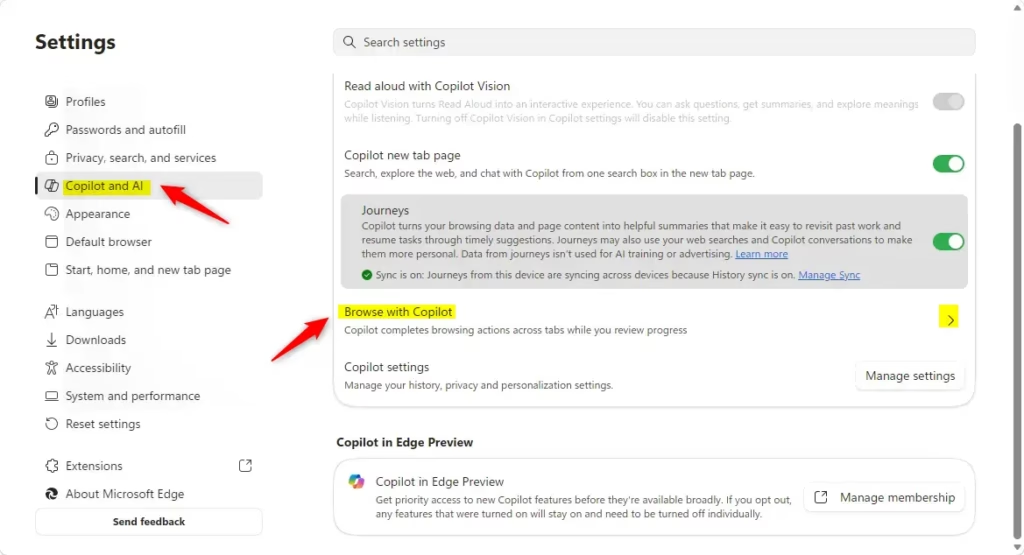
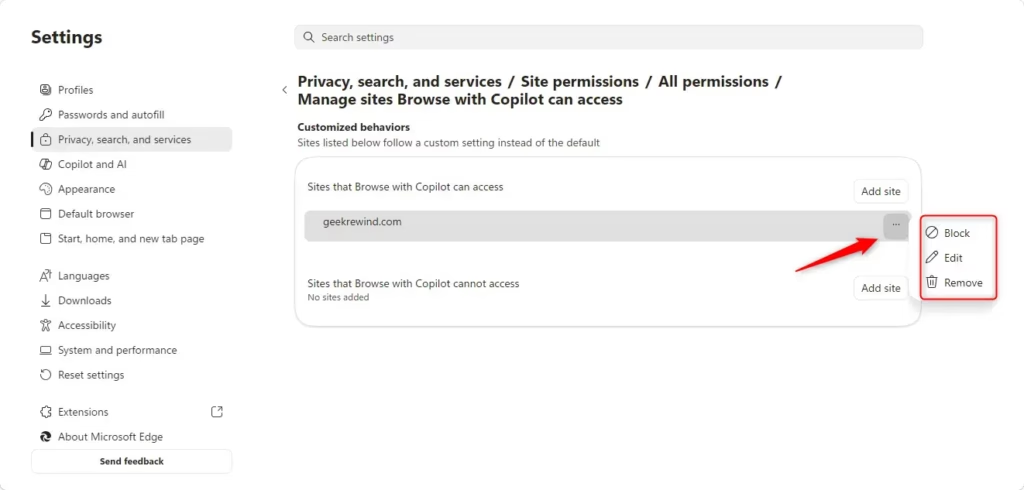
- Click Manage what URLs can or cannot be accessed by Browse with Copilot. The allow and block lists open.
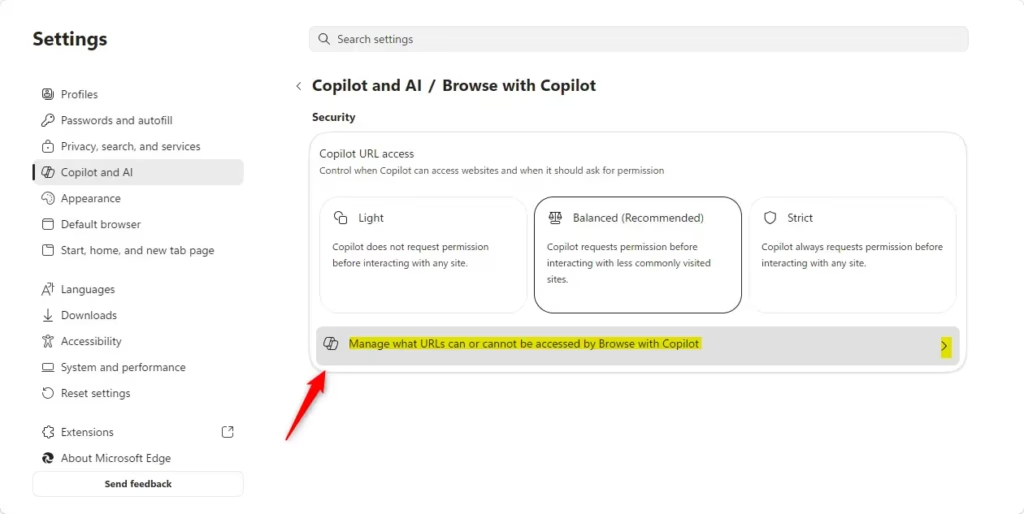
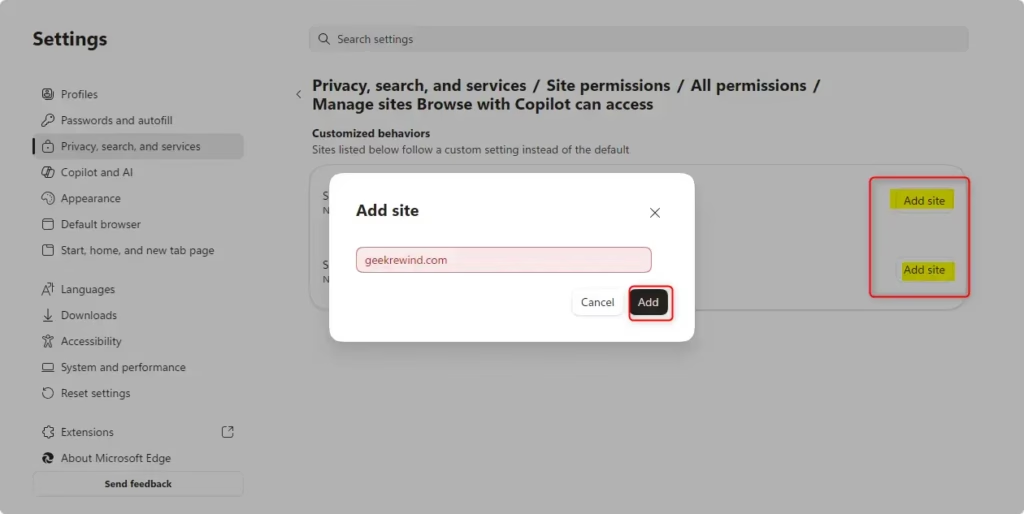
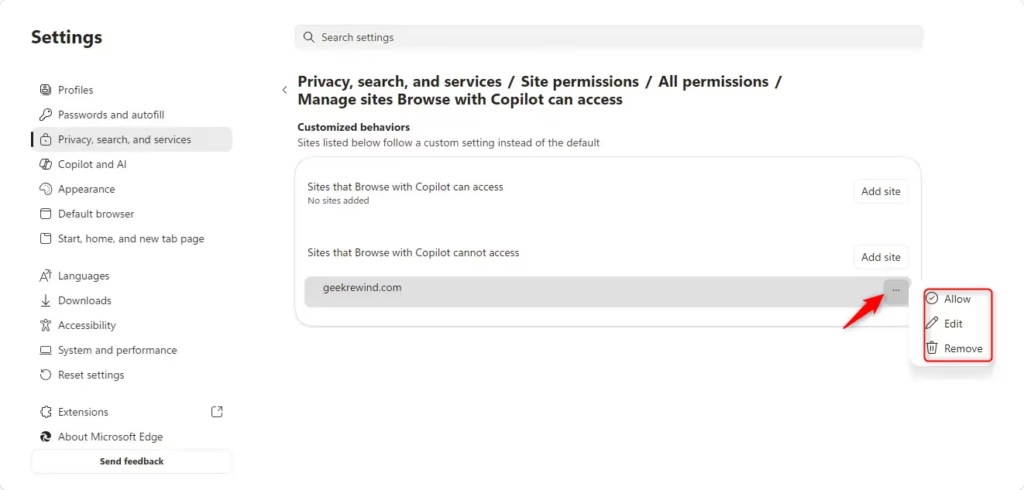
- Click the Add button for the list you want, then enter the website address. Use the Add button in the allow section for sites Copilot may use. Use the one in the block section for sites it must stay away from. The new entry shows up in that list.
- To move a site from one list to the other, click the three-dot menu next to its entry. Check the same menu if you want to remove an entry.
Settings save as you make changes, so you do not need to restart Edge. To undo a change, open this page again and move or remove the entry.
Administrative Configuration (For IT Admins)
If you manage computers for a business, you can set these rules for all users with Group Policy (GPO) or the Registry. This keeps the rules the same across your organization, and users cannot change them from the Edge settings page. Group Policy is easier to maintain across many PCs. The Registry method is useful for a single test machine or a deployment script.
Registry Configuration (Requires Admin Privileges)
The Windows Registry Editor lets IT admins enforce allow and block lists for Browse with Copilot on computers across a network. You add string values under the Microsoft Edge policy key, and these values control which website URLs the AI tool may access. You need administrator rights to edit this key. Back up the key, or export it, before you make changes.
To set the allow list, go to HKEY_LOCAL_MACHINE\SOFTWARE\Policies\Microsoft\Edge and create a new string value named BrowsingWithCopilotAllowList. Add your URLs separated by commas.
To set the block list, create a string value named BrowsingWithCopilotBlockList in the same path.
Close and reopen Edge after you save the values so the browser picks them up. To undo the change, delete the string values you created.
Group Policy (GPO)
On a domain or managed PC, Group Policy is the cleaner option. It needs the Microsoft Edge administrative templates (ADMX files) installed. If the Microsoft Edge folder is missing in step 2, those templates are not installed yet.
- Open the Group Policy Management Console. Requires Admin Privileges.
- Go to Computer Configuration Administrative Templates Microsoft Edge. Open the Group Policy Object you want to edit first.
- Locate Configure the allow list for Browse with Copilot or Configure the block list for Browse with Copilot and open it.
- Set the policy to Enabled and enter your URL patterns, then click OK.
Client PCs apply the policy at the next Group Policy refresh, and a restart of Edge may be needed. To undo it, set the policy back to Not Configured.
Summary
You can control Copilot's access to websites through the Edge settings menu for personal use, or through GPO or the Registry in business environments. Block sensitive sites first, and only allow domains you trust. For more technical details, refer to the official Microsoft Edge policy documentation.
Have a question about this guide?
Answered by AI from this guide. Good questions may be added to this page — please don't include personal details.
Did this guide fix your problem?

About the Author
Richard
Tech Writer, IT Professional
Richard is a writer at Geek Rewind who turns complex IT tasks into clear, step-by-step guides. He draws on years of hands-on experience in system administration and enterprise IT operations, focusing on Windows, Linux and WordPress: the problems people actually run into, and the fixes that work. His server and WordPress guides come from systems he runs himself. Richard builds and maintains the platform behind Geek Rewind, from its Ubuntu servers and Nginx configuration to its custom WordPress plugins. Many new tutorials start with readers' questions, and he's always glad to answer them in the comments.
No comments yet — be the first to share your thoughts!