How to Enable or Disable Browse with Copilot in Microsoft Edge on Windows 11


Browse with Copilot in Microsoft Edge is a built-in AI tool that handles everyday web tasks for you in Windows 11. It can fill out online forms and click links on your behalf.
When it is on, the AI follows your commands on a webpage and speeds up repetitive jobs such as typing signup details. When it is off, nothing is automated and you control the browser by hand.
Open Microsoft Edge, click Settings and more > Settings, select Copilot and AI Browse with Copilot, then switch Enable Browse with Copilot to On or Off. Choose Light, Balanced, or Strict for your permission level while it is on.
Prerequisites
Before you start, update Microsoft Edge to the latest version. The feature works for most users, but some advanced options may need a specific subscription. Your workplace’s IT department can also restrict it. If the setting is missing or greyed out on a work or school PC, a policy is probably controlling it, and you will need to ask your administrator.
Turn On or Off Browse with Copilot for Current User
You can turn Browse with Copilot on or off for your own user account in the Edge settings. You can also pick a permission level of Light, Balanced, or Strict. You do not need administrator rights for this method.
- Open Microsoft Edge.
- Click the Settings and more (Alt+F) 3-dots menu and select Settings. The Settings page opens in a new tab.

- Click Copilot and AI in the left pane, then select Browse with Copilot. The options for the feature appear on the right.
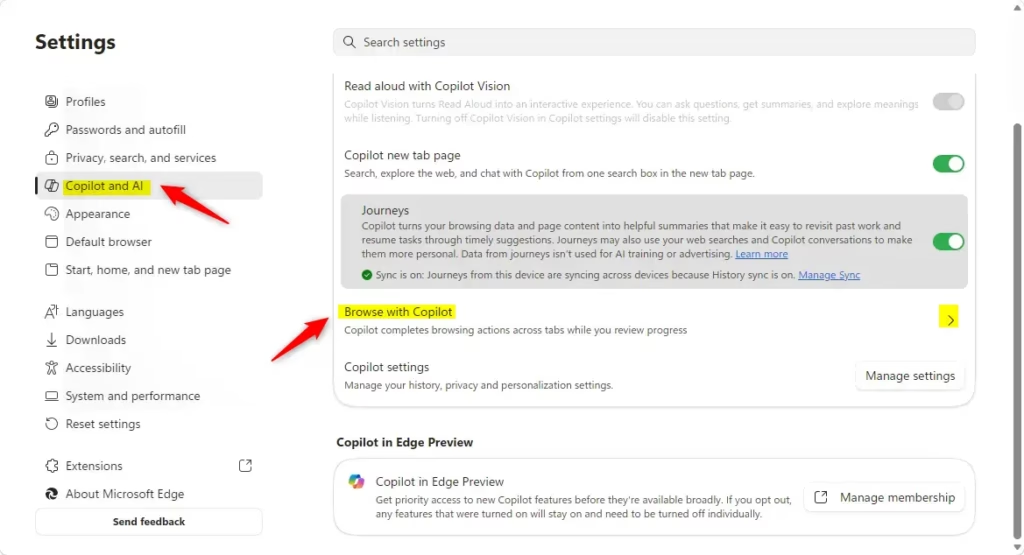
- Switch Enable Browse with Copilot to On or Off. If you are turning it off, you can stop here. The permission level only matters while the feature is on.
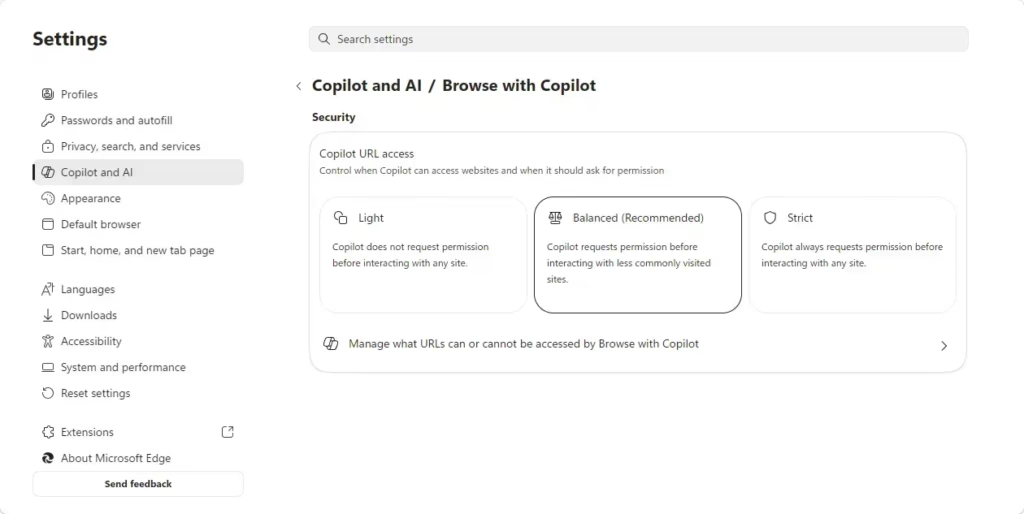
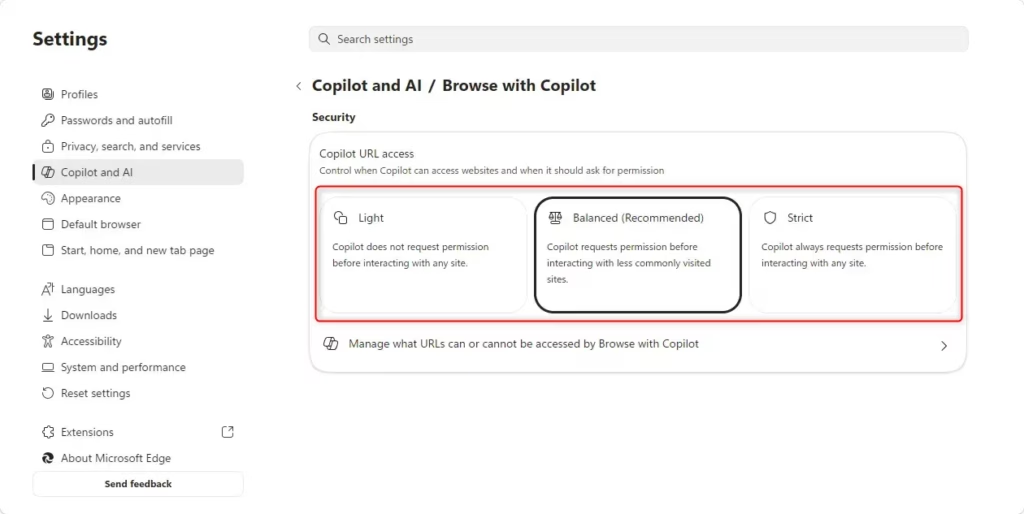
- Choose your preferred permission level: Light, Balanced, or Strict. Strict is the most cautious choice, so use it if you are unsure.
To undo the change, return to the same page and flip the toggle or pick a different level. The setting applies only to your account.
Enable or Disable for All Users (Administrator Required)
This method needs administrator rights. Back up the registry or create a restore point first, because a wrong edit here can cause problems.
- Press Win+R, type regedit, and press Enter. Approve the User Account Control prompt if one appears. The Registry Editor opens.
- Navigate to:
HKEY_LOCAL_MACHINE\SOFTWARE\Policies\Microsoft\EdgeThis key stores the Edge policies. - If the Edge key doesn’t exist, right-click Microsoft, choose New Key, and name it Edge.
- Select the Edge key, right-click an empty area of the right pane, and choose New DWORD (32-bit) Value. A DWORD is a type of registry entry that holds a number.
- Name the new value AllowBrowsingWithCopilot. This sets the permission for Copilot’s browsing ability.
- Double-click the value. Set Value data to 1 to enable or 0 to disable, then click OK.
Close and reopen Edge so it picks up the policy. A setting controlled by policy may show as managed or be greyed out in the Edge settings. To undo the change, set the value to the opposite number or delete the value you created.
Privacy and Security Implications
For example, it takes screenshots of your open tabs. Keep that in mind before you use it on pages that show personal, financial, or work data.
Summary
You can manage Browse with Copilot for yourself in the Edge settings. If you are an administrator, you can manage it for all users through the Registry Editor. It is convenient, but weigh the privacy risks, especially the screenshots, and use the Strict setting on sensitive sites.
Does disabling Copilot in Edge affect Copilot in 🪟 Windows 11?
Have a question about this guide?
Answered by AI from this guide. Good questions may be added to this page — please don't include personal details.
Did this guide fix your problem?

About the Author
Richard
Tech Writer, IT Professional
Richard is a writer at Geek Rewind who turns complex IT tasks into clear, step-by-step guides. He draws on years of hands-on experience in system administration and enterprise IT operations, focusing on Windows, Linux and WordPress: the problems people actually run into, and the fixes that work. His server and WordPress guides come from systems he runs himself. Richard builds and maintains the platform behind Geek Rewind, from its Ubuntu servers and Nginx configuration to its custom WordPress plugins. Many new tutorials start with readers' questions, and he's always glad to answer them in the comments.
[…] How to Enable or Disable Browse with… […]