
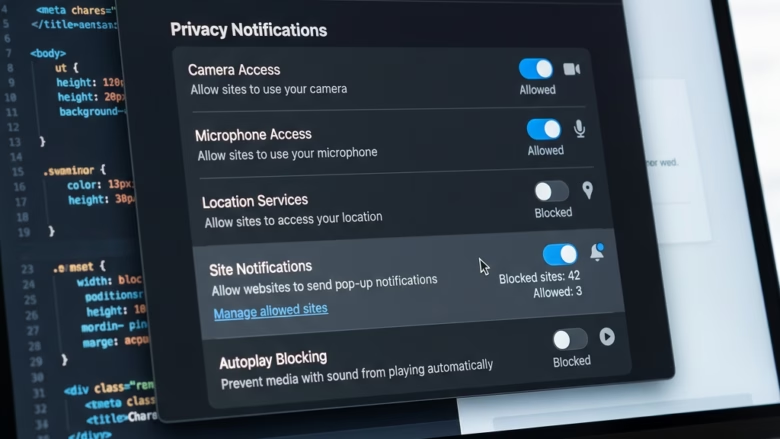
Website notifications in Microsoft Edge are pop-up alerts that send news and updates from sites straight to your screen. They can arrive even when the browser is closed, as long as Edge is allowed to run in the background. You manage them in Edge settings, where you can stop annoying pop-ups, allow the sites you like, or turn off notification requests completely.
Controlling alerts site by site lets you choose which updates reach you. Blocking the unwanted ones clears screen clutter and keeps your desktop quiet while you work. Nothing here is permanent. You can change any site back to Allow later.
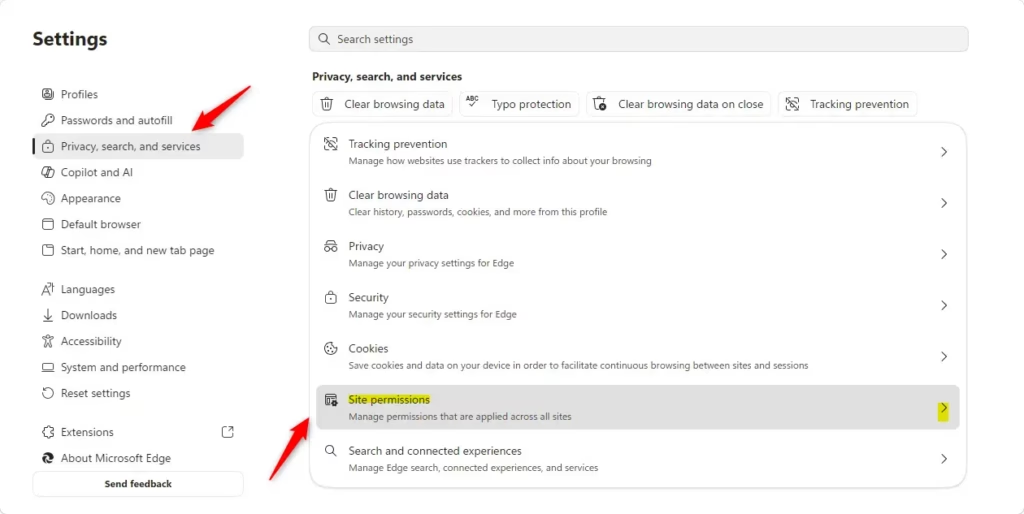
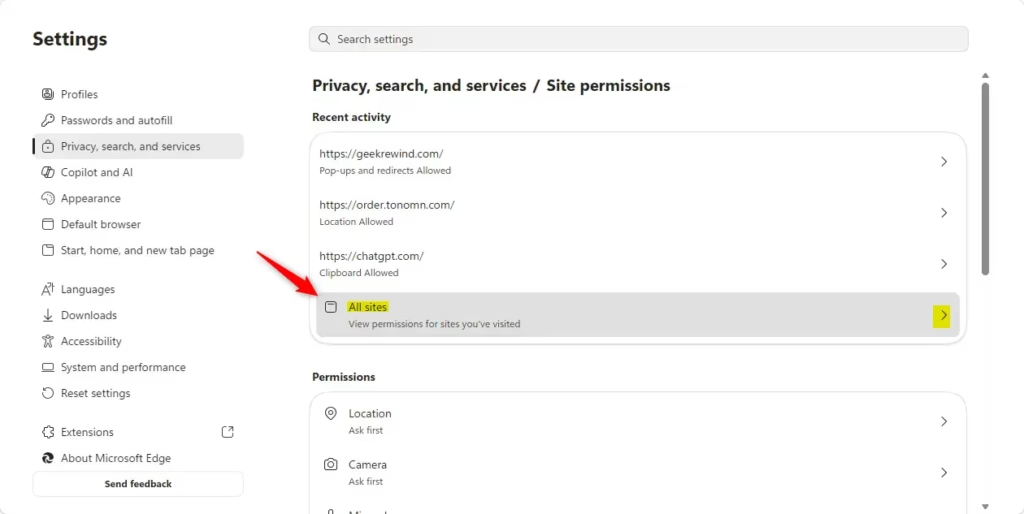
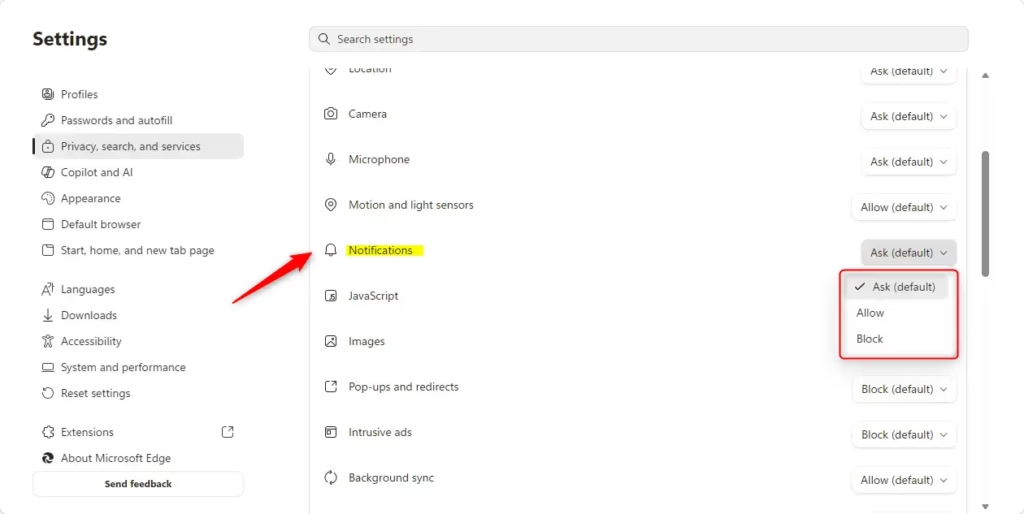
Access Edge Settings, navigate to Privacy, search, and services, then Site permissions, and finally All sites to manage notification permissions for each website individually. You can also manage notifications directly from a website’s address bar by clicking the site information icon.
Notifications vs. Pop-ups
Edge notifications are small alerts that appear in the bottom corner of your screen. They only come from websites you have allowed to send them. Pop-ups are separate browser windows, usually ads. The two are controlled by different settings, so it helps to know which one is bothering you. Then you can switch off the interruptions without missing updates from sites you trust.
Blocking pop-ups is a separate job, handled under its own site permission. This tutorial covers website notifications only.
How to Block Notifications in Edge Settings
The Edge settings page is where you control all site permissions, including notifications. Changes here can affect many sites at once, so check which site you are editing before you save a change. Edge applies the new setting right away. You do not need to restart the browser.
- Open Microsoft Edge and click the three dots (Settings and more) in the top-right corner. A menu drops down.
- Choose Settings. Edge opens the Settings page in a new tab, with a list of categories on the left.
- In the left sidebar, click Cookies and site permissions. Older versions of Edge placed site permissions under Privacy, search, and services. If you do not see the first item, check there. The page now lists the permissions you can control for websites.
- Open the list of every site that has asked for or been given permissions. In current Edge this is All permissions. Older builds call it All sites. You should see a long list of websites.
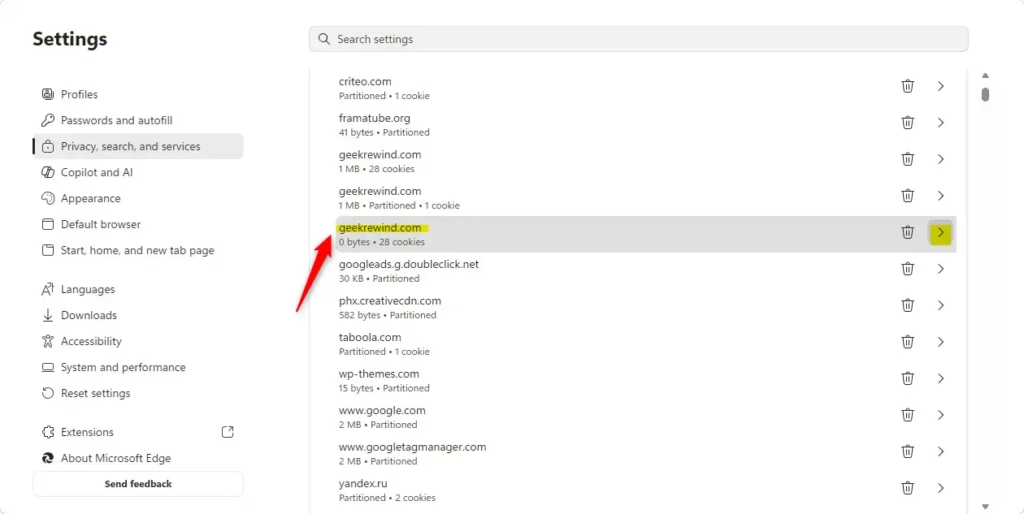
- Find the site you want. Scroll the list, or type part of the site name in the search box at the top of the list to narrow it down.
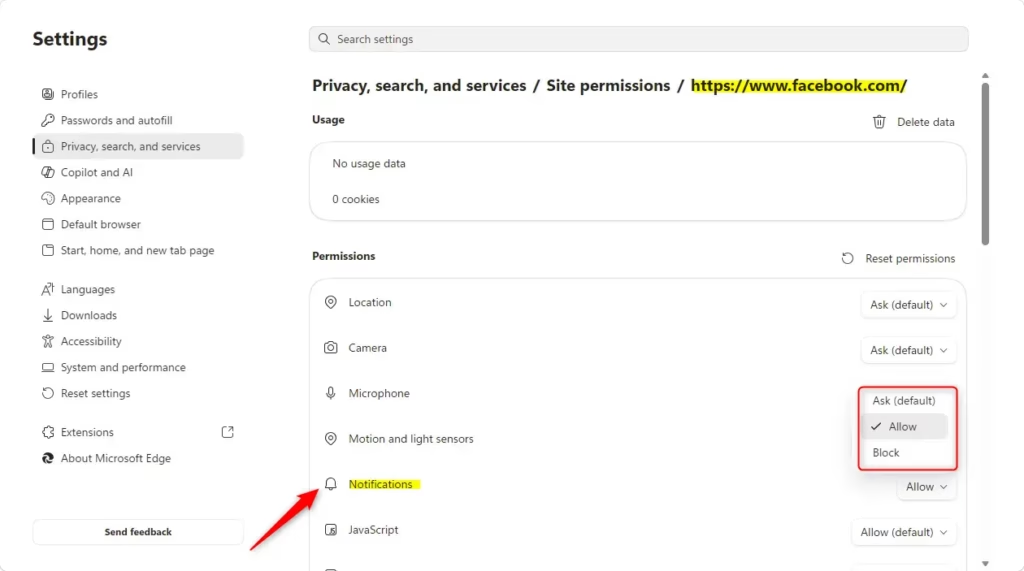
- Click the site’s name. The page now shows the specific permissions that site has.
- Find Notifications, open the dropdown menu next to it and choose Block. The site can no longer send you messages.
This blocks one specific web address. Alerts from every other site stay as they are. If you block the wrong site, come back to the same page and set Notifications to Allow, or choose the default (Ask, if shown) so the site has to request permission again.
If a site does not appear in the list, it has probably never asked for permission or been given any. There is nothing to block for it yet.

How to Manage Notifications from the Address Bar
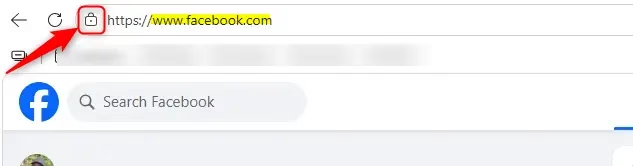
Sometimes you are on a website and realize it is sending too many notifications. You can fix that right there without going into Settings. This is the quickest way to handle a single site.
- Open Microsoft Edge and go to the website you want to manage. This method only works while you are on that site.
- Look at the left side of the address bar. Click the small icon there. It may be a padlock if the site is secure, or a globe if it is not. This is the View site information button. A small panel opens with details about the site.
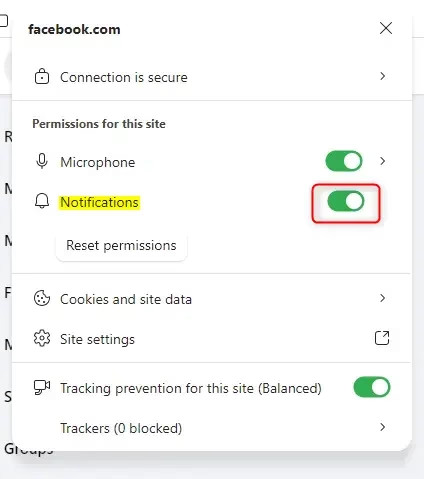
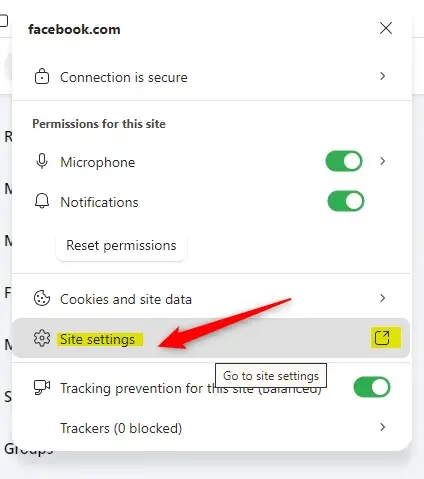
- Look for Permissions for this site in the panel. Notifications should be listed there. If it is not, the site has not been given a notifications setting yet. In that case, use the Settings method above.
- Click the dropdown menu next to Notifications. You will see options such as Allow and Block.
- Choose Block. The site stops sending you notifications. To undo it, open the same panel and set Notifications back to Allow. You may need to reload the page for the change to take full effect.
If an alert still appears after you block a site, check whether it is a pop-up window or a notification from a different site. Also look at Windows 11 itself. Under Settings System Notifications, Microsoft Edge has its own entry, and you can switch it off there to silence all Edge alerts at the system level.
Reference:
https://support.microsoft.com/en-us/edge/manage-website-notifications-in-microsoft-edge
Summary
Managing website notifications in Microsoft Edge helps you regain focus. You decide which sites can send you alerts, and you can change your mind at any time.
Have a question about this guide?
Answered by AI from this guide. Good questions may be added to this page — please don't include personal details.
Did this guide fix your problem?

About the Author
Richard
Tech Writer, IT Professional
Richard is a writer at Geek Rewind who turns complex IT tasks into clear, step-by-step guides. He draws on years of hands-on experience in system administration and enterprise IT operations, focusing on Windows, Linux and WordPress: the problems people actually run into, and the fixes that work. His server and WordPress guides come from systems he runs himself. Richard builds and maintains the platform behind Geek Rewind, from its Ubuntu servers and Nginx configuration to its custom WordPress plugins. Many new tutorials start with readers' questions, and he's always glad to answer them in the comments.
No comments yet — be the first to share your thoughts!