How to Change Copy-Paste Settings in Microsoft Edge

Copy and paste settings in Microsoft Edge control how links and text look when you paste them into other apps like Word or Notepad. By default, the browser adds extra formatting to copied links. That can make a clean link or a plain line of text turn into something you did not want.
You can fix this in about a minute by changing one setting in Microsoft Edge version 120 or newer. Open the browser settings, find the copy and paste section, and set the link format to plain text. If you only need plain text once, a keyboard shortcut covers that too, and it is described further down.
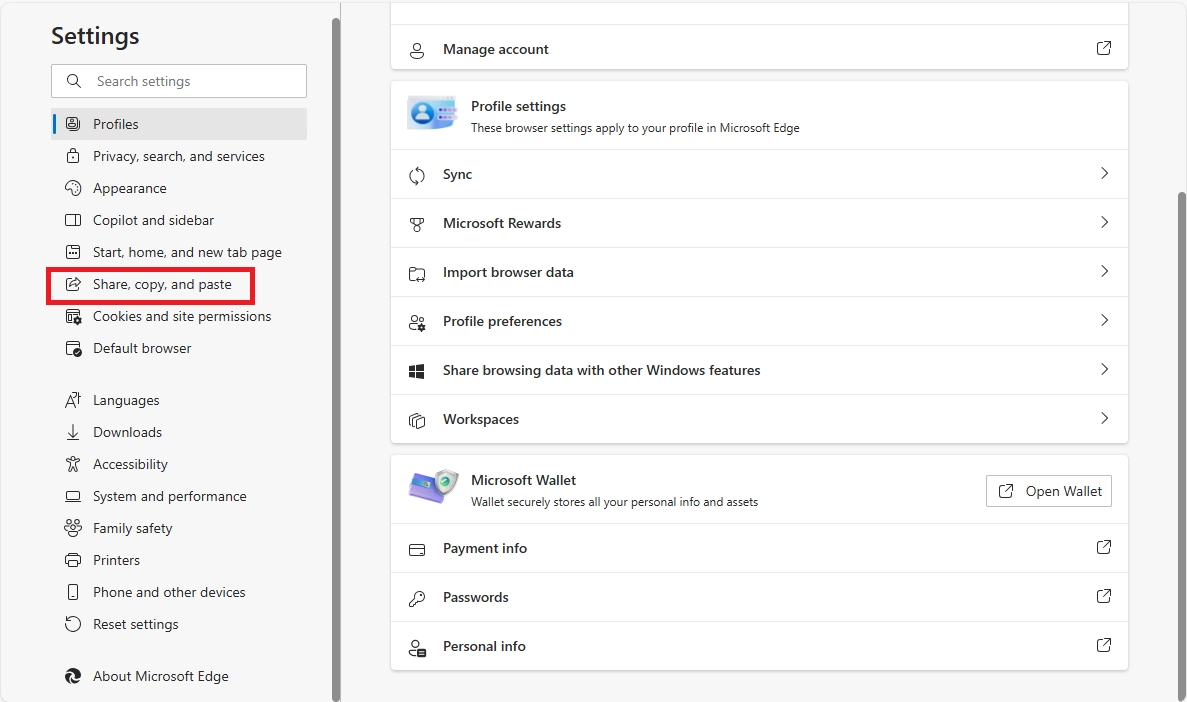
Open Microsoft Edge, click the three horizontal dots in the top right, select Settings, then find Share, copy, and paste in the left menu. Toggle Change URL copy and paste format to Plain text. The setting applies immediately with no restart needed.
Why Does Edge Paste the Page Title Instead of the URL?
Edge pastes the page title instead of the web address because of a feature called Smart Copy. It turns a copied link into a clickable title by default. When you paste into an app that supports rich text, such as Word, an email or a chat window, you get the title as a hyperlink and not the raw URL.
This is a browser setting, not a Windows one. It does not affect other browsers, and it does not change how Ctrl+C works in other apps. You can switch Edge to paste plain URLs every time, and you can switch it back whenever you like.
Edge’s copy and paste controls let you choose how copied content lands on the destination page. If you want the older behavior back, where a copied link stays a plain address, you change the link format in the Edge settings. The steps are in the next section.
Plain text keeps the pasted result predictable. You get the characters you copied and nothing else, with no hidden link and no title swapped in for the address.
- Open Microsoft Edge. Any window will do, and you do not need to be on a particular page.
- Click the three horizontal dots (Settings and more) in the top right corner. A drop-down menu opens.
- Select Settings. The Settings page opens in a new tab, with a list of categories on the left.
- Depending on your version, look for Share, copy, and paste or Appearance in the left-hand list and click it. If you cannot see the list, widen the window or click the menu icon at the top left of the Settings page.
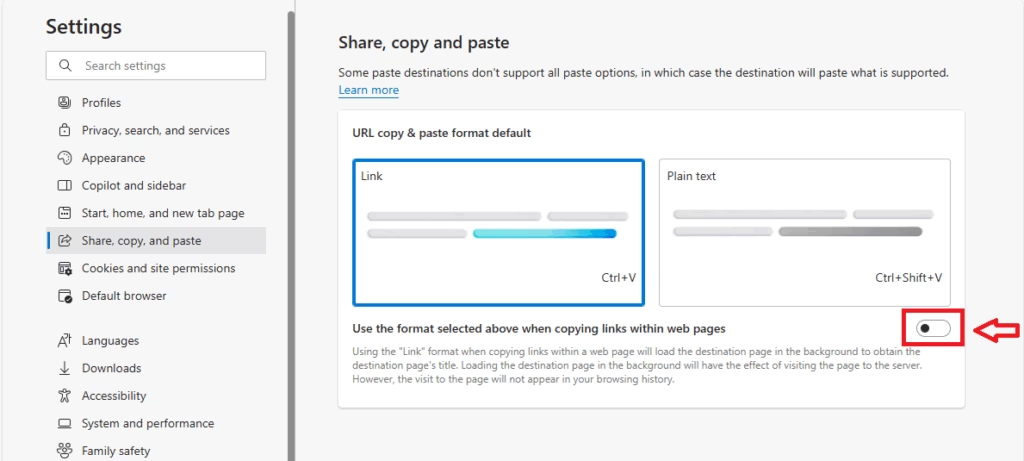
- Locate the Change URL copy and paste format toggle. Wording can differ slightly between Edge builds, so look for the entry that mentions link or URL copy and paste format.
- Select Plain text to ensure URLs are always copied as raw text. The change applies straight away. No restart is needed and there is no Save button.

What Happens When You Change These Settings?
The choice comes down to one thing: should a copied link paste as plain text (the address itself) or as a formatted title? Pick plain text if you share links in emails, notes or scripts and want to see the real address. To undo the change, go back to the same page in Settings and pick the other option.
Older builds do not have it, or put it under a different heading. If your PC is managed by an employer or school, the option may also be locked by policy. In that case, ask your administrator.
Pro Tip: Use Keyboard Shortcuts
Unlike the standard Ctrl + V, this shortcut strips the text styling and links, so only the plain words come through.
Use it when you only need plain text now and then and do not want to change your global settings. Click into the destination field, then press the shortcut instead of Ctrl + V. Your normal paste behavior is untouched for the next time.
Troubleshooting Common Copy-Paste Issues
When copy and paste stops working in Edge, the usual causes are hung background processes, corrupted temporary files, or a conflicting add-on. Try the fixes below in order, from the quickest to the most disruptive. Test copy and paste after each one so you know which fix worked.
A rogue extension that blocks keyboard shortcuts is a common culprit, so disabling recently installed extensions is worth doing early.
- Restart the browser: Sometimes background processes hang. Close every Edge window, then reopen it and try again. If it still misbehaves, restart Windows to clear anything left running.
- Clear Cache: Go to Settings Privacy, search, and services, then clear your browsing data. Under Clear browsing data, click Choose what to clear. Tick cached images and files, then confirm. Clearing cookies as well will sign you out of websites, so leave that unticked unless you need it.
- Check Extensions: Some extensions interfere with the clipboard. Try disabling them one by one, and test copy and paste after each one. When paste works again, the last extension you turned off is the cause.
- Update Edge: Ensure you are running the latest version by going to Help and feedback About Microsoft Edge. Edge checks for updates when the page opens. If it finds one, it downloads it and asks you to restart the browser.
Summary
Edge uses a Smart Copy feature to turn web addresses into hyperlinked titles when you paste them into other apps. You can change your copy and paste preferences to switch back to plain text. Or skip the menus and press Ctrl + Shift + V to paste plain text on the spot.
- Edge uses "Smart Copy" to turn URLs into hyperlinked titles by default.
- You can revert to plain text in the Settings menu under Share, copy, and paste or Appearance, depending on your Edge version. The change takes effect immediately.
- Use Ctrl + Shift + V to paste as plain text without changing your global settings.
- These settings help you maintain control over how your data is formatted when shared.
- For further details, visit the official Microsoft Support page.
Have a question about this guide?
Answered by AI from this guide. Good questions may be added to this page — please don't include personal details.
Did this guide fix your problem?

About the Author
Richard
Tech Writer, IT Professional
Richard is a writer at Geek Rewind who turns complex IT tasks into clear, step-by-step guides. He draws on years of hands-on experience in system administration and enterprise IT operations, focusing on Windows, Linux and WordPress: the problems people actually run into, and the fixes that work. His server and WordPress guides come from systems he runs himself. Richard builds and maintains the platform behind Geek Rewind, from its Ubuntu servers and Nginx configuration to its custom WordPress plugins. Many new tutorials start with readers' questions, and he's always glad to answer them in the comments.
No comments yet — be the first to share your thoughts!