How to Paste as Plain Text from Clipboard History in Windows 11

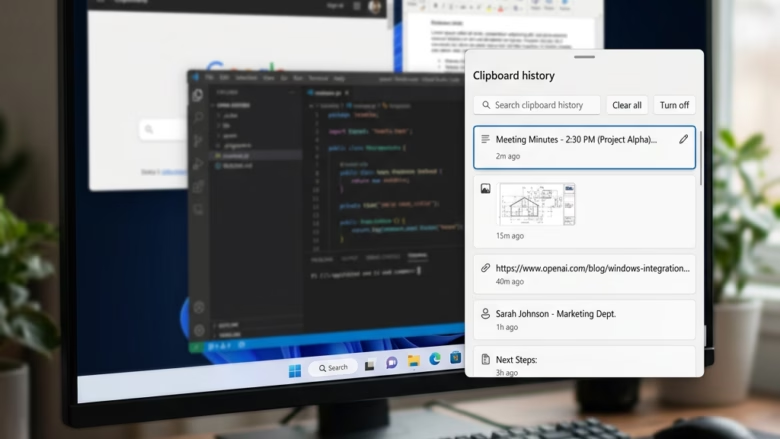
Clipboard history in Windows 11 keeps the items you copy so you can paste them later with the Win+V shortcut. Pasting as plain text removes fonts, colors and background highlights, so the text takes on the formatting of the document you paste into. The panel holds up to 25 items at a time. Pinned items stay, and unpinned ones are cleared when you restart the PC.
Plain-text paste saves you from opening Notepad just to clean up text copied from websites, emails or Word documents. Pressing Win+Shift+V is the shortcut the original steps rely on. It may behave differently depending on your Windows 11 build and on whether PowerToys is installed (see the PowerToys section below). If it does nothing on your PC, use the fallbacks later in this guide.
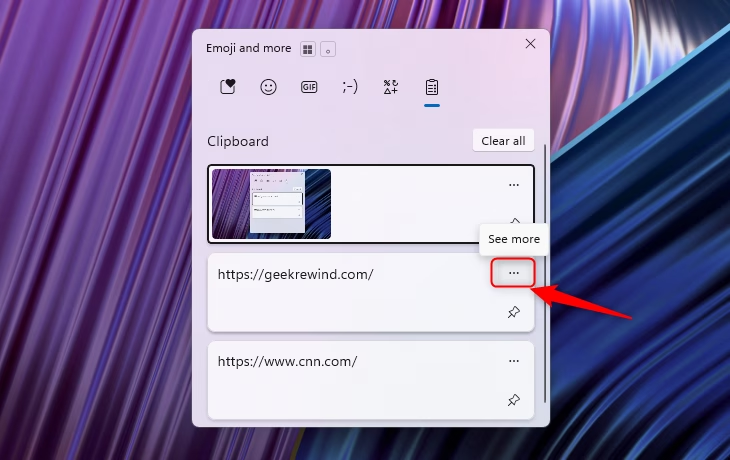
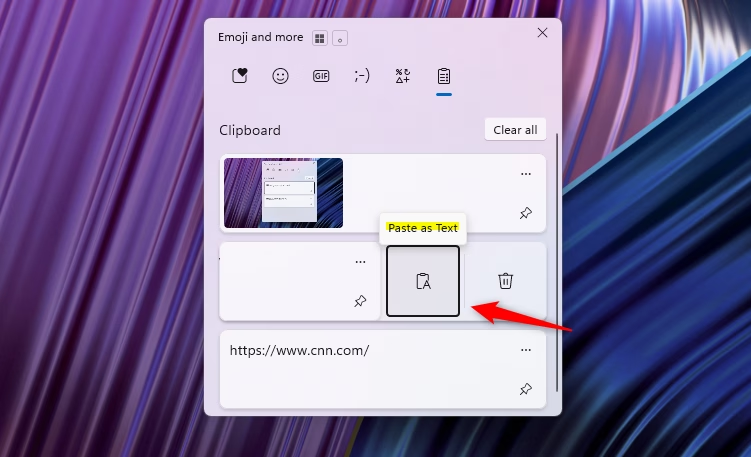
Press Win+V to open clipboard history, find the item you want, click the three dots next to it, and select Paste as Text. The text appears in your document’s own font and color without formatting from the source.
How to use the Windows Clipboard History
Clipboard history lets you paste copied items without their original fonts and background colors. The basic routine is the same every time: copy your text, click where you want it to go, open the history panel with the Win+V, pick the item, and paste it as plain text.
If pressing Win+V only shows a prompt to turn it on, accept it or follow the troubleshooting section at the end. Follow these steps in order:
- Place your cursor where you want the text to appear.
- Press the Win+V on your keyboard.
- If prompted, click Turn on to enable the history feature.
- Find the item you want to paste.
- Click the three dots (See more) icon next to the item.
- Select Paste as Text.
After the last step, the text should appear in your document in the document’s own font and color, with no highlight carried over from the source. If it still looks styled, the app is probably applying its own formatting. Try the fallback methods below.
Plain-text paste is most useful when you copy from web pages, PDFs and emails into a document with its own style. The text then matches the surrounding paragraphs and you don’t have to clear formatting by hand.
A few things to keep in mind. Clipboard history stores copied text and small images, but formatting is only removed from text. Items you pin stay in the panel after a restart. Everything else is cleared. You can delete a single item or clear the whole list from the panel.
Keyboard Shortcuts for Plain Text
Many apps recognize the shortcut Ctrl + Shift + V, which removes formatting at the moment you paste. Browsers, Slack, Teams and many editors support it. Microsoft Word does not use it the same way. There you can use the Paste Options button that appears after pasting and choose Keep Text Only.
Software developers do not build this command into every program, so the Windows + V method is a reliable fallback. As a last resort, paste into Notepad, copy the text again and paste it into your target app. Notepad always strips formatting.
Using PowerToys for Advanced Pasting
Microsoft PowerToys is a free utility suite from Microsoft that adds extra system capabilities. It includes a Text Extractor tool, which copies text from anywhere on your screen, even from images, and puts it on the clipboard as plain text. PowerToys Run is the suite's quick launcher. It helps you move faster during heavy writing sessions, but it is not a clipboard manager itself.
PowerToys also has an Advanced Paste module for pasting as plain text and other conversions. If you install PowerToys and enable that module, it may use Windows + Shift + V for its own panel. Check the shortcut settings inside PowerToys if the key combination does something unexpected. PowerToys is optional, and you can uninstall it at any time from Settings Apps Installed apps
Troubleshooting: Clipboard History Not Appearing
When clipboard history does not appear, the feature is usually turned off in your system settings. This applies to both Windows 11 Home and Pro. To turn it on, open Settings, go to System Clipboard, and toggle the Clipboard history switch to On. Your computer then starts saving everything you copy. After you switch it on, press Windows + V again. The panel should open and show items you copy from that point on. Items copied before you enabled it are not saved.
If the switch is greyed out or flips back to Off, the setting is probably controlled by a policy on a work or school PC. In that case, contact your IT administrator. You do not need to restart Windows after changing this setting. If you want to turn clipboard history off again, flip the same switch back to Off.
- Open Settings.
- Go to System Clipboard.
- Toggle the Clipboard history switch to On.
Summary
Professional-looking documents rely on clean text. Using the Windows + V shortcut alongside the clipboard panel removes unwanted styling quickly, and Ctrl + Shift + V covers the apps that support it. Installing PowerToys adds deeper control over everyday Windows 11 workflows if you paste and clean up text often.
Have a question about this guide?
Answered by AI from this guide. Good questions may be added to this page — please don't include personal details.
Did this guide fix your problem?

About the Author
Richard
Tech Writer, IT Professional
Richard is a writer at Geek Rewind who turns complex IT tasks into clear, step-by-step guides. He draws on years of hands-on experience in system administration and enterprise IT operations, focusing on Windows, Linux and WordPress: the problems people actually run into, and the fixes that work. His server and WordPress guides come from systems he runs himself. Richard builds and maintains the platform behind Geek Rewind, from its Ubuntu servers and Nginx configuration to its custom WordPress plugins. Many new tutorials start with readers' questions, and he's always glad to answer them in the comments.
No comments yet — be the first to share your thoughts!