

Adding a site to your favorites in Microsoft Edge saves a web page so you can open it again with one click instead of typing the address. Favorites work like bookmarks. They store your most-used pages inside the browser.
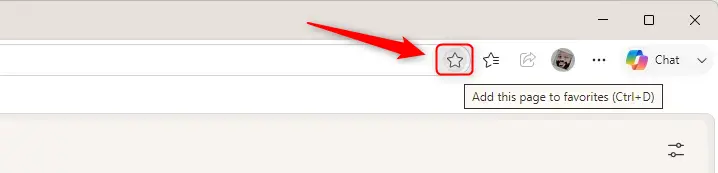
You can add any page by clicking the star icon at the right end of the address bar. Edge saves the favorite immediately and lets you pick a folder to keep your list organized. If you are signed in to Edge with an account and sync is turned on, your favorites can follow you to other devices.
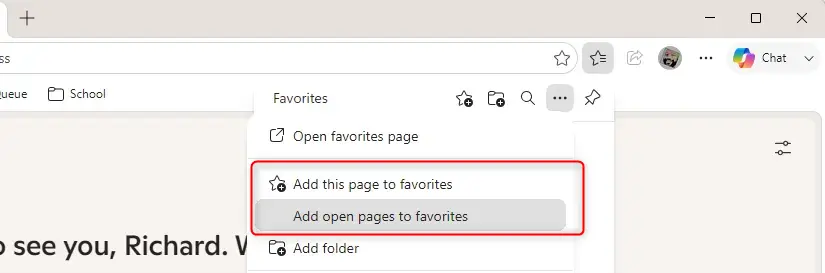
Edge calls bookmarks favorites, so click the star icon at the right end of the address bar while the page is open. Give it a short name, choose a folder, then click Done. For several open tabs at once, select Settings and more > Favorites Add open pages to favorites.
Saving a Website You Visit Often
These steps add a site to your favorites in Edge, saved under a short name in the folder you choose. Once saved, the page opens again with one click whenever you launch Edge.
- Open Microsoft Edge and go to the page you want to save. Wait until it has finished loading in the current tab, because the star saves whichever page is showing.
- Click the star icon at the right end of the address bar. The address bar is the long box at the top where the website address appears. The tooltip reads Add this page to favorites. A small window opens under the star, and the star changes to a filled star.
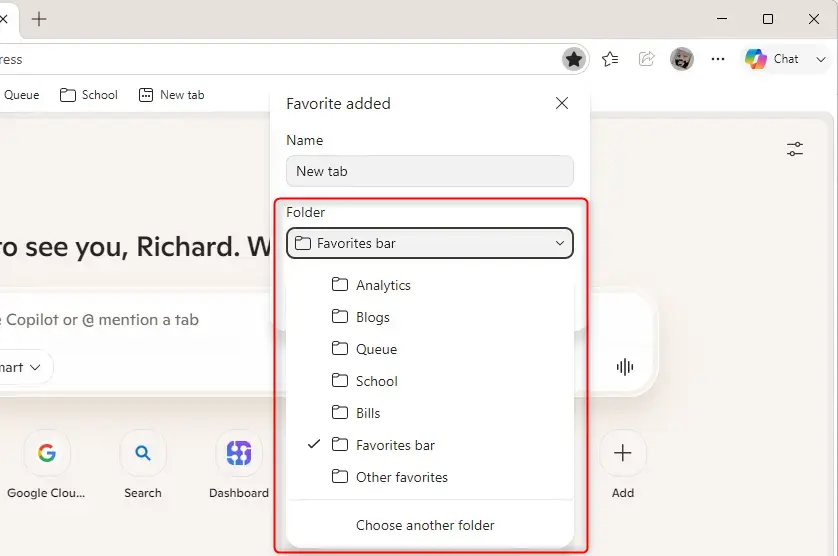
- Type a short name in the Name box. Edge fills in the page title, which can be long. Replace it with something you will recognize, for example “My Favorite Food Place.”
- Open the Folder list and choose where to save the page. Edge usually suggests the default Favorites folder (on some setups it is called “Favorites bar”). You can pick a folder you already have or create a new one. Folders are covered in more detail in the next section.
- Click Done. The window closes and the favorite is saved.
Saving All Your Open Tabs at Once – For When You’re Doing Many Things
Edge puts all of the saved pages into a single new folder, so they stay together and are easy to find later. These steps save all your open tabs as favorites in one go.
- Open every page you want to save in one Edge window. Close any tabs you don’t want in the group first, because Edge saves every tab in that window.
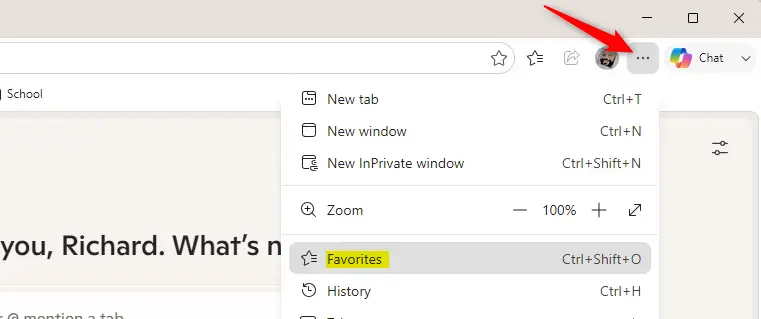
- Click the three horizontal dots in the top-right corner of the Edge window. This opens the “Settings and more” menu.
- Point to Favorites. The Favorites menu opens beside it.
- Click Add open pages to favorites. The path is Settings and more > Favorites Add open pages to favorites. In some Edge versions the wording is slightly different, such as “Add all tabs to favorites,” but it is the same option. The keyboard shortcut Ctrl+Shift+D does the same thing.
- Type a name for the group in the window that appears. It looks like the one for a single page. Good examples are “Trip Planning Research” or “Work Project Notes.”
- Choose a folder to save the group in, or create a new one.
- Click Done. The tabs are now saved together as favorites.
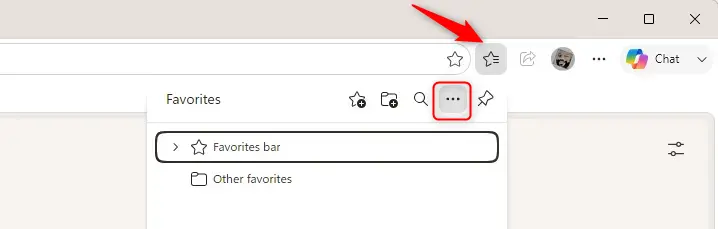
To open them again, go to the Favorites menu and open the folder you saved them in. You can right-click the folder and choose to open all the pages in it at once.
Reference:
Summary
To build a good collection of saved pages in Microsoft Edge, use the star icon in the address bar for single pages and the Favorites menu for saving all your open tabs at once. Give each favorite a clear name and put it in a folder, and your list will stay easy to use as it grows.
How to add bookmarks in edge?
Edge calls bookmarks favorites. Open the page, then click the star icon at the right end of the address bar. Select Done to save it, or press Ctrl+D as a shortcut. Your saved page now appears in the favorites list, ready to open with one click.
How do I add a website to my favorites bar?
Open the site, then click the star icon in the address bar. In the Folder list, choose Favorites bar, then select Done. The site appears as a button under the address bar. If the bar is hidden, press Ctrl+Shift+B to show it.
How to bookmark a website in edge?
Go to the page you want to keep, then click the star icon at the right side of the address bar. A small box opens. Click Done to save the page as a bookmark, which Edge calls a favorite. You can also press Ctrl+D.
How to bookmark a website on Microsoft edge?
Open the webpage in Edge. Select the star icon at the far right of the address bar, then choose Done. Edge stores the page as a favorite, which is its name for a bookmark. To open it later, click the Favorites icon or press Ctrl+Shift+O to open the favorites list.
How to add to favorites?
Open the page, click the star icon on the right end of the address bar, and select Done. The page is saved to your favorites right away. To keep it organized, pick a folder from the list before you select Done.
How to add website to favorites bar?
Open the site and click the star icon in the address bar. Pick Favorites bar from the folder list, then click Done. Next time, the site appears as a button just below the address bar. Press Ctrl+Shift+B if the bar is missing.
Have a question about this guide?
Answered by AI from this guide. Good questions may be added to this page — please don't include personal details.
Did this guide fix your problem?

About the Author
Richard
Tech Writer, IT Professional
Richard is a writer at Geek Rewind who turns complex IT tasks into clear, step-by-step guides. He draws on years of hands-on experience in system administration and enterprise IT operations, focusing on Windows, Linux and WordPress: the problems people actually run into, and the fixes that work. His server and WordPress guides come from systems he runs himself. Richard builds and maintains the platform behind Geek Rewind, from its Ubuntu servers and Nginx configuration to its custom WordPress plugins. Many new tutorials start with readers' questions, and he's always glad to answer them in the comments.
No comments yet — be the first to share your thoughts!