Open Notifications in Microsoft Teams: Main or New Window


In Microsoft Teams, the chat and meeting app, notifications and links open either in your main app window or in a separate pop-out window. The setting that controls this is called “Opening content in Teams windows”. It decides where a chat, a shared link or another item appears when you click it.
Choosing the main window keeps all your chats and calls in one place. Choosing a new window stops your current work from being covered by a new chat, because each item opens on its own. You can switch between the two in a few clicks in the Teams settings, and switching back is just as quick.
To change where Teams notifications and links open, go to Settings General in Microsoft Teams and pick “Opening content in Teams windows”. Choose Main window to keep chats and calls in one place, or New window so each item opens in its own pop-out and your current work stays visible. Click the three dots (…) next to your profile picture to reach Settings.
Open incoming notifications and links in the main or a new window
This setting is the same whether the item is an incoming chat, a call or a web link. It is worth setting up if you often lose track of an active conversation when a new alert pops up. The steps below show where to find it.
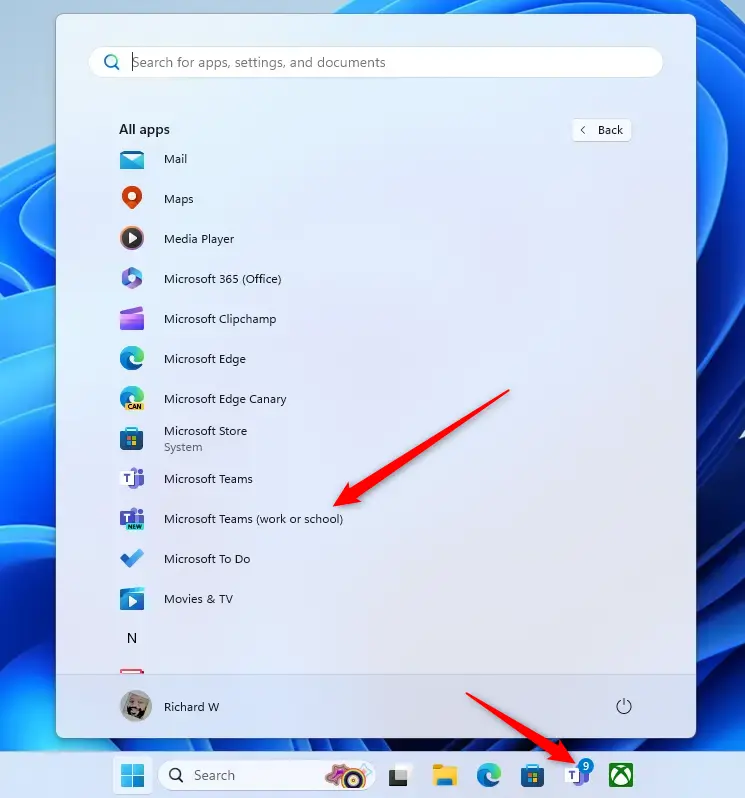
- Click the Start button and select Microsoft Teams from the app list. The main Teams window opens. You can also start it from the taskbar or the taskbar overflow area if the icon is already there.
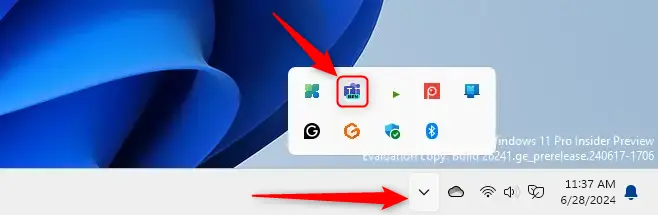
When you first open the Teams application, you may see the mini window view instead of the full window. This is normal. The settings you need are in the same place.
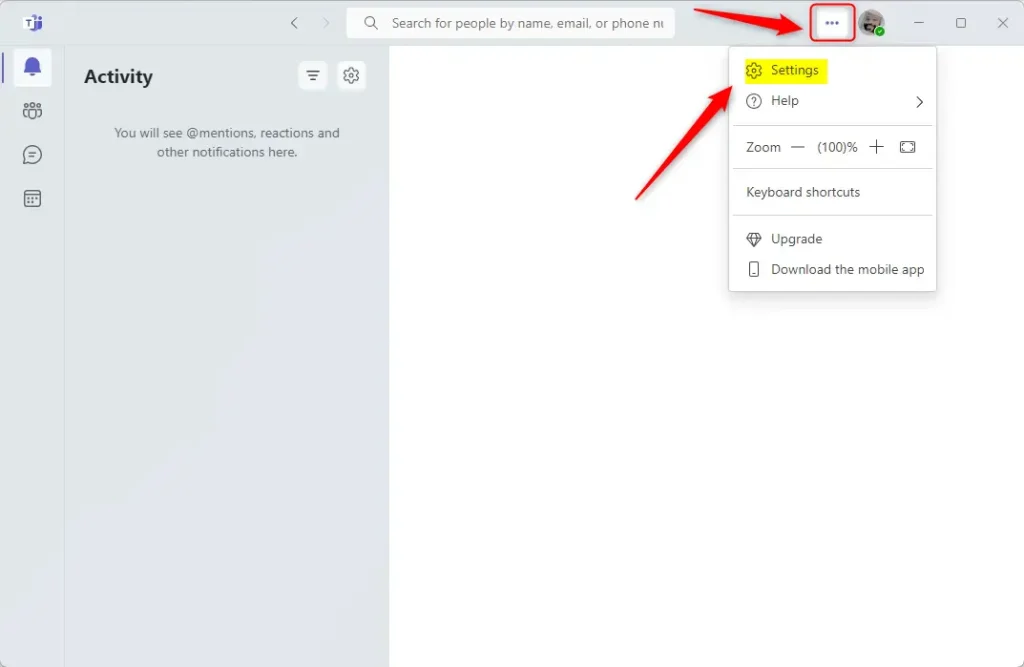
- Click the three dots (...) next to your profile picture in the top right corner of Teams. A menu opens.
- Select Settings. The Settings page opens.
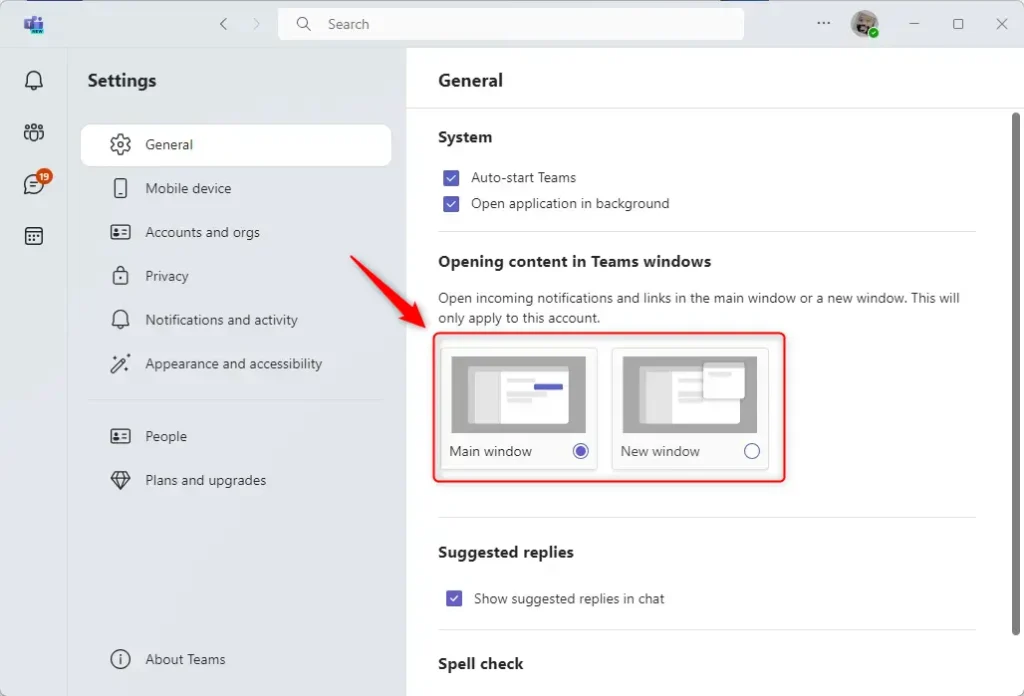
- Select the General tab on the left side of the Settings page.
- Look on the right side for "Opening content in Teams windows". Two choices are listed:
- Main windowitems open inside the main Teams window, so everything stays in one place.
- New windowitems open in their own pop-out window, so what you are working on stays visible.
- Select the option you want. The choice applies to items you open from then on. If a link still opens the old way, close Teams completely and start it again.
To undo the change, go back to Settings General and select the other option. Nothing else in Teams is affected.
Setting where notifications appear keeps your workspace organized and cuts down on screen clutter. It also stops windows from piling up when you get many alerts.
- With the new Microsoft Teams app, you can choose whether incoming notifications and links open in the main window or in a new one.
- Once you have set it in the app's settings, you do not need to change it again unless your way of working changes.
Have a question about this guide?
Answered by AI from this guide. Good questions may be added to this page — please don't include personal details.
Did this guide fix your problem?

About the Author
Richard
Tech Writer, IT Professional
Richard is a writer at Geek Rewind who turns complex IT tasks into clear, step-by-step guides. He draws on years of hands-on experience in system administration and enterprise IT operations, focusing on Windows, Linux and WordPress: the problems people actually run into, and the fixes that work. His server and WordPress guides come from systems he runs himself. Richard builds and maintains the platform behind Geek Rewind, from its Ubuntu servers and Nginx configuration to its custom WordPress plugins. Many new tutorials start with readers' questions, and he's always glad to answer them in the comments.
No comments yet — be the first to share your thoughts!