How to Pin Apps to Windows 11 Taskbar

Pinning an app to the Windows 11 taskbar keeps it one click away, so you stop hunting through menus for the tools you use every day. A pinned icon is a shortcut that stays on the taskbar after you close the app.
You can drag pinned icons into any order you like. The steps below use the Pin to taskbar command, which is the same in every edition of Windows 11.
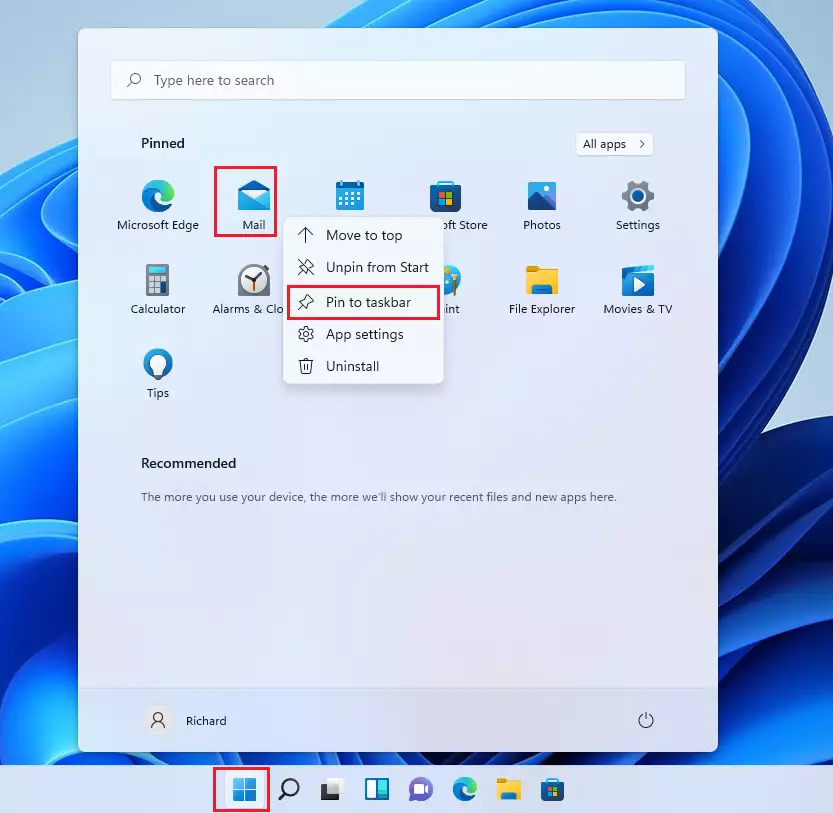
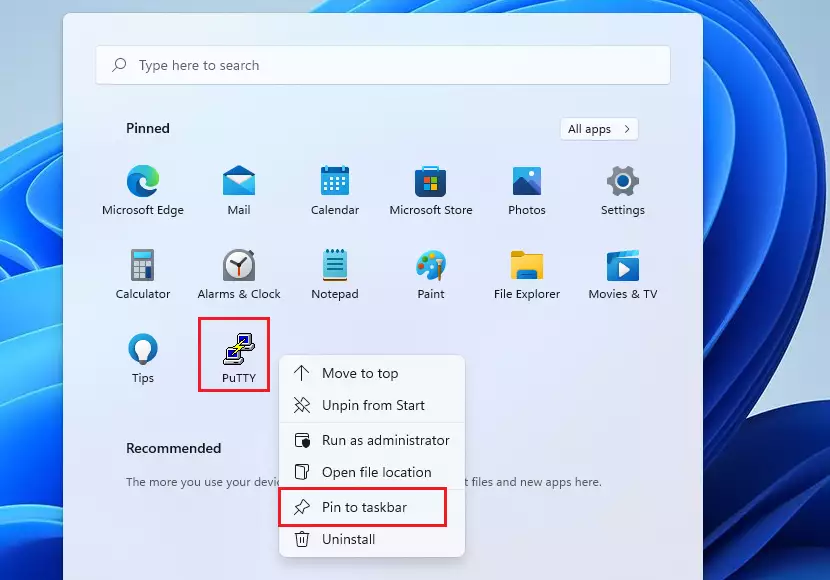
Right-click an app in the Start menu and select Pin to taskbar . If it isn’t under Recommended, click All apps, find the app, then right-click it, select More, and click Pin to taskbar . The icon appears on the taskbar immediately, and you can drag it to reorder it.
Why Pin Apps to Your Taskbar?
Pinned apps save time because you never have to search for them. Your daily tools stay in the same place on the taskbar , which keeps your workflow faster and more organized.
You can pin as many apps as fit on the taskbar , and you can remove any of them later. Unpinning only removes the shortcut. It never uninstalls the app.
How to Add Program Icons to the Taskbar in 🪟 Windows 11
Pinning takes a few clicks, and you don’t need administrator rights on your own PC. The steps below cover the two routes through the Start menu , then pinning from a file, then pinning at scale for administrators.
Step 1Open the Start Menu
These numbered steps show how to pin apps to the Windows 11 taskbar efficiently, using either the Recommended section or the All apps list.
- Press the Windows key. You can also click the Start button on the taskbar. The Start menu opens, with pinned apps at the top and a Recommended section below.
- Look for the app you want to pin. If you don't see it right away, type its name to search, or use the All apps list in step 5.
Step 2Pin Recent Apps
- Right-click the app's icon under Recommended. This section lists apps and files you opened recently, so the app only appears there if you've used it lately. A context menu opens next to the icon.
- Select Pin to taskbar. The icon appears on the taskbar right away. If the app is now pinned, skip ahead to step 11 to check the result.
If Pin to taskbar isn't in the right-click menu for that item, use the All apps route below instead. Some Recommended items are files rather than apps, and files don't offer this option.
Step 3View All Apps
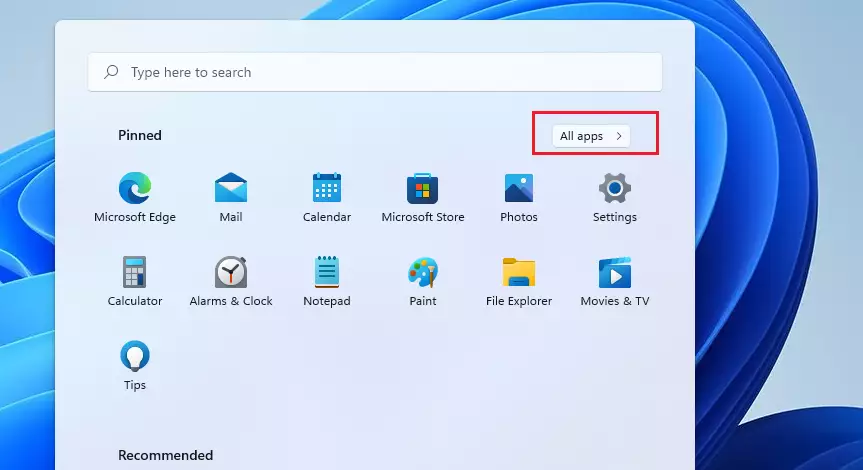
- Click the All apps button in the Start menu. Use this route if the app isn't under Recommended. On the newest Windows 11 builds the button may be labeled All. The list of every installed program replaces the pinned apps view.
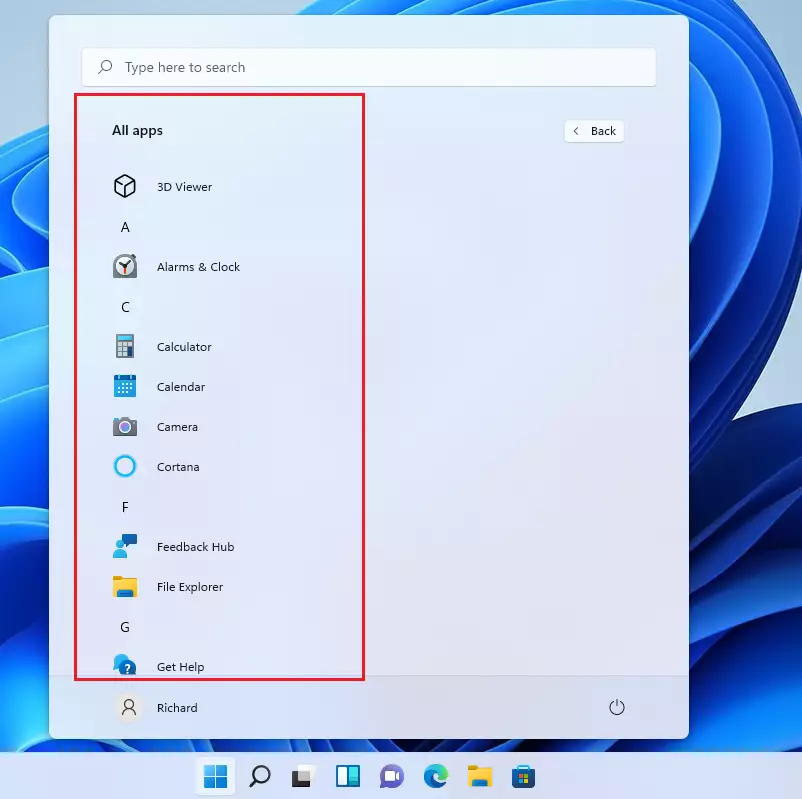
- Scroll the list to find the app. The list is sorted alphabetically, so move to the letter the app's name starts with.
- Click a folder to expand it if the app sits inside one. Apps that came as part of a suite, such as Microsoft Office tools, are often grouped this way. The apps inside the folder appear below its name.
Step 4Pin Apps from the Full List
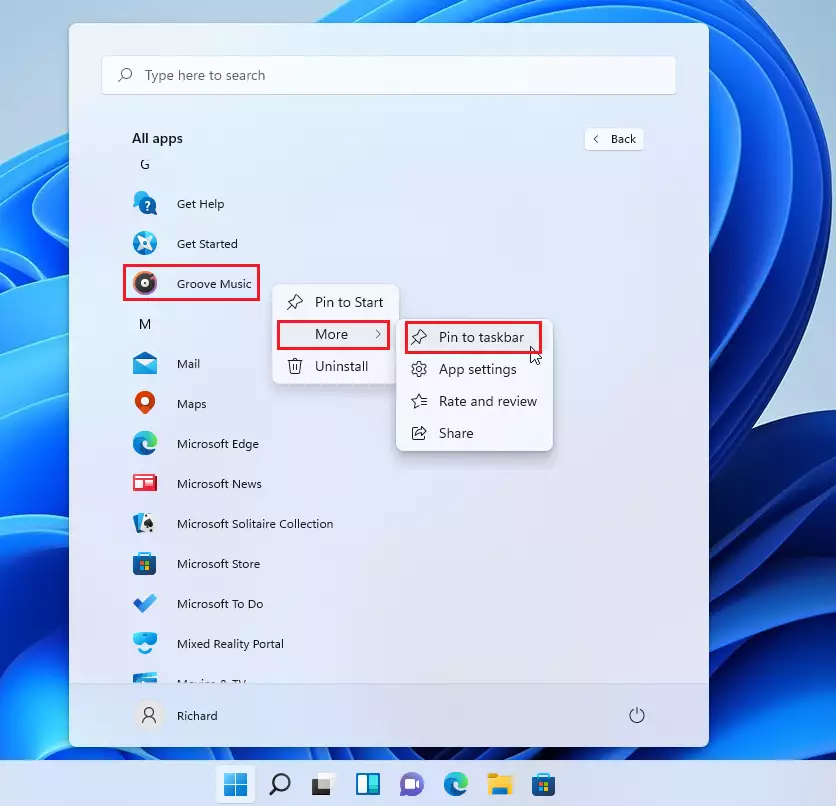
- Right-click the app. A context menu opens next to it.
- Select More. A second menu opens. If you don't see More, the first menu may already list Pin to taskbar directly, so go to the next step.
- Click Pin to taskbar. Either menu layout gives the same result, and the app's icon appears on the taskbar.
Step 5Check Your Taskbar
- Click the new icon on the taskbar. This confirms it launches the app.
- Drag the icon left or right to change its position. Release it where you want it, and the other icons move aside.
To undo the pin, right-click the icon and select Unpin from taskbar. The app itself stays installed.
Right-click its icon on the taskbar and select Pin to taskbar.

Step 6Pin Apps from File Folders
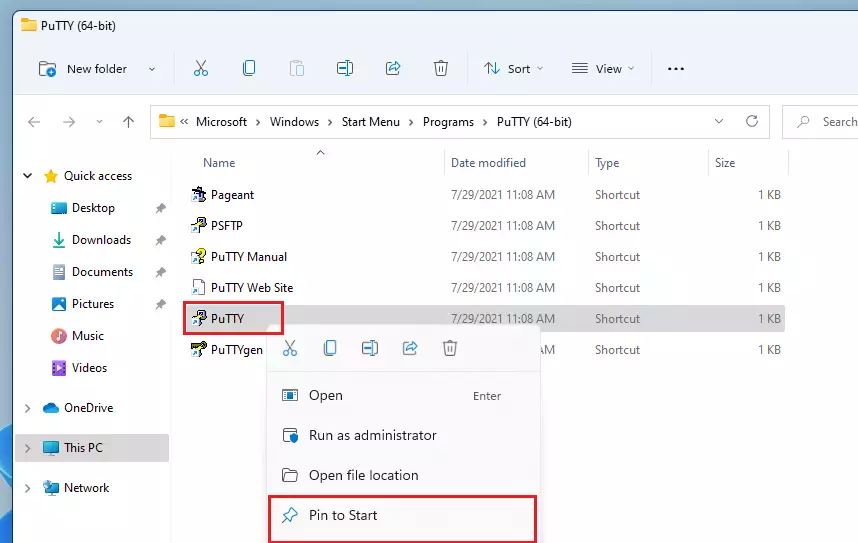
You can pin apps to your Windows 11 taskbar even if they aren't in the Start menu. Find the app's file on your computer and drag the app's shortcut directly to the taskbar. This method is a reliable way to pin apps installed from outside the Microsoft Store, or programs that run from a specific file.
If dragging doesn't work on your build, try a different approach. Right-click the shortcut or program file, then look for Pin to taskbar. In File Explorer you may need to select Show more options first to reach the classic menu.
Pin the shortcut to the program, not a document or folder. Documents and folders may not pin the way you expect.
Advanced Taskbar Customization for IT Administrators
Administrators can push out a standardized taskbar layout to many Windows 11 machines at once. IT teams use tools like Group Policy or an XML file to keep the taskbar consistent across the organization. This lets them pre-set specific app pins for all users.
Group Policy management is generally available on Pro, Enterprise and Education editions. Windows 11 Home does not include the Group Policy Editor.
You can export a custom taskbar layout with a PowerShell command. That XML file is then deployed through a Group Policy Object (GPO), a set of settings that Windows applies to chosen users or PCs, to set specific app pins for everyone.
Build the layout on a test machine first, export it, and try it on one PC before rolling it out widely. Users may see the pinned layout apply at their next sign-in, so tell them to expect a change.
Troubleshooting Taskbar Issues
If Pin to taskbar is missing in Windows 11, a system policy might be preventing it. A policy is a rule set by an administrator. This is common on work or school PCs, where the organization controls the taskbar. If your PC is managed, ask your IT team before changing anything.
On a PC you manage yourself, you can check the Registry Editor to see if this setting is restricted. Be careful in the registry, because a wrong change can cause problems. Back it up or create a restore point before you change anything, so you can roll back if needed.
A restart or sign-out may be needed for a change to take effect.
Summary
Pinning apps keeps your favorite tools within reach, whether you grab them from the Start menu or pull them straight from a file folder. For organizations, IT admins can manage taskbar layouts using XML files and Group Policy. If you can't pin apps, check your registry or group policy settings.
- Pinning apps improves productivity by providing instant access.
- Use the Start menu or file folders to pin your favorite tools.
- IT admins can use XML files and GPO to manage taskbar layouts across an organization.
- If pinning is missing, check your registry or group policy settings.
- Unpin an app at any time by right-clicking its icon on the taskbar and selecting Unpin from taskbar.
Have a question about this guide?
Answered by AI from this guide. Good questions may be added to this page — please don't include personal details.
Did this guide fix your problem?

About the Author
Richard
Tech Writer, IT Professional
Richard is a writer at Geek Rewind who turns complex IT tasks into clear, step-by-step guides. He draws on years of hands-on experience in system administration and enterprise IT operations, focusing on Windows, Linux and WordPress: the problems people actually run into, and the fixes that work. His server and WordPress guides come from systems he runs himself. Richard builds and maintains the platform behind Geek Rewind, from its Ubuntu servers and Nginx configuration to its custom WordPress plugins. Many new tutorials start with readers' questions, and he's always glad to answer them in the comments.
[…] You can also launch the app from the Taskbar or Taskbar overflow. […]
[…] You can also launch the app from the Taskbar or Taskbar overflow. […]
[…] You can also launch the app from the Taskbar or Taskbar overflow. […]
[…] You can also launch the app from the Taskbar or Taskbar overflow. […]
[…] You can also launch the app from the Taskbar or Taskbar overflow. […]
[…] Windows builds, the Copilot app was redesigned to work like a regular Windows app that will be pinned to the taskbar with the benefits of a traditional app experience, including the ability to resize, move, and snap […]
[…] builds, the Copilot app was redesigned to work like a regular Windows app that will be pinned to the taskbar with the benefits of a traditional app experience, including the ability to resize, move, and […]
[…] the Copilot app was redesigned to work like a regular Windows app that will be pinned to the taskbar with the benefits of a traditional app experience, including the ability to resize, move, and snap […]
[…] the Copilot app was redesigned to work like a regular Windows app that will be pinned to the taskbar with the benefits of a traditional app experience, including the ability to resize, move, and snap […]
[…] the Copilot app was redesigned to work like a regular Windows app that will be pinned to the taskbar with the benefits of a traditional app experience, including the ability to resize, move, and […]
[…] Windows builds, the Copilot app was redesigned to work like a regular Windows app that will be pinned to the taskbar with the benefits of a traditional app experience, including the ability to resize, move, and snap […]
[…] You can also launch the app from the Taskbar or Taskbar overflow. […]
[…] You can also launch the app from the Taskbar or Taskbar overflow. […]
[…] You can also launch the app from the Taskbar or Taskbar overflow. […]
[…] You can also launch the app from the Taskbar or Taskbar overflow. […]
[…] You can also launch the app from the Taskbar or Taskbar overflow. […]
[…] You can also launch the app from the Taskbar or Taskbar overflow. […]
[…] You can also launch the app from the Taskbar or Taskbar overflow. […]
[…] When you install Windows, default application icons are pinned to the Taskbar. Users can also add app icons to the Taskbar by pinning them there. If you have app icons that you don’t want on the Taskbar, right-click the icon and select Unpin from the Taskbar. […]
[…] You can also launch the app from the Taskbar or Taskbar overflow. […]
[…] You can also launch the app from the Taskbar or Taskbar overflow. […]
[…] You can also launch the app from the Taskbar or Taskbar overflow. […]
[…] You can also launch the app from the Taskbar or Taskbar overflow. […]
[…] You can also launch it from the Taskbar or Taskbar overflow. […]
[…] You can also launch the app from the Taskbar or Taskbar overflow. […]