How to Manage Personalization in Windows 11 Copilot


This guide explains how to control personalization features within the Copilot app on Windows 11. Copilot is an AI assistant that helps you change settings and work across your apps using simple language.
You can open Copilot by clicking its button or using the Windows key + C shortcut Copilot button will appear on the Taskbar.. Recent updates have changed Copilot to work like a regular app, meaning it can be moved, resized, or snapped to the side of your screen pinned to the taskbar.
Why use personalization?
Personalization allows Copilot to remember your past chats. It uses this history to provide better, more relevant answers. You can turn this off if you prefer more privacy.
What happens when you change settings?
When you enable personalization, Copilot gets smarter about your preferences. When you disable it, Copilot stops using your history to tailor its responses.
How to change your personalization settings
You can turn this feature on or off at any time using these steps:
- First, open the Copilot app open the Copilot app.
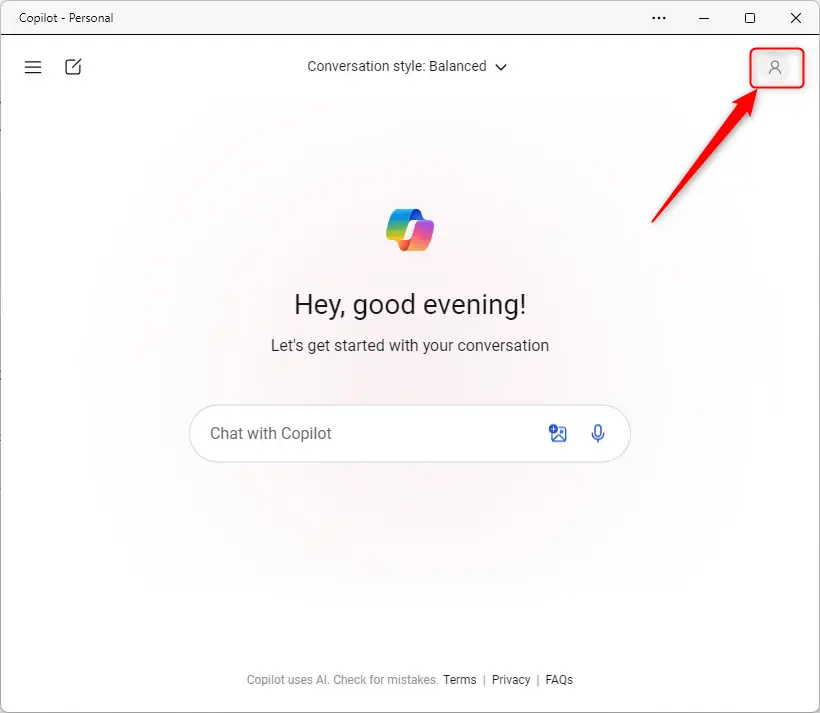
- Click your profile picture or the menu icon in the top right corner.
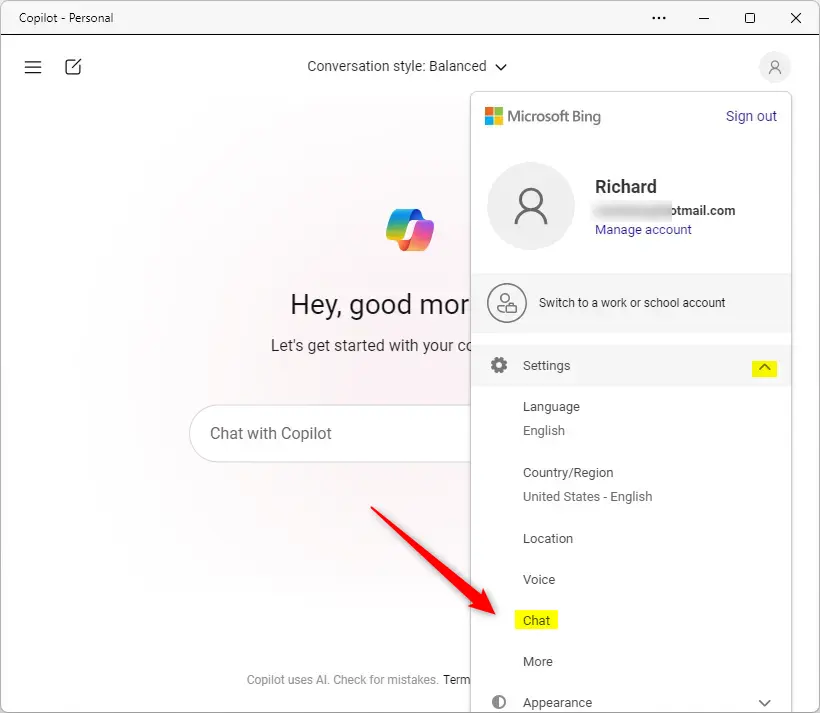
- Select Settings from the menu.
- Click on Chat.
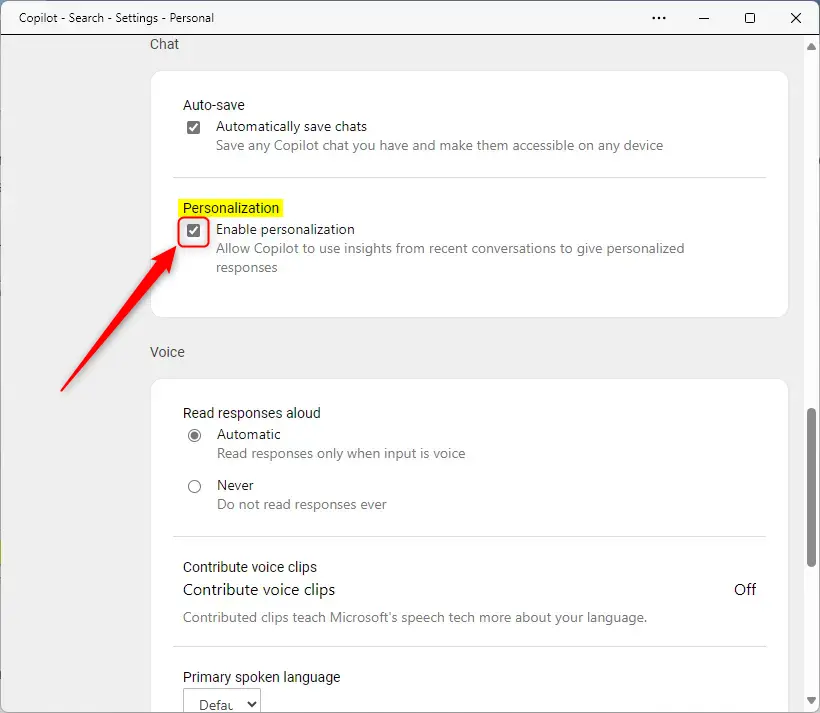
- Check the box next to Personalization to turn it on. Uncheck the box to turn it off.
Note: Turning off the “Automatically save chats” feature Automatically save chats will also automatically disable the personalization setting.
Summary
Personalization helps Copilot learn your habits to provide a better experience. You can easily manage this feature through the Copilot settings menu. Remember that disabling chat history will also stop personalization from working. You can find more information here Microsoft.com.
How do I enable personalization in Windows 11 Copilot?
Can I disable personalization in Windows 11 Copilot?
What happens if I turn off the 'Automatically save chats' feature?
Where can I find the Copilot settings in Windows 11?
What is the purpose of personalization in Windows 11 Copilot?
Was this guide helpful?


Leave a Reply