How to Add or Remove Suggested Apps in Share Dialog in Windows 11

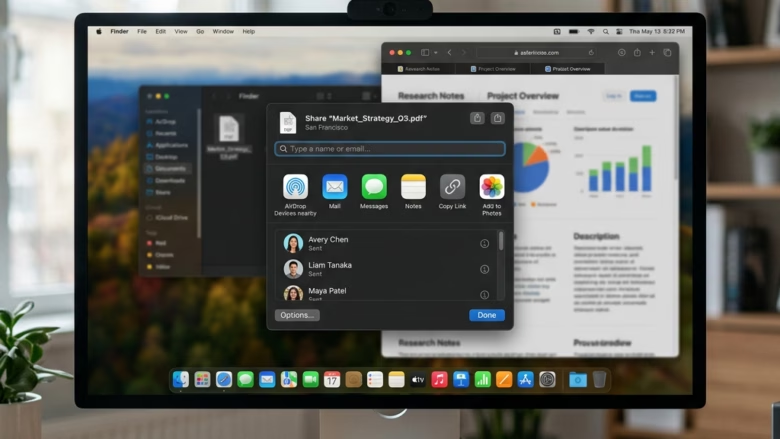
Suggested apps in the Windows 11 Share dialog are extra program recommendations that appear when you share a file or link. You can turn them off in Windows 11 Build 22635 or later, so the sharing menu lists only the apps you actually use.
Clearing out the clutter makes sending photos, documents and links faster. You spend less time scanning the list for the right app. If your build is older than 22635, you may not see the option described below.
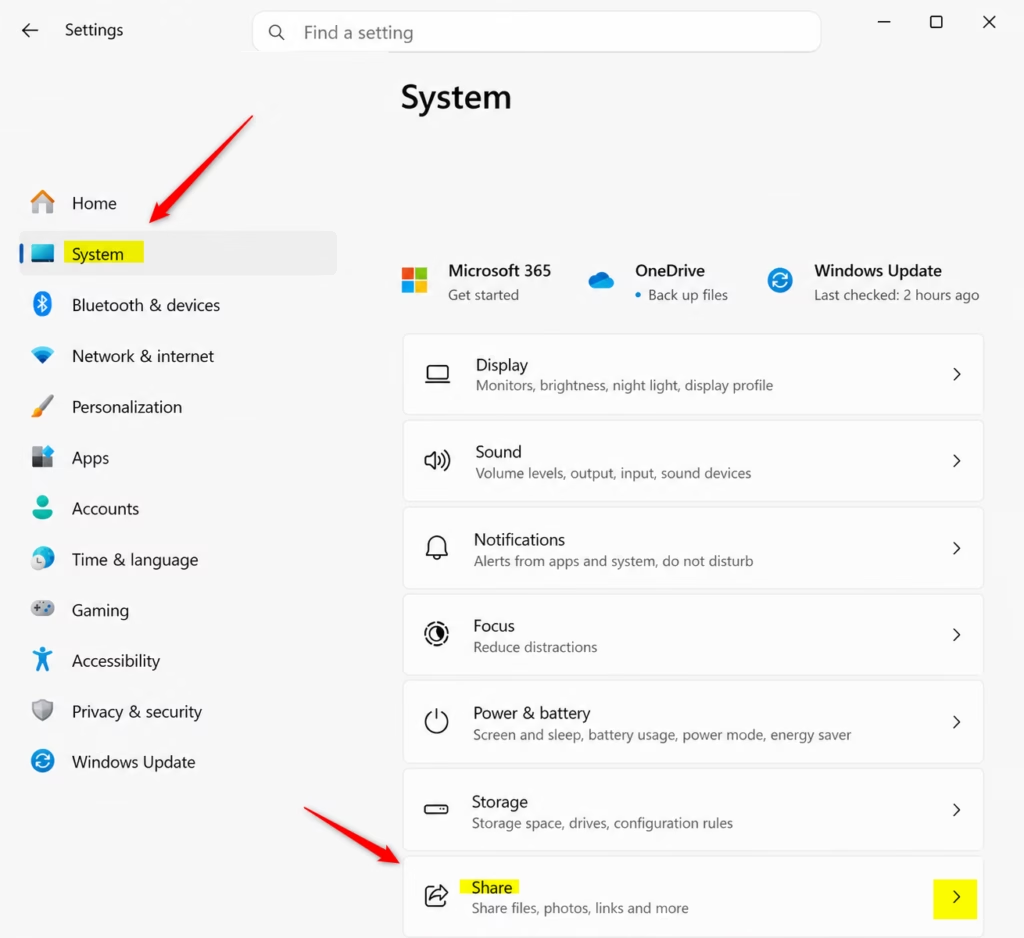
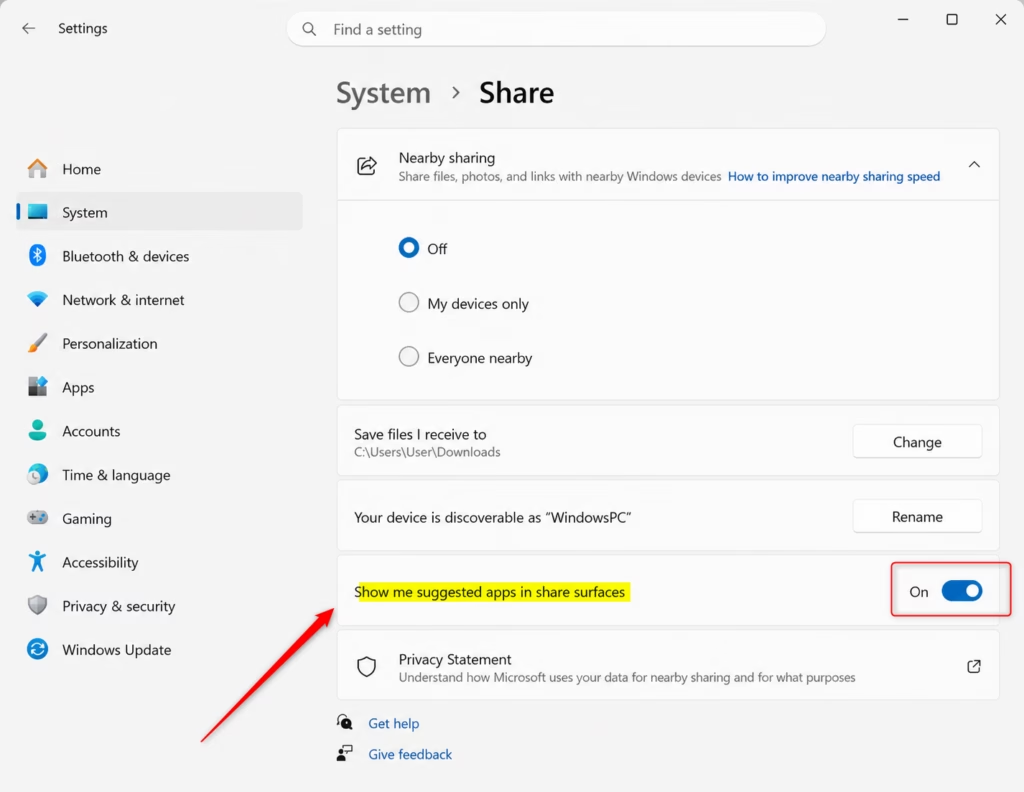
Open Settings, go to System Share, and toggle the Show me suggested apps in share surfaces switch to Off. The Share dialog will immediately display only your installed apps without suggestions.
Why manage suggested apps?
Removing these recommendations keeps the menu limited to programs already installed on your PC. It also removes promotional entries, so you are less likely to click one by accident while sharing something.
What happens when you change these settings?
With suggestions off, the Share dialog shows only apps already on the computer. Sharing becomes quicker and the menu is easier to read. You can turn the suggestions back on at any time with the same steps.
Method 1Using Settings (Easiest)
This is the simplest method. It works on both Home and Pro editions and needs no administrator rights.
- Press Win+I to open Settings. The Settings window opens with the category list on the left.
- Click System on the left, then select Share on the right. Open Share settings. The sharing options for your PC appear.
- Set the Show me suggested apps in share surfaces switch to Off to hide suggestions, or to On to show them again. The change applies straight away, and you can check it by opening the Share dialog from any app.
The setting is not present before Build 22635.
Method 2Using Registry Editor (Advanced)
You can use it to remove suggested apps from the Windows 11 Share menu by creating a new DWORD value. You need administrator rights, and a mistake in the registry can cause system problems. Back up first: in Registry Editor, choose File Export and save a copy, or create a restore point.
- Press Win+R, type regedit, and press Enter. Click Yes if User Account Control asks for permission. Registry Editor opens.
[Requires Admin Privileges]
- Navigate to the following location:
HKEY_CURRENT_USER\Software\Microsoft\Windows\CurrentVersion\CDP. Use the folder tree on the left, or paste the path into the address bar at the top of the window. - Right-click an empty area in the right pane, select New DWORD (32-bit) Value, and name it
EnablePromotionalAppsForShare. The new value appears in the list. - Double-click the new value. In the Value data box, enter 1 to show suggested apps or 0 to hide them, then click OK.
This registry value controls suggested apps in the Windows 11 Share dialog. If the Share dialog still looks the same, sign out and back in, or restart the PC. To undo the change, set the value data back to 1.
Method 3Using Group Policy (Enterprise)
Group Policy Editor is a tool for controlling system features from one place. It is available only on Windows 11 Pro and Enterprise, and it is not included in Home. It needs administrator access. The policy applies to every user on the PC, which makes it a quick way to turn off app suggestions in the share panel for all accounts at once.
- Press Win+R, type gpedit.msc, and press Enter. The Local Group Policy Editor opens.
[Requires Admin Privileges]
- Go to Computer Configuration Administrative Templates Windows Components Share Experience. The policy settings for that folder are listed in the right pane.
- Double-click Turn off suggested apps in share experience.
- Select Enabled, then click Apply and OK.
This stops the Share window from displaying app suggestions, which speeds up sharing for people who prefer not to see them. If the change doesn't show up straight away, sign out and back in or restart. To undo it, open the same setting and choose Not Configured.
Summary
For most people, the Settings app is the right place to manage suggested apps in the Windows 11 Share menu. Use Registry Editor or Group Policy Editor only when you need finer control, such as applying the change across several accounts on a Pro or Enterprise PC.
Does disabling suggested apps improve 🪟 Windows 11 performance?
Have a question about this guide?
Answered by AI from this guide. Good questions may be added to this page — please don't include personal details.
Did this guide fix your problem?

About the Author
Richard
Tech Writer, IT Professional
Richard is a writer at Geek Rewind who turns complex IT tasks into clear, step-by-step guides. He draws on years of hands-on experience in system administration and enterprise IT operations, focusing on Windows, Linux and WordPress: the problems people actually run into, and the fixes that work. His server and WordPress guides come from systems he runs himself. Richard builds and maintains the platform behind Geek Rewind, from its Ubuntu servers and Nginx configuration to its custom WordPress plugins. Many new tutorials start with readers' questions, and he's always glad to answer them in the comments.
No comments yet — be the first to share your thoughts!