How to Turn On or off Share Across Devices for Apps in Windows 11

Share Across Devices in Windows 11 lets your PC and your phone pass app activity back and forth, so you can pick up where you left off in supported apps. It works on Windows 11 version 22H2 and newer. On some 22H2 builds the setting sits under System Shared experiences On newer builds it has moved to Apps Advanced app settings, which is the path the steps below use.
Sign in with the same Microsoft account on both devices, or the connection won’t work. Once the feature is on, app activity starts passing between your screens right away. The setting is the same on Windows 11 Home and Pro.
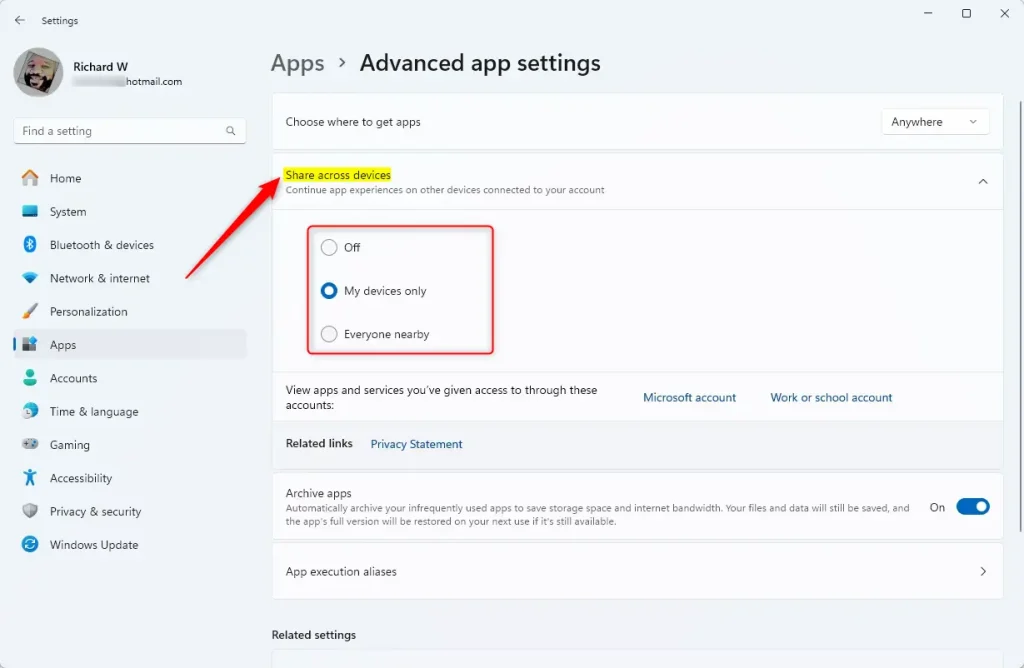
Open Settings , go to Apps, then Advanced app settings, and click Share across devices. Select “Off,” “My devices only,” or “Everyone nearby” to manage app continuity between your Windows 11 devices.
How to Turn On or Off Share Across Devices
Option 1Turn On or Off Using Settings
The Settings app is the simplest way to change this, and it is the one I would use first. Follow these steps:
- Press Win+I to open Settings.
- Click Apps in the left menu. The app-related pages appear on the right.
- Click Advanced app settings.
- Click Share across devices. The options for this setting appear in a drop-down list.
- Choose one of these:
- Off – disables sharing completely.
- My devices only – shares only with devices signed in to your account. This is the default.
- Everyone nearby – shares with any nearby device, not just your own.
- Close Settings. The change applies as soon as you pick an option, and you don’t need to restart.
If you don’t see Share across devices under Advanced app settings, check the System Shared experiences page, since older builds put it there. Also check that your PC is up to date through Settings Windows Update If the option is greyed out on a work or school PC, your organization probably manages it, and you will need to ask your administrator.
To undo any change, go back to the same drop-down and pick another option. My devices only restores the default.
Option 2Turn On or Off Using Registry (For Advanced Users)
You can also set this through the Registry Editor if you prefer to script the change or apply it without clicking through Settings. Each command below writes the needed registry value for your own user account, so it does not change the setting for other users on the PC.
Make sure you pick the command that matches the result you want, and run only one of them. If you want to be careful, back up the registry or create a restore point first. Afterwards, open Settings Apps Advanced app settings to check that Share across devices shows the option you chose. If it doesn't, sign out and back in and look again.
To Turn Off Share Across Devices, run the command below.
reg add "HKEY_CURRENT_USER\Software\Microsoft\Windows\CurrentVersion\CDP" /v CdpSessionUserAuthzPolicy /t REG_DWORD /d 0 /f
reg add "HKEY_CURRENT_USER\Software\Microsoft\Windows\CurrentVersion\CDP" /v RomeSdkChannelUserAuthzPolicy /t REG_DWORD /d 0 /f
To Turn On for My Devices Only (the default setting), use this command:
reg add "HKEY_CURRENT_USER\Software\Microsoft\Windows\CurrentVersion\CDP" /v CdpSessionUserAuthzPolicy /t REG_DWORD /d 1 /f
reg add "HKEY_CURRENT_USER\Software\Microsoft\Windows\CurrentVersion\CDP" /v RomeSdkChannelUserAuthzPolicy /t REG_DWORD /d 1 /f
reg add "HKEY_CURRENT_USER\Software\Microsoft\Windows\CurrentVersion\CDP\SettingsPage" /v RomeSdkChannelUserAuthzPolicy /t REG_DWORD /d 1 /f
To Turn On for Everyone Nearby, use this command:
reg add "HKEY_CURRENT_USER\Software\Microsoft\Windows\CurrentVersion\CDP" /v CdpSessionUserAuthzPolicy /t REG_DWORD /d 2 /f
reg add "HKEY_CURRENT_USER\Software\Microsoft\Windows\CurrentVersion\CDP" /v RomeSdkChannelUserAuthzPolicy /t REG_DWORD /d 2 /f
reg add "HKEY_CURRENT_USER\Software\Microsoft\Windows\CurrentVersion\CDP\SettingsPage" /v RomeSdkChannelUserAuthzPolicy /t REG_DWORD /d 2 /f
Running the default command is also the way to undo either of the other two.
Why Use Share Across Devices?
Share across devices in Windows 11 helps you move smoothly between different computers and phones while keeping your apps and workflows connected. This feature lets your active tasks follow you across different hardware, giving you flexible control over whether you want to link only your own personal gadgets or interact with nearby devices around you.- Easy App Use: Move from one device to another without losing your place.
- Flexible Sharing: Choose if you want to share just with your devices or with people nearby.
- Works Across Devices: Great for those who use a PC, tablet, and phone all together.
- Simple to Setup: Use Settings for an easy toggle or Registry for more control.
- Stay Updated: Keep Windows updated to get the best experience and new features.
Learn More
Exploring this functionality further requires reviewing these related guides:
Have a question about this guide?
Answered by AI from this guide. Good questions may be added to this page — please don't include personal details.
Did this guide fix your problem?

About the Author
Richard
Tech Writer, IT Professional
Richard is a writer at Geek Rewind who turns complex IT tasks into clear, step-by-step guides. He draws on years of hands-on experience in system administration and enterprise IT operations, focusing on Windows, Linux and WordPress: the problems people actually run into, and the fixes that work. His server and WordPress guides come from systems he runs himself. Richard builds and maintains the platform behind Geek Rewind, from its Ubuntu servers and Nginx configuration to its custom WordPress plugins. Many new tutorials start with readers' questions, and he's always glad to answer them in the comments.
No comments yet — be the first to share your thoughts!