How to Use Android Nearby Share on Windows 11


Quick Share (formerly called Android Nearby Share) lets you send photos, videos, and large files directly between an Android phone and a Windows 11 PC. You do not need email or cloud storage. Bluetooth and Wi-Fi link the two devices locally, so files move over the air in seconds. Transfers can work without an active internet connection, though you will need one to download the app and sign in.
Setup takes about one minute. Once it is turned on, your Windows 11 computer shows up in the sharing menu on your Android phone. It works in the other direction too: you can send from the PC to the phone.
Download Google Quick Share for Windows from the official Google site, run the installer, and sign in with your Google account. Your Windows 11 PC then appears in your Android phone’s sharing menu, letting you send files over Bluetooth and Wi-Fi without email or cloud storage.
System Requirements
Quick Share on Windows 11 requires a 64-bit version of Windows 10 or Windows 11, plus working Bluetooth and Wi-Fi hardware. Standard x86-64 processors give the best compatibility and speed. ARM-based processors may have limited or no support for the service right now, so check this first if you are on an ARM laptop.
Check these requirements before you install anything. Most failed setups come down to one of them:
- Operating System: 64-bit version of Windows 10 or Windows 11.
- Hardware: Bluetooth and Wi-Fi must be enabled.
- Architecture: Currently, Quick Share is optimized for x86-64 processors. ARM-based Windows 11 devices may have limited or no support at this time.
- Account: A Google account is required for synchronization.
To confirm that your PC has Bluetooth , open Settings Bluetooth & devices If you see a Bluetooth switch there, the hardware is present. If there is no switch, you may need a driver update or a USB Bluetooth adapter.
Setting up Quick Share on 🪟 Windows 11
Setting up Quick Share on Windows 11 starts with downloading and running the official app installer from Google. You need a user account with administrator permissions on the computer. The installer needs those rights to place files into the 📁C:\
Ensure you have access to the 📁C:\
Follow the steps below in order. When the installer finishes, the app should open or appear in your Start menu . You normally do not need to restart the PC. If you ever want to remove it, go to Settings Apps Installed apps, find Quick Share, and uninstall it.
- Download the official app: Download Google Quick Share for Windows.
- Run the installer. If you are asked for permission to make changes to your system, confirm that you want to proceed.
- Once installed, the app will ask you to sign in to your Google account.
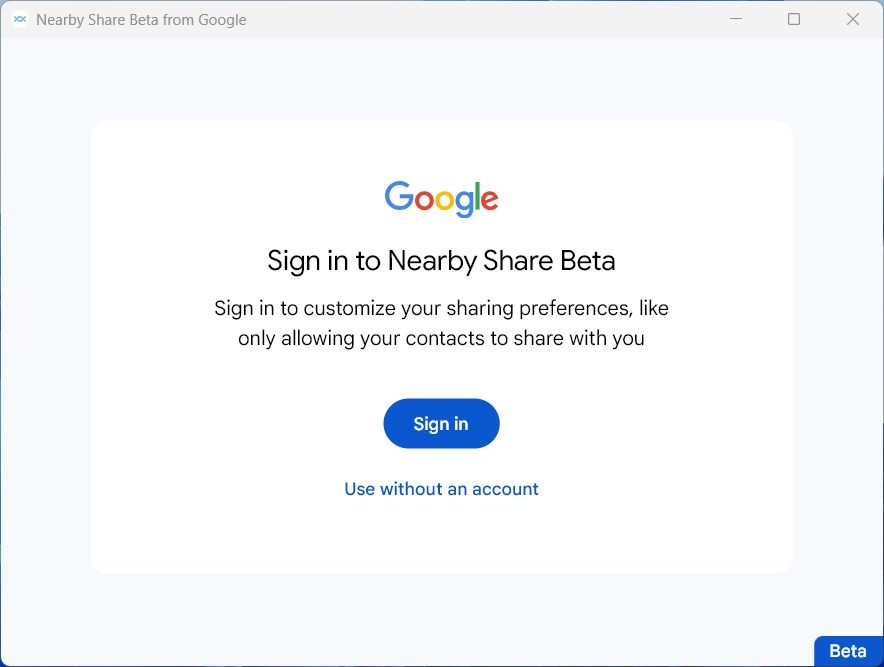
Signing in with a Google account unlocks the permission controls that decide who can send files to the computer. If you sign into the same Google account on both the phone and the PC, transfers between them go through automatically, without a manual approval prompt each time. Files from anyone else still need you to accept them.
If you would rather not sign in, you can still use the app with a visible, unsigned device. You will then have to approve each incoming transfer yourself.
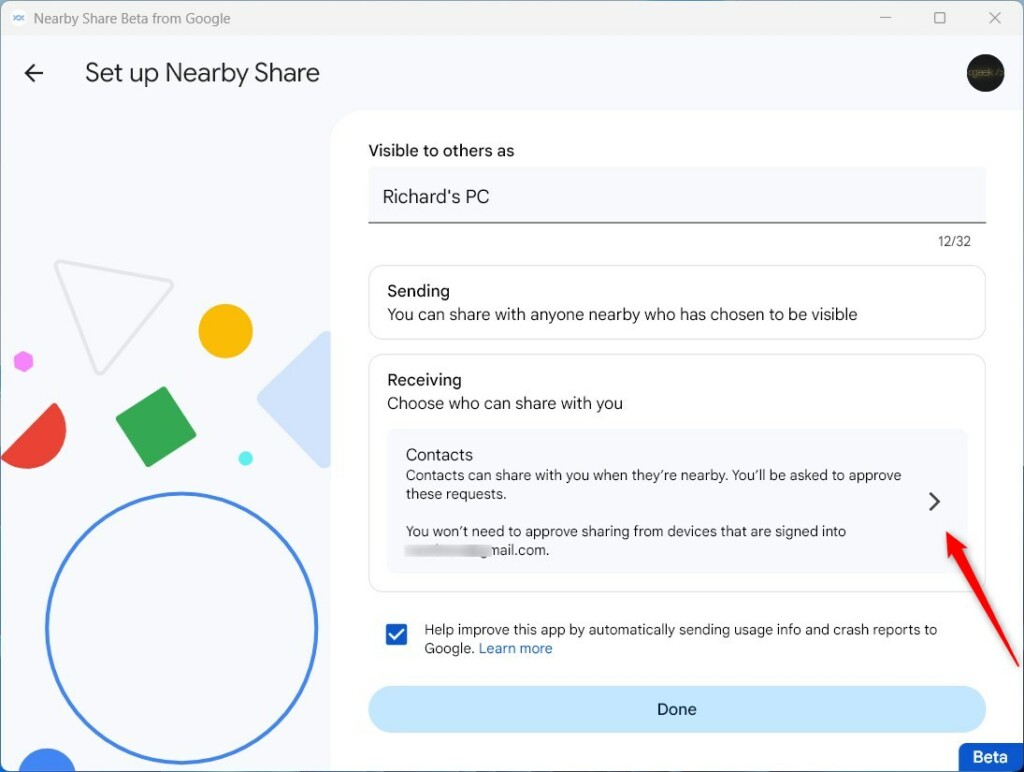
Managing Privacy and Settings
The Quick Share app settings control device visibility. Choosing “Everyone,” “Contacts Only,” or “Your Devices” decides who can reach the PC. The tighter options limit incoming transfers to hardware tied to specific Google accounts. “Your Devices” is the safest everyday choice. “Everyone” is best used only for a few minutes when you need to receive something from a person who is not in your contacts. Switch it back afterward.
If a device does not appear when you expect it to, the visibility setting is a common cause. Check it on the PC first, then on the phone.
Troubleshooting Quick Share
Troubleshooting Android Nearby Share connection problems on Windows 11 usually means checking your local network settings and wireless radios. Confirm that the computer and the phone are on the exact same Wi-Fi network, and keep Bluetooth turned on for both. That solves most device discovery failures.
If the devices still do not see each other, work through these checks:
- Ensure both devices are on the same Wi-Fi network for faster transfers.
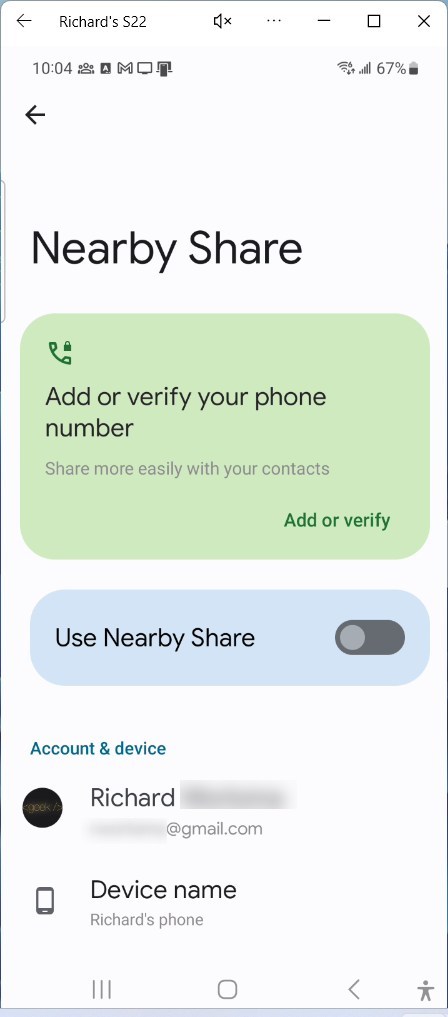
- Check that Bluetooth is toggled ON in both Windows Settings and your Android Quick Settings.
- Verify that your PC is not in "Airplane Mode."
- Check for firewall blocks in C:\Windows\System32\drivers\etc\hosts if you experience connection issues.
A VPN can put a device on a different network from the one you expect. Keep the two devices close together, and keep the phone screen on and unlocked while you send. If a firewall or security suite is blocking the app, allow Quick Share through it.
Summary
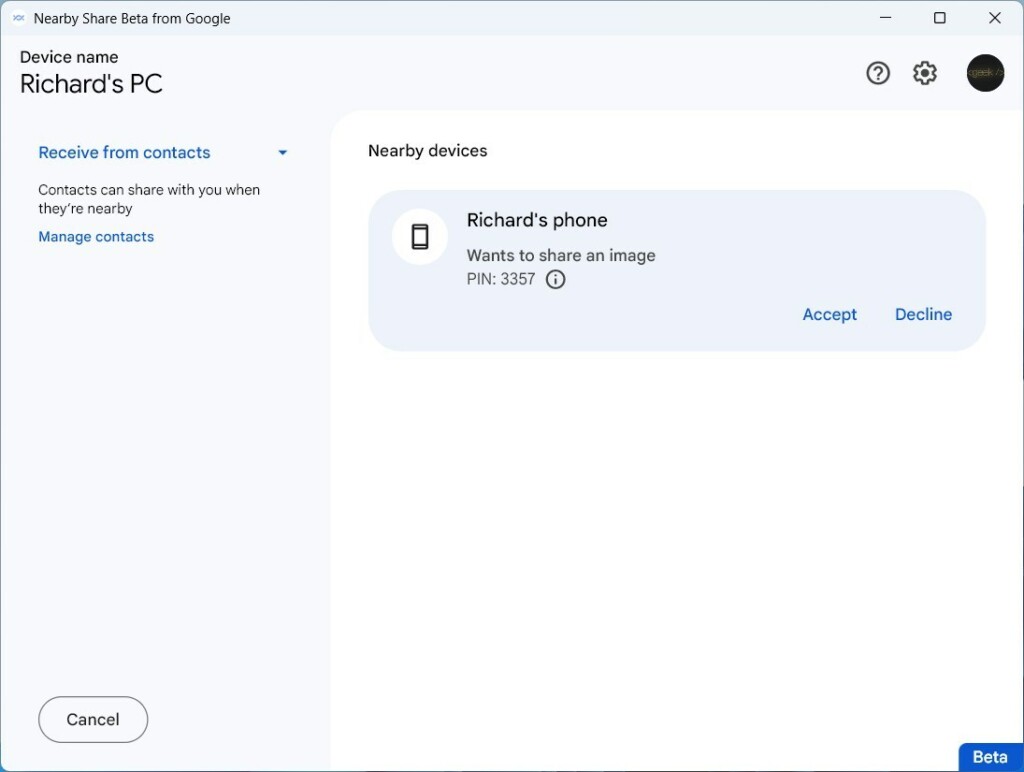
Quick Share makes moving files between your phone and PC simple using secure account pairing. Once both devices use the same Google account and the visibility setting is right, sending a file takes only a few taps.
Have a question about this guide?
Answered by AI from this guide. Good questions may be added to this page — please don't include personal details.
Did this guide fix your problem?

About the Author
Richard
Tech Writer, IT Professional
Richard is a writer at Geek Rewind who turns complex IT tasks into clear, step-by-step guides. He draws on years of hands-on experience in system administration and enterprise IT operations, focusing on Windows, Linux and WordPress: the problems people actually run into, and the fixes that work. His server and WordPress guides come from systems he runs himself. Richard builds and maintains the platform behind Geek Rewind, from its Ubuntu servers and Nginx configuration to its custom WordPress plugins. Many new tutorials start with readers' questions, and he's always glad to answer them in the comments.
[…] Android Nearby Share feature allows users with Android devices to securely send and receive photos, documents, and more with nearby Windows PCs. […]
[…] Android Nearby Share feature allows users with Android devices to securely send and receive photos, documents, and more with nearby Windows PCs. […]
[…] guide explains how to change where your computer saves files sent from your phone using the Android Nearby Share Android Nearby Share feature. This tool lets you send photos and documents between your phone and […]