How to Drag and Drop Files Between Phone and Windows 11


Dragging and dropping files between your phone and Windows 11 moves photos, documents, and other items wirelessly without using any cables. The Phone Link app (a tool that connects your phone to your PC) handles this direct transfer over Wi-Fi and Bluetooth so you can manage your phone content straight from your computer screen.
You can send up to 100 individual files at once, as long as each file stays under 512 MB in size.
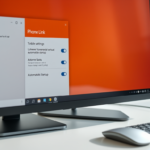
Use the Phone Link app to drag and drop files between your phone and Windows 11. Open Phone Link, then drag files from File Explorer to your phone window, or drag from your phone window to your desktop.
Troubleshooting Drag and Drop in 🪟 Windows 11
Sometimes, drag and drop features stop working due to temporary issues with Windows 11’s interface or conflicts with other program extensions. If drag and drop stops working in Windows 11, restarting the Windows Explorer process via the Task Manager often fixes the glitch.
Registry Tweak for Drag and Drop Issues
Fixing drag and drop files Windows 11 glitches often requires a quick fix in Registry Editor (the database that stores core system settings). Sometimes a stuck registry key freezes the mouse when you try to move items. Open Registry Editor with administrator rights, go to 🗝️HKEY_LOCAL_MACHINE\
Registry modifications require administrator privileges to execute properly.
HKEY_CURRENT_USER\Control Panel\Desktop
Look for the values named DragHeight and DragWidth. Ensure they are set to a low number, such as 4. Higher numbers can prevent the computer from registering drag movements.
Summary
Using drag and drop files Windows 11 features with the Phone Link app (a tool that connects your phone to your PC) lets you move photos and documents quickly without a USB cable. You can drop single files back and forth between your phone screen and computer folders in seconds, though large folders and files over 512 MB need a cloud service like OneDrive instead.- The Phone Link app connects your phone to Windows for easy file sharing.
- You can drag and drop individual files, but not folders.
- There is a 512 MB size limit per transfer.
- If drag and drop fails, check your registry settings or restart File Explorer .
- OneDrive is a great backup alternative if you need to move folders or larger amounts of data.
Was this guide helpful?

About the Author
Richard
Tech Writer, IT Professional
Richard is a writer at Geek Rewind who turns complex IT tasks into clear, step-by-step guides. He draws on years of hands-on experience in system administration and enterprise IT operations, focusing on Windows, Linux and WordPress: the problems people actually run into, and the fixes that work. His server and WordPress guides come from systems he runs himself. Richard builds and maintains the platform behind Geek Rewind, from its Ubuntu servers and Nginx configuration to its custom WordPress plugins. Many new tutorials start with readers' questions, and he's always glad to answer them in the comments.


No comments yet — be the first to share your thoughts!