How to Use Undo and Redo in Windows 11 File Explorer

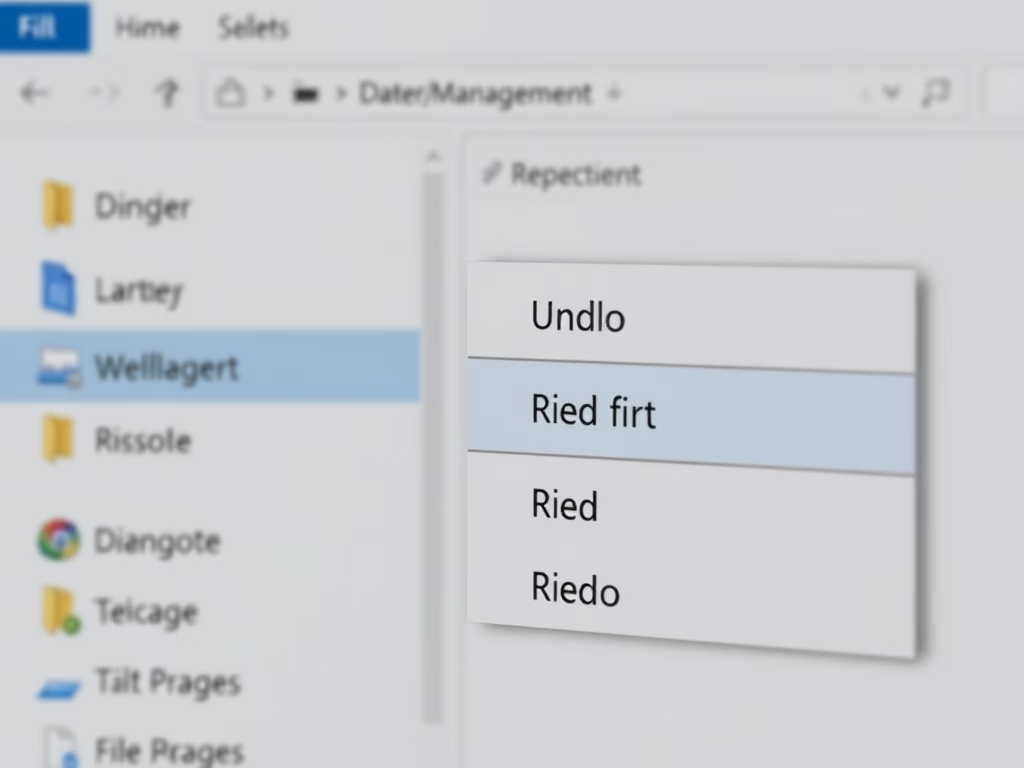
Undo and redo in Windows 11 File Explorer let you reverse a mistake straight away, such as moving a file to the wrong folder or deleting the wrong item. Undo takes back your last action. Redo brings that action back if you change your mind.
File Explorer remembers up to 100 recent actions during each session, so you can recover from errors while you tidy up your files. Press Ctrl+Z to undo a mistake right away, or press Ctrl+Y to redo it. The history only lasts while that session is running, so don’t count on it after you close and reopen File Explorer .
Press Ctrl+Z to undo your last action in File Explorer , or press Ctrl+Y to redo it. If you prefer the mouse, right-click an empty area in the File Explorer window and select Undo or Redo from the menu. File Explorer remembers up to 100 recent actions during each session.
What Is File Explorer?
File Explorer is the main tool in Windows for viewing and organizing everything on your PC. You use it to copy, move, delete and rename files and folders. Because those actions are so quick, it is easy to drop a file in the wrong place or remove the wrong item. Undo and redo are the quickest way to fix that.
What Are Undo and Redo?
Undo
Undo takes back the last change you made in File Explorer . If you delete the wrong file by accident, Undo puts it back where it was, so you don’t have to dig through the Recycle Bin or search for it.
What Undo does depends on the action. It puts a deleted file back, moves a moved file back to its old folder, changes a renamed item back to its old name, and removes a copy you just made. The menu entry names the action, for example Undo Delete or Undo Rename, so you can see what you are about to reverse.
Redo
Redo does the opposite of Undo. If you press Undo by mistake, a quick Redo puts things back the way they were, and the change you reversed is applied again.
Redo is only available right after you have undone something. If you make a new change after an Undo, the redo option goes away, so use it before you do anything else.
They have limits, though. Undo can't recover files you deleted permanently (for example with Shift+Delete), items deleted after the Recycle Bin was emptied, or files deleted from locations that skip the Recycle Bin, such as many USB drives and network shares.
How to Use Undo and Redo in File Explorer
- Open File Explorer on your computer. Press Windows key + E, or click the folder icon on the taskbar. A File Explorer window opens on your Home page or the last location you used.
- Delete, copy, move, or rename a file or folder. The change is recorded as soon as it finishes. Undo only covers actions you did in File Explorer during this session, so do the action and then undo it before you close the window.
- To undo the action, click an empty area inside the File Explorer window, so the window has focus, then right-click and select Undo from the menu. The entry usually names the action, such as Undo Delete or Undo Rename. If you don't see it in the short Windows 11 menu, choose Show more options to open the full menu. Or press
CTRL + Zon your keyboard. The file or folder goes back to its previous state. For example, a deleted file reappears in its original folder. - To redo an action you just undid, right-click an empty area again and pick Redo from the menu, using Show more options if needed. Or press
CTRL + Y. The change is applied again. If Redo isn't listed, you haven't undone anything yet, or you made a new change after undoing, which clears the redo option.
Press CTRL + Z on your keyboard to undo your last action, or press CTRL + Y to redo it. If you prefer the mouse, right-click anywhere inside the File Explorer window and pick Undo or Redo from the menu.
If the shortcut seems to do nothing, click an empty spot in the File Explorer window first. The keys only work when File Explorer is the active window. If you are typing in the address bar or search box, Ctrl+Z undoes your typing instead of the last file action.

Right-click menu showing the Undo command

Right-click menu showing the Redo command
Quick Tips
- Press
CTRL + Zto undo your last action fast. You can press it more than once to step back through earlier actions, up to the 100 that File Explorer remembers. - Press
CTRL + Yto redo an action you just undid. This works only until you make a new change. - These commands work for deleting, moving, copying, and renaming files. They don't bring back permanently deleted files or items removed from a drive that skips the Recycle Bin.
Summary
Undo and Redo give you a reliable safety net for recent file operations in Windows 11 File Explorer. The keyboard shortcuts and the right-click menu both let you put misplaced or deleted items back quickly. Use them right after you notice a mistake, before you close the window or make other changes.
Have a question about this guide?
Answered by AI from this guide. Good questions may be added to this page — please don't include personal details.
Did this guide fix your problem?

About the Author
Richard
Tech Writer, IT Professional
Richard is a writer at Geek Rewind who turns complex IT tasks into clear, step-by-step guides. He draws on years of hands-on experience in system administration and enterprise IT operations, focusing on Windows, Linux and WordPress: the problems people actually run into, and the fixes that work. His server and WordPress guides come from systems he runs himself. Richard builds and maintains the platform behind Geek Rewind, from its Ubuntu servers and Nginx configuration to its custom WordPress plugins. Many new tutorials start with readers' questions, and he's always glad to answer them in the comments.
No comments yet — be the first to share your thoughts!