How to Use Favorites in Windows 11 File Explorer

Favorites in Windows 11 File Explorer are pinned shortcuts that let you open important folders and files with a single click. They save you from digging through nested folders every time you need a document. Pinned folders also show up in the left sidebar. Favorite files are listed on the Home page.
You can add up to 50 items to your Quick Access list, from a single spreadsheet to an entire project folder. Keeping your most-used items one click away saves time and gets you to your files faster. This guide is written for Windows 11 version 23H2 and later. Home and Pro editions behave the same way. If you are on an older build, the Favorites section on the Home page may be missing or look different, so check Windows Update first.
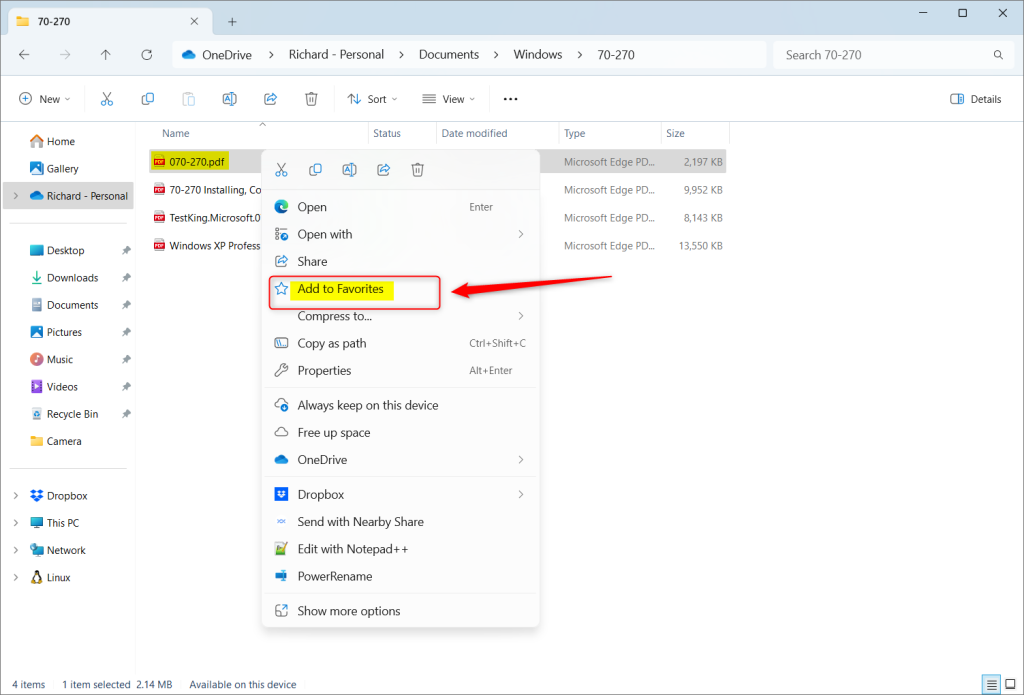
Open File Explorer, find the file you want to pin, right-click it, and select Add to Favorites. The file appears in the Favorites section on your Home page for one-click access. Folders use Pin to Quick Access instead.
What is File Explorer?
File Explorer is the built-in Windows tool for finding, organising and managing documents across your drives. Copying, moving, deleting and renaming files all happen in this window. It is also where Favorites live, so you do not need to install anything or change any settings to use them.
Why Use Favorites?
Skipping the usual folder nesting speeds up daily work. Frequently used documents sit on a dedicated list, so you can open them without clicking through several directories. If you open the same budget sheet, report or project file every morning, this adds up over a week.
How to Add Files to Favorites
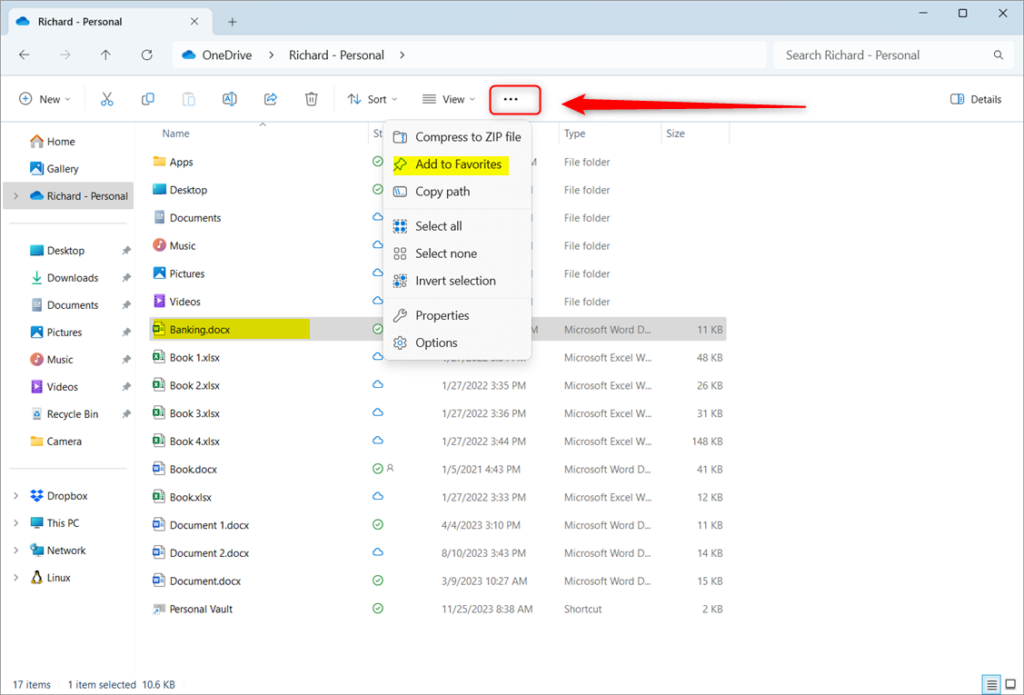
To add a file to File Explorer Favorites in Windows 11, open File Explorer and find the document you want to keep handy. Right-click the file and choose Add to Favorites, or select the file and use the command bar at the top of the window. The item is pinned to the Favorites section on your Home page, so you can open it quickly next time.
This option is for files. Folders are pinned to Quick Access instead, using the Pin to Quick access command on the right-click menu. In some newer builds it is labelled Pin to Home. The steps below walk through the command bar method.
- Open File Explorer by clicking the File Explorer folder icon on the taskbar, or press the Win+E on your keyboard. A File Explorer window opens, usually on the Home page.
- Find the file you want to add. Browse through your drives and folders until you see it in the file list.
- Click the file once to select it. It should be highlighted, and the command bar at the top will update to show the actions available for that file.
- Look at the top of File Explorer and click the three dots (See more) at the right end of the command bar. A drop-down menu opens. If you cannot see the three dots, widen the window, because the command bar hides buttons when space is tight.
- Choose Add to Favorites from the menu. The file is now pinned. If the option is missing, check that you selected a file rather than a folder, and that your Windows 11 build is 23H2 or later.
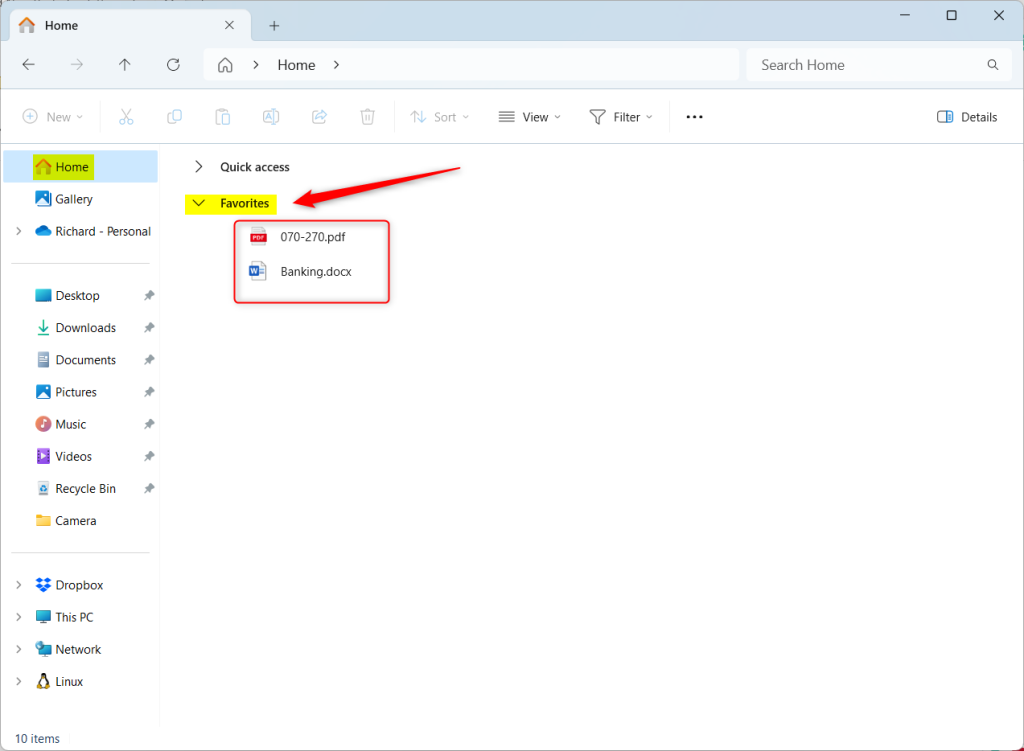
Once added, favorite files appear in the Favorites section on the Home page. To check, click Home in the left sidebar. Your file should be listed there, and a single click or double-click opens it. No restart or sign-out is needed.
How to Remove Files from Favorites
To remove a file from File Explorer Favorites when you no longer need quick access, open File Explorer and go to the Home page. Find the Favorites section, right-click the file you want to clear out, and click Remove from Favorites. The item disappears from your pinned list right away. The actual file is not deleted from your computer. If you change your mind, you can add it again at any time.
- Open File Explorer and click Home in the left sidebar. The Home page shows your pinned and recent items.
- Find the Favorites section. If it is collapsed, click the arrow next to its name to expand it. Your pinned files are listed underneath.
- Right-click the file you want to remove. A context menu opens.
- Select Remove from Favorites. The file vanishes from the list, but it is still in its original folder.
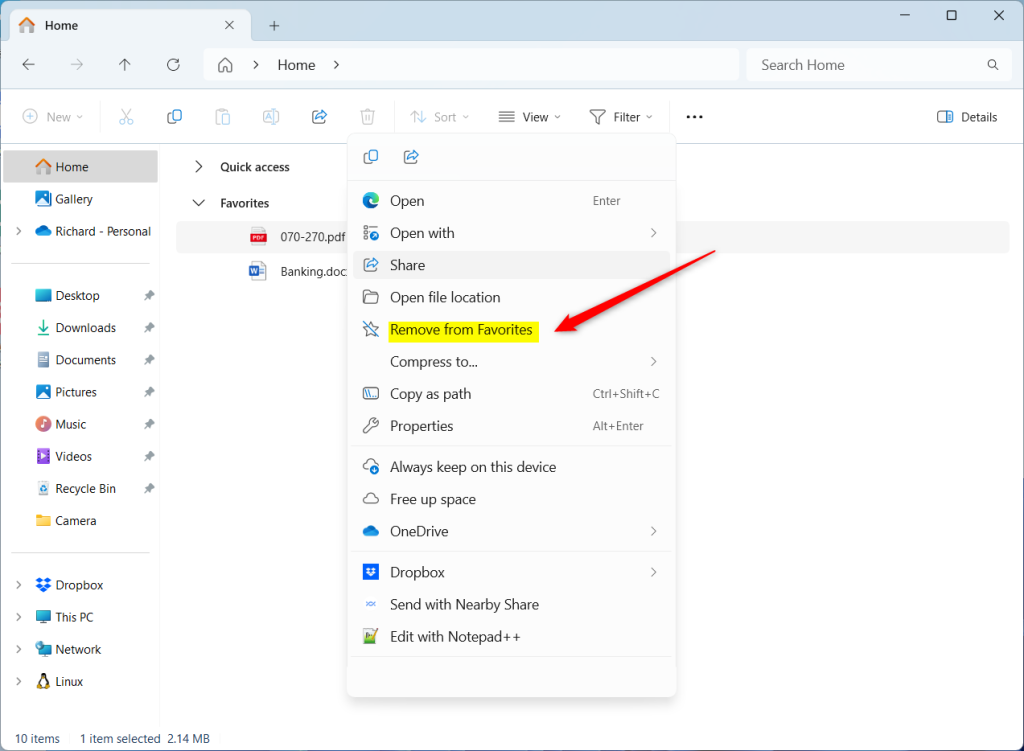
That completes the process and leaves the list free of clutter. It is worth reviewing your Favorites every so often, especially when a project ends. A short list is quicker to scan than a long one.
Summary
Using File Explorer Favorites in Windows 11 saves you time by keeping your most important documents in one easy-to-reach place on the Home page. Pinning a file lets you open it instantly without digging through deep folder paths. Removing it takes just a right-click when your project is finished, and the original file is never touched.
- Why use Favorites? It saves time by putting your most-used files in one easy place, so you do not have to browse through nested folders.
- What happens when you add a file? It appears in the Favorites section on the Home page so you can find it fast. Use Add to Favorites from the right-click menu or the See more menu.
- What happens when you remove a file? It disappears from your Favorites list, keeping things neat and organised. The file itself stays in its folder.
- Use this feature to get to your files faster and more easily every day.
Have a question about this guide?
Answered by AI from this guide. Good questions may be added to this page — please don't include personal details.
Did this guide fix your problem?

About the Author
Richard
Tech Writer, IT Professional
Richard is a writer at Geek Rewind who turns complex IT tasks into clear, step-by-step guides. He draws on years of hands-on experience in system administration and enterprise IT operations, focusing on Windows, Linux and WordPress: the problems people actually run into, and the fixes that work. His server and WordPress guides come from systems he runs himself. Richard builds and maintains the platform behind Geek Rewind, from its Ubuntu servers and Nginx configuration to its custom WordPress plugins. Many new tutorials start with readers' questions, and he's always glad to answer them in the comments.
No comments yet — be the first to share your thoughts!