How to Customize Which Items Appear in the File Explorer Right-Click Menu in Windows 11

- 11 steps
- Needs administrator rights
- Includes a restart or sign-out
You can now choose which items appear in the File Explorer right-click menu, but only on a Beta build of Windows 11 for now. Microsoft added it in Windows Insider Beta build 26220.9757 (a numbered test version of Windows 11), and it is not part of the standard Windows 11 release yet.
To customize File Explorer right-click menu items in Windows 11 today, you need a PC on the Beta Channel (the Windows Insider ring for early, fairly stable preview builds). This post shows how to get that build, where to look for the setting, and what to do on regular Windows 11 in the meantime.
You can only customize File Explorer right-click menu items in Windows 11 on a Beta build for now, such as build 26220.9757. Join the Beta Channel through Settings Windows Update Windows Insider Program, then install the build and open the new context menu setting. Regular Windows 11 does not have this option yet, and Microsoft may change its location.
What Microsoft has added and who can use it
The context menu is the list that opens when you right-click a file, folder or empty space in File Explorer. Items such as Open, Copy, Rename and Delete live there, and apps often add their own entries.
Microsoft’s Windows Insider release notes for Beta build 26220.9757, dated October 23, 2026, describe a new Settings experience for the context menu. It lets you choose which items appear in the File Explorer right-click menu. Microsoft says it is still refining the design based on Insider feedback.
This is a preview feature
The feature is available in Windows Insider preview builds only. The layout, labels and location of the setting may change before it reaches the public release, and Microsoft may also remove it. Treat every screen described below as provisional.
What this post can and cannot confirm
Microsoft’s announcement says the setting exists. It does not give a full path through Settings, a list of items you can toggle, or the exact button labels. I have not included them, because guessing would send you to a page that may not exist. Where the exact label is unknown, the step says so and tells you how to find it on your own PC.
The post also does not include a registry edit. Microsoft has not confirmed a registry location for this feature, and guessing one in Registry Editor (the Windows tool for editing system settings) can break the menu.
Before you start
- Administrator accessJoining the Windows Insider Program and installing a build both need an administrator account.
- Managed PCsIf your employer or school manages the PC, the Windows Insider Program page may be missing or blocked. Ask your IT team before you change anything.
- TimeA build upgrade downloads several gigabytes and restarts the PC at least once. Plug in a laptop first.
- Microsoft accountEnrollment asks you to link a Microsoft account.
How to customize which items appear in the File Explorer right-click menu
These steps get a PC onto the Beta build and take you to the new setting so you can customize File Explorer right-click menu items in Windows 11. Steps that need administrator rights are marked in the list below. Check the list before you start, and sign in with an administrator account first.
- Open Settings. Press Win+I. The Settings app opens on the System page.

Start Menu - Check your build number. Go to Settings System About and read the OS build line under Windows specifications. If it shows 26220.9757 or a newer Beta build, skip to step 8. Otherwise, continue.
- Open Windows Update. In the Settings sidebar, click Windows Update. This step needs administrator privileges.

Settings › Windows Update - Open the Windows Insider Program page. Click Windows Insider Program, then click Get started. Windows asks you to link a Microsoft account. It may also ask you to turn on optional diagnostic data, which Insider builds require.
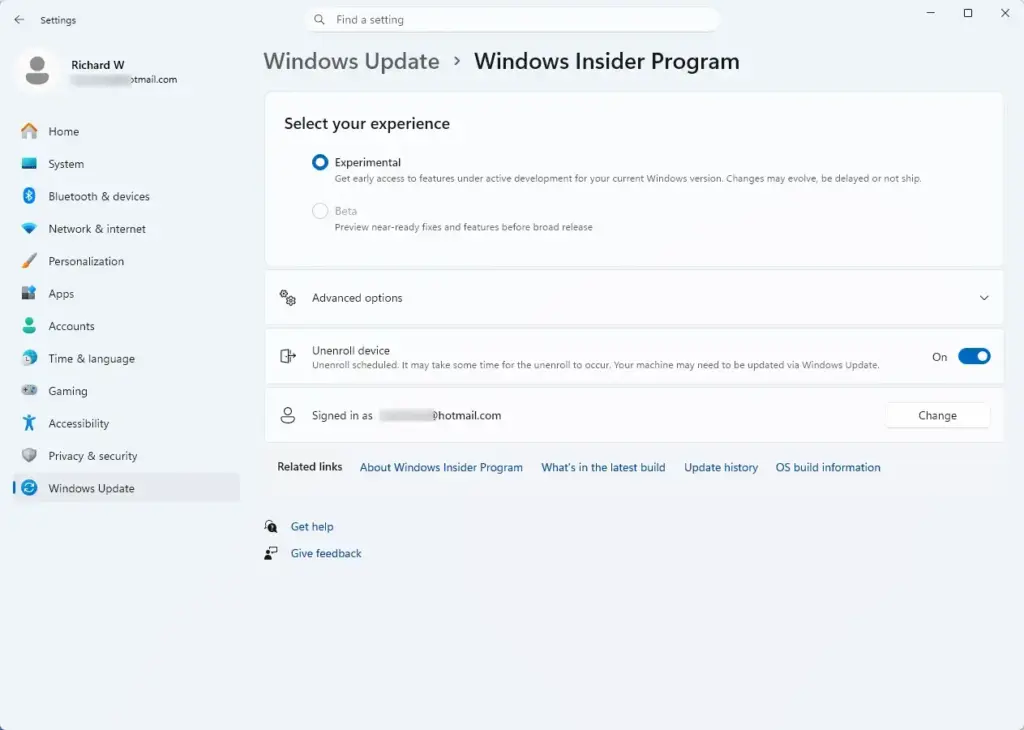
Settings › Windows Update › Windows Insider Program - Choose the Beta channel. Select Beta when Windows asks which channel to join, then confirm. The Beta channel is where Microsoft documented this feature, so do not pick another channel.
- Restart your PC. Click Restart now when Windows prompts you. After the restart, Windows Update lists a Beta build as available.
- Install the Beta build. Go to Settings Windows Update, click Check for updates, and let the build download and install. Restart when asked. The PC may restart more than once.
- Search Settings for the new page. Open Settings, click the search box labelled Find a setting, and type context menu. Microsoft calls the feature a context menu Settings experience, but the exact page name and location are not confirmed. If the search finds nothing, browse Settings System first, since File Explorer options often sit there.
- Open the context menu page. Click the matching result. The page should list the items that can appear in the File Explorer right-click menu.
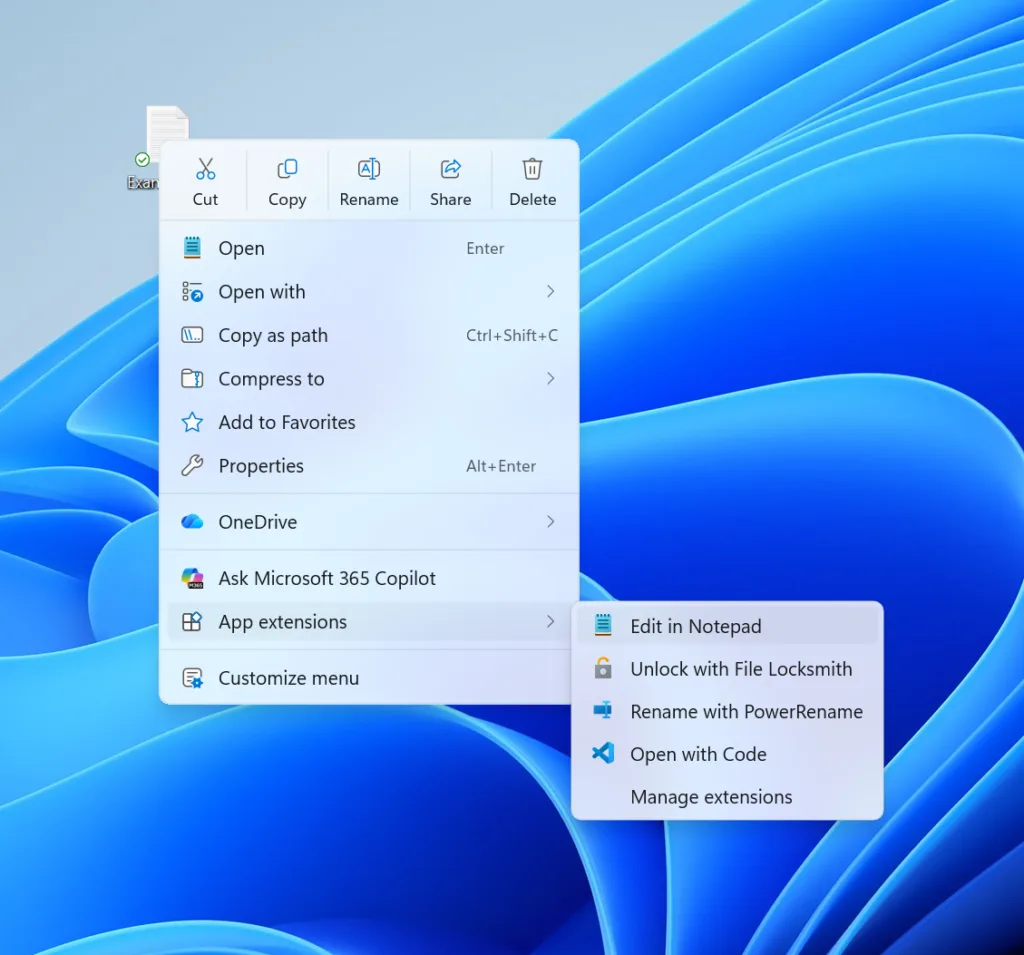
The new Windows 11 right-click context menu with File and App actions options - Turn items on or off. Change the entries you want to show or hide. The control type (toggle, checkbox or list) depends on the build you have installed.
- Test the menu. Open File Explorer with Win+E, right-click a file, and check the menu. It should now show the items you chose. Right-click a folder and empty space as well, because those menus can differ.
If the page does not open or the menu does not change
Restart File Explorer or sign out and back in. If a changed item still appears, restart the PC. If the change still has no effect, the preview build may have a bug. Report it through the Feedback Hub, the Windows app Microsoft uses to collect Insider feedback.
Why the setting may be missing
Most failures come down to a few causes. Work through them in order.
Your build is too old
Stable Windows 11 does not have this page at all. If Settings System About shows a build number lower than 26220.9757, or a build from a non-Beta channel, the page will not be there. Install the Beta build as described in the steps above.
The feature has not reached your PC
Microsoft often releases Insider features in stages. Two PCs on the same build may not get a feature on the same day. If your build matches but the page is missing, check for updates again over the next few days.
Your organization manages the PC
Work and school PCs can have Insider enrollment turned off by a management setting that the PC owner or IT team controls. If the Windows Insider Program page is greyed out or hidden, the setting is not something you can change from your account. Contact your IT administrator.
Microsoft changed or removed the feature
Microsoft says it is refining this experience, so the page may have moved or been renamed in a newer build. Search Settings for terms such as context menu and File Explorer. If neither finds it, check the release notes for your channel.
What you can do on regular 🪟 Windows 11 today
If you are not ready to install a preview build, stable Windows 11 offers fewer options, but a few habits shorten the menu. They do not give you the item-by-item control the new page promises.
- Use the full menu when you need it. Right-click an item, then click Show more options. The keyboard shortcut is Shift+F10. This opens the longer classic menu that holds entries from older apps.
- Use the icons at the top of the compact menu. The row of icons covers Cut, Copy, Rename, Share and Delete. These cover most daily tasks without opening the longer list.
- Use keyboard shortcuts. The access keys in Windows 11 File Explorer (the single letters you press to pick a command) let you run menu commands without the mouse.
- Remove entries by uninstalling the app that adds them. Third-party programs often add their own right-click entries. Check the app’s own settings for an option to hide its menu item before you uninstall it.
Some missing items depend on the file type. For example, image rotation only appears for certain image files. The guide to rotating images in File Explorer shows where those commands appear. If you delete or rename something by mistake from the menu, see how to use Undo and Redo in File Explorer.
How to undo the change
To restore a hidden item, return to the same context menu page and turn the item back on. If the page has a toggle for an item, turn it back on to restore the item. Your files are not affected.
Windows may offer to unenroll when the next stable release arrives, or you may need a clean install to return to stable Windows 11. Both choices have trade-offs, so decide before you enroll.
If Windows lets you go back to the previous version, Settings System Recovery may show a Go back option. It is only available for a limited time after an upgrade, and only if you have not deleted the old installation files. Do not count on it being there.
If right-clicking makes File Explorer crash
A preview build can break features that worked before. If File Explorer closes the moment you right-click, a context menu entry from an installed app is a common cause. Our guide on what to do when File Explorer crashes upon right-clicking walks through the fixes.
What to do next
Watch the Windows Insider release notes for the Beta channel, because Microsoft says it will keep refining this experience and the page may change. The full notes are on Microsoft Learn. Once the setting reaches stable Windows 11, this post will be updated with the exact path.
For other changes to File Explorer, see how to customize Windows 11 File Explorer for your needs or how to customize Quick Access.
Have a question about this guide?
Answered by AI from this guide. Good questions may be added to this page — please don't include personal details.
Did this guide fix your problem?

About the Author
Richard
Tech Writer, IT Professional
Richard is a writer at Geek Rewind who turns complex IT tasks into clear, step-by-step guides. He draws on years of hands-on experience in system administration and enterprise IT operations, focusing on Windows, Linux and WordPress: the problems people actually run into, and the fixes that work. His server and WordPress guides come from systems he runs himself. Richard builds and maintains the platform behind Geek Rewind, from its Ubuntu servers and Nginx configuration to its custom WordPress plugins. Many new tutorials start with readers' questions, and he's always glad to answer them in the comments.
No comments yet — be the first to share your thoughts!