Restore a Previous Version of a File in Windows 11

- 32 steps
- Needs administrator rights
Previous Versions in Windows 11 lets you restore a file to an earlier saved copy, so you can undo a bad edit, an accidental overwrite, or a corrupted save. To restore a previous version of a file in Windows 11, right-click the file, open Properties, and use the Previous Versions tab.
The tab lists earlier copies that Windows saved. These come from File History (a backup feature that copies your files to another drive on a schedule) or from restore points (snapshots Windows takes of your drive). If neither feature was active when you needed it, the list is empty. This article shows both the restore and the fixes for an empty list.
To restore a previous version of a file in Windows 11, right-click the file, select Show more options, then choose Properties and open the Previous Versions tab. Pick a copy dated before the problem, click Restore, and confirm. Windows only lists copies made by File History or System Protection, so the list is empty if neither was on.
Where previous versions come from
Windows 11 does not keep a history of every file by default. The Previous Versions tab only shows copies created by one of two features.
- File HistorySaves copies of files in your user folders to an external or network drive. You must turn File History on, and keep the backup drive connected.
- System ProtectionCreates restore points (snapshots of system files, settings, and files on a drive). The tab lists file versions from those snapshots. System Protection is on by default for the Windows drive on most PCs, but it can be off.
Both features only capture changes made after they were turned on. They cannot recover a version from before that point.
If you already back up with File History, read restoring files with File History first. Its own restore window shows a preview before you restore anything.
Before you start
Make sure you can see full file names, including extensions such as .docx or .xlsx. That helps you pick the right file when similar names sit side by side. Open File Folder Options and turn on the setting that shows file name extensions.
You need permission to write to the file’s folder. A standard user account can restore files in its own folders. Files in protected locations such as 📁C:\
Restore a previous version of a file in 🪟 Windows 11
These steps restore a previous version of a file in Windows 11 using File Explorer. They work in Windows 11 Home and Pro.
- Open File Explorer. Press Win+E, or select the folder icon on the taskbar.

File Explorer - Go to the folder that contains the file. Previous versions are tied to the file’s name and location. If you renamed or moved the file, browse to where it used to be. If it was deleted, see the folder method further down.
- Right-click the file. A shortcut: select the file and press Alt+Enter to open Properties directly, then skip to step 6.
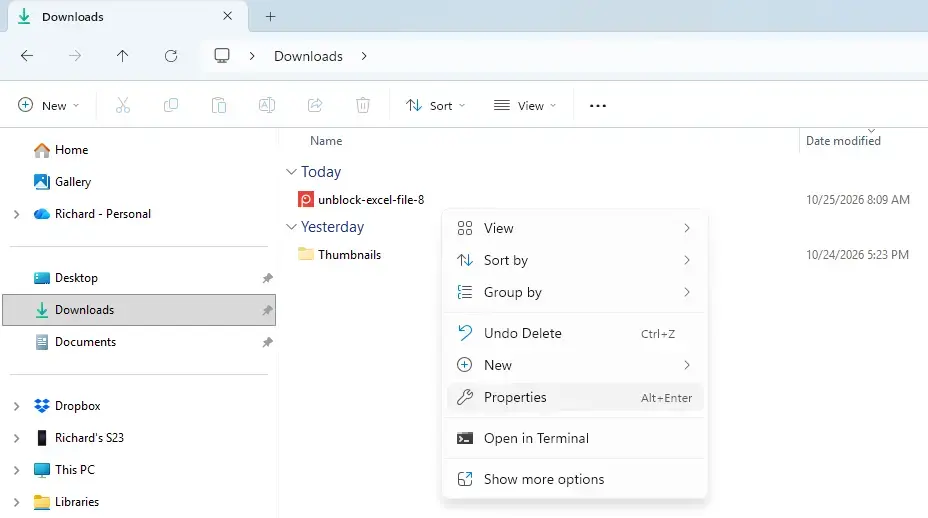
File Explorer - Select Show more options. The classic right-click menu opens. Pressing Shift+F10 with the file selected skips the shorter Windows 11 menu.
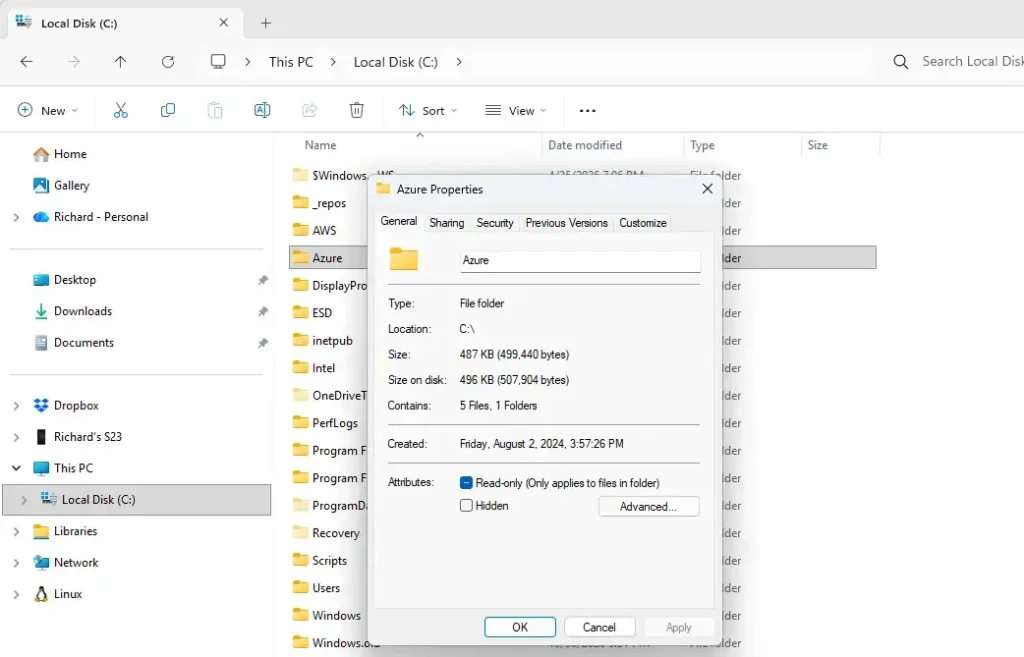
- Select Properties. The file’s Properties window opens.
- Click the Previous Versions tab. A list of earlier versions appears, each with a date and time under Date modified. If the list is empty or the tab is missing, go to the troubleshooting section below.
File Explorer - Select the version you want. Choose one dated before the problem happened. Several entries with similar times mean several snapshots were taken that day.
- Click Open. The version opens in the file’s default app so you can check it. This step is optional, but it saves you from restoring the wrong copy.
- Close the file without saving. Return to the Properties window. If the wrong version opened, select a different date and repeat step 8.
- Click Restore. This replaces the current file with the selected version. A confirmation prompt appears.
- Click Restore in the confirmation prompt. A message tells you the file was restored.
- Open the file to confirm. The content should now match the version you picked.
If Restore is greyed out, the version may sit in a read-only location or you may lack permission for the folder. Use the copy method below instead, then move the copy into place yourself.
Restore a copy instead of overwriting the current file
Use this method when you want to keep today’s version as well. It saves the old version as a separate file, so nothing is lost. This method starts from the Previous Versions tab, which you reach in the steps above.
- Select the version you want. Choose it by date in the list.
- Click the arrow next to Restore. A small menu opens with Restore and Restore To….
- Select Restore To… A folder picker opens.
- Choose a folder and click OK. Pick a location such as your Desktop. Windows saves the old version there.
- Open the saved copy. Compare it with the current file and keep whichever one you need.
If your version of File Explorer shows a Copy… button instead of an arrow menu, use that button. It does the same job. Click it and choose a folder.
Recover a deleted file or an earlier state of a folder
When a file is deleted, it has no Properties window of its own. Check the Recycle Bin first. If it is not there, look at the folder that used to hold it, because the folder has its own Previous Versions tab.
- Open the folder that contained the file. Select its parent folder in File Explorer if you are inside it.
- Right-click the folder. Select Show more options if the classic menu does not appear.
- Select Properties. The folder’s Properties window opens.
- Click the Previous Versions tab. The list shows earlier states of the folder, by date.
- Select a version from before the deletion and click Open. A new File Explorer window shows the folder as it was on that date.
- Copy the file you need. Drag it to your Desktop or another location outside that window.
If the Previous Versions tab is empty or missing
An empty list means Windows has no saved version of that file. Check these causes in the order listed. Each one has its own fix.
- System Protection is off for that drive. Turn it on using the steps below. It will protect future changes, not past ones.
- File History was never turned on. It also only covers changes made after setup.
- The file has not changed since the last snapshot. A restore point only stores a version if the file existed then. A file created after the latest restore point has nothing to show.
- The file is on a drive that does not support restore points. System Protection works on NTFS drives, the standard disk format used by Windows. USB drives formatted as FAT32 or exFAT, and most network shares, show no versions. These formats are common on memory sticks and external drives.
- Old restore points were deleted. Windows removes the oldest snapshots when the space reserved for System Protection fills up.
The tab is also absent on some files in locations Windows does not snapshot, such as removable drives. In that case the only options are File History or a cloud service like OneDrive.
Turn on System Protection
This step needs an administrator account. It starts saving restore points for a drive, so file versions exist for next time. It does not recover anything from before you turn it on.
- Open the Start menu. Click Start or press the Win.
- Type Create a restore point and press Enter. The System Properties window opens on the System Protection tab. Approve the User Account Control prompt if one appears.
- Select your Windows drive in the list. It is usually labelled (C:) (System). The Protection column shows On or Off.
- Click Configure. A settings window opens for that drive.
- Select Turn on system protection. Skip this if it is already selected.
- Move the Max Usage slider. This sets how much disk space restore points may use. Windows deletes the oldest ones when the limit is reached, so a larger limit keeps more history.
- Click OK. The drive now shows On under Protection.
- Click Create. This makes a restore point right now, instead of waiting for Windows to make one.
- Type a name for the restore point and click Create. A message confirms when it finishes.
Turning off System Protection deletes every existing restore point for that drive. Check that you don’t need them before you continue. To undo this, go back to the same System Protection settings, click Configure, and choose Disable system protection.
Turn on File History
File History saves versions of your files to a second drive, which also protects you if the main drive fails. You need an external drive or a network location. Open Control Panel, go to System and Security File History, and select Turn on after choosing a drive. By default it checks for changed files every hour.
If File History stops working later, you can reset File History to its default settings. Check your backup drive afterwards.
Restore a version from OneDrive
Files stored in a OneDrive folder keep their own version history in the cloud, separate from the Previous Versions tab. This works even when System Protection is off. Right-click the file in File Explorer and look for OneDrive Version history. On some builds it sits under Show more options.
The option opens OneDrive in your browser. It shows a list of saved versions and their dates. Choose the version you want and restore it from there. This option needs an internet connection and a signed-in Microsoft account.
Limits of previous versions
Previous Versions is a recovery aid, not a backup. Restore points live on the same drive as the files they protect. If that drive fails or is wiped, the snapshots go with it.
Snapshots are also not taken every time you save. A file you edited five times in an afternoon may have a single saved version from that morning, or none at all. Apps with their own history, such as the version history in Microsoft Office on OneDrive, give finer detail.
For files you cannot afford to lose, keep File History running to a separate drive. The guide to Windows file management covers habits like this in more detail.
What to do next
If the list was empty, turn on System Protection and File History now so the next bad save has a version waiting. Then browse the Previous Versions tab on an important file to confirm entries appear after a day or two. If you already use File History, the dedicated File History restore window shows more of your saved history than the tab does.
Have a question about this guide?
Answered by AI from this guide. Good questions may be added to this page — please don't include personal details.
Did this guide fix your problem?

About the Author
Richard
Tech Writer, IT Professional
Richard is a writer at Geek Rewind who turns complex IT tasks into clear, step-by-step guides. He draws on years of hands-on experience in system administration and enterprise IT operations, focusing on Windows, Linux and WordPress: the problems people actually run into, and the fixes that work. His server and WordPress guides come from systems he runs himself. Richard builds and maintains the platform behind Geek Rewind, from its Ubuntu servers and Nginx configuration to its custom WordPress plugins. Many new tutorials start with readers' questions, and he's always glad to answer them in the comments.
No comments yet — be the first to share your thoughts!