How to View, Delete, or Restore Files from OneDrive Version History

OneDrive version history is a built-in feature that automatically saves up to 25 older copies of your personal files. If you overwrite a file or make a bad edit, you can go back to an earlier copy. It works on any file type, including Word documents, PDFs, photos and videos.
Personal Microsoft accounts keep these old copies for 30 days. Work and school accounts follow rules set by your organization, so the number of versions and how long they last can differ. If you can’t find a version you expect, ask your IT admin what the retention policy is.
You can manage versions from File Explorer or from the OneDrive website at onedrive.live.com. Both methods are covered below. Version history only helps with files that have been edited. A file you deleted entirely goes to the OneDrive Recycle Bin instead, and you restore it from there.
- Restore your OneDrive files – Microsoft Support
- Restore a previous version of a file stored in OneDrive – Microsoft Support
Open File Explorer , right-click the file, click OneDrive then Version history to see saved copies. Select a version, click the three-dot menu, and choose Restore to make it current, View online to preview, or Delete version to remove it.
Option 1Using the OneDrive App
The file must be inside a synced OneDrive folder. A file stored elsewhere on your PC has no version history.
- Open the OneDrive app on your Windows 11 computer. You should see your OneDrive folder and its files.
- Sign in with your personal Microsoft account or work or school account, if you haven’t already. Once you’re signed in, your files appear with sync status icons next to them.
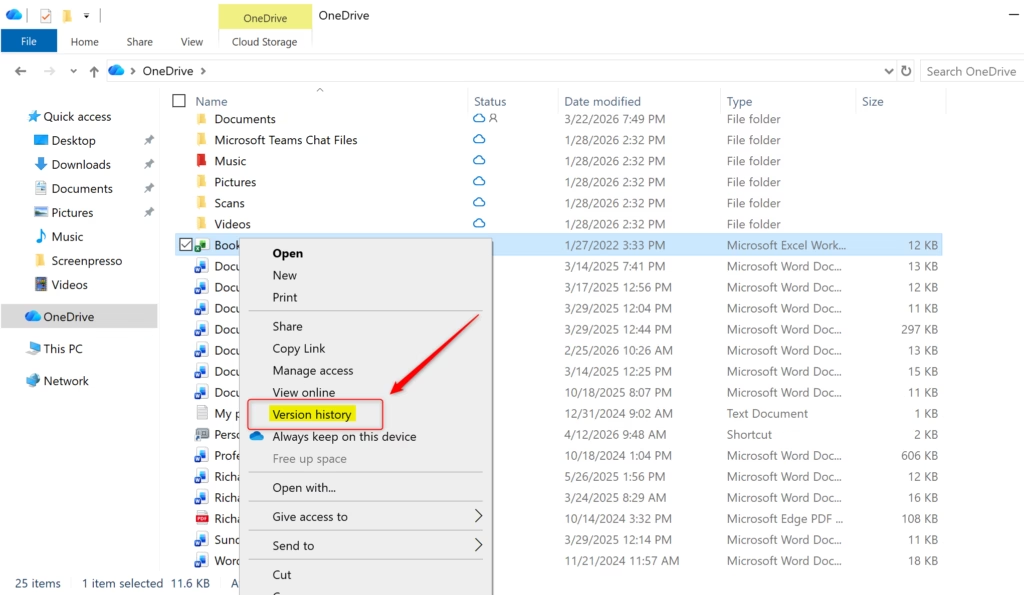
- Right-click the file you want to check or restore. A context menu opens.
- If you don’t see OneDrive in the menu, click Show more options at the bottom. You can also select the file and press Shift+F10 to open the full menu.
- Click OneDrive, then click Version history. If the option is missing, check that the file has finished syncing and that you are signed in to the right account.
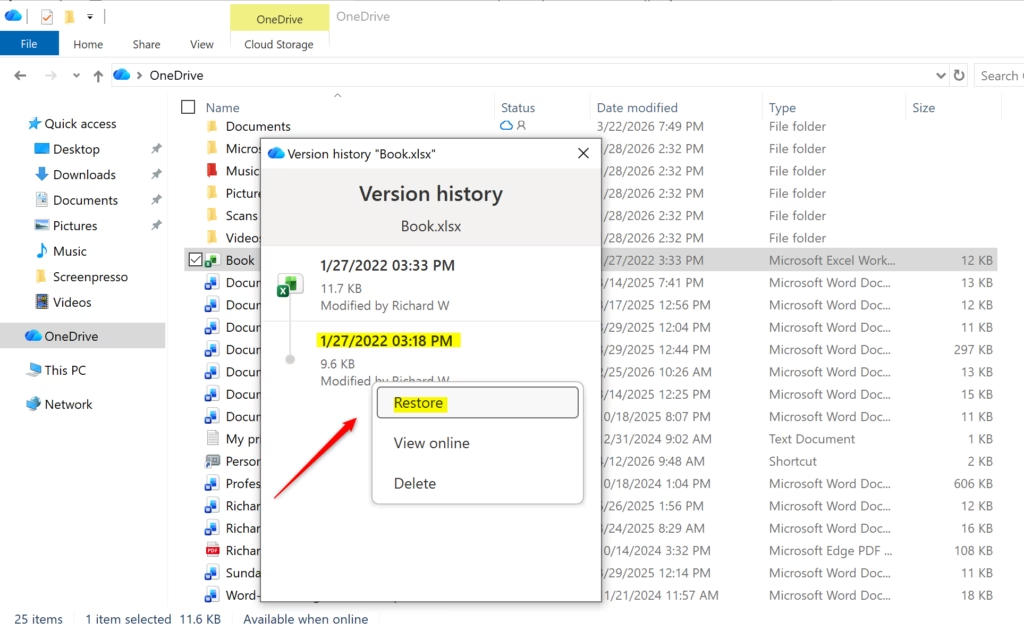
- Look over the list of saved versions of this file. Each one shows when it was saved. Depending on the file type and account, the list may open in a window or in your browser. Right-click any version to:
- Restore — Make this version the current one
- View online — See what the file looked like
- Delete version — Remove this old copy
Before you restore, open the version first with View online to make sure it’s the one you want. Restoring replaces the current file with the older copy, and the copy you replaced normally stays in the list, so you can go back if you pick the wrong one. Deleting a version is different, because that old copy is removed and you can’t undo it.
Checking version history from File Explorer lets you work from your local folders without searching for the file in a browser.
Option 2Using the OneDrive Website
Use the website if the desktop app isn't installed, or if the file is stored only online. It works in any browser on any computer.
- Go to the OneDrive.live.com site in your web browser. You should see either your files or a sign-in page.
- Sign in with your personal Microsoft account or work or school account, if you haven't already. Your files and folders then appear.
- Open the folder that contains the file you want to check.
- Select the file. You can either:
- Check the box next to the file, click the three-dot menu button on the toolbar, and click Version history
- Right-click the file and click Version history
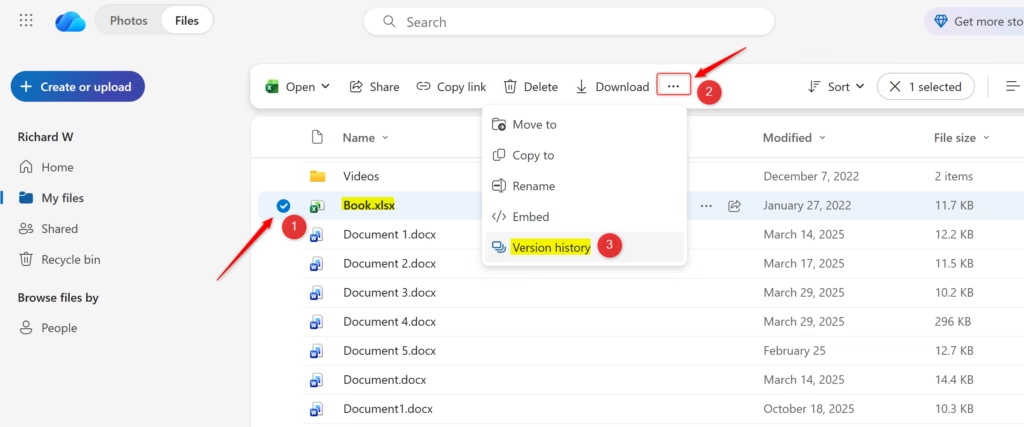
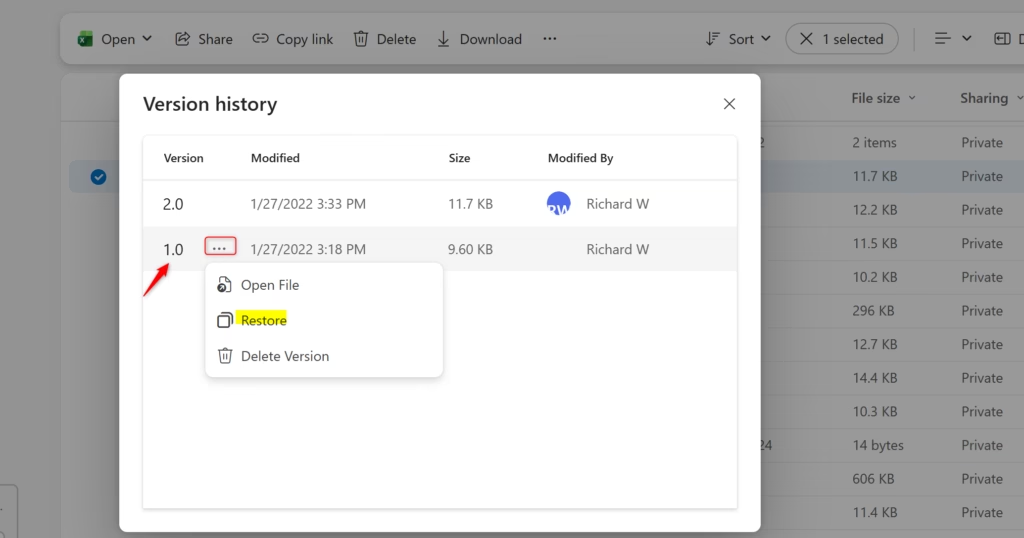
The version history list opens and shows each saved copy with its date. The latest one is the current file.
- Hover over a version and click the three-dot menu button next to it.
- Choose what you want to do:
- Open File — View the file
- Restore — Make this version your current file
- Delete Version — Remove this old copy
Restoring makes that copy your current file. Deleting a version removes it for good, so only do that when you're certain you don't need it.
The website is a reliable way to manage older versions from any browser. It also works well for files you can't reach from File Explorer.
Summary
OneDrive version history saves past versions of your documents automatically. You can undo unwanted edits without having set anything up in advance. Personal Microsoft accounts keep up to 25 previous versions of a file for 30 days, which gives you a safety net when a document changes unexpectedly.
Work and school accounts follow their organization's rules, so check with your admin if you depend on older versions. For a file you deleted entirely, check the Recycle Bin in OneDrive.
Frequently asked questions
How can I find and restore previous versions of OneDrive files?
Right-click the file in OneDrive and select Version history. You'll see a list of saved copies. Click the version you want, then select Restore to make it your current file. On the web, click the file, then select Version history from the top menu.
Is there a way to see deleted files on OneDrive?
OneDrive keeps deleted files in your Recycle bin for 93 days. Go to onedrive.live.com, click Recycle bin on the left, find your file, and restore it. For older versions of existing files, use Version history instead of the Recycle bin.
Does OneDrive keep version history?
Yes. OneDrive automatically saves up to 25 older versions of your files. Personal accounts keep them for 30 days; work and school accounts follow your organization's policy. You can view, restore, or delete any saved version through Version history.
Why can't I see version history in OneDrive?
Version history may not appear if the file is still syncing, stored in a shared folder with restricted permissions, or on an older OneDrive account. Try refreshing the page. If syncing, wait for it to complete. Check your folder's sharing settings.
Still have a question?
Answered by AI from this guide. Good questions may be added to this page — please don't include personal details.
Did this guide fix your problem?

About the Author
Richard
Tech Writer, IT Professional
Richard is a writer at Geek Rewind who turns complex IT tasks into clear, step-by-step guides. He draws on years of hands-on experience in system administration and enterprise IT operations, focusing on Windows, Linux and WordPress: the problems people actually run into, and the fixes that work. His server and WordPress guides come from systems he runs himself. Richard builds and maintains the platform behind Geek Rewind, from its Ubuntu servers and Nginx configuration to its custom WordPress plugins. Many new tutorials start with readers' questions, and he's always glad to answer them in the comments.
No comments yet — be the first to share your thoughts!