How to Automatically Save Photos to OneDrive in Windows 11


Automatic photo saving to OneDrive in Windows 11 sends pictures from your cameras, phones, and USB drives to Microsoft’s cloud storage when you connect them to your PC. OneDrive is a service that syncs files between your computer and online storage. It keeps your pictures backed up so you can open them on any device where you sign in.
This works on both Windows 11 Home and Pro, so the edition you have makes no difference. You skip manual file transfers, and a lost phone or a failed memory card no longer means lost photos. This guide covers the phone side first, then the Windows 11 side.
Open OneDrive on Windows 11, click the cloud icon in the taskbar , select Help & Settings, then Settings. Go to Sync and backup, toggle “Save photos and videos from devices” to On. Photos from connected cameras, phones, and memory cards now upload automatically to your OneDrive storage.
Backing Up Photos from Your Phone
To save photos from a phone, set up camera backup in the OneDrive mobile app on your Android or iOS device. The phone sends its camera roll to the cloud, so you never have to move the files by hand.
- Install the OneDrive app from the Google Play Store or the Apple App Store, then open it.
- Sign in with the same Microsoft account you use on your Windows 11 PC.
- Tap the Me icon (your account picture) in the app, then open Settings.
- Tap Camera upload and switch it on. Allow the app to access your photos if the phone asks.
New photos from the camera roll will now upload on their own. Menu labels differ a little between the Android and iOS versions and between app updates, so look for the camera upload option if yours is worded differently. To stop uploads, open the same screen and switch the option off.
You can also turn the Windows feature on or off from the OneDrive app on your Windows 11 PC. The steps follow.
Turn on or off save photos and videos from devices to OneDrive
For cameras, phones, and memory cards that you connect to your PC, change the sync settings in the OneDrive app on Windows 11. Once OneDrive is running, it can grab new pictures as soon as you plug a device in.
First, confirm that you have set up OneDrive in Windows 11.
Then open OneDrive. You can do it in either of two ways:
- Select Start, type OneDrive, and press Enter.
- Or browse to the OneDrive executable at "C:\Program Files\Microsoft OneDrive\OneDrive.exe" and double-click it. On some PCs OneDrive is installed per user, so the file may sit in your user profile instead. If the path is not there, use the Start menu.
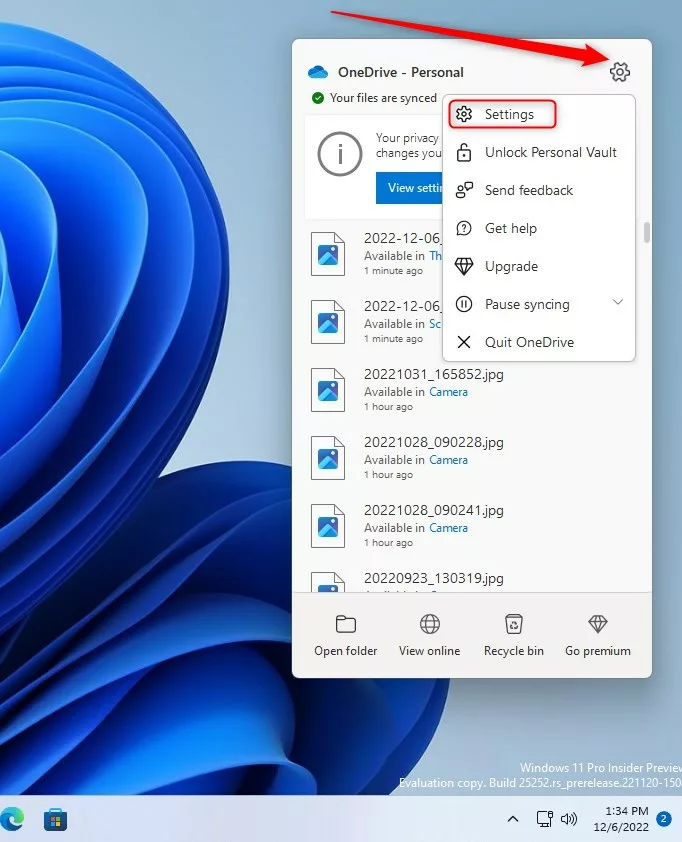
If OneDrive is already running, you will see a cloud icon in the taskbar notification area. You can also reach it through the Taskbar overflow area. The icon may be hidden behind the small arrow, so click the arrow if you do not see it.

- Click the OneDrive cloud icon to open the OneDrive pop-up.
- Click the Help & Settings (gear) icon in the top right corner of the pop-up.
- Select Settings.
The OneDrive Settings window should now open.
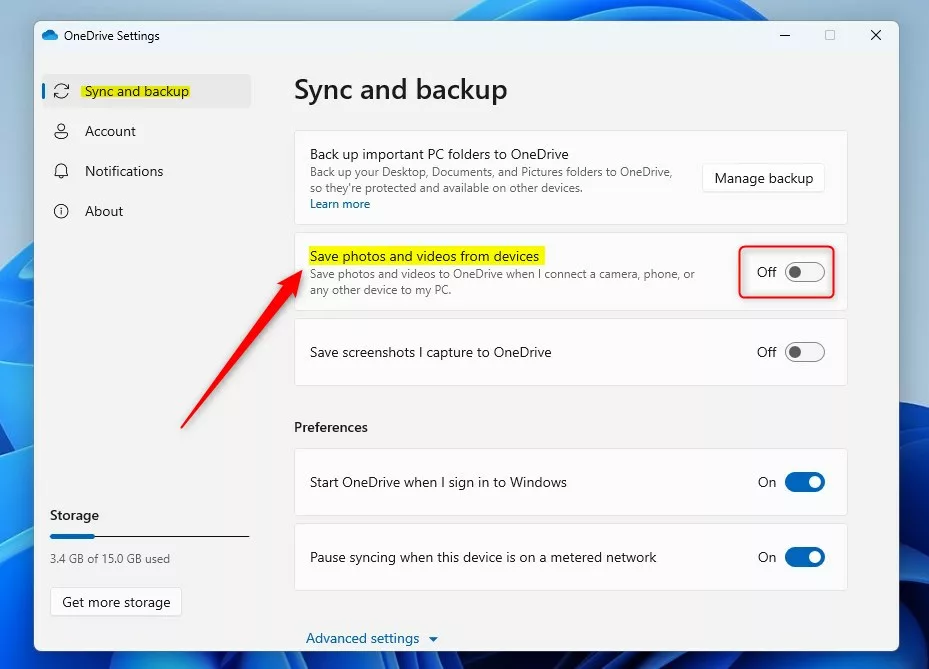
- In the Settings pane, go to the Sync and backup section.
- Find "Save photos and videos from devices" and toggle the switch to the On position.
The switch should now show as on. From now on, when you connect a camera, phone, or memory card, OneDrive saves its pictures and videos to your OneDrive storage. Wording and placement can shift a little between OneDrive versions. If you do not see the option under Sync and backup, check Advanced settings in the same section. You do not need to restart Windows for the change to take effect.
To turn this feature off later, go back to the same place and toggle the switch to the Off position.
Pictures that OneDrive has already saved stay in your OneDrive storage until you delete them yourself.
Fixing Photo Upload Problems
If your pictures do not save automatically, check these common causes:
- Internet connection: make sure the device has a working connection. OneDrive cannot upload anything while you are offline.
- Microsoft account: confirm you are signed in to the right account. Photos go to the account that OneDrive is signed in to, which may not be the one you expect.
- Battery saver: battery saver modes can pause background syncing. Turn battery saver off, or check the OneDrive sync settings for an option that pauses sync on battery saver.
- Paused sync: click the OneDrive cloud icon and look for a "paused" message. If you see one, resume syncing from the same pop-up.
- Storage space: if your OneDrive storage is full, uploads stop. Free up space or upgrade your plan.
- Work or school accounts: an administrator can block this feature on managed accounts. If the option is missing or greyed out, ask your IT department.
That completes the process!
Reference:
Conclusion:
- Turning the "Save photos and videos from devices" feature on or off in the OneDrive app for Windows 11 takes only a few clicks.
- With the steps above, you can control whether photos and videos from connected devices upload to your OneDrive account.
- Your pictures stay backed up and you can open them on any device where you sign in to OneDrive.
- Please use the comment section below the article for additional help or feedback.
Have a question about this guide?
Answered by AI from this guide. Good questions may be added to this page — please don't include personal details.
Did this guide fix your problem?

About the Author
Richard
Tech Writer, IT Professional
Richard is a writer at Geek Rewind who turns complex IT tasks into clear, step-by-step guides. He draws on years of hands-on experience in system administration and enterprise IT operations, focusing on Windows, Linux and WordPress: the problems people actually run into, and the fixes that work. His server and WordPress guides come from systems he runs himself. Richard builds and maintains the platform behind Geek Rewind, from its Ubuntu servers and Nginx configuration to its custom WordPress plugins. Many new tutorials start with readers' questions, and he's always glad to answer them in the comments.
[…] phone and computer in one place, starting with Windows build 23435 in File Explorer. If you use OneDrive Camera Roll Backup, your mobile photos sync automatically. By editing the registry, you can show or hide this folder […]
[…] Explorer, introduced in Windows build 23435. It makes looking at your photos easier. If you use OneDrive Camera Roll Backup on your phone, those photos show up here […]