How to Change Folder Color in OneDrive on Windows 11

Organize your workspace by changing OneDrive folder colors to visually categorize projects and priorities. This guide shows how to do it from File Explorer on Windows 11, what to expect afterward, and how to undo it.
Right-click the folder inside your OneDrive directory in File Explorer , select OneDrive, then click Folder color and choose your desired shade. The folder displays the new color immediately in File Explorer. On Windows 11, click Show more options first if OneDrive doesn’t appear in the menu.
Why change folder colors?
Changing folder colors lets you sort your workspace by sight. Instead of a long list of identical yellow folders, you can give each project or priority its own shade. A color is much quicker to spot than a name when you are scanning a crowded folder.
The change only affects how the folder looks. File names, contents and permissions stay exactly as they were.
What happens when you are done?
When you change a OneDrive folder color, the folder shows the new shade in File Explorer . Where that color is kept depends on your account type:
- Personal accounts: the color change stays on the computer where you made it.
- Business and school accounts: the color syncs across all your linked devices automatically, so the folder looks the same wherever you sign in.
OneDrive keeps your local folders mirrored in the cloud, so your files stay available on your phone or through OneDrive.live.com. Syncing runs in the background and uploads your changes whenever you have an active internet connection. OneDrive also handles sync files operations whenever modifications happen.
For more information, see the official announcement here: Welcome to the New Era of Microsoft OneDrive: AI, Productivity, and Memories at Your Fingertips | Microsoft Community Hub
Steps to Change Your Folder Color
Then open File Explorer with Win + E and right-click the folder you want to update. Pick OneDrive from the menu, choose Folder color, and select a new shade from the list.
A folder stored elsewhere on your PC will not show these options.
- Check that OneDrive is running and that sync is not paused. Look for the OneDrive cloud icon in the taskbar notification area. If sync is paused, open the icon and resume it.
- Open your OneDrive folder in File Explorer by pressing the Win + E keys. Then click your OneDrive folder in the left pane. You should see your synced folders and files.
- Right-click the folder you want to change. Select OneDrive, then click Folder color. A list of colors should appear. On Windows 11 the short right-click menu sometimes hides extra entries, so if you don't see OneDrive, click Show more options first.
- Choose your desired color from the list and click Apply.
If Folder color is missing, update the OneDrive app to the latest version. The option may also not have reached your account yet, because OneDrive features often roll out gradually. You don't need to restart Windows or OneDrive after changing a color.
Choosing any non-default shade replaces the standard image previews on the folder icon. Setting the color back to Yellow restores thumbnail previews, and this is also how you undo a color change.
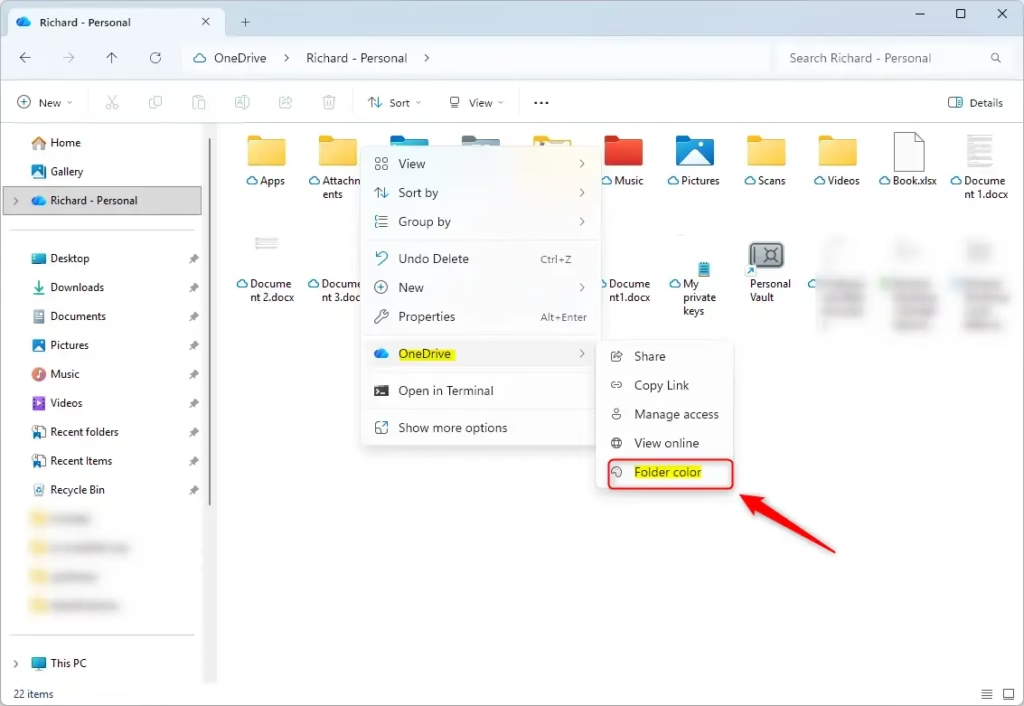
The screenshot above shows the color options in the menu. Pick the shade you want to use for that folder.
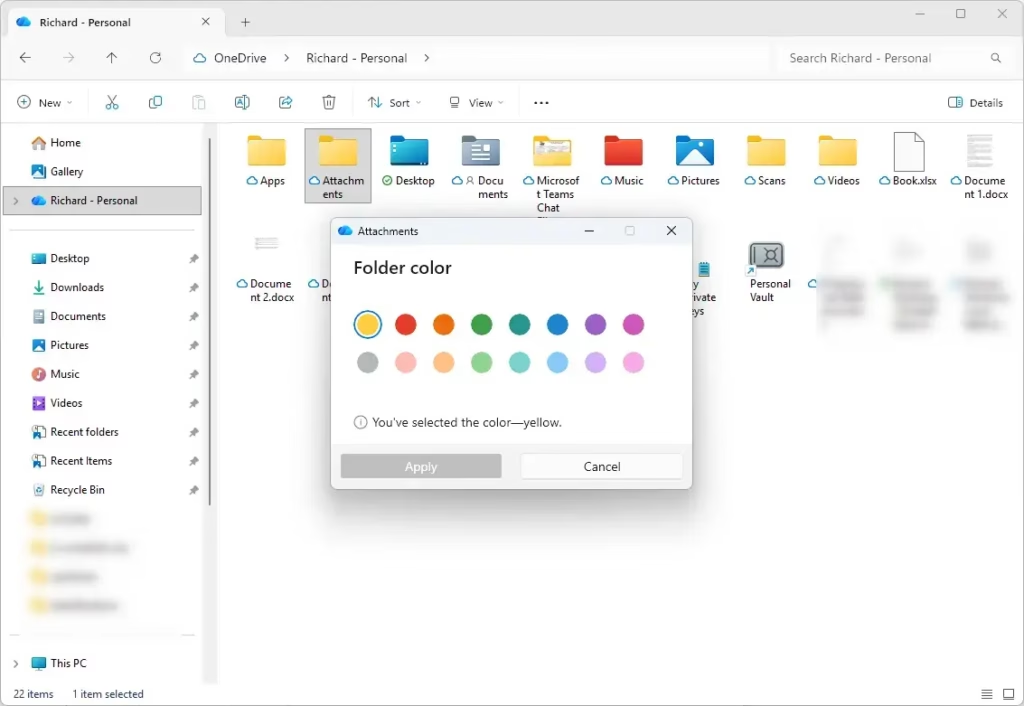
- Check the folder in File Explorer. It should now display the new color. Repeat the steps for any other folders you want to color-code. If the color doesn't change right away, press F5 to refresh the view.
Summary
Folder colors are a quick way to make daily file management easier without installing extra software. Right-click any folder inside your OneDrive directory to find the color options and sort your content visually. Keep in mind that switching a folder away from the default yellow turns off its file preview thumbnails. If you rely on those previews, set the folder back to Yellow.
How do I rename a OneDrive folder in Windows Explorer?
Right-click the folder in File Explorer and select Rename from the menu. Type the new name and press Enter. The change syncs to OneDrive immediately if you're connected to the internet.
How to change the color scheme of File Explorer in 🪟 Windows 11?
Open File Explorer, click the three dots menu at the top right, then select View. Choose your preferred color mode under Appearance—Light, Dark, or Use system setting. This changes File Explorer's background and text colors only, not folder colors.
How to create SharePoint in OneDrive?
SharePoint and OneDrive are separate services. You cannot create SharePoint inside OneDrive. SharePoint sites are created through Microsoft 365 admin centers or Microsoft Teams. You can sync SharePoint document libraries to your computer like OneDrive folders.
How to move OneDrive folder in 🪟 Windows 11?
Open File Explorer and right-click the OneDrive folder you want to move. Select Cut, navigate to the destination folder, right-click the empty space, and select Paste. Wait for syncing to complete before closing File Explorer.
Was this guide helpful?

About the Author
Richard
Tech Writer, IT Professional
Richard is a writer at Geek Rewind who turns complex IT tasks into clear, step-by-step guides. He draws on years of hands-on experience in system administration and enterprise IT operations, focusing on Windows, Linux and WordPress: the problems people actually run into, and the fixes that work. His server and WordPress guides come from systems he runs himself. Richard builds and maintains the platform behind Geek Rewind, from its Ubuntu servers and Nginx configuration to its custom WordPress plugins. Many new tutorials start with readers' questions, and he's always glad to answer them in the comments.




No comments yet — be the first to share your thoughts!