Share a OneDrive Folder with Other People in Windows 11

- 24 steps
- Needs administrator rights
To share a OneDrive folder in Windows 11, right-click the folder in File Explorer, select Share, choose who can open it, and send the link or an email invitation. Sharing takes about a minute and needs no administrator rights or restart.
Sharing gives other people access to the folder stored in your OneDrive cloud storage, not a copy sent as an attachment. Anyone you invite sees the same files you do, and changes show up for everyone. This post covers the File Explorer method, the OneDrive website method, the permission choices, and what to do when the Share option is missing.
To share a OneDrive folder in Windows 11, open File Explorer, select OneDrive in the left pane, right-click the folder, and choose Share. Pick who can open it, then send the link or an email invitation. Wait until the folder’s status icon shows a green check or cloud outline before you send anything, or recipients may miss files.
Before you share a OneDrive folder
Two checks save most of the trouble people run into. The folder must live inside OneDrive and be fully uploaded, and you need to decide what level of access the recipient gets.
Confirm the folder is inside OneDrive and finished syncing
A folder on your Desktop or in Documents is shareable only if OneDrive folder backup is turned on for that location. If you have not signed in to OneDrive yet, follow how to set up OneDrive on Windows 11 first.
Look at the status icon next to the folder name in File Explorer. A green check mark means the files are on your PC and in the cloud. A cloud outline means the files are online-only. This is part of Files On-Demand (a OneDrive feature that keeps files in the cloud and downloads them only when you open them). Online-only folders share as normal.
Two arrows in a circle mean OneDrive is still syncing (copying changes between your PC and the cloud). Wait for the icon to change before you send the link, or the recipient may see missing files.
Decide between view and edit access
OneDrive offers two levels of access. Can view lets people open and download files but not change them. Can edit lets people add, rename, change and delete files in the folder.
Start with view access unless the person needs to contribute. You can raise the level later without sending a new link.
How to share a OneDrive folder from File Explorer
The steps below share a OneDrive folder with specific people by email invitation, or by a link you copy and send yourself. These steps match current Windows 11 and the latest OneDrive app. Older OneDrive versions may show slightly different menu labels.
Before you share sensitive files, know this: removing access does not delete copies a person has already downloaded.
- Open File Explorer . Press Win+E, or select the folder icon on the taskbar .

File Explorer - Select OneDrive in the left pane. Work or school accounts show the organization name, such as OneDrive – Contoso. Your OneDrive files and folders appear on the right.
- Find the folder you want to share. Open subfolders if needed, but stay one level above the folder itself so it is visible in the list.
- Check the status icon beside the folder. A green check or cloud outline means it is ready. Wait if you see the syncing arrows.
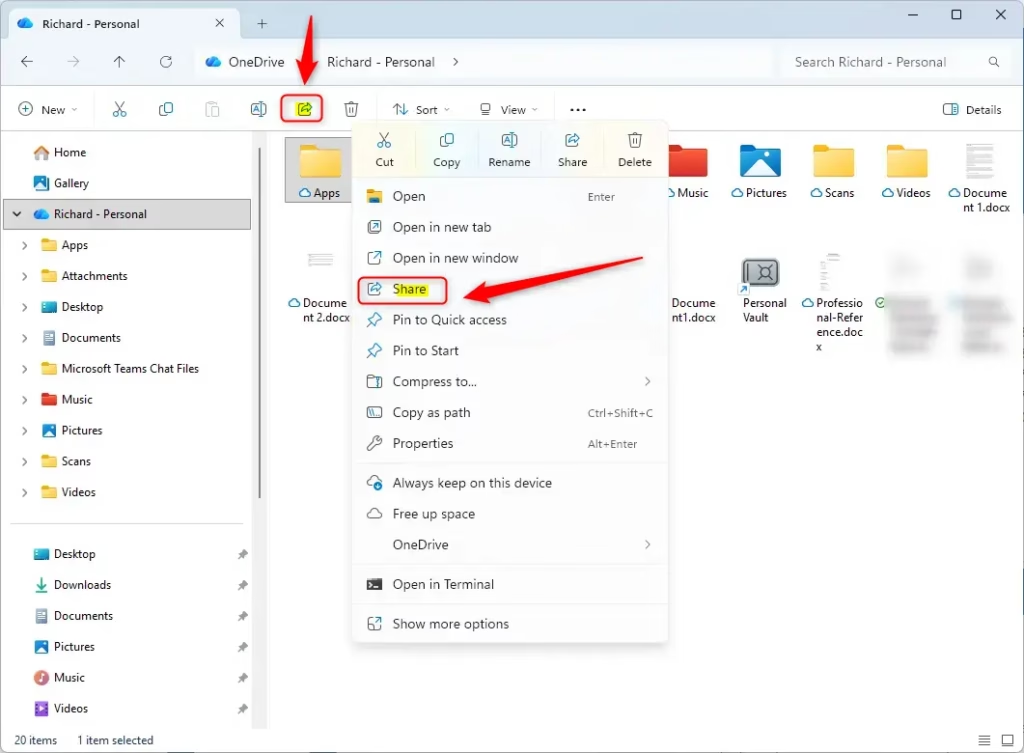
- Right-click the folder. The Windows 11 context menu (the menu that appears on right-click) opens.
- Select Share. It appears as a labeled item or a share icon, depending on your build. A Send link window opens. If you do not see Share, select Show more options, then look under OneDrive.
- Select the link permission line under the folder name. It reads something like Anyone with the link can edit. The Link settings window opens.
- Choose who the link works for. Select Specific people to restrict it to the people you name. The options are explained in the next section.
- Clear Allow editing for view-only access. Leave it selected if people need to change files. If the checkbox is missing, the option does not apply to the link type you picked.
- Select Apply. The window returns to Send link, and the permission line now shows your choice.
- Type a name or email address in the Add a name, group, or email box. Select the matching suggestion, or press Enter to accept a typed address. Add more people the same way.
- Type a note in the Message box if you want one. This step is optional. The note appears in the invitation email.
- Select Send. OneDrive emails each person a link, and a confirmation appears in the corner of the screen.
- Select Copy link instead if you prefer to send the link yourself. Use this in place of the previous step. Paste the link into a chat, email or document. Anyone who holds the link gets the access you set, so send it only to the right people.
The recipient opens the link in a browser and sees your folder in OneDrive on the web. With Specific people, they may need to sign in with the same email address you invited. Recipients with a Microsoft account can also add the shared folder to their own OneDrive.
Share a OneDrive folder from the OneDrive website
Use the website if you are on a PC without the OneDrive app, or if File Explorer does not show the Share option. The folder in the cloud is the same one, so the result is identical.
- Open a browser and go to onedrive.live.com. Work or school accounts use the sign-in page your organization provides.
- Sign in with the account that owns the folder. Your files appear under My files.
- Point to the folder and select its circle check box. A toolbar appears at the top of the file list.
- Select Share on the toolbar. The Send link window opens.
- Select the link permission line to open Link settings. Choose the audience and editing option, then select Apply.
- Enter the email addresses and select Send, or select Copy link to share the link yourself.
Choose who the link works for
The Link settings window controls who can open the folder. The right choice depends on how much you trust the people who might end up holding the link.
Link audience options
Anyone lets whoever has the link open the folder without signing in. Choose it for public material, and expect that forwarded links keep working. People in your organization appears on work or school accounts and limits access to signed-in colleagues.
People with existing access only gives you a link to a folder that already has permissions set, and it does not grant anything new. Specific people limits access to the addresses you enter, which is the safest choice for private files.
Other settings that may appear
Depending on your account type, Link settings can also offer Set expiration date, Set password and Block download. On personal accounts, expiration dates and passwords may require a Microsoft 365 subscription. Work and school accounts depend on what your administrator permits. If an option is not listed, your account or organization does not offer it.
Share part of a folder only
OneDrive shares the whole folder, never a subset. To share only some files, create a new folder, copy those files into it, and share that folder. Alternatively, share each file separately using the same right-click method. For tips on organizing files before you share them, see how to manage OneDrive files on Windows 11.
See who has access and stop sharing
Sharing stays active until you remove it. Review it from time to time, especially for links set to Anyone.
Check who can open the folder
- Go to onedrive.live.com and sign in. Your files appear under My files.
- Select the folder’s circle check box. The toolbar appears.
- Select Details (the information icon) on the toolbar. A pane opens on the right.
- Select Manage access. The list shows every link and every person with access.
Shared folders also show a small shared icon in the Status column in File Explorer, which tells you at a glance which folders have been shared.
Change or remove access
In Manage access, select the drop-down next to a person’s name to change them between view and edit, or to choose Stop sharing. Links appear in the same list. Select the X or the delete option next to a link to turn it off.
Anyone who tries the old link afterward sees an error. The folder and its files stay in your OneDrive.
Why the Share option is missing or fails
Most problems come from the folder’s location, its sync state, or an account restriction. Work through these in order.
Share does not appear in the right-click menu. The folder is probably outside your OneDrive folder, or OneDrive is not running. Look for the cloud icon in the notification area (the small icons at the bottom right of the taskbar, next to the clock).
If it is missing, open OneDrive from the Start menu. If OneDrive was turned off, see how to turn on or off OneDrive in Windows 11. If you moved the folder, check that it is still the active sync location using how to move your OneDrive folder in Windows 11.
The OneDrive icon shows a pause or error. Syncing has stopped, so new or changed files are not in the cloud. Select the OneDrive icon, read the message, and resume or fix the problem before sharing.
The Anyone option is missing or greyed out. On work or school accounts, administrators can block links that reach outside the organization. The setting lives in the organization's admin controls, so you cannot change it yourself. Ask your IT department, or use Specific people if it is permitted.
The recipient says the link does not work. Check that you invited the exact email address they sign in with. A link set to Specific people fails for any other address. Also check that the link has not expired and that you did not delete it in Manage access.
You need to share across your home network instead. OneDrive sharing uses the internet and accounts. Sharing between PCs on the same network with permissions works differently, and how to share your files and set folder permissions in Windows 11 covers that.
Windows 11 Home and Pro behave the same here. OneDrive sharing depends on your Microsoft account or work account, not on the Windows edition.
What to do next
To send a single file through an installed app such as Mail instead of a OneDrive link, see how to share files with an app in Windows 11. If you share often, a clear folder color helps you spot shared folders quickly, and how to change folder color in OneDrive on Windows 11 shows how. Review Manage access on your shared folders every few months and remove anyone who no longer needs the files.
Frequently asked questions
How to add music to the music folder 🪟 Windows 11?
To add music to the Music folder in Windows 11, open File Explorer and select Music in the left pane. Then drag your audio files into the window, or copy them from another folder and paste them there. Supported formats such as MP3, M4A, and WAV will appear in the Music app once they are inside this folder.
The 🪟 Windows 11 ‘expand folder’ doesn’t work. is there a registry fix or group edit fix?
The 'expand folder' setting is controlled by File Explorer Options, not a registry edit or Group Policy. Open File Explorer Options, select the View tab, and tick 'Automatically expand to current folder' under Navigation pane. Click OK. This is the usual fix, and it needs no restart.
How to share files over Bluetooth in 🪟 Windows 11 site Microsoft.com?
To send files over Bluetooth in Windows 11, pair the device first. Then right-click the Bluetooth icon in the taskbar and choose Send a File. Pick the receiving device, select your files, and click Next. The other device must accept the transfer before it starts.
How to share Google calendar to people?
To share a Google Calendar with people, open Google Calendar in a web browser. Hover over the calendar under My calendars, click the three dots, and choose Settings and sharing. Under Share with specific people, click Add people, enter their email addresses, choose a permission level, and click Send.
How to share files on OneDrive?
To share a file on OneDrive, right-click the file in File Explorer, choose Share, and select who can open it. You can also go to onedrive.live.com, select the file, and click Share. Choose whether recipients can view or edit, then send the link or an email invitation.
How to share documents on OneDrive?
To share a document on OneDrive, save it in your OneDrive folder, then right-click it in File Explorer and choose Share. In Word, Excel, or PowerPoint, you can also click Share in the top-right corner. Pick who can open it, set View or Edit access, and send the link.
Still have a question?
Answered by AI from this guide. Good questions may be added to this page — please don't include personal details.
Did this guide fix your problem?

About the Author
Richard
Tech Writer, IT Professional
Richard is a writer at Geek Rewind who turns complex IT tasks into clear, step-by-step guides. He draws on years of hands-on experience in system administration and enterprise IT operations, focusing on Windows, Linux and WordPress: the problems people actually run into, and the fixes that work. His server and WordPress guides come from systems he runs himself. Richard builds and maintains the platform behind Geek Rewind, from its Ubuntu servers and Nginx configuration to its custom WordPress plugins. Many new tutorials start with readers' questions, and he's always glad to answer them in the comments.
No comments yet — be the first to share your thoughts!