How to Remove a Shared Folder Shortcuts on OneDrive.com

Removing a shared folder shortcut on OneDrive.com hides the link from your file list without deleting the actual files or changing the owner’s copy. These shortcuts act as quick pointers to content that other people share with you through Microsoft’s cloud storage service.
You can safely delete any shared folder shortcut when a project ends or you no longer need access to the files. The original data stays completely safe for the owner and anyone else who uses it. The whole job takes about a minute and needs nothing but a browser.
Sign in to OneDrive.com, navigate to your files, select the shared folder shortcut, and click “Remove shortcut” from the top menu or by right-clicking. This action only removes the shortcut from your view and does not affect the original folder or other users.
How to Remove a Shared Folder on OneDrive.com
Removing a shared folder shortcut from OneDrive.com only changes your own view. The original files and everyone else’s permissions stay untouched. Nothing is installed or changed on your PC, and no restart is needed.
Step 1Sign In to OneDrive.com
Web browsers provide access to OneDrive online. Any current browser works. The steps below are the same for personal Microsoft accounts and for work or school accounts, though some labels can differ slightly.
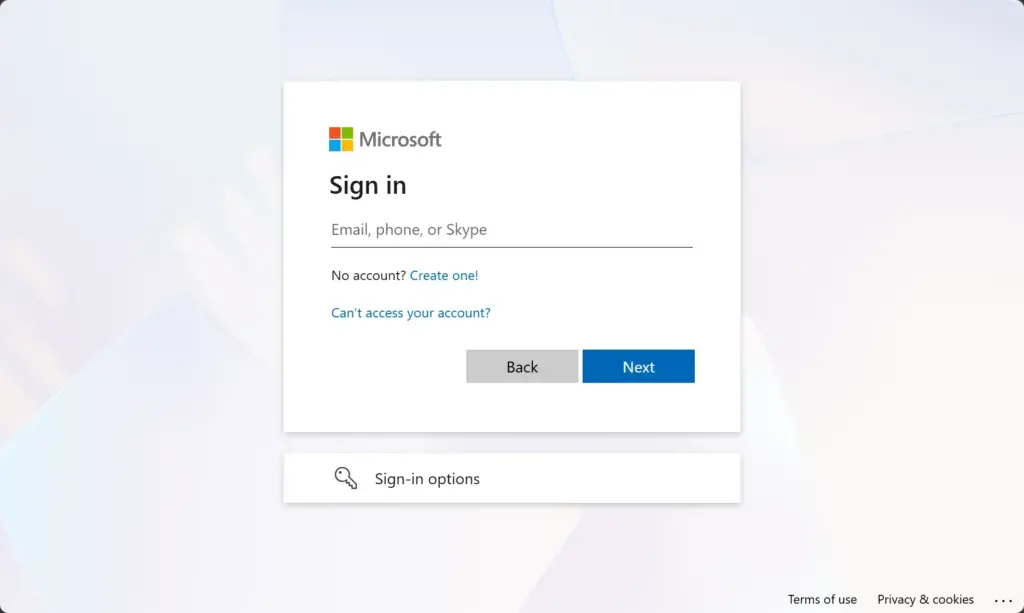
- Open your browser and go to OneDrive.com.
- Sign in with the Microsoft account that has the shared folder shortcut. If you use more than one account, check that you picked the right one. A shortcut will not show up under the wrong account.
- Once you are signed in, you should see your OneDrive home page with the navigation panel on the left.
Step 2Go to Your Files
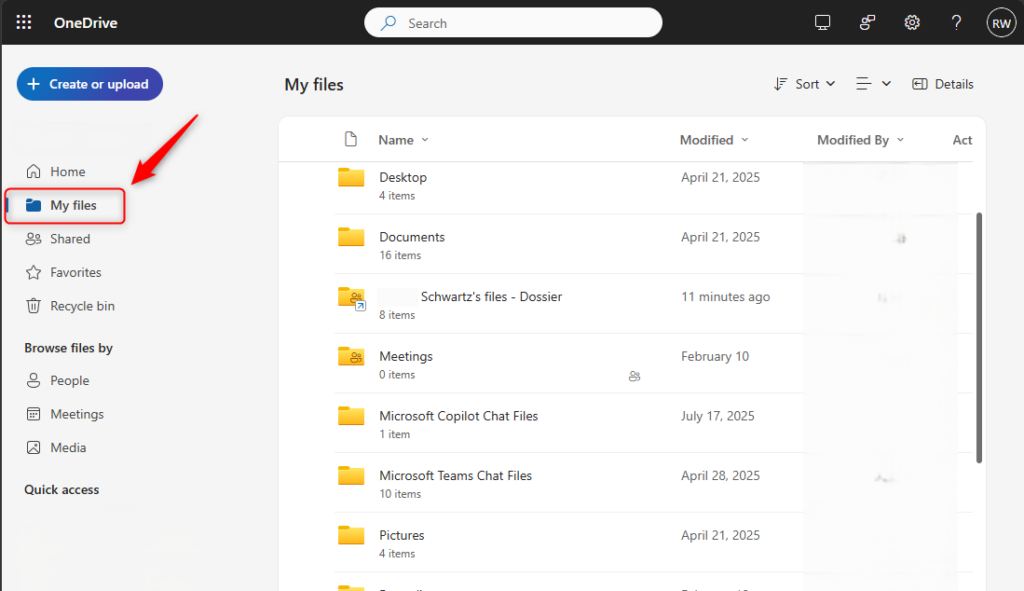
- In the navigation panel on the left side of the window, click My files.
This opens your list of files and any linked shared folders. If the panel is hidden because your browser window is narrow, widen the window or use the menu icon at the top left to bring it back.
Step 3Find the Shared Folder Shortcut
Shared folder shortcuts on OneDrive.com appear as regular folders. They usually carry a small link-style marker on the folder icon, which helps you tell them apart from your own folders. These shortcuts do not store files in your personal OneDrive space. They link to files owned by another user, so they use none of your storage quota.
- Scroll through your file list and find the shortcut you want to remove. If the list is long, use the search box at the top of the page to look for the folder name.
Step 4Select "Remove shortcut"
You can remove the shortcut in two ways. Pick whichever you prefer. Both do the same thing.
- Use the top menu bar. Click the shared folder once to select it. Then look at the menu bar at the top. You should see an option like Remove shortcut or a trash can icon that might say "Remove shortcut."
- Use the right-click menu. Right-click directly on the shared folder. A menu will appear. You should see an option like Remove shortcut.
Click Remove shortcut in either place. If you do not see it, check that you selected the shortcut and not one of your own folders. Your own folders show Delete only. Also, if you selected several items at once, the option may not appear, so select just the one shortcut.
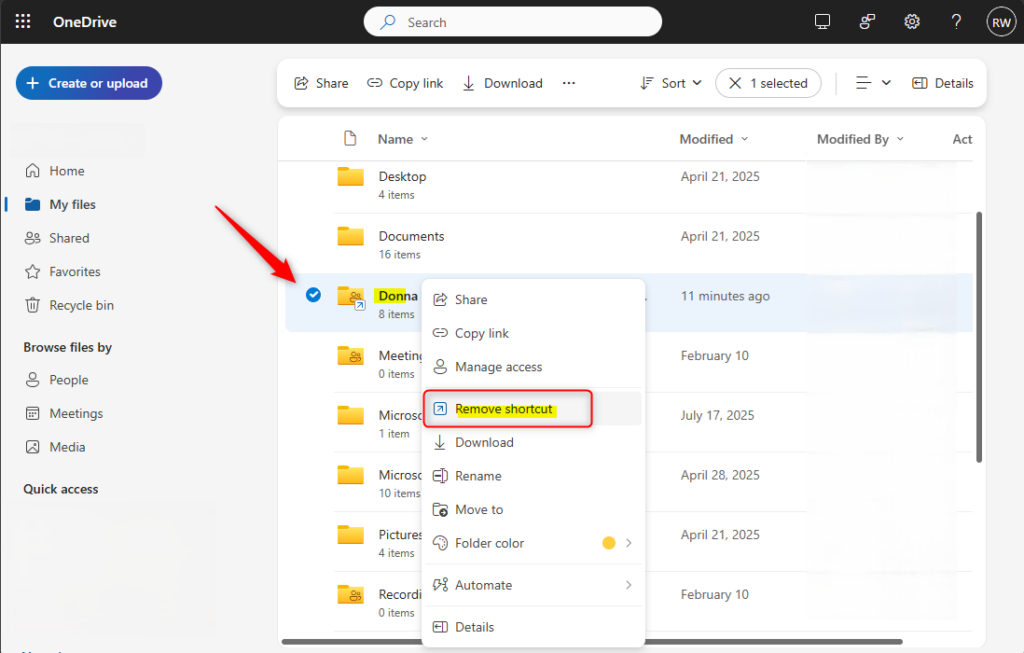
Important Note: The interface might display an option to Delete the directory. Avoid clicking Delete when the goal is preserving external access, because that action purges data for all participants and relocates files to the owner's recycle bin. Choosing Remove shortcut provides the secure alternative. If you are not sure which option you are about to click, read the label again before you confirm.
Step 5Confirm the Action (If Asked)
A confirmation prompt may appear on your screen. If it does, click Remove or Yes to finish the change. The shortcut vanishes from your main file list right away. Other people with access to the folder keep their access and can still use it. If the folder is still on screen after a few seconds, refresh the page.
The shared folder shortcut disappears from the My files view. Other users with access still see the shortcut. You can find the folder again in the Shared section and add it back later.
What Happens When You Remove a Shortcut?
Removing a shared folder shortcut from your My files list makes that shortcut disappear from your view only and does not delete the actual files. This action does not affect anyone else's access to the folder, and you can always find the shortcut again in the Shared section if you want to add it back. To add it back, open the folder from the Shared section and look for an option such as Add shortcut to My files. The exact wording can vary a little between account types.
- It's Gone from Your View: The shortcut is removed from your My files section. It will no longer clutter your personal file list.
- No Impact on Others: This action only changes what you see. The folder is still shared with you (in the Shared section) and is still available to everyone else who has permission. The owner's files are not affected at all.
- Still Accessible via "Shared": You can still find the shared folder. Go to the Shared section in the left-hand menu on OneDrive.com. This is where you can find all files and folders that others have shared with you.
If you want to lose access altogether, removing the shortcut will not do that. Only the owner can stop sharing the folder with you, so you would need to ask them.
Reference:
https://support.microsoft.com/en-US/onedrive/add-shortcuts-to-shared-folders-in-onedrive
Summary
Purging shared folder shortcuts from OneDrive.com cleans up the "My files" view safely without altering source contents or disrupting peer access. Whenever you need one back, the Shared section is the place to start.
Have a question about this guide?
Answered by AI from this guide. Good questions may be added to this page — please don't include personal details.
Did this guide fix your problem?

About the Author
Richard
Tech Writer, IT Professional
Richard is a writer at Geek Rewind who turns complex IT tasks into clear, step-by-step guides. He draws on years of hands-on experience in system administration and enterprise IT operations, focusing on Windows, Linux and WordPress: the problems people actually run into, and the fixes that work. His server and WordPress guides come from systems he runs himself. Richard builds and maintains the platform behind Geek Rewind, from its Ubuntu servers and Nginx configuration to its custom WordPress plugins. Many new tutorials start with readers' questions, and he's always glad to answer them in the comments.
No comments yet — be the first to share your thoughts!