How Add Shortcuts to Add a Shared Folder in Your OneDrive

A shortcut to a shared folder puts a folder that a coworker or friend shared with you directly into your own OneDrive file list, so you can open it without hunting through the Shared page. The shortcut is a link to the other person’s folder on OneDrive. The files stay in the cloud, so nothing is copied to your computer and no extra hard drive space is used.
You can set this up in any web browser. The only requirement is that someone has already shared a folder with your Microsoft account. The steps below use the OneDrive website.
To add a OneDrive shared folder shortcut, sign in to OneDrive.com with the account the folder was shared with, click Shared in the left pane, select the folder, then click Add shortcut to My files in the toolbar. The shortcut appears in your My files list without copying any files to your computer.
Sign in to OneDrive Online
If the folder was shared to your work address and you sign in with a personal account, you will not see it.
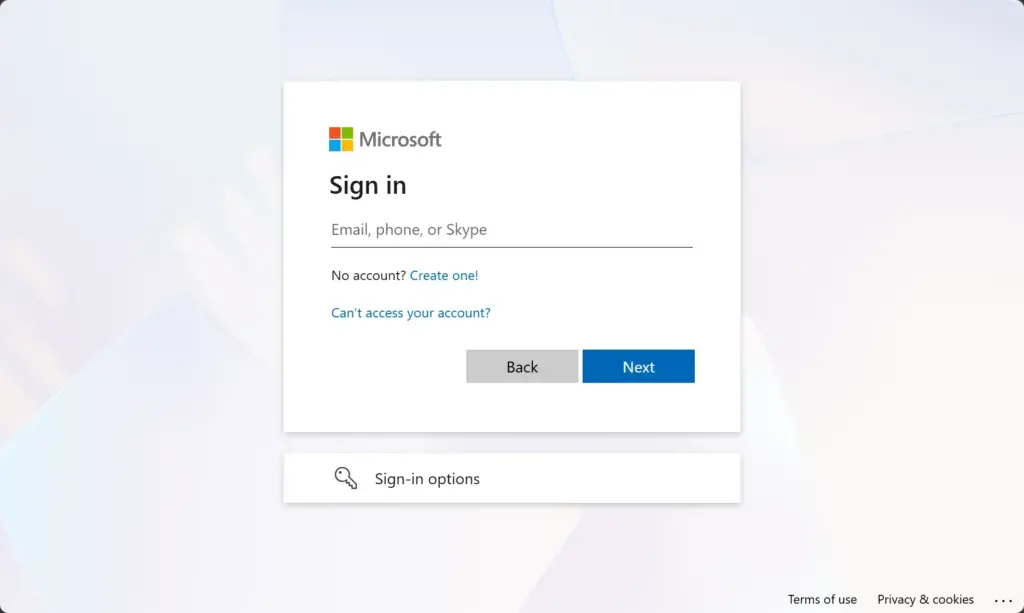
- Open a web browser and go to OneDrive.com.
- Sign in with the Microsoft account the folder was shared with.
- Check the account picture or initials in the top-right corner to confirm it is the right account. If it is not, sign out and sign in again with the correct one.
You should now see your own OneDrive file list.
Navigate to the ‘Shared’ Section
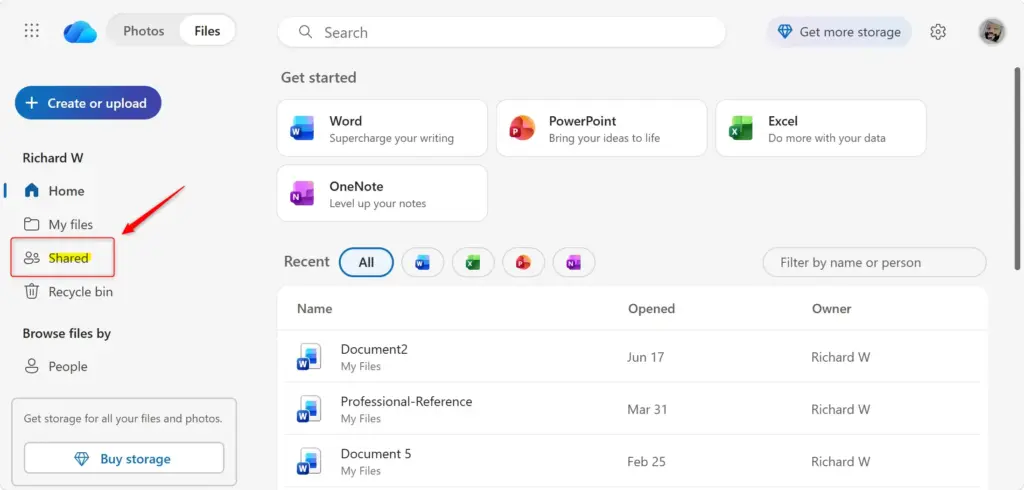
The Shared section lists every file and folder that other people have made available to you. It is the place to find the folder you want to link to.
- Look at the navigation pane on the left side of the screen. You will see entries such as My files, Recent and Shared.
- Click Shared.
The main area now lists everything other users have sent your way. If the folder you expect is missing, ask the owner to share it again, and make sure they used the email address tied to the account you are signed in with.
Locate the Folder You Want to Add
Permissions control whether this works. You need edit rights on the folder, because shortcuts cannot be created for view-only folders. If the option is missing or greyed out, ask the owner to change your permission to allow editing.
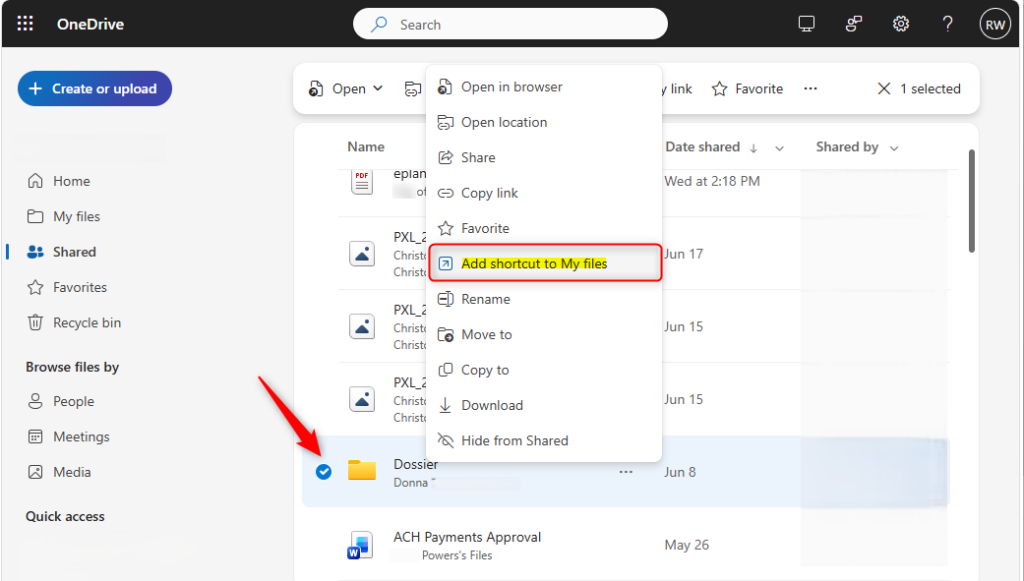
- In the Shared list, find the folder you want. It may be listed under the name of the person who shared it.
- Select the folder by clicking its circle or checkbox, without opening it.
- Click Add shortcut to My files in the toolbar at the top.
OneDrive will start creating the shortcut. This usually takes only a moment.
Add the Shortcut to 'My Files'
A shortcut keeps important files handy without taking up local disk space.
You can also do this from the context menu:
- Right-click the shared folder in the list.
- Choose Add shortcut to My files from the menu that appears.
Both methods give the same result, so use whichever is faster for you.
Verify the Shortcut in 'My Files'
Once the process finishes, confirm that it worked.
- Click My files in the left pane.
- Look for the shared folder in your list. It will have a small link or shortcut symbol on its icon.
- Open the folder to make sure the files are there and ready to open.
If the shortcut is not there yet, refresh the page and check again. If you decide you no longer want it, delete the shortcut from My files. That removes only your shortcut, not the original folder or the owner's files.
Accessing Your New Shortcut
Once you create the shortcut, it appears on the OneDrive website and in your synced OneDrive folders. It sits in your main file list, so you can open and edit shared files just like your own, without downloading them again. Here is where you will find it:
- On OneDrive.com: You will see it in your "My files" list, just like we did.
- In Windows File Explorer: If you have the OneDrive app installed on your PC and signed in with the same account, the shortcut will appear in your OneDrive folder. It looks like any other folder, making it easy to access without opening your web browser. It can take a few minutes to show up, so give the app time to sync.
- On Mac Finder: Mac users will also find the shortcut in their OneDrive folder within Finder.
- On OneDrive Mobile Apps: Your shortcuts will be available on your phone or tablet through the OneDrive app.
Reference:
https://support.microsoft.com/en-US/onedrive/add-shortcuts-to-shared-folders-in-onedrive
Summary
Adding a shortcut to a shared OneDrive folder is an effective way to keep critical files accessible across multiple devices. You set it up once, and it follows your account everywhere you sign in to OneDrive.
Have a question about this guide?
Answered by AI from this guide. Good questions may be added to this page — please don't include personal details.
Did this guide fix your problem?

About the Author
Richard
Tech Writer, IT Professional
Richard is a writer at Geek Rewind who turns complex IT tasks into clear, step-by-step guides. He draws on years of hands-on experience in system administration and enterprise IT operations, focusing on Windows, Linux and WordPress: the problems people actually run into, and the fixes that work. His server and WordPress guides come from systems he runs himself. Richard builds and maintains the platform behind Geek Rewind, from its Ubuntu servers and Nginx configuration to its custom WordPress plugins. Many new tutorials start with readers' questions, and he's always glad to answer them in the comments.
No comments yet — be the first to share your thoughts!