How to View and Stop Sharing OneDrive Files


OneDrive is Microsoft’s cloud storage service, and it keeps your documents synced across your computers. Managing what you share lets you see every active link and revoke permissions, so only the right people can open your data.
Stopping an active sharing link takes only a few clicks. Do it when someone no longer needs access, or when you want to lock down private files. A shared link keeps working until you remove it, and people often forget which files they shared months ago. A quick review every so often keeps your personal information away from people who should not see it.
Sign in to your Microsoft OneDrive portal online, click Shared in the left sidebar, then Shared by you. Select the file you want to stop sharing, click Manage Access, remove each person listed under Direct Access, then delete the link in the Links tab. Access ends immediately.
How to See Your Shared Files
The quickest way to see what you are sharing is the OneDrive website in your web browser. Sign in, click Shared in the left sidebar, then choose Shared by you at the top of the page. You get a list of every file and folder that is currently open to other people.
Use the website rather than File Explorer for this check. The web view shows the sharing status of everything in your account, including files that are not synced to the PC you are sitting at.
- Go to your Microsoft OneDrive portal online and sign in with the Microsoft account (or work or school account) that owns the files. You should land on your OneDrive files page.
- Click the Shared link in the menu on the left side of your screen. The page changes to a view of shared items. On a narrow browser window the menu may collapse into an icon, so widen the window if you can’t see it.
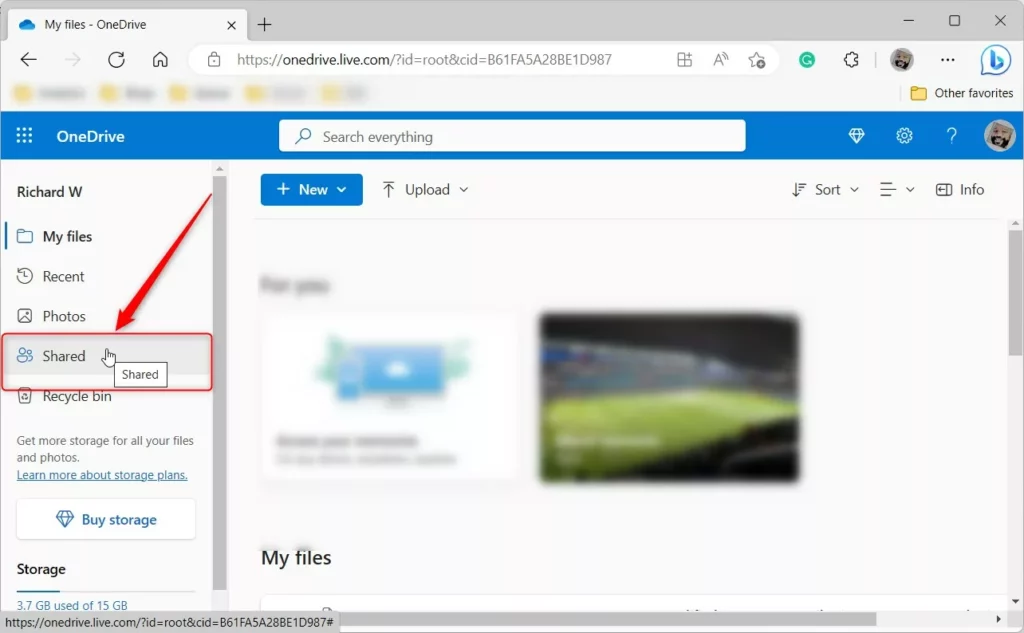
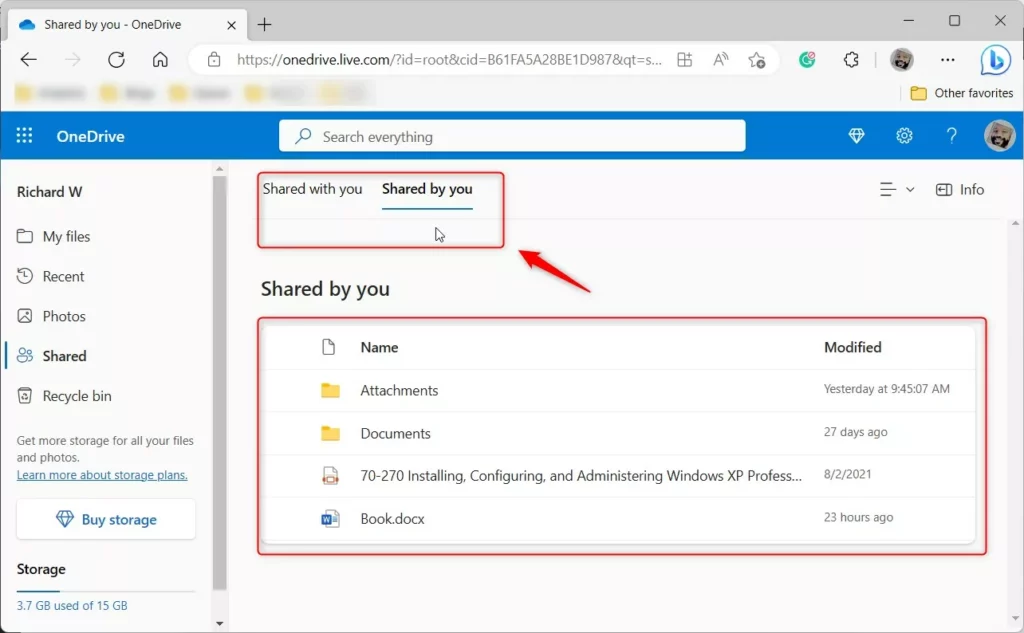
- Click the Shared by you link at the top of the page. This shows only the files you have given others permission to see. Items other people shared with you are left out. If the list is empty, you have no active shares.
How to Stop Sharing Files
To stop sharing a OneDrive file, open your account online and go to the Shared by you list. Find the item you want to lock down and select it. Open the Manage access menu, then remove the people or links you no longer want to have access. The change takes effect right away, and those people can no longer view or edit the document.
It only stops them from opening the original in your OneDrive. If you change your mind, you can share the item again later.
- Navigate to your Microsoft OneDrive portal and select Shared, then Shared by you. You should see the list of items you are sharing.
- Find the file or folder you want to stop sharing. Check the name and the sharing details in the row before you go on, so you don't change the wrong item.
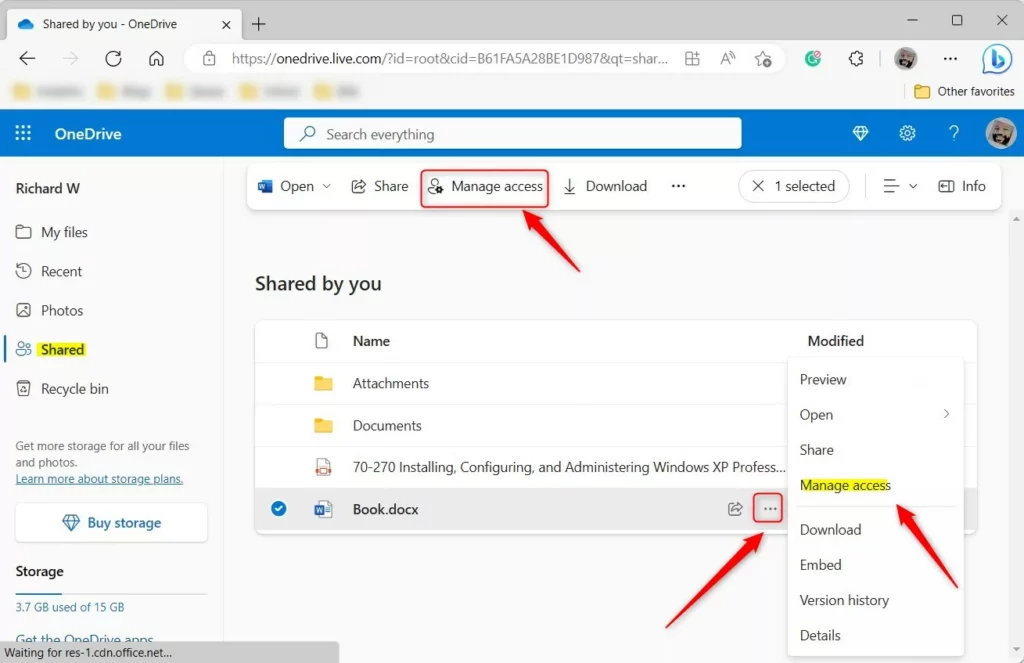
- Select the item and click Manage Access in the top menu, or click the three dots and choose Manage access. If the option is missing, make sure the item is selected. A panel or window opens with the item's sharing settings.
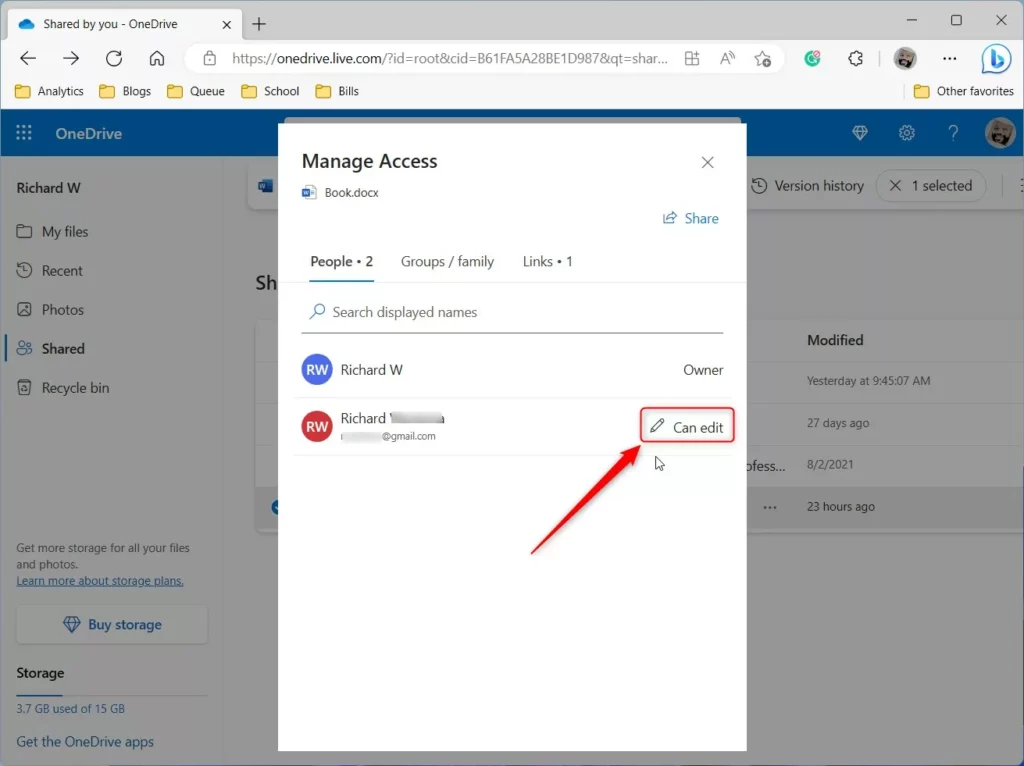
- In the window that pops up, click the People link. Click the Pencil icon to see who has access. Each person is listed with their permission level.
- Click Direct Access to see the list of people. Select Remove direct access for anyone you want to block. Repeat this for each person who should lose access.
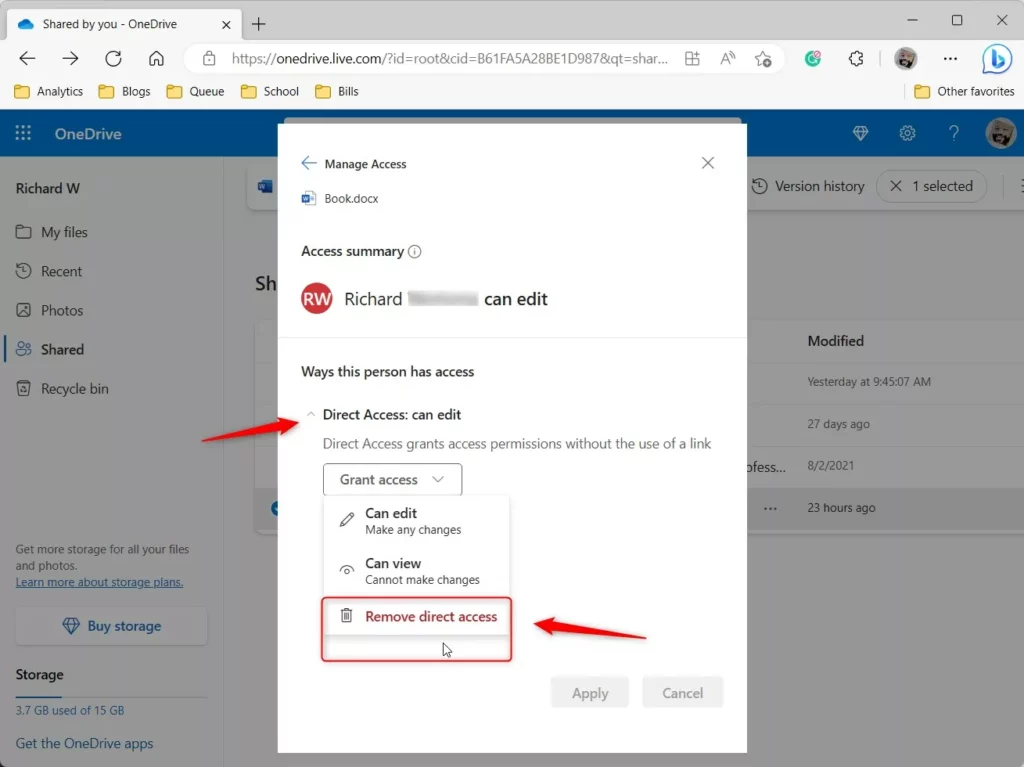
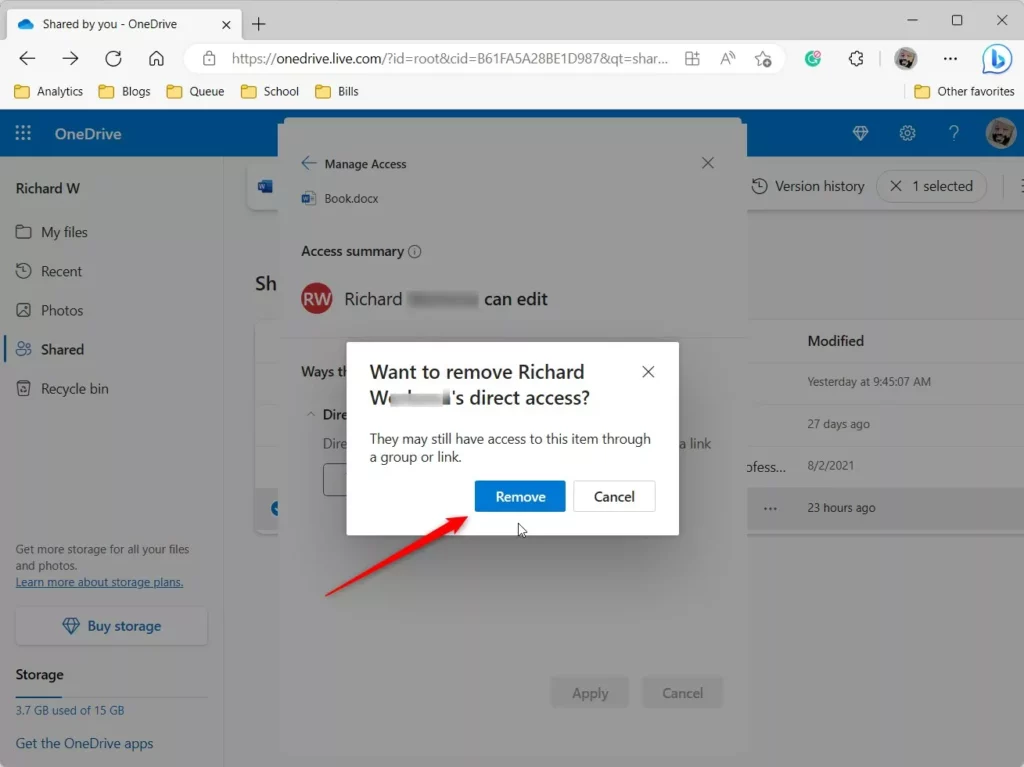
- Click Remove to confirm your choice. The person disappears from the list.
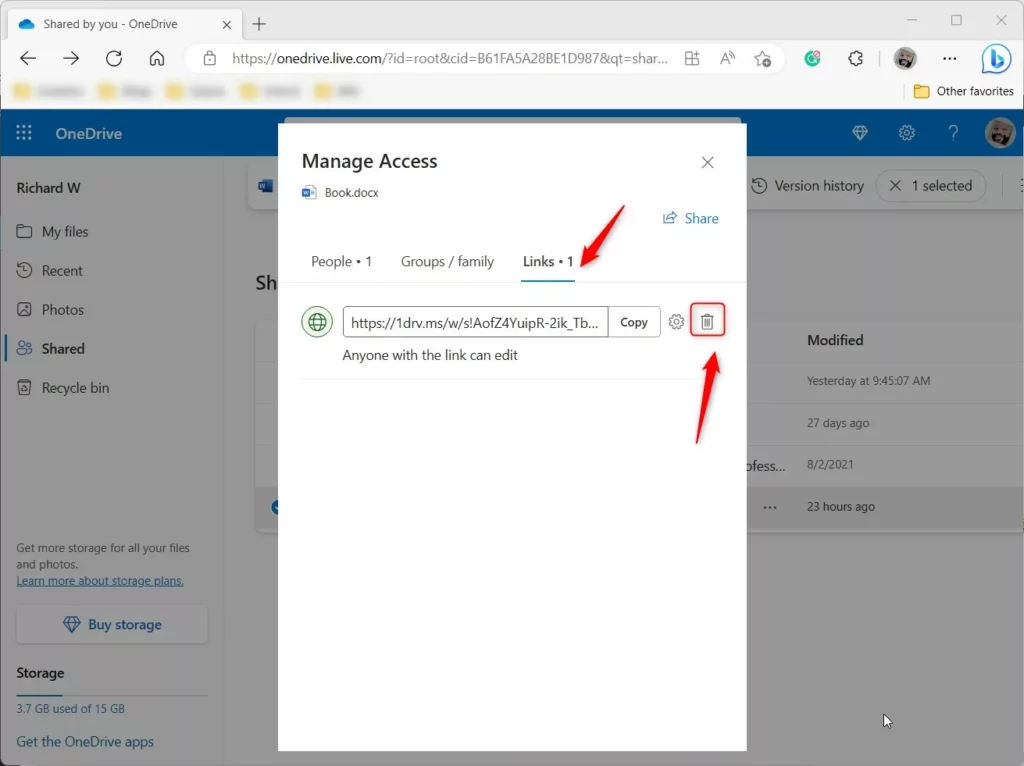
- Finally, click the Links tab in that same window and click the Delete button to kill the sharing link entirely. Anyone holding that link can no longer use it. Do this step even after removing people, because a link can still work for anyone who has it.
Understanding Permission Inheritance and Subfolders
Permission inheritance means that security settings on a parent folder automatically apply to everything stored inside it. In practice, sharing a main folder also shares every file and subfolder inside it.
Before you drop a private document into a shared folder, check who can open that folder. When you review your shares, look at the parent folders as well as single files.
Managing Access on Mobile Devices
You can also stop sharing from the OneDrive mobile app. Open the app and tap the Shared tab. Find the file, tap the three dots, and select Manage Access. From there, removing links or specific people works the same way as on the website. Menu labels can differ slightly between app versions and between iPhone and Android.
Summary
Reviewing your shared OneDrive files protects your data privacy. Check active shares in the Shared by you list in the online portal. Then use the Manage access menu to remove specific people and delete links, so only the people you trust can still open your files. Repeat the check from time to time, especially for folders, since everything inside a shared folder is shared too.
Related Topics
Have a question about this guide?
Answered by AI from this guide. Good questions may be added to this page — please don't include personal details.
Did this guide fix your problem?

About the Author
Richard
Tech Writer, IT Professional
Richard is a writer at Geek Rewind who turns complex IT tasks into clear, step-by-step guides. He draws on years of hands-on experience in system administration and enterprise IT operations, focusing on Windows, Linux and WordPress: the problems people actually run into, and the fixes that work. His server and WordPress guides come from systems he runs himself. Richard builds and maintains the platform behind Geek Rewind, from its Ubuntu servers and Nginx configuration to its custom WordPress plugins. Many new tutorials start with readers' questions, and he's always glad to answer them in the comments.
[…] files, and folders with people using Windows File Explorer. Once a resource is shared, you can manage access and remove or stop files and folder sharing, even […]