How to Add or Remove OneDrive Icon on Windows 11 Desktop


A OneDrive icon on the desktop (OneDrive is Microsoft’s cloud storage service) lets you open your online files in Windows 11 with a double-click. You can show or hide it whenever you like, depending on whether you want quick access or a cleaner screen. This guide covers what the OneDrive status icons mean, how to pin OneDrive to the taskbar instead, how to show or hide the desktop icon with the registry, and what to try if the icon goes missing from the system tray .
You can show or hide the OneDrive desktop icon using the Registry Editor. Navigate to 🗝️HKEY_CURRENT_USER\
Understanding OneDrive Icon Status Meanings
The OneDrive status icons tell you the sync state of your files at a glance. You see them next to files and folders in File Explorer , and OneDrive’s own icon in the system tray shows the overall state. A blue cloud means the file lives only in the cloud and takes no local storage. A green checkmark means the file is downloaded and ready to use offline. A red cross or warning symbol usually means you are signed out or a sync error is blocking your files. Check these icons first when something looks wrong, because they often point straight to the cause.
- Blue Cloud: Your file is online only. It does not take up space on your PC. You need an internet connection to open it, and Windows downloads it when you do.
- Green Checkmark: The file is synced and available on this device. You can open it without a connection.
- Red X: There is a sync error. Click the icon to see what is wrong. The message usually names the file or the problem, such as a full OneDrive or a file that is open elsewhere.
- Gray Icon: OneDrive is not signed in or is not running. Start OneDrive from the Start menu and sign in if it asks.
How to Pin OneDrive to the Taskbar
If you want quick access without cluttering your desktop, pin OneDrive to the taskbar . This works the same on Windows 11 Home and Pro.
- Click the Start button.
- Type OneDrive. The OneDrive app should appear at the top of the search results.
- Right-click the app and select Pin to taskbar . The OneDrive icon now sits on your taskbar .
To undo this, right-click the OneDrive icon on the taskbar and select Unpin from taskbar.
How to Show or Hide the OneDrive Icon via Registry
You can show or hide the OneDrive desktop shortcut by editing the registry. This lets you clean up your workspace or restore a missing cloud shortcut. You open Registry Editor, find the desktop icon settings key, and change the DWORD value for the OneDrive GUID so the icon appears on or disappears from your desktop.
Editing the registry changes system settings, so work carefully. Before you start, back up the registry: in Registry Editor, select File Export, choose All as the export range, and save the file somewhere safe. If something goes wrong, double-click that file to restore it. The steps are the same on Windows 11 Home and Pro.
- Open the Windows Registry. If Windows asks whether to allow the app to make changes, click Yes.
- Navigate to:
HKEY_CURRENT_USER\Software\Microsoft\Windows\CurrentVersion\Explorer\HideDesktopIcons\NewStartPanel. Use the folder tree on the left and expand each key in turn. You can also paste the path into the address bar at the top of the window. - If
NewStartPanelis missing, right-clickHideDesktopIconsand create it by choosing New Key, then type the name exactly. The new key should now appear in the left pane.
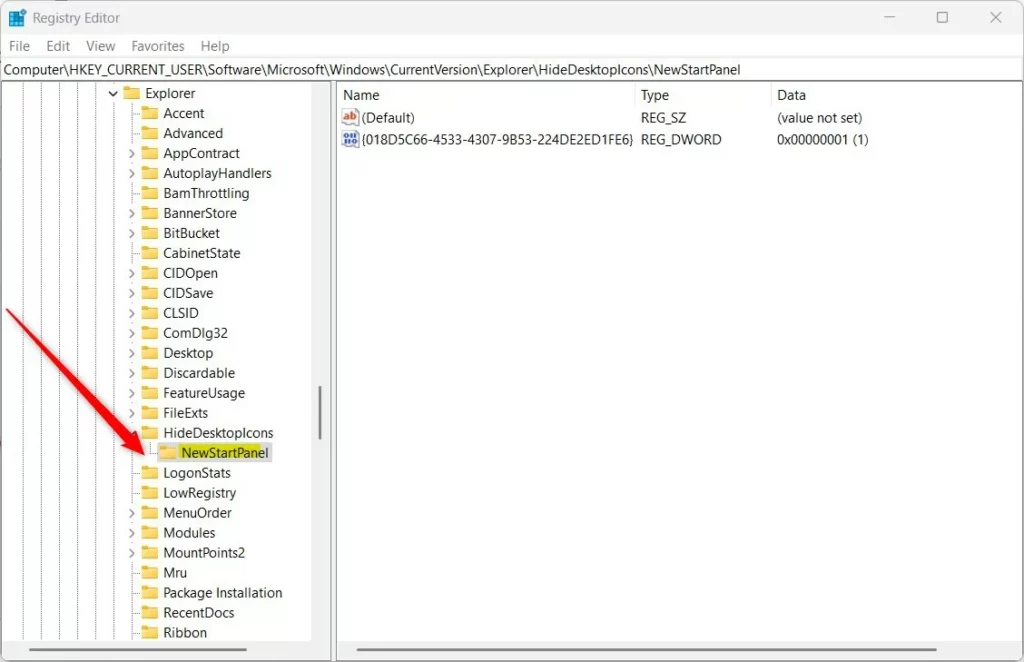
- Click the key you just opened or created, then right-click an empty area on the right side and select New DWORD (32-bit) Value. A new entry appears with its name highlighted for editing.
- Name it:
{018D5C66-4533-4307-9B53-224DE2ED1FE6}. Press Enter to confirm the name. - Double-click it and set Value data to
0to show or1to hide. Click OK. The value now shows your number in the Data column.
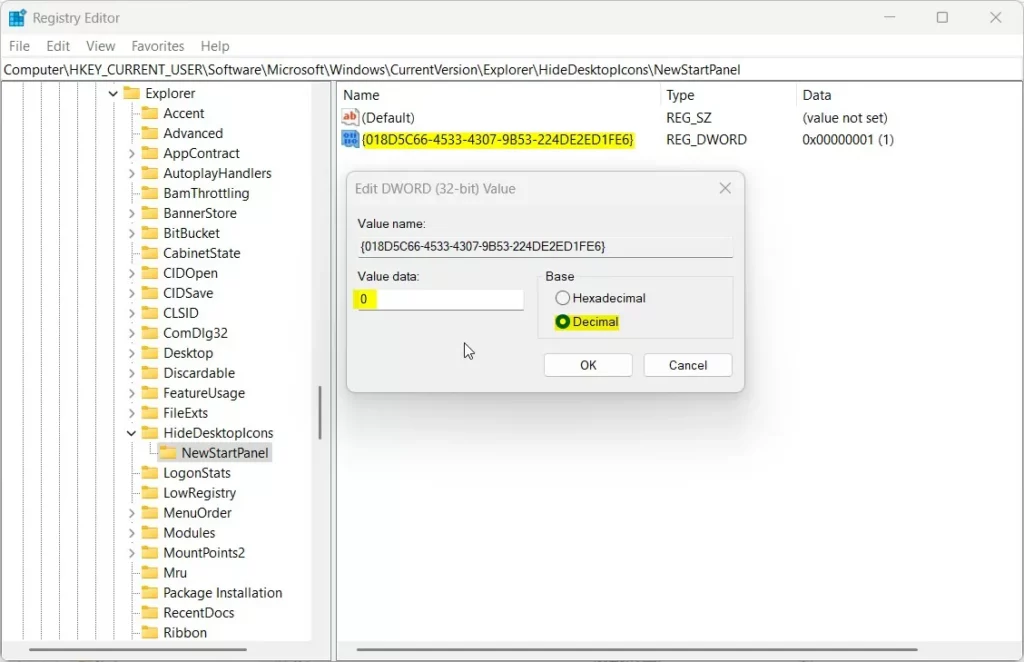
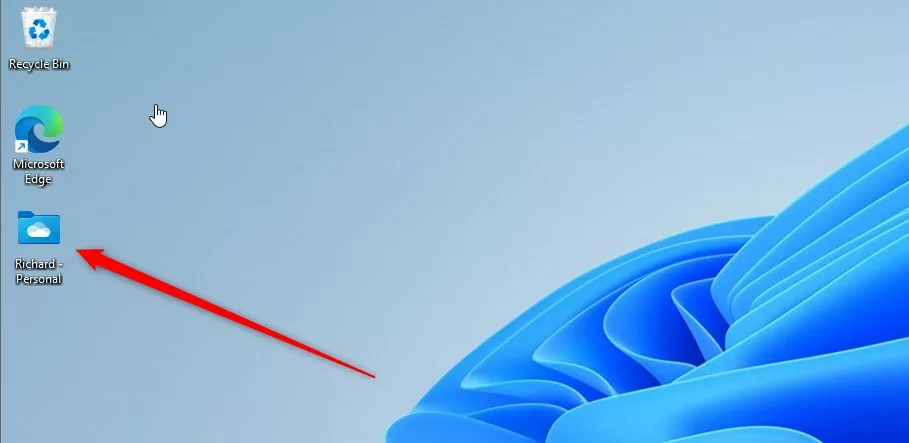
Restart your computer to apply changes. Close Registry Editor first, and save any open work. After you sign back in, check your desktop: the OneDrive icon should now be shown or hidden according to the value you set. To reverse the change, open the same key again and set the value to the opposite number, or delete the value you created.
Troubleshooting Missing OneDrive Icons
If your icon is missing from the system tray, try these steps in order. First click the small up arrow at the left of the tray, because Windows 11 often hides icons in that overflow area.
- Check that OneDrive.exe is running. Press Ctrl + Shift + Esc to open Task Manager and look for Microsoft OneDrive in the list. If it is not there, start OneDrive from the Start menu.
- Run a Windows Update to make sure your system is current. Go to Settings Windows Update and click Check for updates. Restart if Windows asks you to.
- Reset OneDrive by pressing Win + R and typing
%localappdata%\Microsoft\OneDrive\onedrive.exe /reset. Press Enter. The OneDrive icon may vanish from the tray for a minute or two while it resets. If it has not come back after a few minutes, start OneDrive from the Start menu.
A reset does not delete your files. OneDrive just rechecks them, so a large library may take a while to sync again.
Summary
Managing your OneDrive icon on Windows 11 helps keep your desktop tidy and ensures your files are syncing correctly. Use the status icons to spot sync problems early, the taskbar pin for quick access, and the registry value when you want the desktop shortcut back or gone.
Have a question about this guide?
Answered by AI from this guide. Good questions may be added to this page — please don't include personal details.
Did this guide fix your problem?

About the Author
Richard
Tech Writer, IT Professional
Richard is a writer at Geek Rewind who turns complex IT tasks into clear, step-by-step guides. He draws on years of hands-on experience in system administration and enterprise IT operations, focusing on Windows, Linux and WordPress: the problems people actually run into, and the fixes that work. His server and WordPress guides come from systems he runs himself. Richard builds and maintains the platform behind Geek Rewind, from its Ubuntu servers and Nginx configuration to its custom WordPress plugins. Many new tutorials start with readers' questions, and he's always glad to answer them in the comments.
[…] you use OneDrive, you can add or remove OneDrive’s icon to your desktop, share your files and folders, lock or unlock OneDrive personal vault, change OneDrive location, […]
[…] save space on your hard drive. You could also be switching to a different service like Dropbox or OneDrive. Sometimes, you just want to stop your files from uploading to the internet […]