How to Disconnect Google Drive on Windows 11


Disconnecting Google Drive on Windows 11 stops the app from syncing files with your computer. It signs your Google account out of the Google Drive for desktop app, so the app can no longer reach Google’s cloud storage. Your files stay safe in your Google account online.
Once you disconnect, Google Drive no longer downloads new files or updates existing ones on your PC. The Google Drive virtual drive also disappears from File Explorer . This helps if you need to free up disk space, fix a stuck sync, or move to a different cloud storage service.
Google Drive for desktop saves your files in one of two ways. Streaming downloads files only when you open them. Mirroring keeps a full copy of your Drive on your computer. Disconnecting stops syncing in both modes. You can reconnect later by signing in again, and you do not need to restart Windows either way.
Disconnect Google Drive from Windows 11 by signing out of the desktop application. Click the Google Drive icon in the taskbar overflow menu, then go to Settings Preferences Settings gear icon Disconnect account. Confirm by clicking Disconnect.
How to Disconnect Google Drive on 🪟 Windows 11
The quickest way to disconnect is to unlink your Google account from the app’s own preferences, which you reach from the system tray . This stops the sync without deleting anything from your Google account. The same steps work on Windows 11 Home and Pro, and you do not need admin rights. If the Google Drive icon is not in the tray, the app is not running. Open Google Drive from the Start menu first.
- Look at your taskbar near the clock. Click the Taskbar overflow (the little arrow), then click the Google Drive icon. A small Google Drive window opens above the taskbar .

Pause and resume syncing to Google Drive - In the small window, click the Settings (gear icon) at the top right. Select Preferences. The Preferences screen opens and shows your folder and sync options.

Sync files with Google Drive and photos with Google Photos - On the Preferences screen, click the Settings gear icon again in the top right corner. A short menu drops down.

Google Drive launch on login on or off - Find the link that says Disconnect account and click it. A confirmation prompt appears.
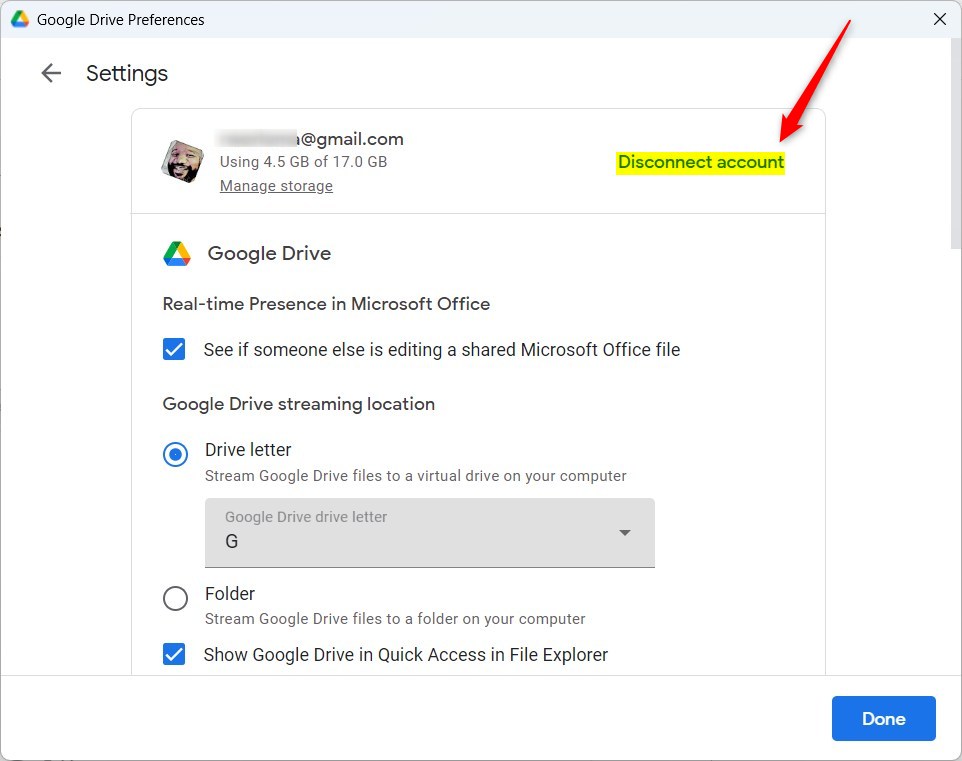
Diconnect Google Drive on Windows - Read the final warning, then click the Disconnect button to confirm. The app signs you out and syncing stops. The Google Drive virtual drive should disappear from File Explorer . To undo this, open Google Drive again and sign in with your Google account.
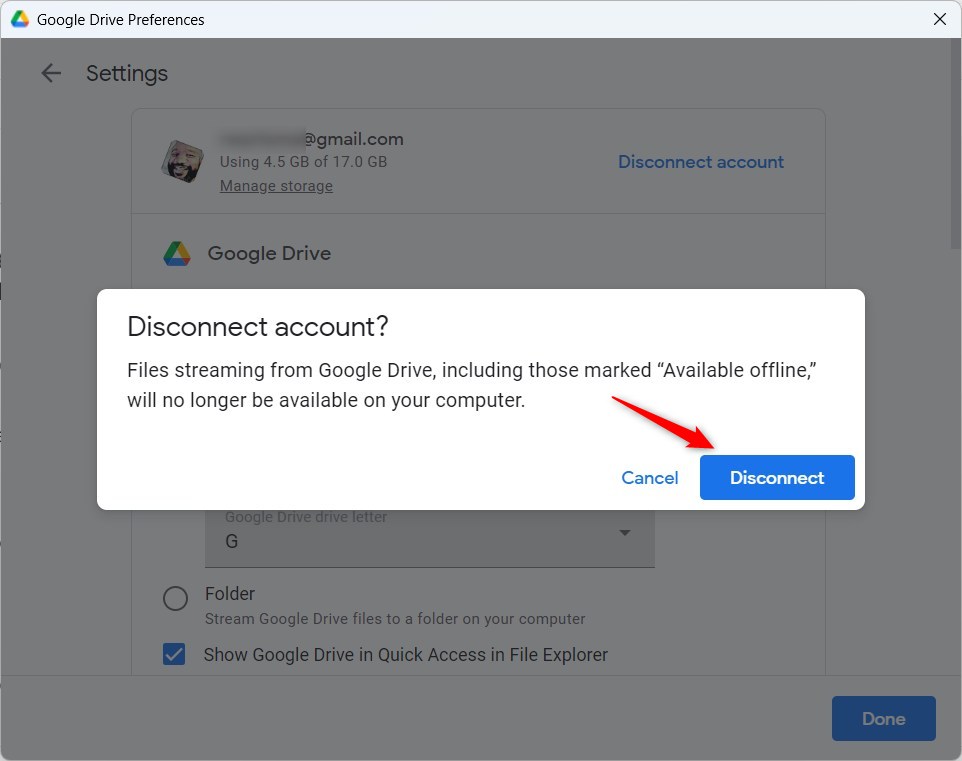
Confirming the disconnect Google Drive account prompt on Windows 11
Managing Multiple Accounts
Google Drive lets you sign in to more than one account at once. To remove just one, make that account the active one in the Google Drive menu, then follow the steps above. To switch accounts, click your profile picture in the Google Drive menu and pick the one you want. Check which account is showing before you click Disconnect account, so you do not unlink the wrong one. The other accounts keep syncing as normal.
Troubleshooting Sync Errors
If you are seeing Google Drive sync errors on Windows, disconnecting and then reconnecting your account often clears them. Sign out with the steps above, then open Google Drive and sign in again. If the errors continue, you can find the app’s cache folder at 📁C:\
Uninstalling vs. Disconnecting
Disconnecting only stops the sync. The app itself stays installed on your computer. To remove the software completely, follow these steps:
- Open Settings Apps Installed apps
- Find Google Drive in the list.
- Click the three dots next to it and select Uninstall.
- Confirm the prompt and approve the admin request if Windows shows one.
Uninstalling requires admin privileges. On a work or school PC you may need an administrator to do it for you. Disconnect the account first, then uninstall, so the app is not syncing while it is removed.
Summary
Disconnecting Google Drive is a simple way to stop syncing your files. Whether you are switching services or just need a break, the process takes a minute and is easy to reverse. Your files stay in the cloud, and you can still reach them at any time in a web browser. For more help, visit the official Google Drive Help documentation.
Did this guide fix your problem?

About the Author
Richard
Tech Writer, IT Professional
Richard is a writer at Geek Rewind who turns complex IT tasks into clear, step-by-step guides. He draws on years of hands-on experience in system administration and enterprise IT operations, focusing on Windows, Linux and WordPress: the problems people actually run into, and the fixes that work. His server and WordPress guides come from systems he runs himself. Richard builds and maintains the platform behind Geek Rewind, from its Ubuntu servers and Nginx configuration to its custom WordPress plugins. Many new tutorials start with readers' questions, and he's always glad to answer them in the comments.
No comments yet — be the first to share your thoughts!